Coolmuster iCloud Backup Recovery for Mac Online Help
This comprehensive guide will help you retrieve your files from an iCloud backup directly on your Mac. You can preview all items before recovery—all through an intuitive, user-friendly interface. Follow the steps below to get started.
Effortlessly Recover Data from iCloud Backup:
Watch How It Works:
Step 1: Launch the iCloud Recovery Tool on Your Mac
Once you've installed the software on your Mac, open it to access the clean, straightforward home screen.
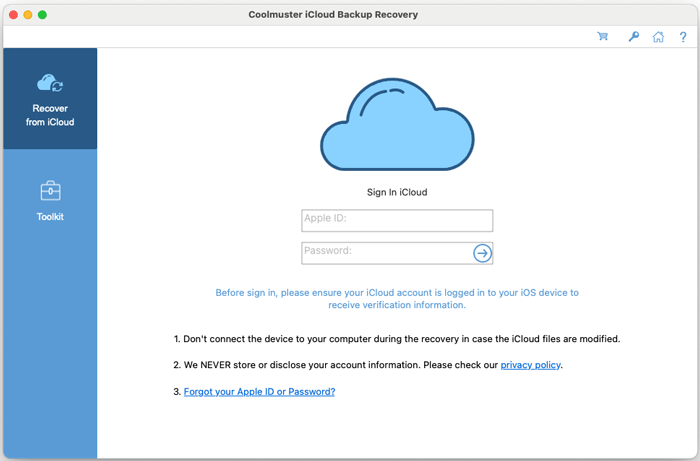
Step 2: Log Into Your iCloud Account
Enter your Apple ID credentials and click the arrow to proceed. The software will then securely connect to iCloud.
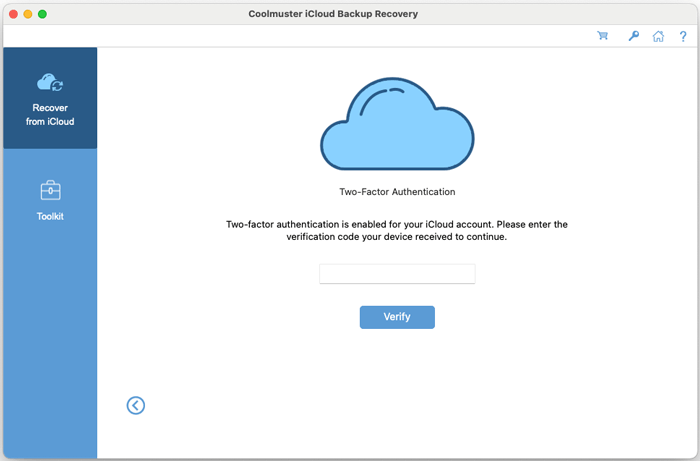
If you have two-factor authentication enabled, you'll be prompted to enter the verification code displayed on your trusted device. Click Verify to continue.
Note: An incorrect Apple ID or password will result in a login error. Ensure your credentials are entered accurately.
Step 3: Choose and Recover Your iCloud Backup Data
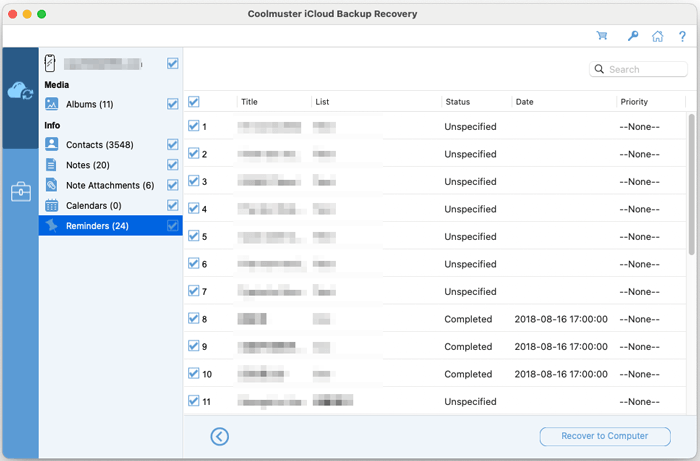
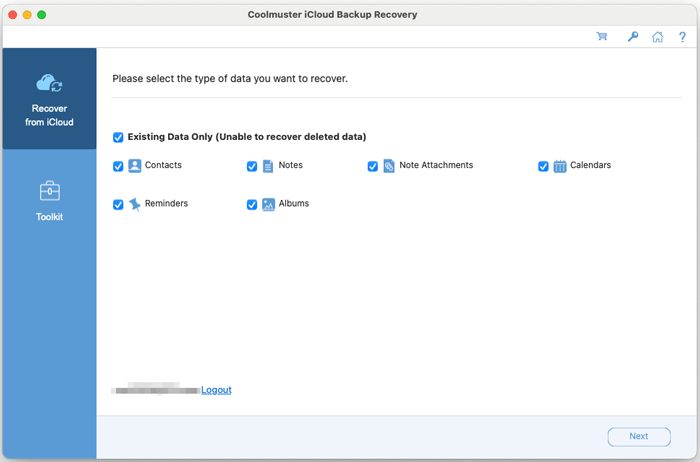
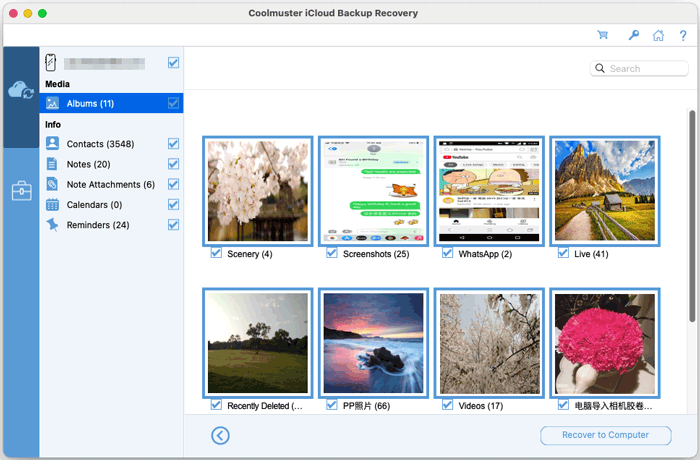
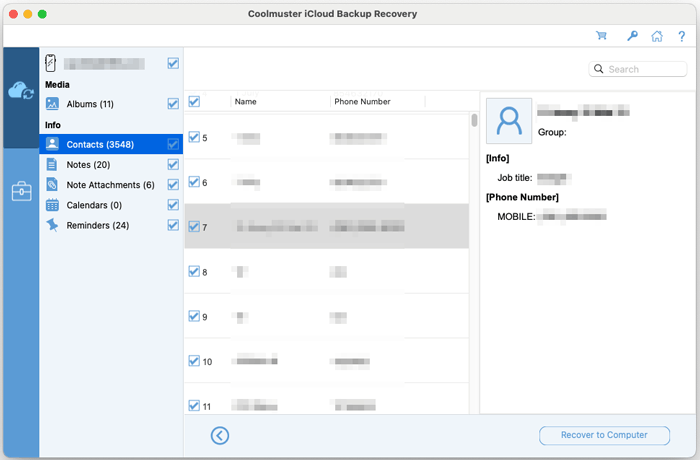
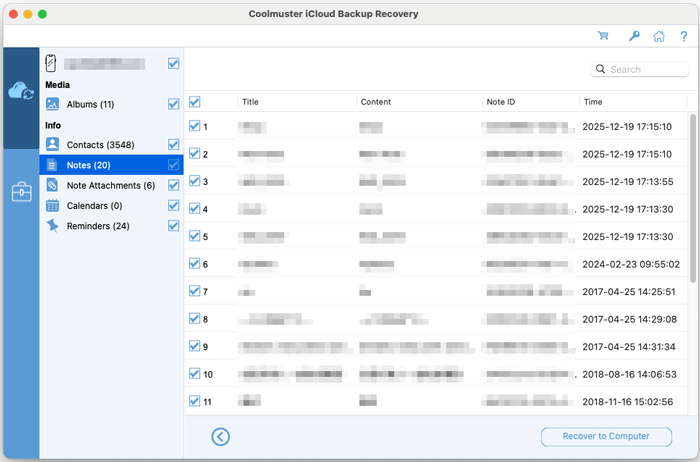
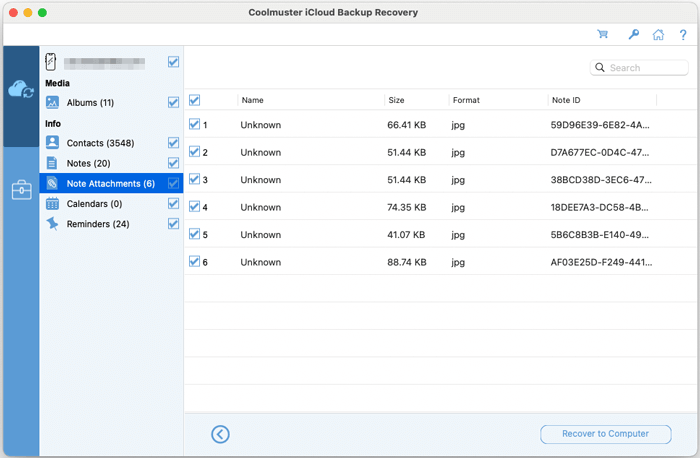
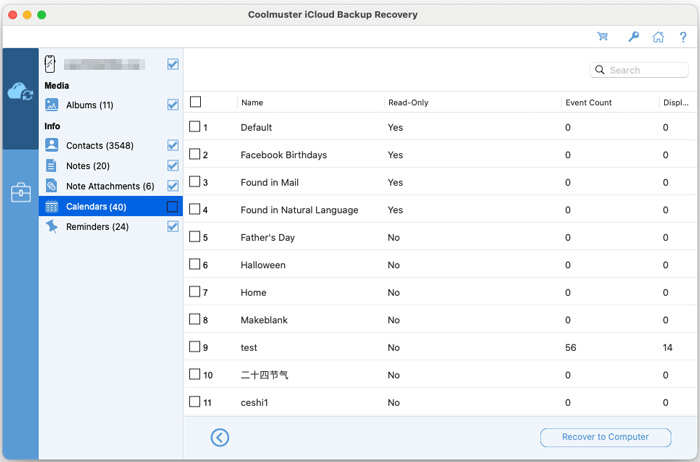
Select the types of files you wish to restore, then click Next. The software will scan and display all available data from your iCloud backup. Browse and check the items you want, then click Recover to Computer to save them locally.
Photos Recovery:
Contacts Recovery:
Notes Recovery:
Note Attachments Recovery:
Calendars Recovery:
Reminders Recovery: