Coolmuster iPhone SMS + Contacts Recovery for Mac Online Help
This is the guide center of Coolmuster iPhone SMS + Contacts Recovery for Mac. You can follow the guide to easily recover lost and deleted contacts, text messages, and message attachments from iOS devices and Finder backups, and extract existing data from iCloud. Now, let's get started.
Part 1: Recover Deleted Contacts and Messages from iOS Devices on Mac
Part 2: Recover Lost Contacts, Messages and SMS Attachments from iTunes and Finder Backups
Part 3: Extract Contacts from iCloud Backup
Here's the video guide you can watch:
Part 1: Recover Deleted Contacts and Messages from iOS Devices on Mac
Step 1: Launch iPhone SMS + Contacts Recovery for Mac
Run the iPhone SMS + Contacts Recovery for Mac program on your Mac computer after you downloaded and installed it.
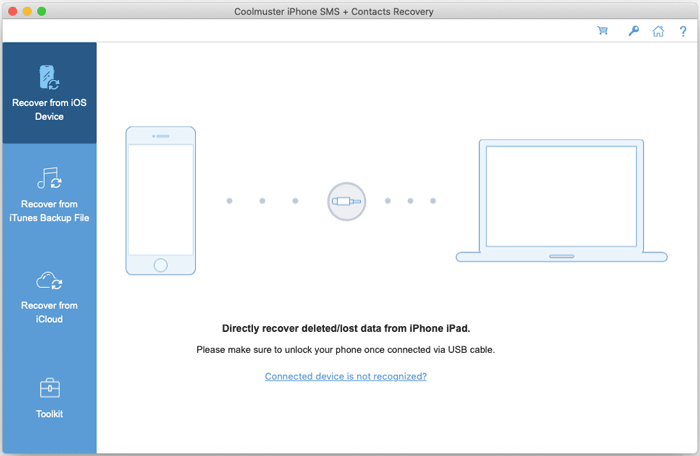
Step 2: Connect iOS Device to Mac
Then connect your iPhone to this computer via a USB cable. Then click "Trust" on your iPhone or iPad, and then enter your password of your screen lock if prompted. Once connected, select data types, and click "Start Scan".
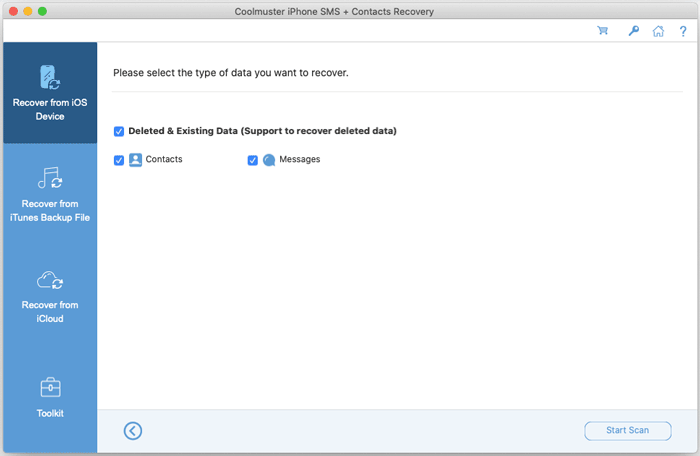
Note: If you connect more than one device to the computer, please select one and click the "Next" icon to go on.
Step 2: Preview and Select Data
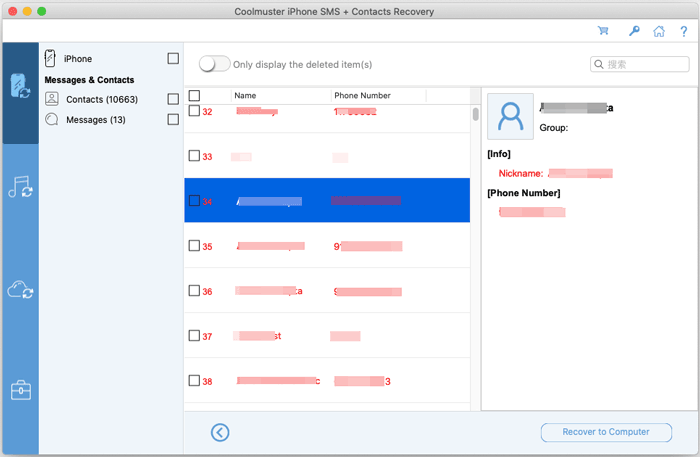
After the scanning, you can preview the details of both deleted and existing data. Please choose one category on the left panel, and select detailed items on the right side.
Tips: If you turn on the "Only display the deleted item(s)" button, the program will only show you the deleted files.
Contacts:
Messages:
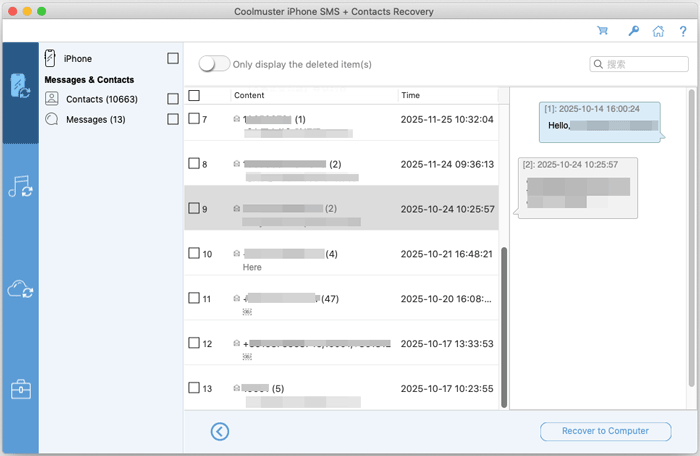
Step 3: Recover Deleted Data from iOS Device
After selecting all you want, you can press the "Recover to Computer" button to save the data on your Mac.
Part 2: Recover Lost Contacts, Messages and SMS Attachments from iTunes and Finder Backups
If you can't find your lost contacts, messages or message attachments from your phone, you can try to get them back from your Finder backups. In this way, you don't need to connect your iPhone or iPad to your Mac.
Step 1: Choose a Backup File or Add One
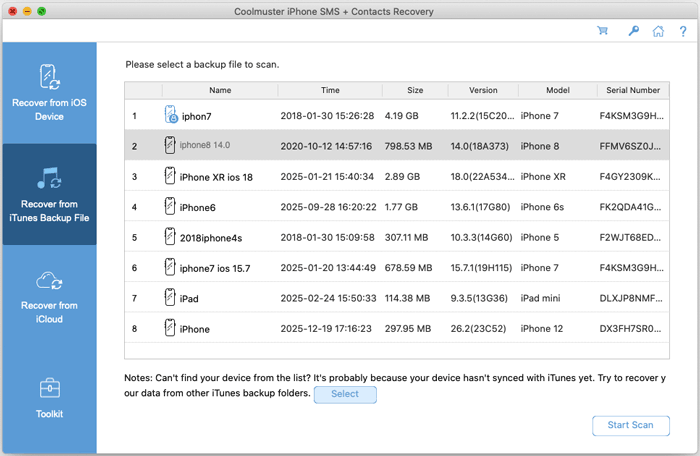
Once you open iPhone SMS + Contacts Recovery for Mac, and choose "Recover from iTunes Backup File", it will scan your iTunes and Finder backups from the default backup location on your Mac. By the way, the Just select a backup file from the list on the interface, and click the "Start Scan" button.
Notes:
(1) If you cannot find the backup file you want, you can click the "Select" icon to choose and add your wanted iTunes backup file from other folders.
(2) If it asks for the password to unlock your iTunes backup, just do it to continue.
Step 2: Scan Backup File
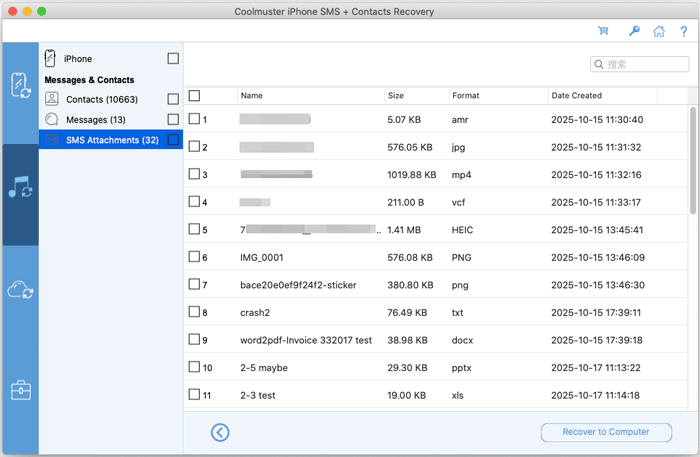
Please choose the data types you want to recover like "Contacts", "Messages", and "SMS Attachments", and tap the "Start Scan" icon.
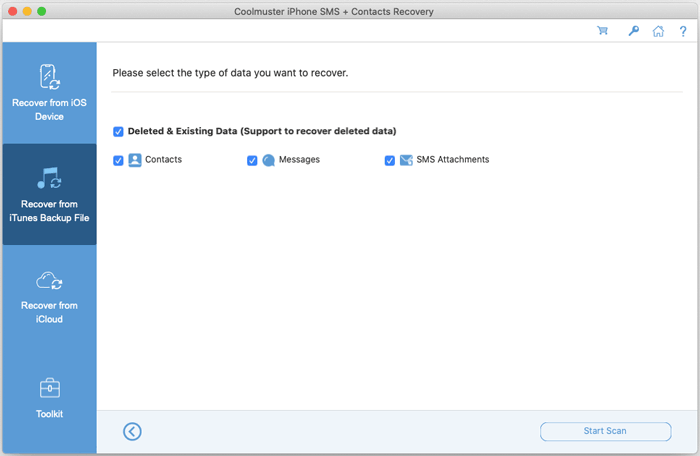
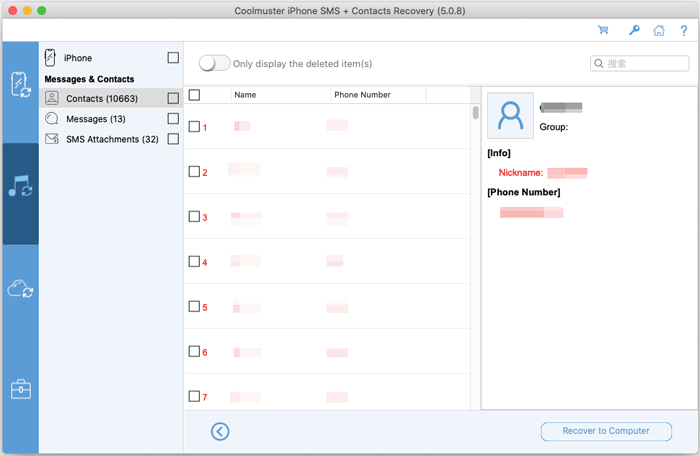
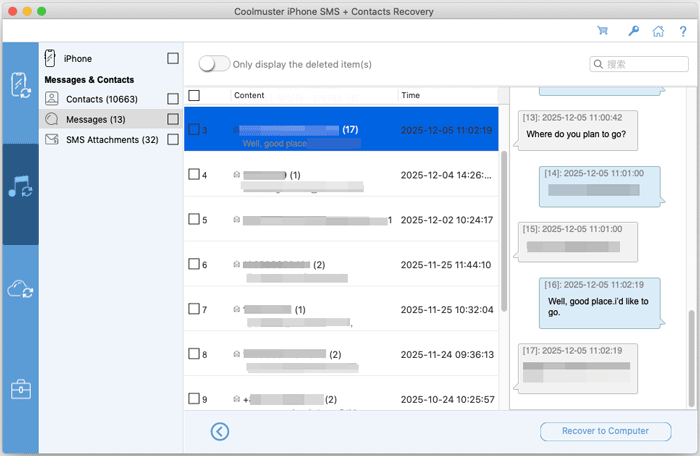
After the quick scan, you can preview the data details from your Finder and iTunes backup files.
Contacts:
Messages:
SMS attachments:
Step 3: Recover Data from Finder and iTunes Backup
Enter a category, select your desired data and click the "Recover to Computer" icon to begin restoring files from iTunes backups.
Part 3: Extract Contacts from iCloud Backup
If you have backed up your contacts to iCloud, you can now restore them directly.
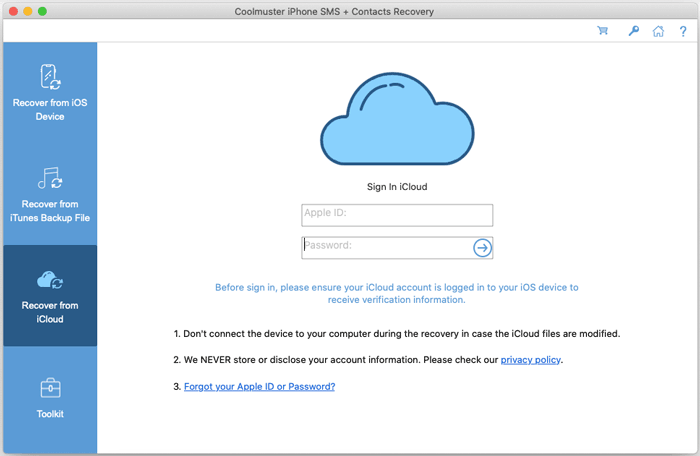
Step 1: Sign In to iCloud
Choose the "Recover from iCloud" tab from the left panel. Then sign in with your iCloud account and password.
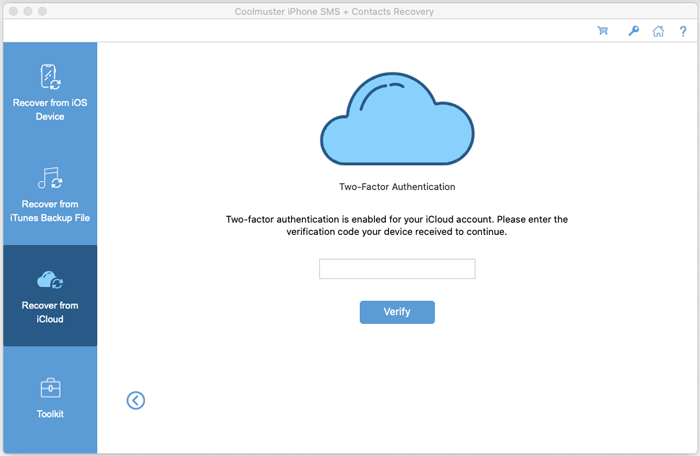
Step 2: Input Code for Verification
Next, enter the verification code that you will receive on your iOS device for two-factor authentication, and tap "Verify".
Step 3: Restore Contacts from iCloud
Check the "Contacts" category, and tap "Next".
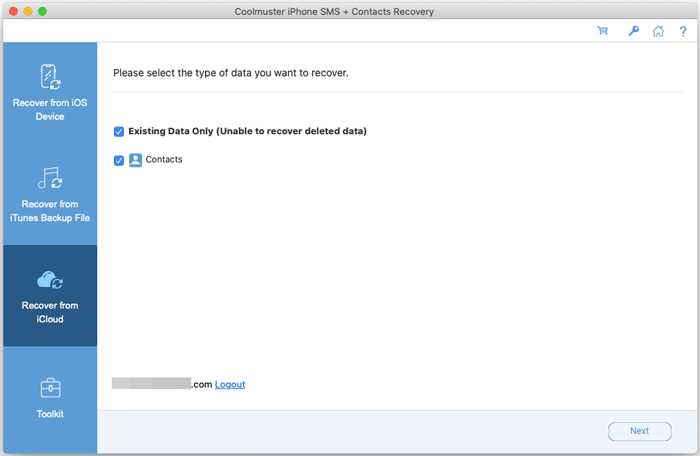
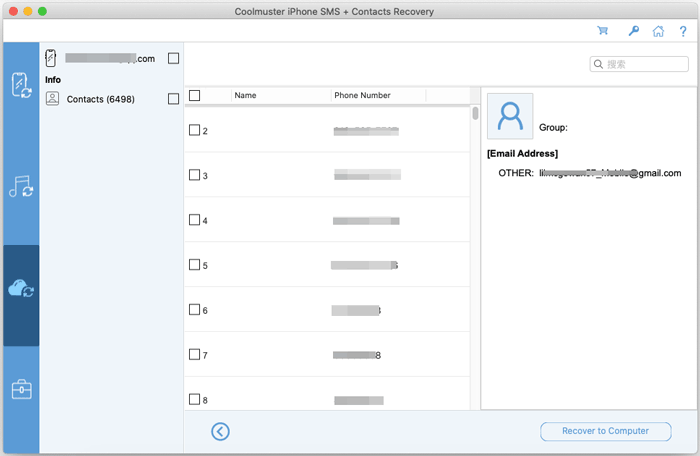
Then you can select the contacts you want to recover on the interface, and click "Recover to Computer" to save the contacts.