Coolmuster iPhone WhatsApp Recovery for Mac Online Help
Here is a detailed guide on using Coolmuster iPhone WhatsApp Recovery for Mac. You can follow it to recover your WhatsApp data from your iOS device and iTunes/Finder backup without resetting.
Part 1: Recover WhatsApp Data from iOS Devices
Part 2: Recover WhatsApp Data from iTunes/Finder Backups
Video Tutorial:
Part 1: Recover WhatsApp Data from iOS Devices
Step 1: Connect iOS Device to Mac
Start by downloading and installing Coolmuster iPhone WhatsApp Recovery on your Mac computer. Open the software and select "Recover from iOS Device". Then connect your iOS device to the Mac computer with a USB cable.
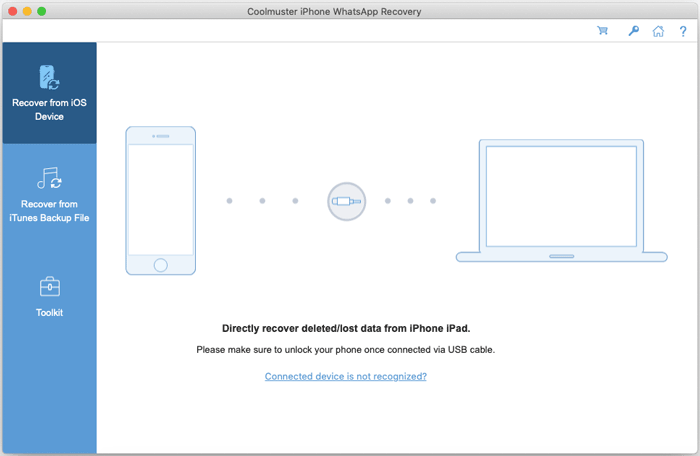
Tips: If you have multiple devices connected, choose the desired one and click "Next". Besides, if prompted, tap "Trust" on your iPhone or iPad to make your iOS device trust your Mac.
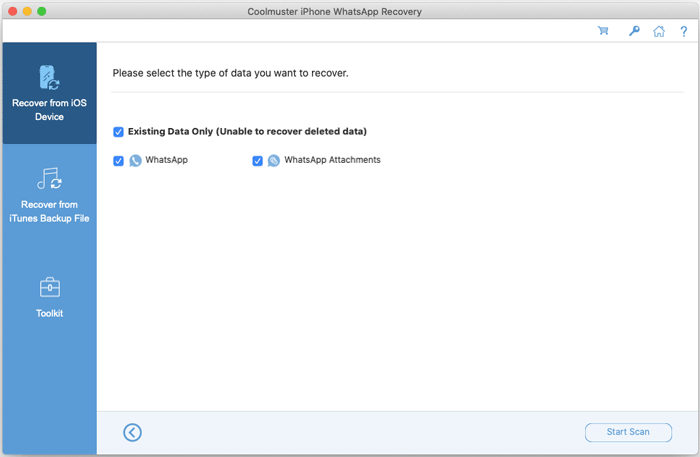
Once connected, select the data types you want to recover and click "Start Scan".
Step 2: Preview and Select WhatsApp Data
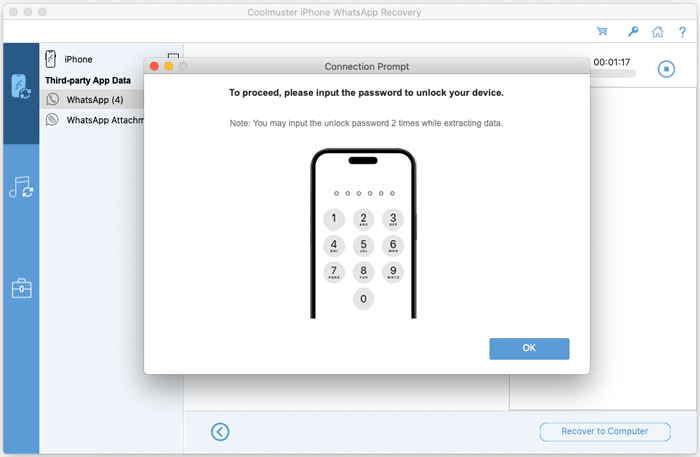
To scan your WhatsApp data, the software will ask you to input the password on your iOS device. After that, it will scan and load your WhatsApp chats and attachments quickly.
Step 3: Start iOS WhatsApp Data Recovery
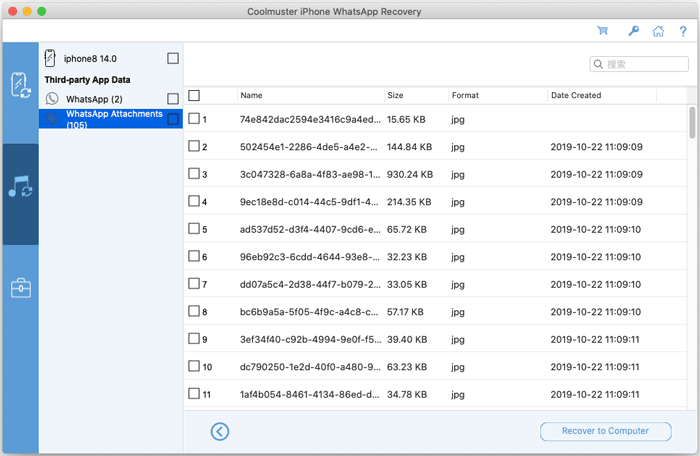
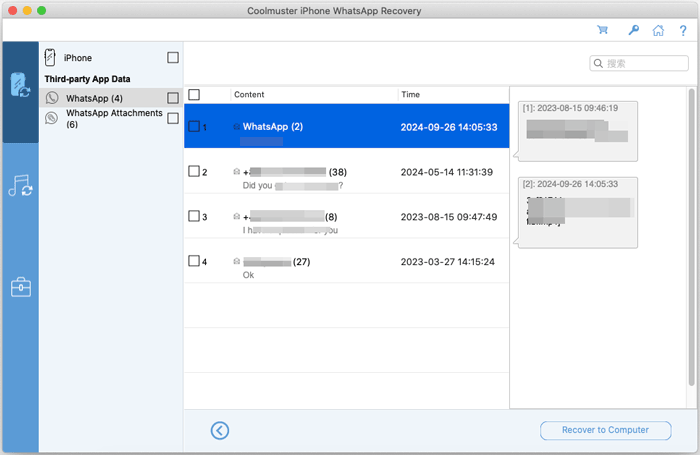
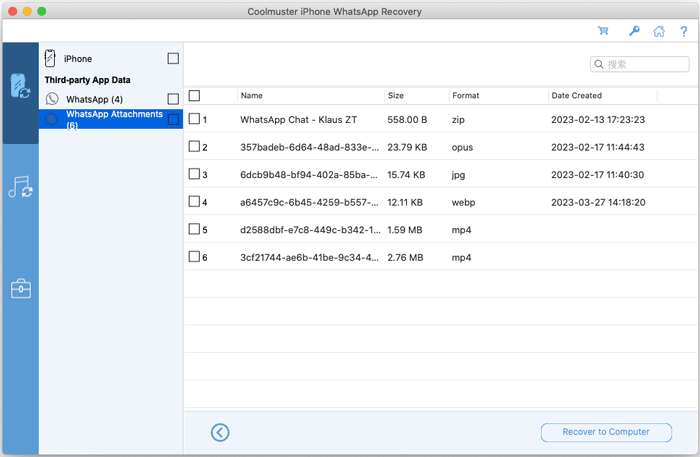
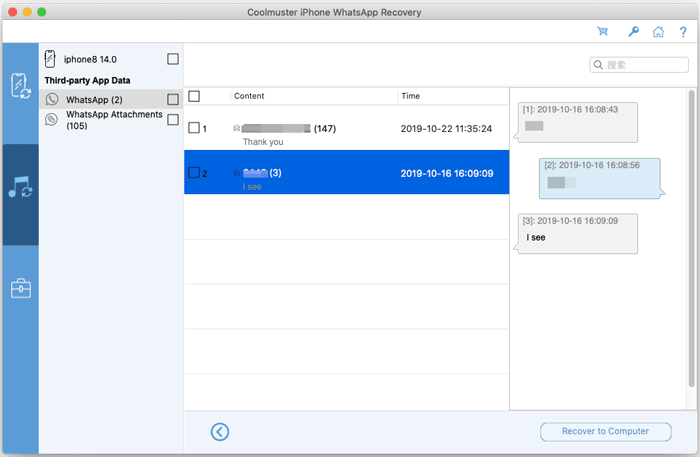
Preview your WhatsApp data on your Mac, then select the data you want, and click "Recover to Computer" to recover WhatsApp data to your Mac.
WhatsApp:
WhatsApp Attachments:
Part 2: Recover WhatsApp Data from iTunes/Finder Backups
If you want to restore from iTunes or Finder backups, follow these steps:
Step 1: Choose a Backup File
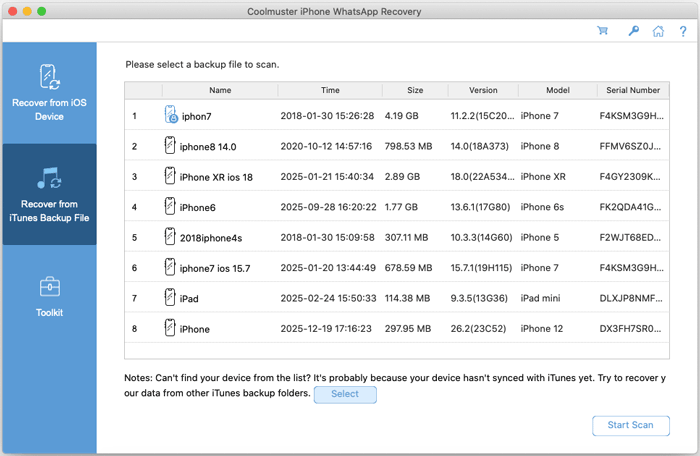
Select the "Recover from iTunes Backup File" tab. The program will automatically display your iTunes and Finder backup files on the interface. Choose the desired backup file and click "Start Scan". If the backup file is not found, click "Select" to locate it manually.
Step 2: Select Data Types
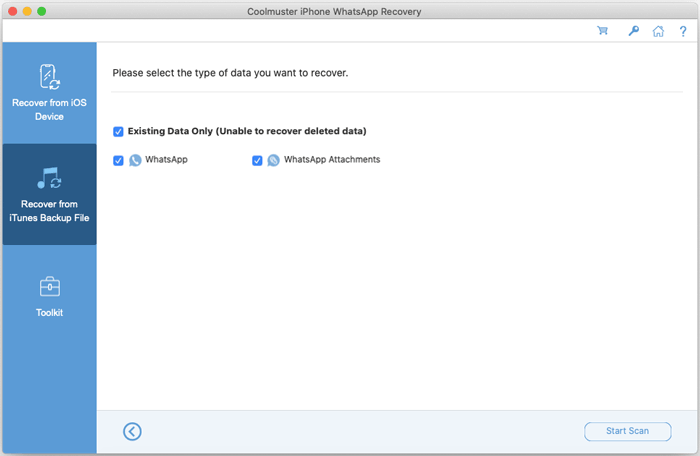
Choose the data types you want to restore and click "Start Scan" to continue.
Step 3: Recover WhatsApp Data from Backup
Preview WhatsApp files and select the ones to recover. Then click "Recover to Computer" to start restoring from iTunes backup.
WhatsApp:
WhatsApp Attachments: