SD cards are the lifeblood of digital cameras, drones, and mobile devices, yet they are notoriously susceptible to accidental deletion and file system corruption. Recovering lost data from an SD card can feel like a race against time, but with the right software tools, it is often possible to retrieve "permanently" deleted files. Below is a comprehensive guide on how to undelete an SD card using four popular recovery utilities.
Coolmuster Data Recovery is a beginner-friendly recovery tool. You can use it to undelete your data from your SD card due to accidental deletion, formatting, losing data for un unknown reason, etc. It can effectively locate your lost files, and then enables you to preview and select your files before the recovery.
Highlights of Coolmuster Data Recovery:
Download Coolmuster Data Recovery.
To undelete an SD card with this software:
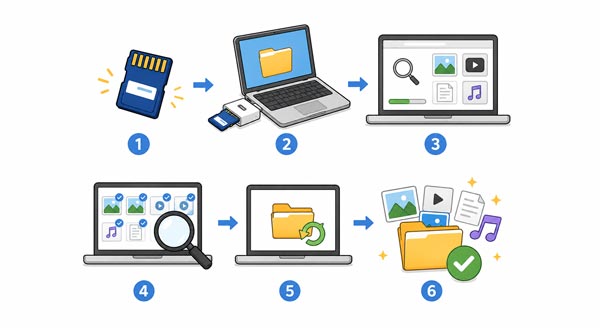
01Plug your SD card into your computer using a card reader and launch the software.
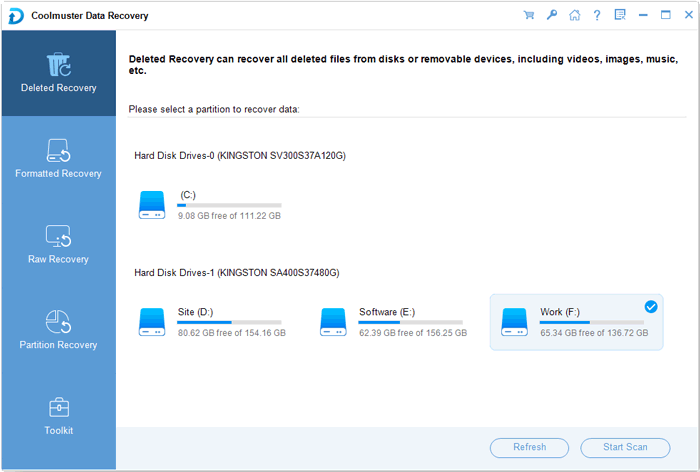
02Choose the "Deleted Recovery" mode from the main dashboard. Then select the drive letter associated with your SD card and click "Start Scan".
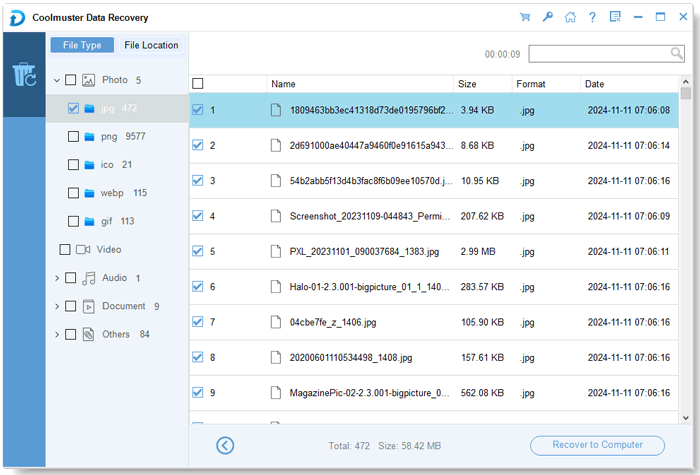
03Preview the found files in the list, check the items you want back, and click the "Recover to Computer" button to save them to your computer, but not the memory card.
Here's the video guide you can watch (about 2 minutes):
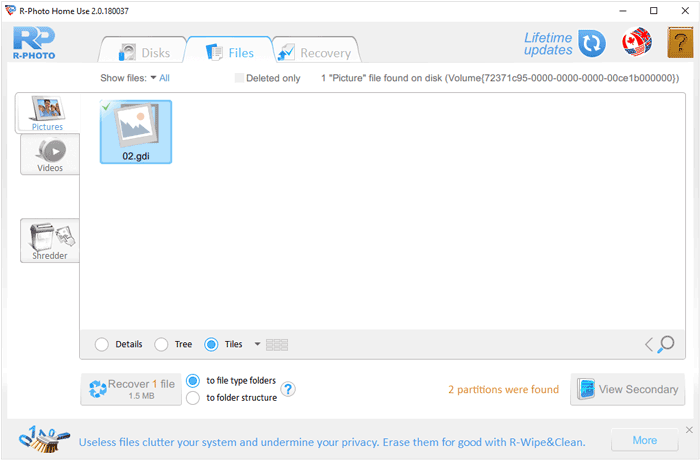
R-Photo is a free photo recovery tool developed by R-Tools Technology. It is especially useful for recovering deleted images and media files from memory cards. By the way, this tool works on Windows computers only.
Here's how to undelete files from an SD card with R-Photo:
Step 1: Open the application and locate your SD card under the "Disks" list.
Step 2: Hover over the SD card and click "Show Files". The software will perform a quick scan for common media formats.
Step 3: Use the file tabs (e.g., JPG, MP4) to sort through the results. Select your files, right-click, and choose "Recover".
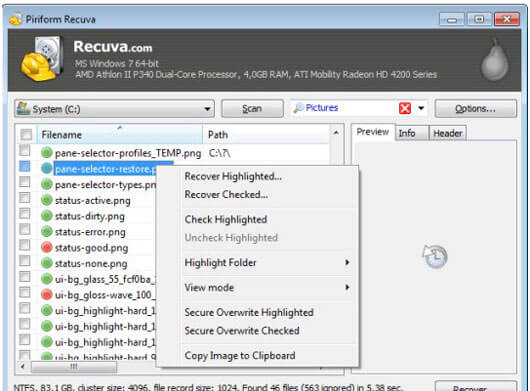
Recuva is one of the most popular file recovery programs for Windows users. Developed by Piriform, it can recover deleted files from hard drives, SD cards, and USB flash drives.
Use Recuva to restore deleted files from an SD memory card:
Step 1: Upon opening, the Recuva Wizard will ask what type of files you are looking for, e.g., "Pictures" or "Music".
Step 2: Choose "On my media card or iPod" to target the SD card. If a standard scan fails, run the "Deep Scan". It takes longer but looks for file signatures rather than just file system entries.
Step 3: Select the files (indicated by a green circle for "excellent" health) and click "Recover".
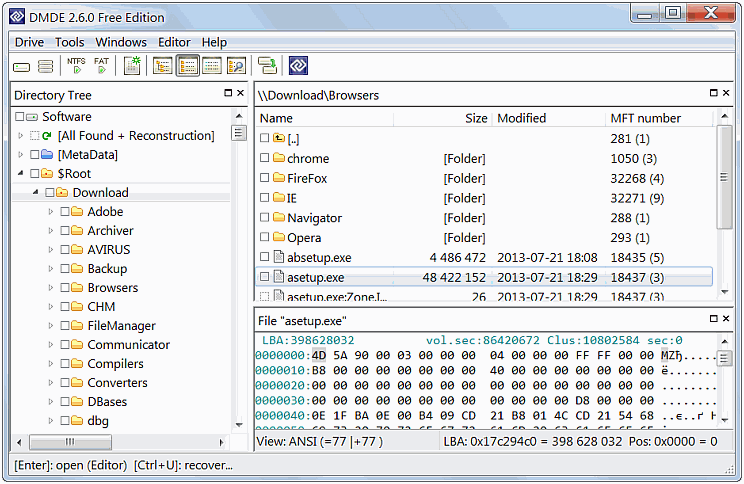
DMDE (DM Disk Editor and Data Recovery Software) is a powerful recovery solution designed for advanced users. It provides deep-level disk analysis and file recovery capabilities. However, its interface is complex for beginners. Note that the free version has some limitations on recovering full directory structures at once.
To undelete data from an SD card via DMDE:
Step 1: Open DMDE and select "Physical Drive", then choose your SD card.
Step 2: The software will look for partitions. Select the primary partition and click "Open Volume".
Step 3: Use the directory tree to find your deleted files. Select the files or folders, right-click, and select "Recover".
Q1: Is there a recycle bin on an SD card?
No. Unlike your computer's internal hard drive, SD cards do not have a built-in "Recycle Bin" or "Trash" folder. When you delete a file from an SD card while it is connected to a PC or camera, the file bypasses any temporary storage and is instantly marked for deletion at the system level.
Q2: Can I uncorrupt an SD card without losing data?
Sometimes. You can try using the CHKDSK command in Windows (e.g., chkdsk E: /f) to repair file system errors. However, if the corruption is physical or severe, the card may need to be formatted to be usable again, which will wipe the data. Always try recovery software before attempting to repair or format a corrupted card.
Q3: Why did my SD card delete everything?
Several factors can cause a "sudden wipe":
While the tools mentioned above - Coolmuster Data Recovery, R-Photo, Recuva, and DMDE—are highly effective, they are not foolproof. The success of any recovery operation depends on whether the data has been overwritten. By the way, if you want a user-friendly recovery tool, Coolmuster Data Recovery will be better.
To protect your digital memories in the future, always maintain a "Rule of Three" backup strategy: keep your data in three places, on two different types of media, with one off-site or in the cloud.
Related Articles:
How to Transfer SD Card to Computer? 3 Faster Approaches
How to Transfer Data from SD Card to Android Phone [Top 4 Picks]
How to Recover Deleted Photos from SD Card on Android Phone? [Fixed]
Best Laptop Data Recovery Software for You: 12 Recovery Tools






 Free Download for PC
  Free Download for Mac


