TL;DR:
Memory card data recovery is highly achievable if you stop using the card immediately to avoid overwriting files, choosing the right recovery software based on your technical skill and the severity of the data loss.
Losing precious photos, videos, or important documents from a memory card? Whether it was caused by accidental deletion, formatting, or a sudden file system corruption, the good news is that your data often still exists on the card - it is just hidden from view.
By using the right data recovery software, you can safely scan the card and retrieve your files. Below is a comprehensive guide on how to recover data from a memory card using five different popular tools, followed by answers to frequently asked questions.
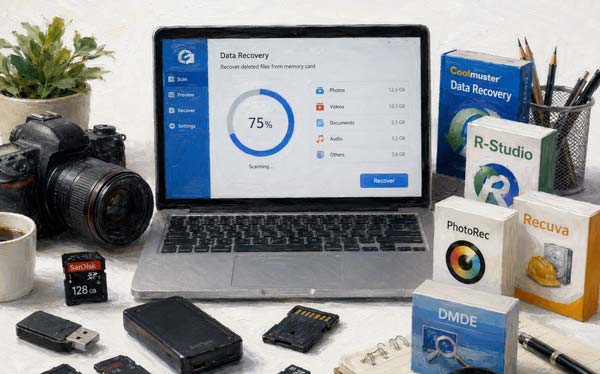
Coolmuster Data Recovery is a user-friendly, wizard-based utility designed for users who want a straightforward, point-and-click recovery process. It supports various file types and handles memory cards seamlessly, allowing you to recover your photos, videos, audio files, documents, etc.
Key features of Coolmuster Data Recovery:
Download Coolmuster Data Recovery.
Here's how to recover data from a memory card with this software:
01Insert your memory card into a card reader and plug it into your computer. Then launch Coolmuster Data Recovery. You will be greeted with four recovery modes. For general loss, select "Deleted Recovery" or "Format Recovery".
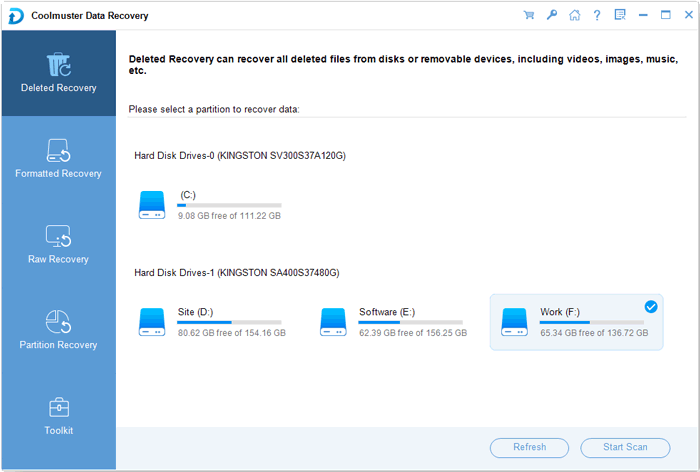
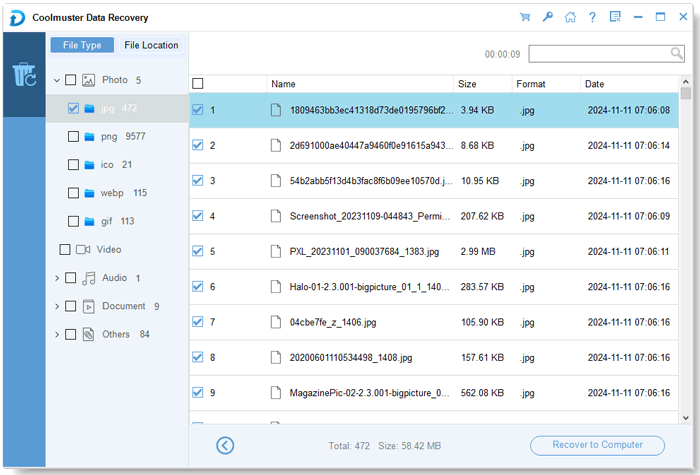
02Choose your memory card from the list of available drives and click the "Start Scan" button. The software will scan your card for lost files. Once finished, browse through the found files categorized by file type on the left panel.
03Check the boxes next to the files or folders you wish to retrieve, click "Recover to Computer", and choose a safe location on your computer's hard drive to save them.
Watch the video to recover your data from your card with ease (about 2 minutes):
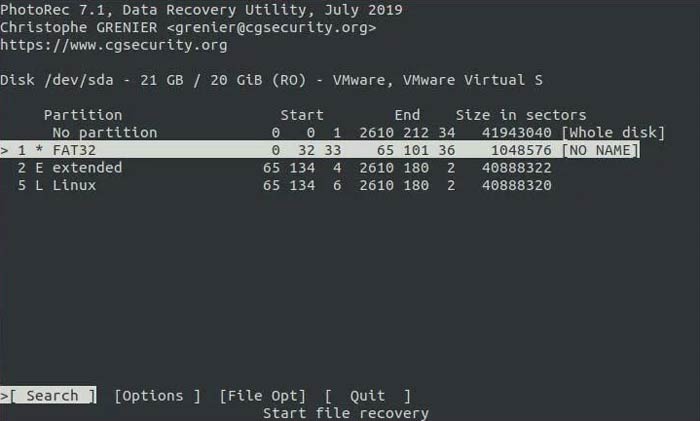
PhotoRec is a powerful, free, open-source data recovery tool. While it lacks a modern graphical user interface (GUI) and relies on a command-line style interface, it is incredibly effective at carving files from severely corrupted cards.
To recover your files from a memory card with PhotoRec:
Step 1: Plug in your memory card. Download PhotoRec, extract the archive, and run photorec_win.exe (on Windows) as an administrator.
Step 2: Use the arrow keys to select your memory card from the disk list and press "Enter".
Step 3: Select the partition (usually the whole disk or the main FAT32/exFAT partition). Choose the file system type (usually Other for ext2/ext3/ext4, or standard Windows/Mac formats like FAT/NTFS).
Step 4: Choose "Free" to scan only for deleted files, or "Whole" if the file system is corrupted and you need to extract everything.
Step 5: Navigate to a directory on your computer where you want the recovered files to go. Press "C" when you are in the correct destination folder to begin the recovery process.
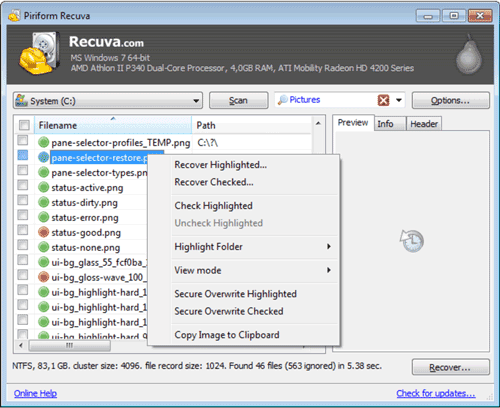
Recuva (developed by Piriform) is one of the most popular Windows-based recovery tools. It offers an easy-to-use step-by-step wizard, making it perfect for beginners. You can try its free version first.
To restore data from a card with Recuva:
Step 1: Connect your SD card and launch Recuva. The Recuva Wizard will pop up. Click "Next".
Step 2: Choose the specific type of files you are looking for (e.g., Pictures, Videos, Documents) or select "All Files".
Step 3: Select In a specific location, click "Browse", and select your connected memory card. Click "Start". If a basic scan doesn't find your files, you can rerun it and check the "Enable Deep Scan" box for a more thorough search.
Step 4: Preview the found files. Green icons indicate a high chance of successful recovery. Select your files, click "Recover", and save them to your local hard drive.
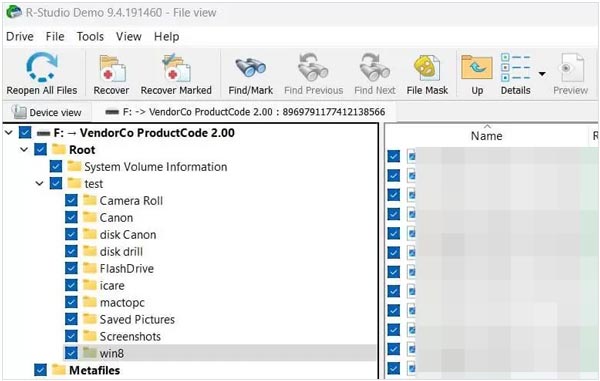
R-Studio is a professional-grade data recovery suite designed for advanced users and data recovery specialists. It excels at handling heavily damaged file systems and RAW partitions.
Here are the steps:
Step 1: Connect your card and open R-Studio. Locate your memory card in the "Drives" panel on the left.
Step 2: Click the "Scan" button at the top. A dialog box will appear allowing you to configure scan parameters. For memory cards, leaving it on the default or choosing the specific file system helps speed things up. Click "Scan".
Step 3: Once the scan is complete, double-click the recognized partition or the "Extra Found Files" folder to view the retrieved data structure.
Step 4: Browse and mark the files you want to save. Right-click and choose "Recover Marked". Select a secure output folder on your main computer drive to complete the process.
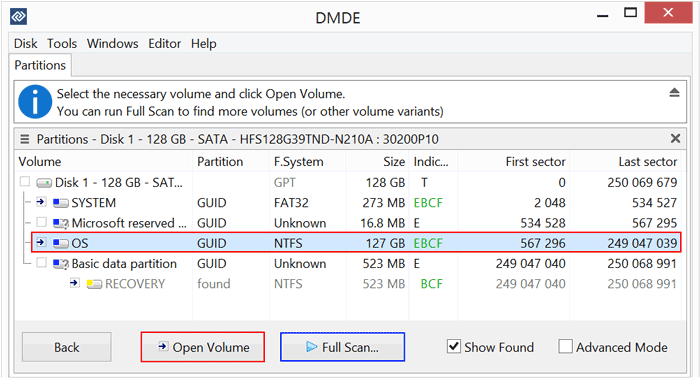
DMDE (Data Memory Disk Editor) is a highly effective, low-level data searching and editing tool. It is highly praised for its speed and deep algorithms, even in its free version. It excels at recovering fragmented files and complex directory structures.
Here's how to use DMDE to recover your data from a memory card:
Step 1: Open DMDE. In the initial dialog, choose "Physical Drive" and select your memory card from the list. Click "OK".
Step 2: DMDE will display the partition structure. If the partition is visible, select it and click "Open Volume". If not, click "Full Scan" to find lost parameters.
Step 3: Inside the volume, expand the folders to look for your deleted data. Deleted files are often marked with a red "x".
Step 4: Right-click the files or folders you want, select "Recover", and set the destination path on a separate storage drive.
Q1: What is the very first thing I should do when I realize data is lost?
Stop using the memory card immediately and remove it from your device.
When files are deleted or formatted, their actual data isn't gone instantly; the system just marks that space as "available for writing". If you continue taking photos, recording videos, or even keeping the card powered on in a device, new data will overwrite the old files. Once overwriting happens, the lost data is permanently gone and cannot be recovered by any software.
Q2: Why are my recovered videos (especially large 4K files) corrupted and unplayable?
This is due to file "fragmentation" on the memory card. Modern cameras and drones save high-resolution or 4K videos by writing multiple data streams simultaneously (such as the main video track, audio tracks, and THM/LRV preview files). This causes the video file to be scattered in pieces across different sectors of the card rather than stored in one continuous line.
Q3: If my memory card is physically broken, cracked, or completely undetected, can software fix it?
No. Software can only fix logical data errors, not physical hardware failure. If you plug the memory card into a computer and it does not show up at all in Windows Disk Management or Mac Disk Utility (not even as "No Media" or "0 Bytes"), the controller chip or the internal circuitry is likely broken. Software cannot interact with a dead drive.
In this scenario, you will need to send the card to a professional hardware data recovery lab that can perform chip-off recovery (physically removing and reading the NAND flash memory chip).
Data loss on a memory card doesn't have to be permanent. If you are tech-savvy, you can use PhotoRec to recover your data. R-Studio, and DMDE outlined above also give you a fighting chance to get your files back. But if you want a user-friendly tool, you can try Coolmuster Data Recovery. You can recover your data with clicks.
Related Articles:
Why SD Card Keeps Deleting Files? How to Fix It on PC and Android
How to Perform Broken Android Data Recovery [6 Solutions]
How to Transfer Photos from SD Card to Computer Without Losing Quality
How to Transfer Data from SD Card to Android Phone [Top 4 Picks]






 Free Download for PC
  Free Download for Mac


