TL;DR:
Lost files from a 2TB external hard drive can often be recovered before new data overwrites them. You can use data recovery software like Coolmuster Data Recovery, restore files from a backup, or seek professional recovery services for damaged drives.
A 2TB external hard drive provides plenty of storage space for photos, videos, documents, and other important files. However, accidental deletion, formatting errors, file system issues, or unexpected drive failures can make these files inaccessible.
Fortunately, losing access to files does not always mean they are permanently deleted. With the right recovery method, you may be able to recover data from a 2TB external hard drive and get your important files back. This guide introduces practical ways to restore lost data and explains how to recover files safely.

Yes, it is possible to recover data from a 2TB external hard drive in many situations. When files are deleted, the data is usually not removed immediately. Instead, the space occupied by those files is marked as available for new data.
As long as the lost files have not been overwritten, recovery software can scan the external hard drive and find recoverable data. However, you should stop using the drive as soon as possible after data loss to improve the chances of recovery.
Depending on the condition of your external hard drive, you can try the following methods to restore your lost files.
When important files disappear from a 2TB external hard drive, you may worry that they are permanently lost. However, deleted or missing data may still remain on the drive until new files overwrite the storage space. In this situation, a reliable data recovery tool can help scan the drive and locate recoverable files.
Coolmuster Data Recovery provides a simple way to recover lost data from external hard drives and other storage devices. It can help retrieve files lost due to accidental deletion, formatting, or other common data loss situations, allowing you to restore important files with just a few steps.
Key features of Data Recovery:
How to recover data from a 2TB external hard drive with Data Recovery?
01Download, install, and open Data Recovery on your computer.
02Connect your 2TB external hard drive to the computer and select "Deleted Recovery" as the recovery mode to search for deleted files.
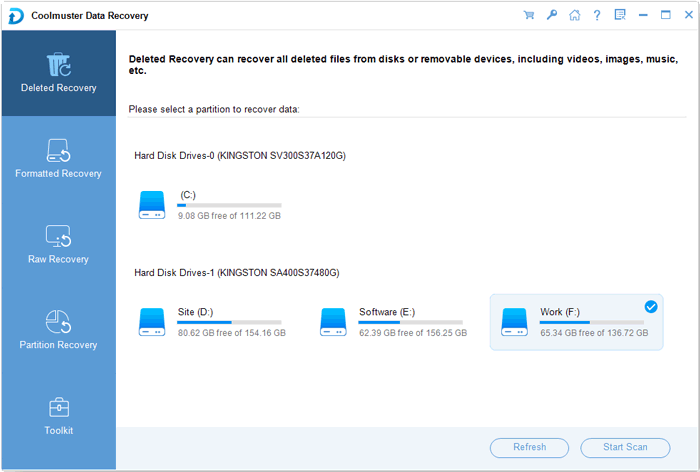
03Choose your 2TB external hard drive from the available drive list and click "Start Scan" to begin searching for lost data.
04After the scan is complete, browse the detected files in different viewing modes. Preview the available data and select the files you need.
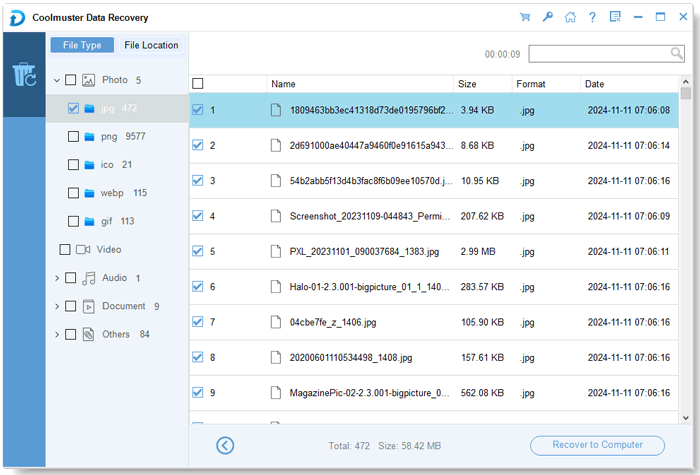
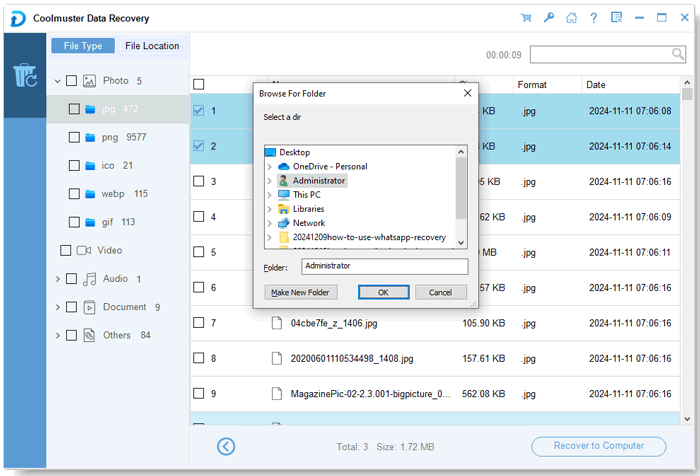
05Choose a destination folder to save the recovered files, then click "Recover to Computer" to start restoring data from your external hard drive.
For a clearer understanding of the recovery process, you can watch the following video tutorial and follow the steps to recover lost data from a 2TB external hard drive.
If you have backed up the files on your 2TB external hard drive before data loss, you can restore them directly from the backup instead of scanning the drive. This method is usually faster and more reliable because the files are already stored in another location. Depending on the backup method you used, you can restore your data from a local backup, cloud backup, or system backup tool.
Option 1. Restore from another external drive or storage device
If you copied files from your 2TB external hard drive to another storage device before, follow these steps:
Step 1. Connect the backup storage device to your computer.
Step 2. Open the backup folder and find the files or folders you want to recover.
Step 3. Select the needed data and copy it to your computer or the original external hard drive.
Step 4. Open the restored files to check whether they are available.
Option 2. Restore from cloud backup
If your files were synced or backed up to a cloud service, you can recover them by downloading the saved copies.
Step 1. Sign in to your cloud backup account.
Step 2. Find the backup version containing the lost files.
Step 3. Select the files you want to restore.
Step 4. Download the files and save them to a safe location.
Option 3. Restore from Windows Backup or File History
For Windows users who enabled built-in backup features, you can restore previous versions of files through the backup settings.
Step 1. Open Control Panel on your Windows computer.
Step 2. Go to "System and Security" and select "File History".
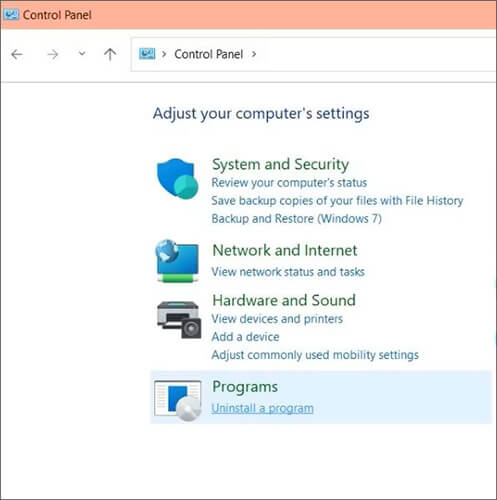
Step 3. Choose "Restore personal files" and browse available backup versions.
Step 4. Select the files you need and click the "Restore" button to recover them.
Option 4. Restore from Time Machine backup on Mac
If you previously backed up your external hard drive data with Time Machine, you can restore files through the Time Machine interface.
Step 1. Connect the Time Machine backup drive to your Mac.
Step 2. Open "Time Machine" from the menu bar or System Settings.
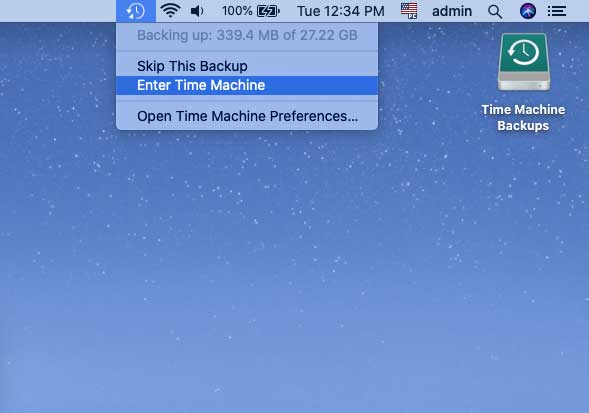
Step 3. Browse backup snapshots and select the files you want to recover.
Step 4. Click "Restore" to recover the selected files.
If your 2TB external hard drive has physical problems, software recovery may not be enough. For example, professional assistance may be needed if the drive:
Professional data recovery services can use specialized equipment to diagnose and recover data from physically damaged drives. Since these services can be expensive, they are usually recommended for drives containing highly valuable or irreplaceable files.
1. How long does it take to recover 2TB of data?
The recovery time depends on several factors, including the condition of the external hard drive, scanning method, computer performance, and the amount of recoverable data. A quick scan may finish within a short time, while a deep scan of a 2TB drive can take several hours or longer.
2. How much does it cost to recover a 2TB hard drive?
The cost depends on the recovery method. Software-based recovery is usually more affordable, while professional recovery services can cost significantly more, especially for drives with physical damage.
If the drive can still be detected by your computer, trying reliable recovery software first is often a more economical option. For example, Coolmuster Data Recovery starts at $49.95 for a 1-year license and can help scan external hard drives to find recoverable files before you consider more expensive recovery services.
3. Why is my 2TB external hard drive not showing up on my computer?
A 2TB external hard drive may not appear on your computer due to various reasons, such as a loose connection, damaged USB cable, outdated drivers, file system errors, or hardware problems.
You can try reconnecting the drive, changing the USB port or cable, and checking whether it appears in Disk Management (Windows) or Disk Utility (Mac). However, if the drive contains important files and is not recognized due to corruption or other issues, avoid formatting it immediately, as this may make data recovery more difficult. Instead, try a data recovery solution or seek professional help if the drive shows signs of physical damage.
Losing files from a 2TB external hard drive can be stressful, but recovery is often possible if you take action quickly. Using Coolmuster Data Recovery is a practical way to scan the drive and restore deleted or lost files in common data loss situations.
If you have a backup available, restoring from it can also help you recover files quickly. For physically damaged drives, professional recovery services may be required. Regardless of the method you choose, avoid using the affected drive until the recovery process is complete to prevent permanent data loss.
Related Articles:
How to Transfer Music from External Hard Drive to iPhone with/without iTunes?
How to Back Up iPhone to External Hard Drive in 5 Easy Ways?
LaCie Data Recovery Guide with 4 Feasible Recovery Solutions







 Free Download for PC
  Free Download for Mac


