FAQs of Coolmuster Screen Recorder
Top Related FAQs
(1) Use
What Can I Do If the Program will Not Start Normally?
How to Fix Undersize Font in 4K/High-DPI Display?
How to Fix When The Product Freezes or Crashes?
Other FAQs You May Also be Interested in
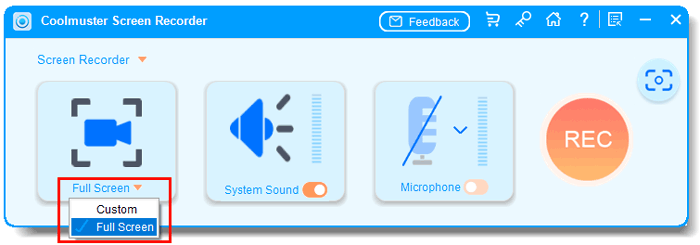
1. What can I record with Coolmuster Screen Recorder?
You can record virtually anything on your screen with Coolmuster Screen Recorder, including:
* Entire desktop activity
* Specific application windows
* Custom-selected screen regions (drag a box with real-time pixel dimensions)
* Video streams and online content
* Online meetings and video calls (Zoom, Teams, Skype, etc.)
* Gameplay (2D and 3D games)
* Software tutorials and demonstrations
* Live chat sessions
* Webinars and online courses
* PowerPoint presentations
2. Can I record audio? System sound, microphone, or both?
You can record either system audio or your microphone – not both at the same time. Or choose no audio at all. This gives you clean, interference-free sound for any project (e.g., system audio for gameplay, mic only for voiceover).
3. Are my recordings private? Is data uploaded to the cloud?
100% private. All recording and processing stays local on your Windows PC – no uploads, no cloud, no external servers. You own every file.
4. Is there a free trial? Does it add watermarks or limit time?
Yes, a free trial is available. Unlike many others, Coolmuster Screen Recorder provides recording with no time limit during the trial (check official page for current terms). Also, the trial version adds watermarks. The paid version unlocks all advanced features, including no watermark.
5. Does it affect computer performance? Is it lightweight?
Yes – minimal system impact. Record at HD quality smoothly without lag, even on modest hardware. No slowdowns while recording.
6. Is it safe? Virus-free?
Yes – 100% safe, no virus. All files saved to your local drive. No personal data collected or transmitted without permission.
7. What if the software freezes or crashes?
Check your recording area is selected correctly. Update graphics drivers. Close other heavy apps. Restart the software. Ensure enough disk space. If issue persists, contact support with your Windows version and steps taken.
8. Do I need internet to use Coolmuster Screen Recorder?
No. Recording works fully offline. Internet is only needed for activation, updates, and support.
Still Can't Find Your Answer?
Don't worry — we're here to help. You can reach us via the online feedback form or email us at support@coolmuster.com. To ensure a fast and accurate response (within 24 business hours), please include the following details:
(1) Your computer's operating system (e.g., Windows 11, macOS Ventura).
(2) Program name and version you're using.
(3) Steps taken before the issue occurred.
(4) Screenshots of the problem (if possible).
This helps us resolve your issue faster. More products FAQs >>

* Tips: How to take a screenshot:
- On Windows PC, you might press "Print Screen (SysRq)" key on your keyboard, then click "Start" > "All Programs"
> "Accessories" > "Paint", press "Ctrl" + "V" to paste the screenshot, then save the picture and attach it to your email.
- On Mac, you can press the "Shift" + "Command" + "3" to take a full screenshot and send it to us.

