TL;DR:
This review takes an in-depth look at Apeaksoft Data Recovery, including its main features, pricing plans, real user feedback, pros and cons, and a step-by-step usage guide. It also introduces Coolmuster Data Recovery as a strong alternative for users who want better cost efficiency and faster scanning performance, helping you determine whether Apeaksoft Data Recovery is the right choice for your data recovery needs.
Accidentally deleting important files can be frustrating, especially when those files contain valuable photos, documents, videos, or emails. Data recovery software is designed to help retrieve lost data from hard drives, SSDs, USB flash drives, memory cards, and other storage devices. Among the many options available today, Apeaksoft Data Recovery is a popular choice that promises fast scanning and high recovery rates.
But does it really deliver on its promises? In this Apeaksoft Data Recovery review, we'll take a closer look at its features, pricing, strengths, weaknesses, user feedback, and recovery process. We'll also introduce a powerful alternative that may offer a better recovery experience for some users.
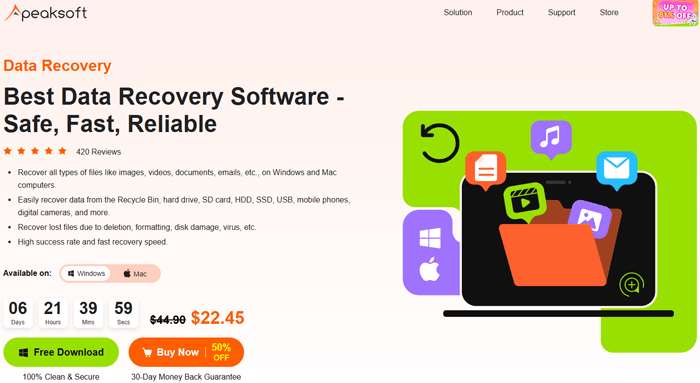
Apeaksoft Data Recovery is a desktop-based data recovery program designed for Windows and Mac users. It helps recover deleted, formatted, or lost files from various storage devices, including internal hard drives, external drives, USB devices, SD cards, digital cameras, and more.
The software supports multiple data loss scenarios, such as accidental deletion, system crashes, partition loss, virus attacks, and formatting errors.
Apeaksoft Data Recovery integrates comprehensive and practical functions to meet diverse data recovery needs. Its core features are summarized as follows:
Apeaksoft Data Recovery can recover a wide range of file types, including photos, videos, audio files, documents, emails, and archives. Whether you accidentally delete family pictures or lose important work documents, the software is designed to help retrieve them efficiently.
The software allows users to recover data from numerous storage media, including computer hard drives, SSDs, USB flash drives, memory cards, digital cameras, and other removable devices. It can also scan the Recycle Bin and formatted partitions to locate recoverable files.
Apeaksoft Data Recovery is capable of recovering files lost due to accidental deletion, formatting, system crashes, partition issues, virus attacks, and damaged storage devices. This makes it suitable for both everyday data loss incidents and more complex recovery scenarios.
The program works with both Windows and macOS systems and supports storage devices from many well-known manufacturers, including Apple, Samsung, Dell, HP, IBM, Toshiba, Sony, Seagate, Kingston, and SanDisk. This broad compatibility allows users to recover data from a wide variety of devices.
According to Apeaksoft, the software is built to provide a high recovery success rate while maintaining fast scanning speeds. Users can quickly search for deleted files and restore them without waiting through excessively long recovery processes.
Apeaksoft Data Recovery features a clean and intuitive interface that makes the recovery process easy to follow. Even users with little technical experience can scan their devices, preview found files, and complete the recovery process with just a few clicks.
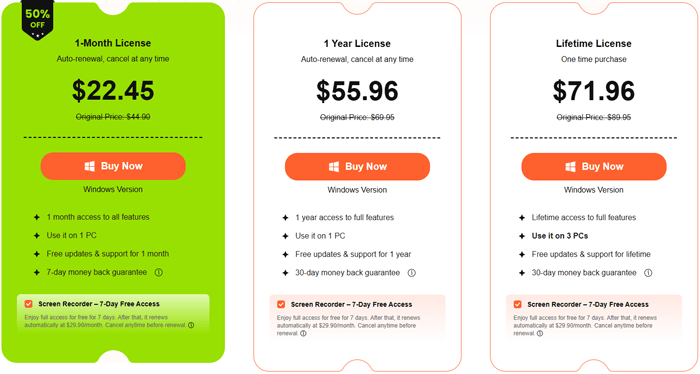
Apeaksoft Data Recovery follows a freemium model and offers several flexible licensing options, including a free trial and paid subscriptions available on a monthly, yearly, or lifetime basis. Both the 1-Month License and 1-Year License can be used on one computer only, while the Lifetime License supports up to three computers. Below are the latest official prices for 2026 (actual prices may vary depending on promotions and the pricing displayed at the time of purchase):
We collected real user feedback from mainstream software evaluation platforms, including TrustRadius, Software Informer, and official comment areas, to show the authentic user experience of Apeaksoft Data Recovery:
"My external hard drive suddenly became unreadable after a power failure. I tried this data recovery tool, and it recovered most of the important Word and Excel files."
"I accidentally formatted my SD card and lost hundreds of photos on it. Luckily, this dedicated SD card data recovery software helped me get them back with ease!"
"The software does a good job at scanning and finding lost files, but you cannot actually recover anything with the free version. You need to upgrade to a paid plan, which is a bit disappointing."
After comprehensive testing and market research, we sort out the obvious advantages and existing shortcomings of Apeaksoft Data Recovery for your reference:
Pros
Cons
Apeaksoft Data Recovery features a simple operation process. Here is the step-by-step user guide for beginners to complete data recovery efficiently:
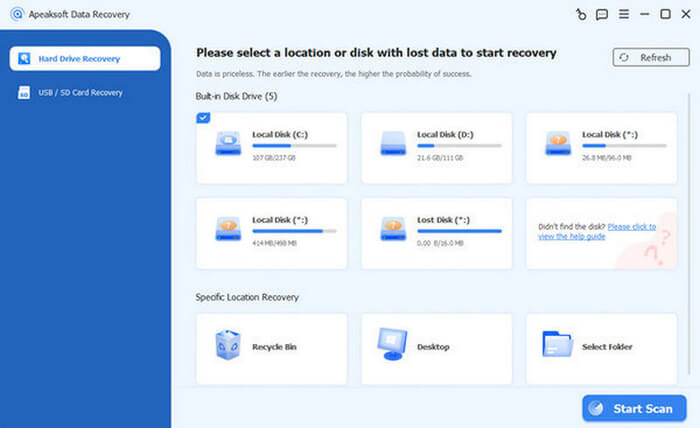
Step 1. Launch the software and select the target device
Open Apeaksoft Data Recovery and enter the main interface. Choose the drive or device where you want to recover lost data, then click the "Start Scan" button to begin.
Step 2. Run Quick Scan and Deep Scan automatically
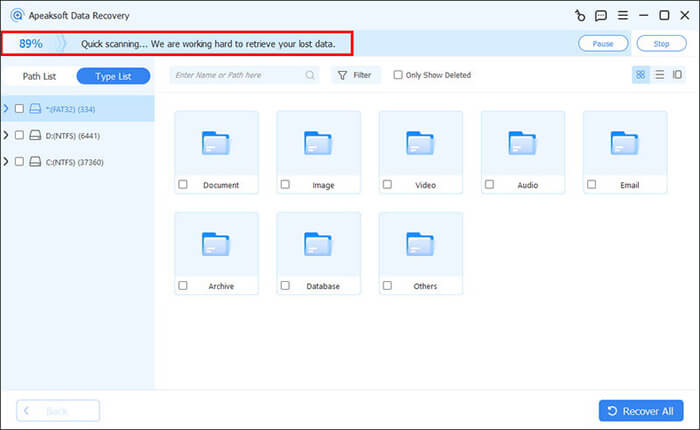
The software will first perform a Quick Scan to detect recently deleted files. Once it is finished, it will automatically proceed to a Deep Scan to search more thoroughly for all possible recoverable data.
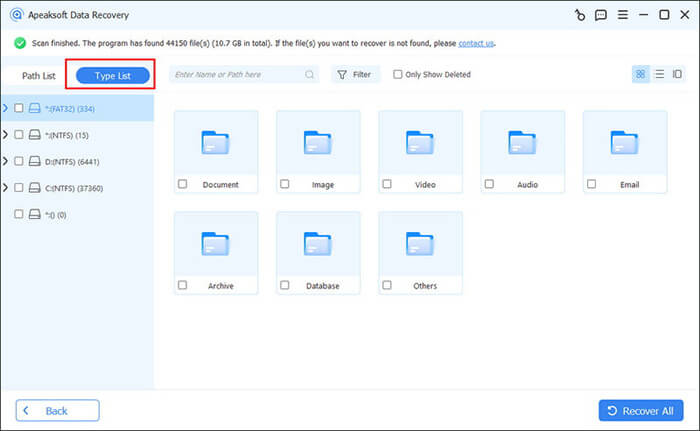
Step 3. Filter and locate the files you need
After scanning is complete, browse the results by selecting file categories such as documents, images, or audio files. You can also use the file type list or search box in the upper-left corner to quickly locate specific data.
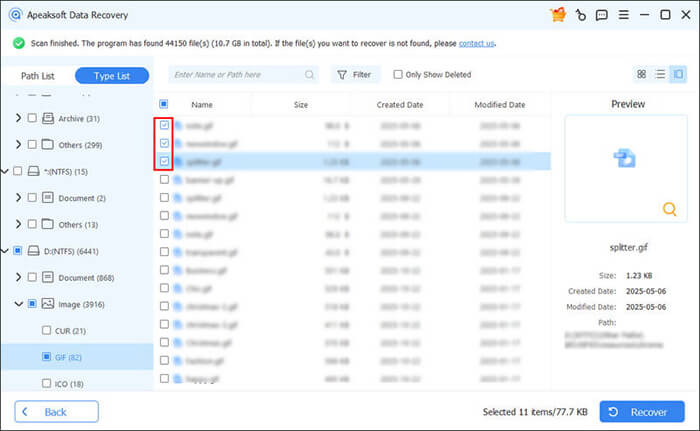
Step 4. Preview and recover your files
Click on any file to preview its content and confirm whether it is the one you need. Then select the target files, click "Recover", and choose a safe location to save them.
It is recommended to save recovered files to a different location than the original one to avoid overwriting existing data. If changing the location is inconvenient, you can still proceed, but overwritten data may be harder to recover afterward.
Although Apeaksoft Data Recovery is a reliable data recovery tool, its relatively high subscription cost and slower deep scan performance may not meet the needs of all users. In some cases, the recovery process can also feel limited when handling more complex data loss scenarios.
For users who are looking for a more cost-effective solution with faster scanning speed and more stable recovery performance, Coolmuster Data Recovery is a strong alternative worth considering. It offers a smoother recovery experience, supports a wide range of file types and storage devices, and is designed to improve both efficiency and success rate during the recovery process.
Compared with Apeaksoft, Coolmuster provides a more balanced combination of affordability, performance, and usability, making it suitable for both beginners and advanced users who need a dependable data recovery solution.
Key features of Data Recovery
How to use Data Recovery?
01Launch Data Recovery on your computer after installation.
02Connect the storage device you want to scan, such as a USB drive, SD card, or external hard drive, to your computer.
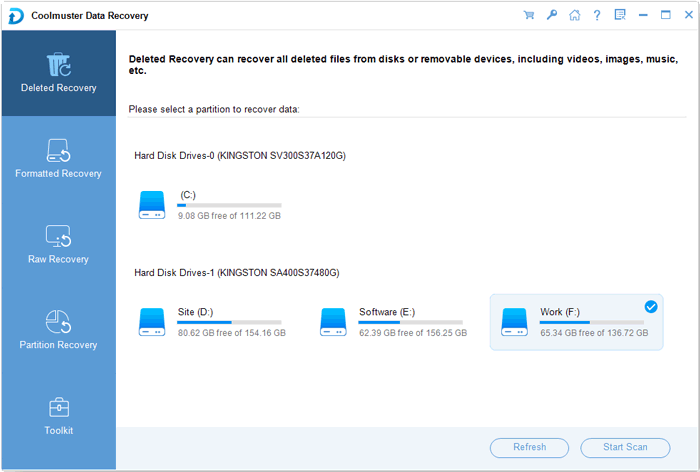
03Select the appropriate recovery mode from the left-side panel, choose the target drive or partition, and click the "Start Scan" button to begin scanning.
04Once the scan is completed, all recoverable files will be listed. You can refine the results using built-in filters based on file type or location.
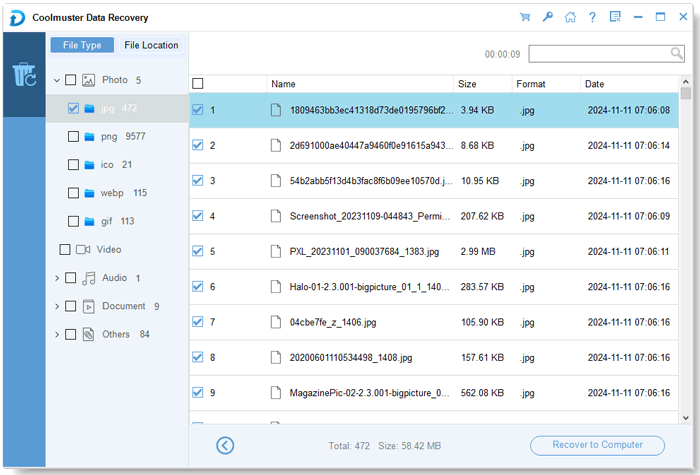
05Pick the files you want to restore and click "Recover to Computer", then select a safe folder to save them and confirm the recovery process.
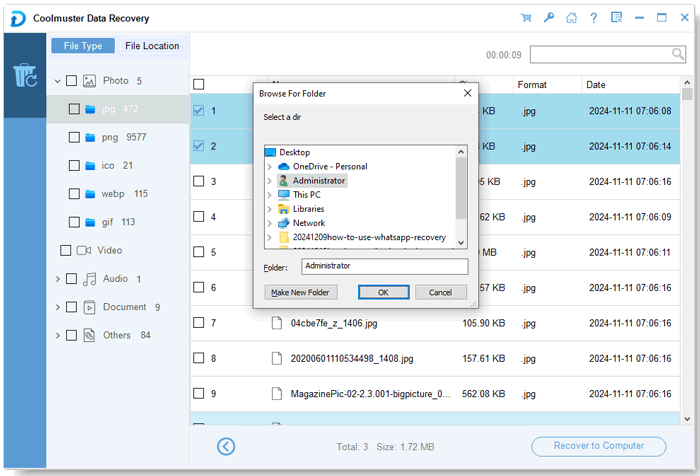
If you still want a more intuitive understanding of the whole process, you can also refer to the video tutorial below for a clearer demonstration.
Overall, Apeaksoft Data Recovery is a reliable and user-friendly tool suitable for everyday data recovery needs. It performs well in common scenarios such as accidental deletion, formatting, and basic disk issues, offering broad compatibility and a safe read-only recovery process with a straightforward interface.
However, its limitations should also be considered, including the lack of free recovery access, relatively slow deep scan performance on large drives, and higher subscription cost. For users who only need occasional recovery, it is still a practical option, but for those seeking better cost efficiency, faster performance, and more stable results in complex data loss situations, Coolmuster Data Recovery is a more compelling alternative.
Related Articles:
Apeaksoft iPhone Data Recovery Review: Features, Pros & Cons
Apeaksoft Android Data Recovery Review: A Comprehensive Guide
Apeaksoft Android Data Backup & Restore Review: Everything You Should Know
Apeaksoft iOS System Recovery Review: Features, Guide & Best Alternative






 Free Download for PC
  Free Download for Mac


