Losing important files on your Android device can be incredibly frustrating, especially when they include cherished memories or essential data. In this Apeaksoft Android Data Recovery review, we'll walk you through everything you need to know about this powerful software, which promises to recover lost data such as photos, videos, contacts, and messages from your Android phone or tablet. Whether it's due to accidental deletion, system failure, or rooting issues, Apeaksoft Android Data Recovery offers a reliable solution to bring your lost data back.
Apeaksoft Android Data Recovery is a powerful tool designed to recover lost or deleted data from Android phones and tablets. It supports recovery of multiple file types, including photos, videos, text messages, contacts, call logs, WhatsApp messages, and more. This software is especially useful when data loss occurs due to unexpected deletion, system crashes, or a rooted device.
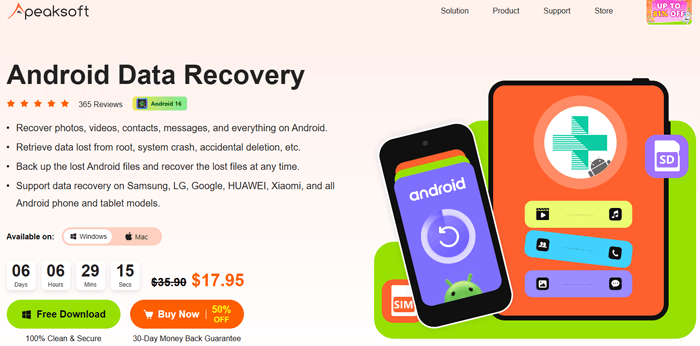
Apeaksoft Android Data Recovery allows users to recover a wide variety of lost data, such as pictures, videos, contacts, SMS, WhatsApp messages, and more. This makes it a versatile solution for most data recovery needs.
Whether you've lost data due to a system crash, a failed root operation, or accidental deletion, this software can help you retrieve your lost files.
Besides recovering lost data, Apeaksoft allows you to back up important files from your Android device, so you can restore them whenever needed.
It is compatible with Samsung, LG, Google, Huawei, Xiaomi, and almost all Android phones and tablets, ensuring a broad device support range.
The recovery process ensures that your data remains secure and private. Your files are not leaked or compromised during the recovery process.
Unlike some other tools, Apeaksoft allows you to select specific files for recovery, ensuring that existing data on your device remains intact without being overwritten.
Using Apeaksoft Android Data Recovery is straightforward, even for beginners. Here's a step-by-step guide to help you get started:
Step 1. Download, Install, and Register the Software
Visit the official Apeaksoft website to download the Android Data Recovery software. Install and register the program on your computer.
Step 2. Launch the Software
After installation, double-click the software to launch it. Once open, select the "Android Data Recovery" section.
Step 3. Connect Your Android Device
Connect your Android device to your computer using a USB cable. Ensure your device is in file transfer mode, and you may need to enable USB debugging in the Developer Options on your phone.
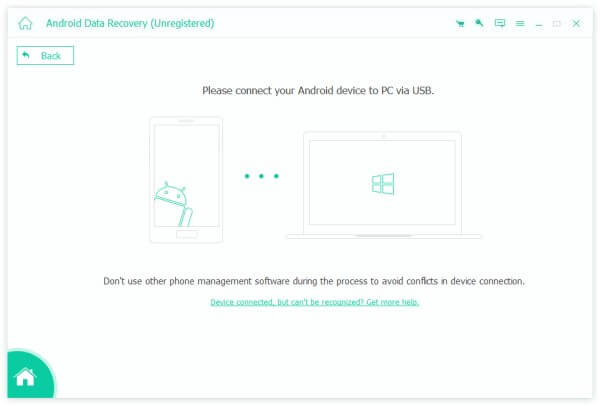
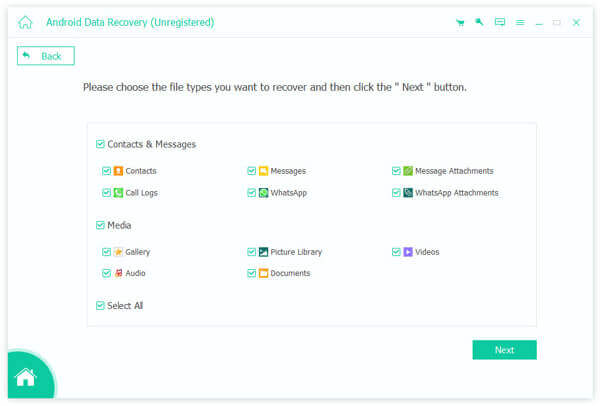
Step 4. Choose the Data to Recover
Once your device is connected successfully, Apeaksoft will display a list of data types available for recovery. Select the type of data you want to recover, such as photos, messages, or contacts, and click "Next".
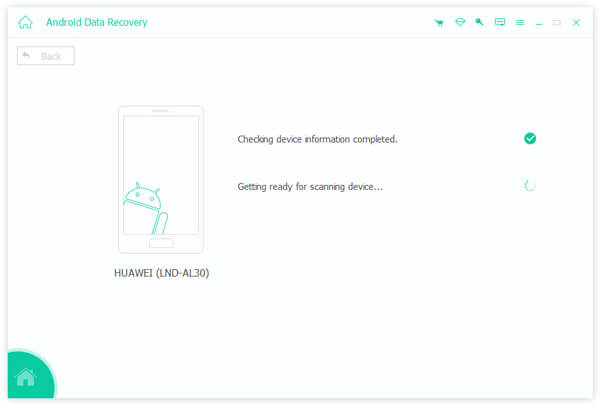
Step 5. Scan Your Android Device
The software will begin scanning your device to check for recoverable data. If prompted, authorize the app to scan your device by confirming on your Android device.
Step 6. Start the Scan and Preview the Data
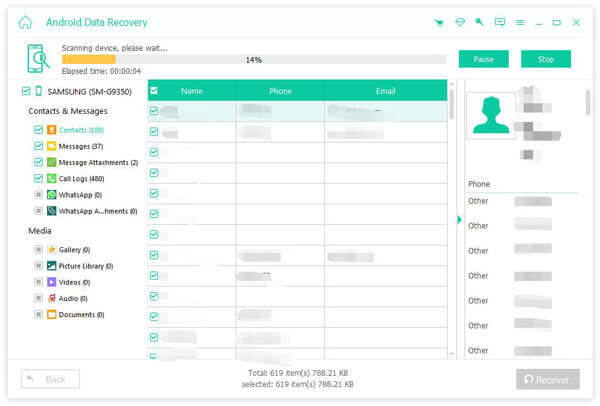
Once authorized, click "Continue to scan authorized files" to start the scanning process. You can preview the recoverable data in the left pane once the scan is complete.
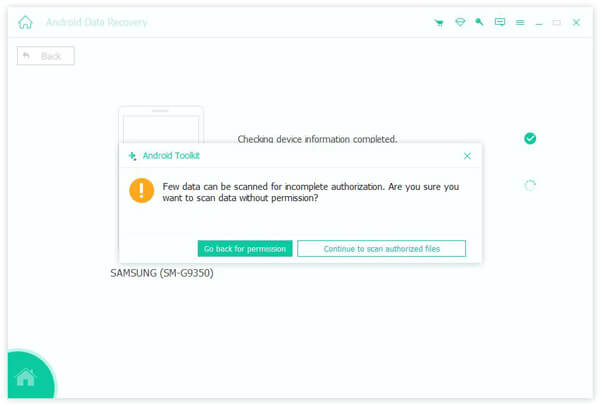
If you can't find the desired data, click on the "Deep Scan" button to perform a more thorough scan.
Step 7. Select the Data for Recovery
Once the scan is complete, select the files you wish to recover. If you only want to restore deleted items, you can click on "Only display the deleted items".
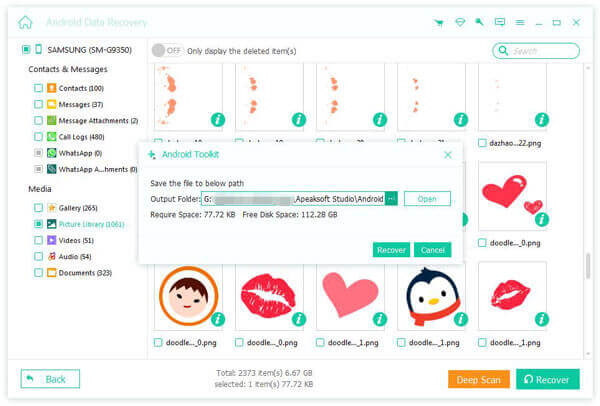
Step 8. Start the Recovery Process
After selecting the files, click the "Recover" button at the bottom right to restore your selected files to your computer.
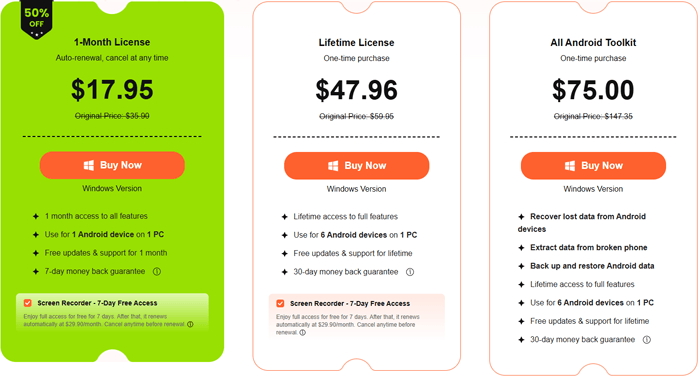
Apeaksoft Android Data Recovery offers a free trial version and three paid pricing plans to meet the needs of different users. The free trial allows you to scan and preview lost files for free, but you need to upgrade to a paid version to save the recovered files to your computer. Here are the detailed pricing plans:
Like any software, Apeaksoft Android Data Recovery has its strengths and weaknesses. Below are some of the key pros and cons to help you decide if this tool is right for you:
While Apeaksoft Android Data Recovery is a powerful tool, you may want to explore alternatives based on your needs.
Coolmuster Lab.Fone for Android is an excellent alternative. It provides similar data recovery features, supports a wide range of Android devices, and offers a user-friendly interface. It's known for its fast data recovery process and reliable performance, making it a strong competitor in the Android data recovery space.
What can Coolmuster Lab.Fone for Android do for you?
How to use Apeaksoft Android Data Recovery alternative to recover lost data from Android?
01Click the button below to download the software to your computer (compatible with both Windows and Mac). After installation, launch the program.
02Connect your Android phone to the computer via a USB cable. If necessary, enable USB debugging on your Android device. Don't worry, the software provides a tutorial to guide you through enabling USB debugging.
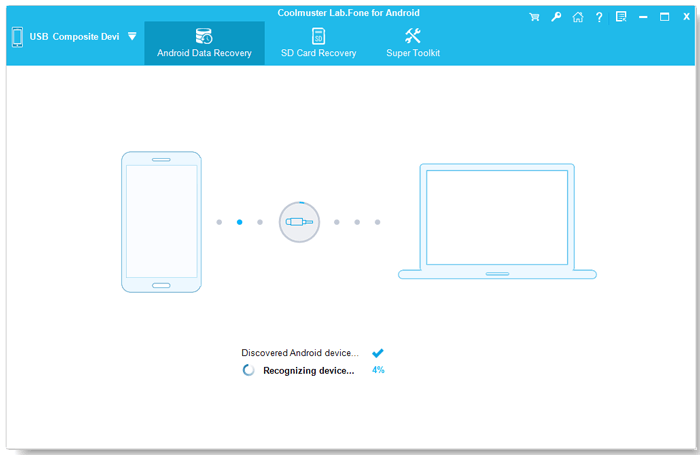
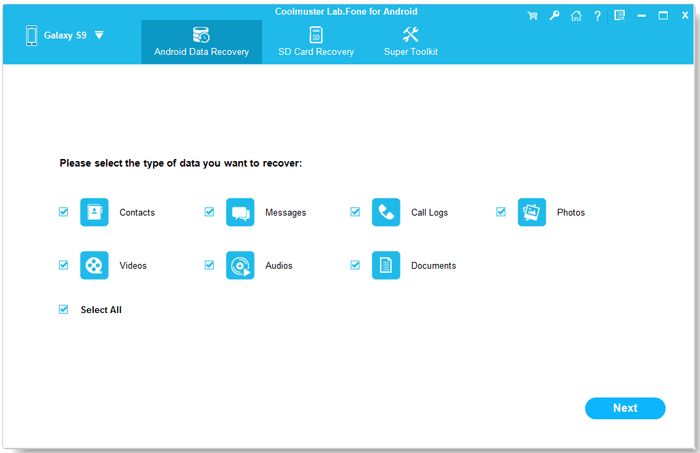
03Once the connection is established, you'll enter the screen where you can select the types of data you want to recover. Choose the file types you wish to recover and click "Next" to continue.
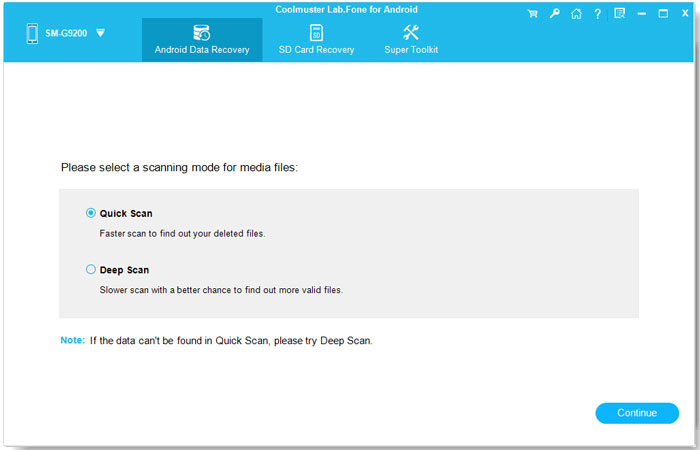
04If you select to scan media files, you can choose between "Quick Scan" or "Deep Scan" modes. After selecting, click "Continue" to start scanning the data on your Android device.
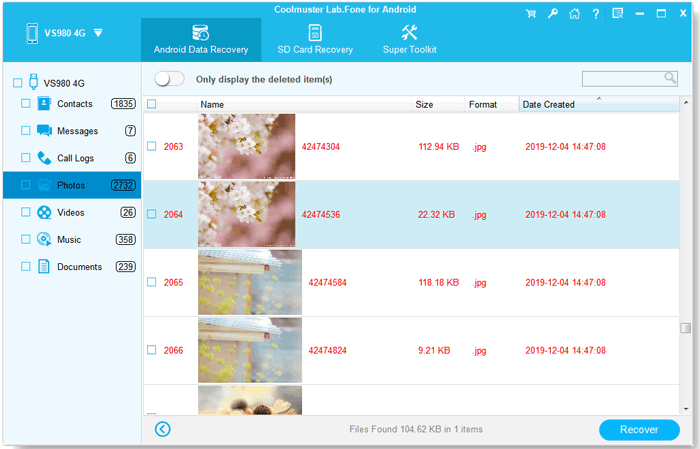
05After the scan is complete, all existing and deleted files will be organized into categories on the left side. Click to open each folder and preview the detailed items on the right side.
If needed, you can click the "Only display the deleted item(s)" button to filter out the deleted files. Once you've selected the files you want to recover, click "Recover" to start the recovery process.
For a more detailed walkthrough, check out the video tutorial below to guide you through each step of the process.
In this Apeaksoft Android Data Recovery Review, we've explored how the software helps users recover lost data from Android devices. Whether you've lost photos, contacts, or messages, Apeaksoft offers a comprehensive solution to restore your files securely and efficiently. While it may be on the pricier side, the software's reliability, ease of use, and wide device compatibility make it a great choice for Android users.
If you're looking for a more affordable alternative, consider Coolmuster Lab.Fone for Android, which also offers excellent data recovery features. Regardless of which tool you choose, always remember to back up your data regularly to avoid the hassle of data loss in the future.
Related Articles:
Apeaksoft iPhone Data Recovery Review: Features, Pros & Cons
Apeaksoft iOS Data Backup & Restore Review: A Comprehensive Guide
Apeaksoft iOS System Recovery Review: Features, Guide & Best Alternative
Top 11 Phone Memory Recovery for Android Software You Should Know







 Free Download for PC
  Free Download for Mac

 Download for PC
 Download for Mac

