If your iPhone is stuck on the Apple logo, frozen on a black screen, or fails to update, you're not alone. Many users search for reliable tools to fix these issues without losing data. That's where this Apeaksoft iOS System Recovery review comes in.
In this guide, we'll take a deep dive into Apeaksoft iOS System Recovery, including its features, pricing, pros and cons, and step-by-step usage. Let's look together.
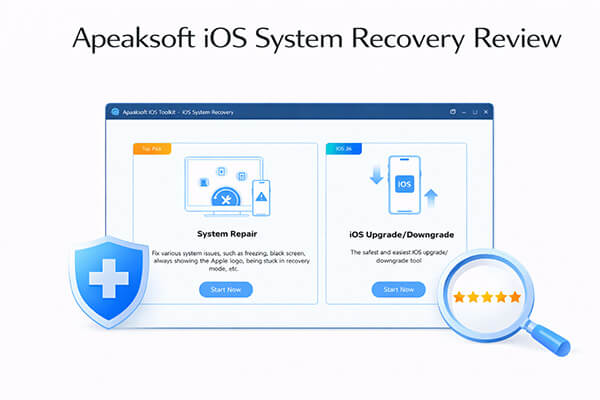
Apeaksoft iOS System Recovery is a tool specifically designed to fix system issues on iPhones, iPads, and iPods. It supports a variety of iOS fault repairs and is easy to use without any technical knowledge, making it suitable for regular users. Whether it's system freezes, update failures, or devices not starting properly, it provides effective solutions.
This section of the Apeaksoft iOS System Recovery review focuses on its core features, pricing, and overall pros and cons to help you evaluate its value.
When evaluating any iOS repair tool, the first thing to look at is its functionality. Apeaksoft iOS System Recovery is designed to fix common iOS system issues without requiring technical skills. Key features include:
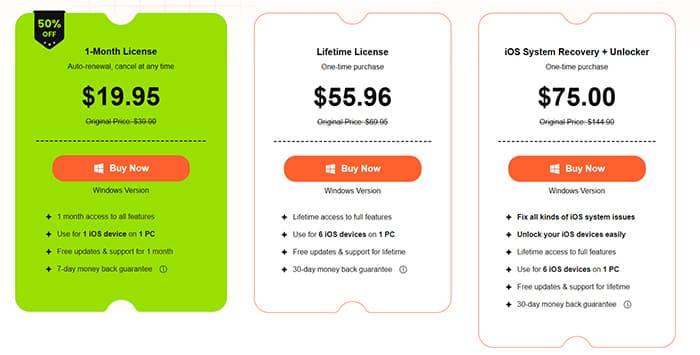
Pricing is a crucial factor when choosing any software. Apeaksoft iOS System Recovery offers a free trial version, but the full repair features require payment. The pricing is the same for both Windows and Mac versions.
The specific pricing is as follows:
Every tool has its strengths and weaknesses. This part of the Apeaksoft iOS System Recovery review helps you decide whether it fits your needs.
Pros:
* User-friendly interface with clear step-by-step instructions, making it easy for beginners to use.
* High level of security, as it only fixes system issues without collecting or storing personal data.
* Support the latest iOS versions and devices, ensuring strong compatibility.
* Offer a free quick fix feature to resolve simple issues.
* Provide a 30-day money-back guarantee for added peace of mind.
* Support a wide range of common iOS issues.
* Standard Mode protects your data.
* Compatible with both Windows and Mac.
Cons:
* Limited success rate for complex system issues.
* Advanced Mode will erase all data on the device, which may not be ideal for users without backups.
* The subscription price is relatively high, making it less cost-effective for occasional users.
* Firmware downloads can be slower on older devices, which may extend the repair time.
If you decide to try this tool, the next step is learning how to use it properly. Let's walk through the process.
For most users, whether software is easy to use largely depends on how simple the operation is. Apeaksoft performs quite well in this regard, with an overall process that is intuitive and suitable for users without a technical background. Below are the complete steps for operation:
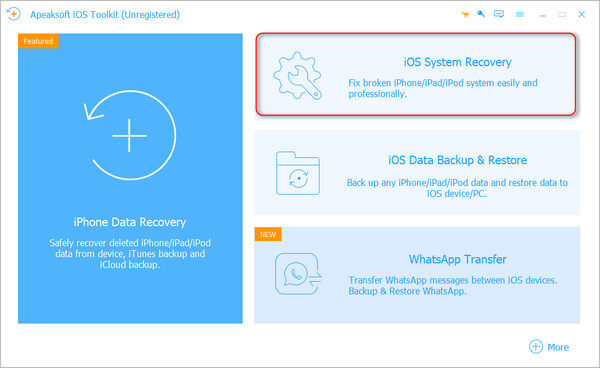
Step 1. Download and install the software from the official website. Then launch the program on your computer and click "iOS System Recovery" on the main interface. You will then enter the iOS System Recovery options.
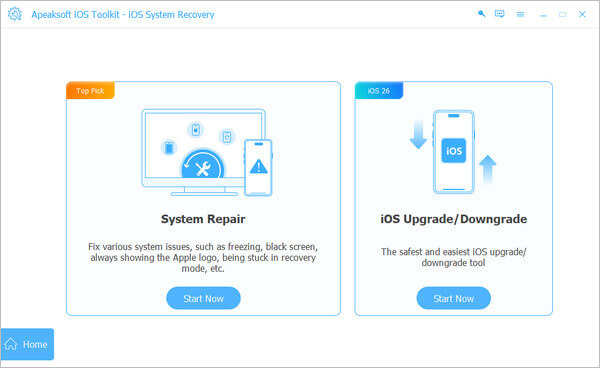
Step 2. On the main interface, click "Start Now" under the "System Repair" tab.
Step 3. After launching the software, connect your iOS device to the computer using a USB cable. Then click "Start", and the program will automatically detect your device.
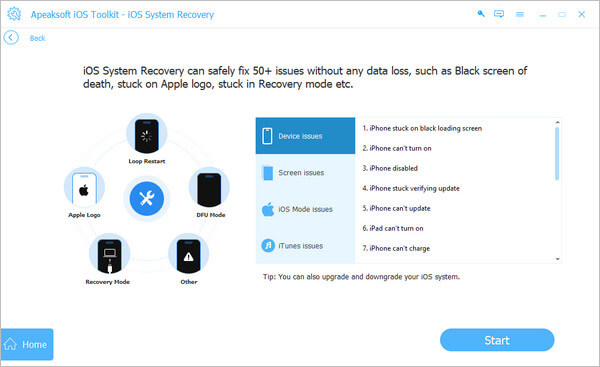
Step 4. If you encounter common issues, such as crashes or freezing, you can select "Free Quick Fix" to restore your device to normal without additional steps. This feature can resolve minor problems within seconds.
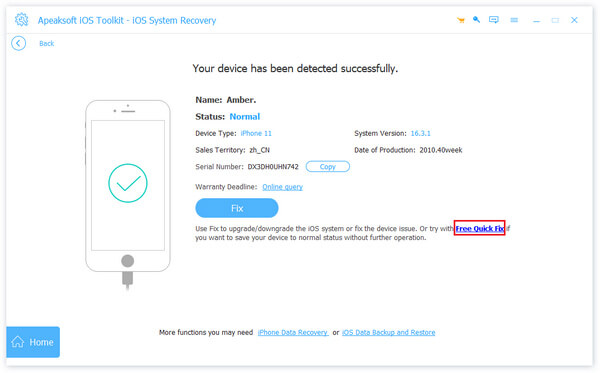
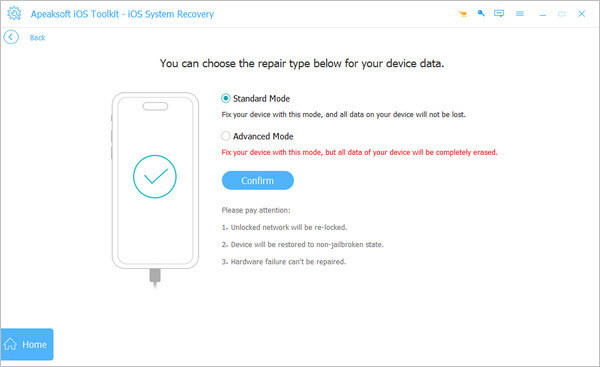
Step 5. If the issue persists, click "Fix" to proceed to the next step and explore more advanced solutions. You will see two repair modes. Choose the mode that best fits your needs, then click "Confirm".
Step 6. Next, select the appropriate category, type, and iOS model for your device. Make sure to check the Status of each version, which is listed in the fourth row of the chart. If the required firmware is not already on your computer, click "Download" to get it. If you already have the firmware file, click "Import" to load it. You can also set the save location for the firmware in the bottom-left corner.
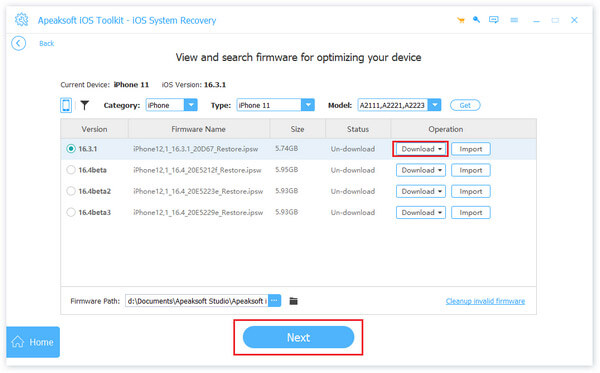
Step 7. Once everything is configured, click "Next" to begin the recovery process.
If you encounter repair failures while using Apeaksoft, or if you're looking for more powerful features, choosing a more professional alternative is a smarter option. Here, we recommend iOS System Recovery. In comparison, it offers better repair capability and stability, making it ideal for users who have higher requirements for data security and repair success rates.
Why Choose iOS System Recovery?
How do I repair iOS devices to normal without data loss? Here are the steps:
01Install and open iOS System Recovery on your Windows or Mac computer. Connect your iPhone to the computer via a USB cable, then select "iOS System Recovery".

02Click "Start" to allow the software to detect any issues on your iPhone. The, choose the repair mode you want and click "Confirm".

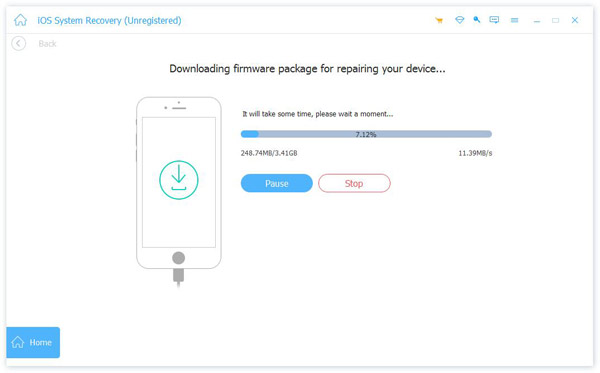
03Choose your iPhone model from the list and click "Repair". The software will automatically download the required firmware to fix your device. Once the firmware download is complete, your iPhone will be restored to normal.

Q1. Is Apeaksoft iOS System Recovery safe to use?
Yes, Apeaksoft iOS System Recovery is 100% safe to use. The software only focuses on fixing iOS system errors and does not access, steal, or store your personal data or privacy. It uses secure repair technology that won't damage your device or cause additional issues. Additionally, the tool is free from malware and adware, ensuring a safe user experience.
Q2. Does Apeaksoft iOS System Recovery erase data?
In Standard Mode, it does not erase any data, but in Advanced Mode, it will erase all content on the device.
Q3. How many times can I use Apeaksoft iOS System Recovery to fix my device?
The number of uses depends on your subscription plan. With a monthly, annual, or lifetime license, you can use the software an unlimited number of times on the number of devices allowed by your plan. The Free Quick Fix feature is also available for unlimited use, even without a paid subscription, allowing you to fix simple issues for free as many times as needed.
Q4. What should I do if Apeaksoft iOS System Recovery fails to fix my device?
If the software fails to fix your device, first try switching to a different repair mode (e.g., if Free Quick Fix doesn't work, try Standard Mode; if Standard Mode fails, try Advanced Mode after backing up data). You can also check if your device's USB cable is working properly, restart your computer and device, or re-download the firmware. If the issue still persists, contact Apeaksoft customer support via email (support@apeaksoft.com) for further assistance. Additionally, the 30-day money-back guarantee allows you to get a full refund if the software doesn't meet your needs.
In conclusion, this Apeaksoft iOS System Recovery review shows that it is a decent tool for fixing common iOS system problems, especially for beginners. It's easy to use and covers basic repair needs, but it falls short in advanced scenarios.
If you want a more powerful, stable, and reliable solution, iOS System Recovery is the better choice. It offers higher success rates and more comprehensive features, making it a smarter long-term investment.
Related Articles:
Apeaksoft iPhone Data Recovery Review: Features, Pros & Cons
Apeaksoft iPhone Eraser Review: Features, Pricing, Pros & Best Alternative
Apeaksoft iPhone Transfer Review 2026: Full Features, Pricing, Pros & Cons
Apeaksoft iOS Unlocker Review: Features, Price, Pros, Cons & Best Alternative




 Free Download for PC
  Free Download for Mac


