TL;DR:
If your external hard drive asks you to format it or becomes inaccessible, this guide will show you how to recover files safely and fix the drive without formatting:
External hard drives are commonly used to store important files, including photos, videos, documents, and backups. However, you may sometimes encounter an error message saying, "You need to format the disk before you can use it", preventing you from accessing the stored data. Although formatting can make the drive usable again, it may cause data loss and is not the first step you should take.
Fortunately, you can recover files from an external hard drive without formatting. In this guide, we will explain why your external hard drive asks for formatting, how to recover your files safely with data recovery software, and how to fix the drive without losing your data.
When Windows detects problems with an external hard drive, it may display a message asking you to format the drive before use. This usually happens because the system cannot properly read the file system or access the stored data.
Here are some common reasons why an external hard drive requires formatting:
The file system controls how data is stored and accessed on your drive. If the file system becomes corrupted due to improper ejection, power interruptions, or system errors, Windows may fail to recognize the drive and ask you to format it.
An external hard drive may show as RAW instead of NTFS, FAT32, or exFAT in Disk Management. This means the file system information is missing or damaged, making the drive inaccessible. (HEIF vs RAW)
Over time, external hard drives can develop bad sectors that prevent certain areas of the disk from being read. Physical damage caused by drops or impacts can also lead to accessibility problems.
Some viruses can hide files, damage file system structures, or make your external hard drive appear empty or unreadable.
Disconnecting an external hard drive while files are transferring may interrupt write operations and cause file system errors.
When an external hard drive becomes inaccessible, or Windows asks you to format it before use, formatting is not always the best solution. In many cases, the files are still stored on the drive but cannot be accessed due to system errors or other issues. To avoid further damage, it is recommended to recover important data first before attempting any repair operations. Professional recovery software can help you access the drive and retrieve your files without formatting it.
Coolmuster Data Recovery provides a simple way to deal with unexpected data loss situations on external storage devices. It is designed to help users restore important files when they cannot access their data normally. With its user-friendly interface and recovery capabilities, the program makes it easier to handle lost files from an external hard drive while keeping the original drive unchanged.
What can Data Recovery do for you?
Steps to recover files from an external hard drive without formatting:
01Download and install Data Recovery on your computer, then open the program to begin the recovery process.
02Connect the external hard drive containing your lost files to the computer. From the available recovery options, choose "Deleted Recovery" to search for recoverable data.
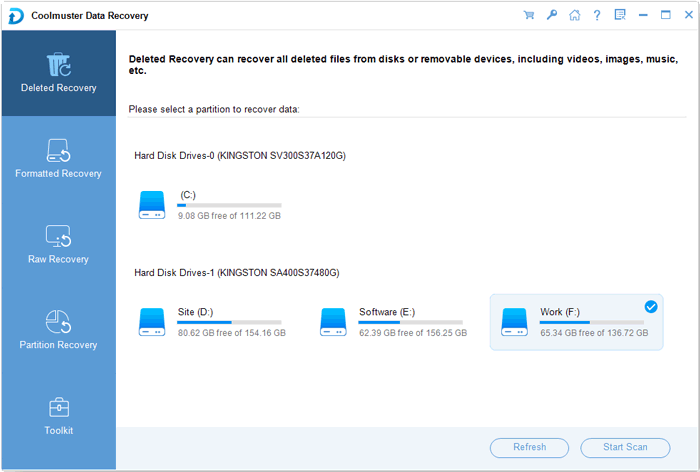
03After the program detects your connected storage devices, all available partitions and drive letters will be displayed. Select the external hard drive where your files were lost, then click the "Start Scan" button to begin searching for recoverable data.
04Once the scanning process finishes, the found files will be organized into categories based on their original File Type and File Location. Browse through the results, preview the available files, and select the items you want to restore.
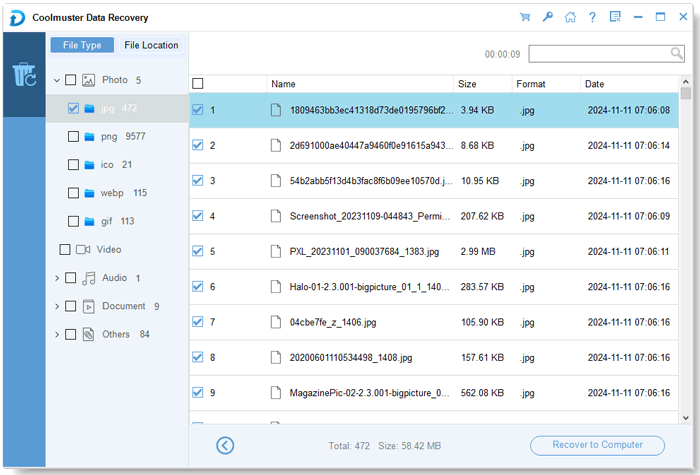
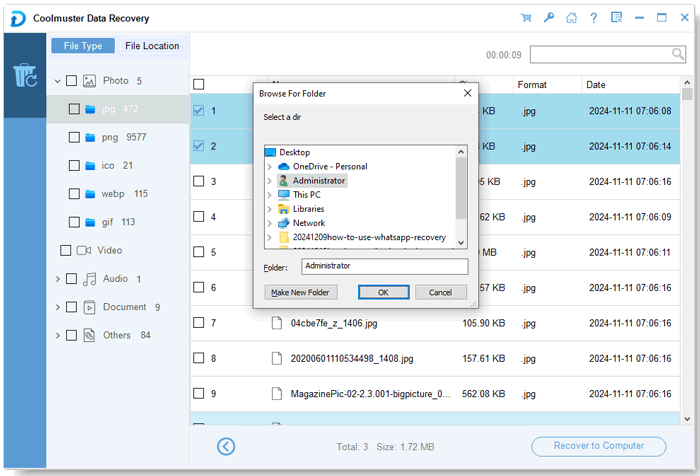
05After choosing the required files, click the "Recover to Computer" button to start restoring your data. A pop-up window will appear asking you to select a destination folder. Choose a safe location on your computer and click "OK" to complete the recovery process.
You can also watch the following video tutorial to learn how to recover files from an external hard drive without formatting, step by step.
How can I fix my external hard drive without formatting it? After recovering your important files, you can try the following methods to repair the external hard drive without formatting it.
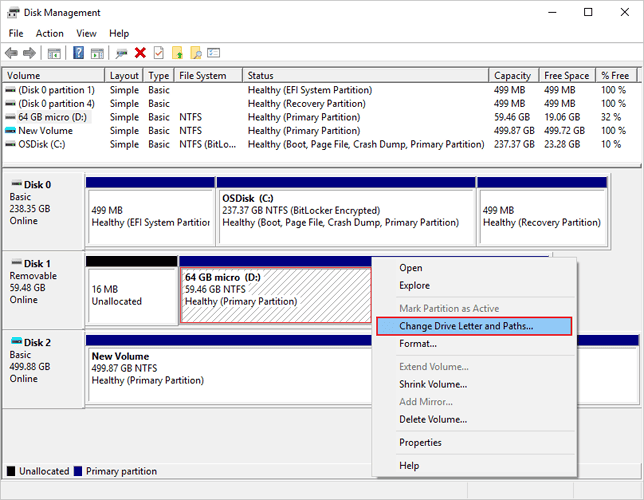
Sometimes an external hard drive is detected by your computer but does not appear in File Explorer because it has no drive letter or the assigned letter conflicts with another device. In this case, assigning a new drive letter may help Windows recognize the drive properly.
Follow these steps:
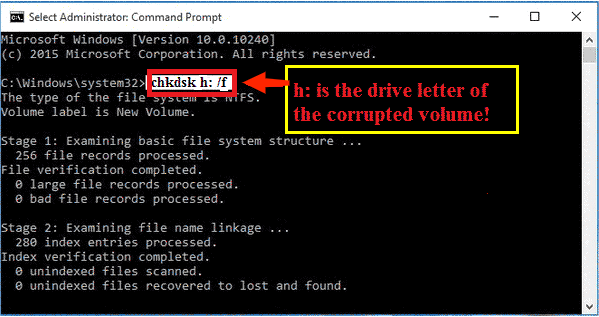
File system corruption is one of the common reasons why an external hard drive becomes inaccessible or asks for formatting. Windows provides a built-in tool called CHKDSK that can scan the drive and repair certain logical errors.
CHKDSK can help fix issues such as:
Here is how to run CHKDSK:
Driver problems can also prevent your computer from detecting or accessing an external hard drive correctly. If the drive suddenly stops working after a system update or connection issue, updating or reinstalling the driver may resolve the problem.
Follow these steps:
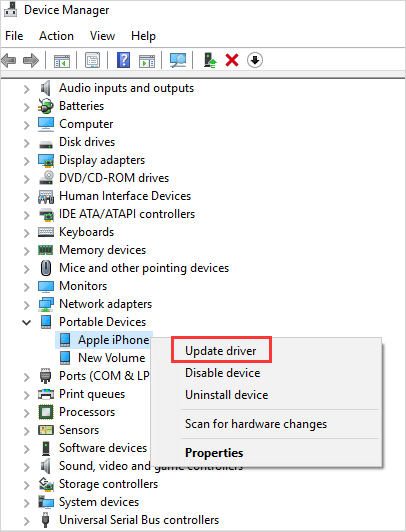
If updating the driver does not solve the problem, you can try reinstalling it:
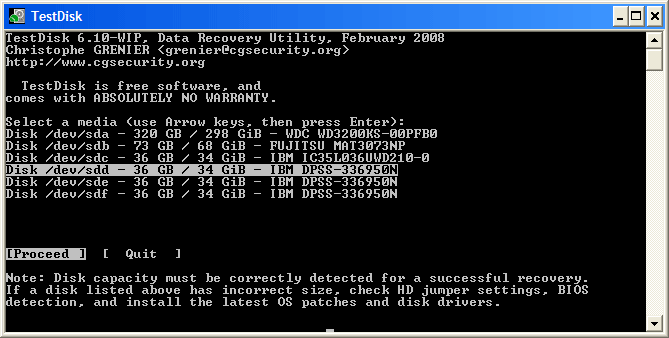
If your external hard drive appears as RAW, loses its partition information, or shows incorrect storage capacity, the problem may be related to partition damage. In this situation, TestDisk can help analyze the drive structure and attempt to restore damaged partitions.
TestDisk can be useful for:
Follow these steps:
An inaccessible external hard drive does not always mean that your files are permanently lost. With the right recovery method, you can retrieve important data without formatting and then take further steps to restore the drive's normal function.
For a safe and efficient recovery process, Coolmuster Data Recovery can help you recover lost, deleted, formatted, or inaccessible files from external hard drives without modifying your original data. After securing your files, you can use the repair methods mentioned above to address common drive issues and reduce the chances of future data loss with regular backups.
Related Articles:
Data Recovery Software Free: Easily Recognize Different Free Tools
How to Recover Deleted FAT/NTFS Files Without Trouble (4 Solutions)
5 Pro Methods to Recover Deleted Files from USB Flash Drive
How to Transfer Photos from Android Phone to External Hard Drive Directly?






 Free Download for PC
  Free Download for Mac


