TL;DR:
Looking for a way to recover lost data from a Samsung SSD? This guide covers three practical Samsung SSD recovery methods: restoring deleted files from the Recycle Bin, using data recovery software, and retrieving files from a File History backup.
"I accidentally deleted important files from my Samsung SSD and now can't access them. Is there a way to recover the data? Need any software or tools? Any guidance would be appreciated."
- From Begin Rescue End Forum
Samsung SSDs are widely used for storing important files because of their fast performance, reliability, and durability. However, data loss can still happen due to accidental deletion, formatting, system errors, or unexpected drive issues. When important files disappear from a Samsung SSD, many users wonder whether they can recover the lost data.
The good news is that Samsung SSD recovery may be possible if the lost files have not been overwritten. In this guide, we will explain how to recover data from a Samsung SSD using different methods, including checking the Recycle Bin, using professional recovery software, and restoring files from backups.
Yes, data can be recovered from a Samsung SSD in many cases, especially when deleted files have not been overwritten by new data. Whether recovery is successful depends on factors such as the cause of data loss, SSD condition, and how quickly you take action after losing files.
Common situations that may require Samsung SSD recovery include:
To improve the chances of recovery, stop using the SSD immediately after data loss and avoid saving new files to it. In the following sections, we will introduce practical ways to recover data from Samsung SSD.
Before using a Samsung SSD recovery tool, you can first check whether your deleted files are still available in the Windows Recycle Bin. When files are deleted from a Samsung SSD using the normal delete option, they are usually moved to the Recycle Bin instead of being permanently removed.
However, Recycle Bin recovery only works in certain situations. You may need other Samsung SSD recovery methods if:
If your files are still in the Recycle Bin, follow these steps to restore them:
Step 1. Find and open the Recycle Bin icon on your Windows desktop.

Step 2. Browse the deleted items and locate the files you want to recover. You can use the search function or sort files by deletion date.
Step 3. Right-click the selected files and choose "Restore". Windows will return them to their original locations on your Samsung SSD.
If your deleted files are no longer available in the Recycle Bin, a dedicated recovery tool can help you find lost data from your Samsung SSD. Coolmuster Data Recovery is designed to recover deleted and lost files from various storage devices, including Samsung SSDs. It can scan the drive for recoverable files and allows you to preview data before recovery.
Key features of Data Recovery:
How to recover data from Samsung SSD with Data Recovery?
01Download, install, and open Data Recovery on your computer.
02Connect your Samsung SSD to the computer and select "Deleted Recovery" as the recovery mode to search for deleted files.
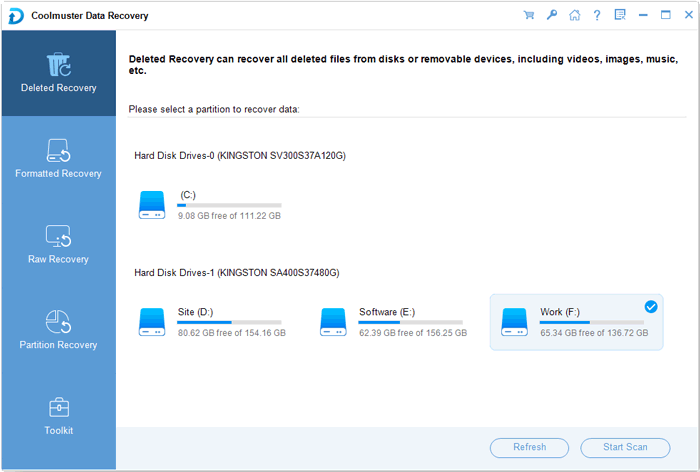
03Choose your Samsung SSD from the available drive list and click "Start Scan" to begin searching for lost data.
04After the scan is complete, browse the detected files in different viewing modes. Preview the available data and select the files you want to recover.
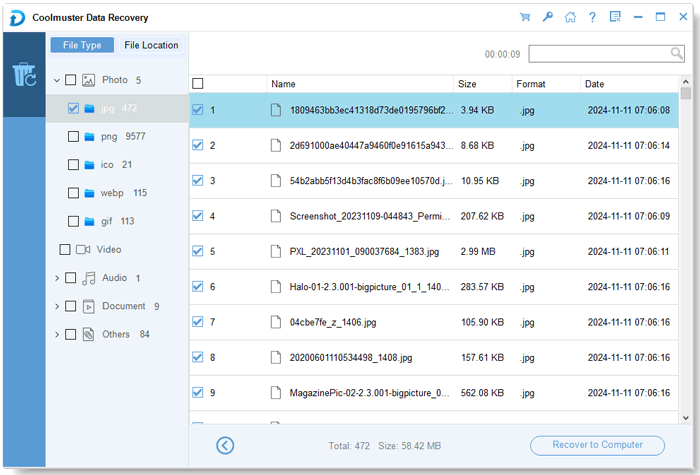
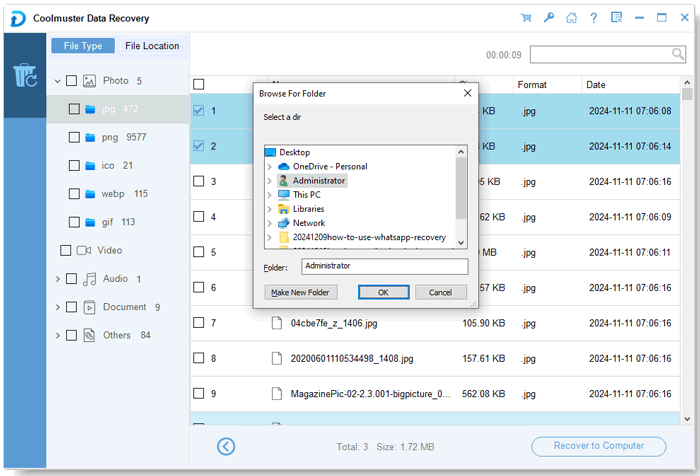
05Choose a destination folder to save the recovered files, then click "Recover to Computer" to start restoring your Samsung SSD data.
For a more detailed walkthrough, you can also watch the following video tutorial to learn how to recover lost files from a Samsung SSD step by step.
If you have created a backup before losing files, restoring data from the backup is one of the safest ways to perform Samsung SSD recovery. Since the files are already saved in another location, you can restore them directly without scanning the Samsung SSD or risking further data loss.
Depending on your backup method, you may recover files from:
The following steps take File History as an example:
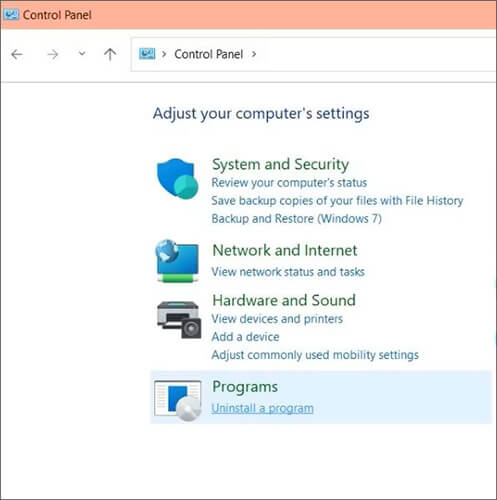
Step 1. Press "Win" + "S", search for Control Panel, and open it. Select "System and Security" > "File History" to access the File History settings.
Step 2. Click "Restore personal files" on the left side of the File History window. You will then see the files and folders available in your backup.
Step 3. Browse through the folders or use the search option to locate the files you lost from your Samsung SSD. You can also use the arrows at the bottom of the window to check different backup versions.
Step 4. Select the files or folders you want to recover and click the "Restore" button. Windows will restore them to their original location. If you want to save them somewhere else, right-click the "Restore" button and choose "Restore to" to select another destination.
1. Does Samsung Magician recover deleted files?
No. Samsung Magician is not a data recovery tool. It is mainly designed to manage Samsung SSDs, including checking SSD health, monitoring performance, updating firmware, and running diagnostic tests.
If you need to recover deleted files from a Samsung SSD, you should use a dedicated data recovery tool instead.
2. What should I do if my Samsung SSD is not detected?
If your Samsung SSD is not detected by your computer, try the following solutions:
3. Does SSD TRIM affect Samsung SSD recovery?
Yes. SSD TRIM can affect Samsung SSD recovery. TRIM helps SSDs manage deleted data and improve performance. However, after TRIM permanently clears deleted data blocks, recovery software may no longer be able to restore those files. To increase the chance of successful recovery, stop using the Samsung SSD as soon as you notice data loss.
Losing files from a Samsung SSD does not always mean they are gone permanently. If the files are still in the Recycle Bin, you can restore them directly. If they have been permanently deleted or cannot be found there, a data recovery tool such as Coolmuster Data Recovery can help scan the SSD for recoverable files. When a previous backup is available, File History provides another reliable way to restore lost data.
Whatever method you choose, stop using the Samsung SSD as soon as you notice data loss and avoid saving new files to it. Taking action early can help prevent lost data from being overwritten and improve your chances of successful Samsung SSD recovery.
Related Articles:
How to Make SSD Data Unrecoverable? - 3 Effective Methods
[Step-by-Step Guide] 5 Reliable Ways to Erase SSD Disk on Windows
[Step-by-Step Guide] How to Securely Wipe Free Space on SSD?
How to Perform Pen Drive Data Recovery with 4 Methods [Latest]






 Free Download for PC
  Free Download for Mac


