"I have the S24 Ultra & I keep getting the same pop up six or more times a day. 'Android system keeps stopping' is anyone else having this issue? Or possibly know how to fix it? "
- From the Samsung Community
Android devices provide us with all sorts of convenience and entertainment. These devices are loved by many due to their easy-to-use interface, affordability, and customization options. But sometimes, things don't go as planned, and we experience hiccups - like the Android system suddenly crashing. Honestly, it's annoying and confusing. You may ask yourself, "Why did this happen? And what can I do about it?" Well, Android users, we've got your back. Read through this guide to understand how to troubleshoot Android crash problems for good.

Android system crashes are often caused by various factors such as software glitches, incompatible apps, corrupted data, or even outdated operating systems. It could also happen when there's a bug in the app or a recent update that didn't go as planned. Let's take a look at some common reasons:
Android crashes can be a real headache, and it's rarely the device's fault. It's not like Android phones are known for their reliability, after all. So, how do you even begin to troubleshoot Android crash problems? Well, here are some solutions that might help:
Rebooting the Android phone may sound like an obvious thing, but it could be the key to fixing the Android crash problem. A quick reboot can help clear any glitches in the background and get your device running smoothly.
Here is how to reboot an Android phone;
Step 1. Long press the "Power" button until you see the power off or restart options.
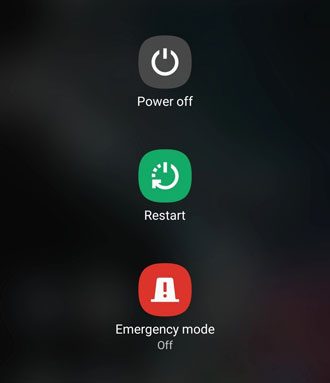
Step 2. Click on the "Restart" option to reboot the device. A simple restart forces the phone's hardware to boot up.
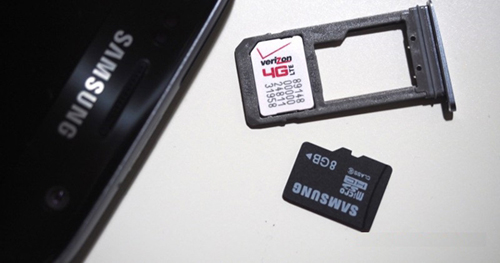
Sometimes, external accessories like chargers, Bluetooth devices, or SD cards can interfere with the normal functioning of your device, causing it to crash or freeze. If you notice your phone crashing after connecting these accessories, try disconnecting them to see if the issue resolves. Simply unplugging the charger or removing the SD card can help eliminate any external interference, allowing your device to function normally again.
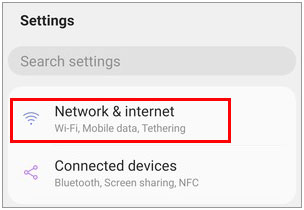
Poor or unstable internet connections can sometimes cause apps and the system to freeze. Make sure your internet connection is stable, especially if you're using online apps.
What to do:
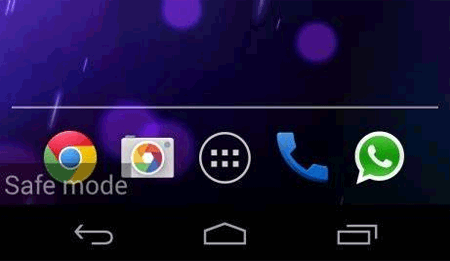
Booting into Safe Mode can help identify if a third-party app is causing the crash. In this mode, only system apps are active, which allows you to see if the problem persists without interference from other apps.
Step 1. Press and hold the "Power" button.
Step 2. When the power options appear, long press "Power off" until you see "Safe Mode".
Step 3. Tap "Safe Mode" to reboot the device. If your device works fine in Safe Mode, the issue is likely caused by a third-party app.
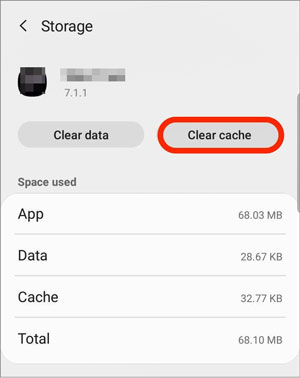
Sometimes, an app's cached data becomes corrupted, leading to crashes. Clearing the cache for problematic apps can help resolve these issues and improve your phone's performance.
Here's how to clear the app cache:
Step 1. Open the Settings app.
Step 2. Go to "Apps" and select the app that's causing the issue.
Step 3. Tap on "Storage" and select "Clear cache".
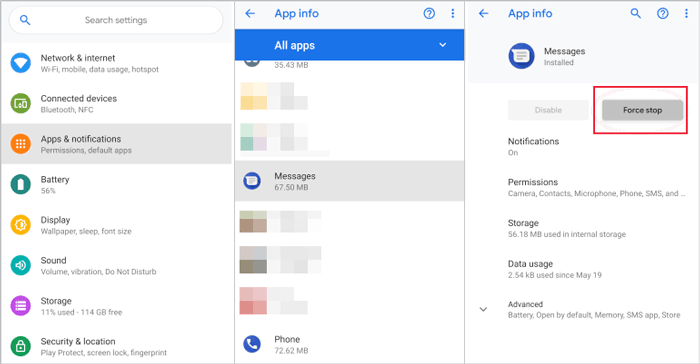
If your Android device is crashing, it's time to try force-stopping the specific app that keeps freezing. This can be an effective way of getting rid of Android crash issues. By force-stopping the app, you're telling it to go away and stay away until you tell it otherwise.
Here is how you can force-stop an app:
Step 1. Open the Settings app.
Step 2. Next, select the "Apps" option.
Step 3. Choose the application to force stop.
Step 4. Click on the "Force stop" option.
When an app keeps crashing despite force stopping, it may be time to uninstall and reinstall it. This can help fix any corrupted files or settings that might be causing the issue.
Step 1. Press the application icon for a few seconds on the device's Home Screen.
Step 2. Choose "Uninstall" from the options. Wait for some time for the app to uninstall.
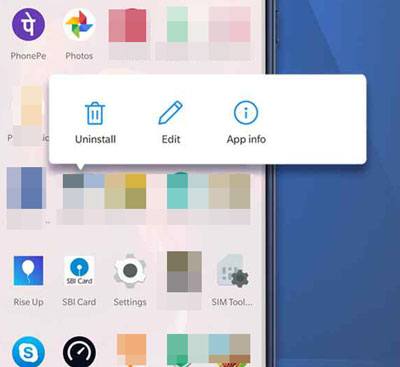
You can also open the Settings app and go to Apps. Find the app, tap it, and select "Uninstall".
Step 3. Head to the Play Store and reinstall the application.
Android OS updates include bug fixes and optimizations for the Android device that can help prevent crashes. So make sure to keep your Android device up-to-date with the latest version. It may be one of the simplest solutions, often saving you a headache.
Here's how to update your Android version:
Step 1. Open the Settings app on your phone.
Step 2. Choose "System", then, click on the "System update" option.
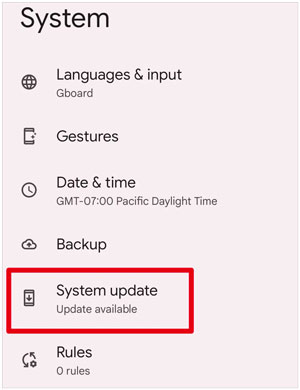
Step 3. Click on the "Download & install" button.
Step 4. If there is an update, install it on your device, and it'll restart once you finish updating.
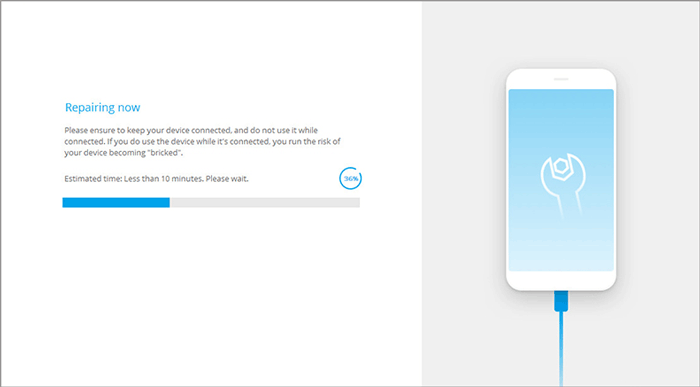
If you've tried all the previous solutions and the issue persists, you can consider using dedicated repair tools to fix Android system crashes. These third-party tools are designed to address a wide range of system issues, offering a more comprehensive fix. For example, Android Repair is an excellent tool that can help resolve all types of Android system problems. With a user-friendly, one-click repair option, Android Repair allows you to fix both basic and advanced system issues on Android devices.
Best Features of Android Repair:
To use Android Repair to fix the Android crash issue, you need to follow these simple steps:
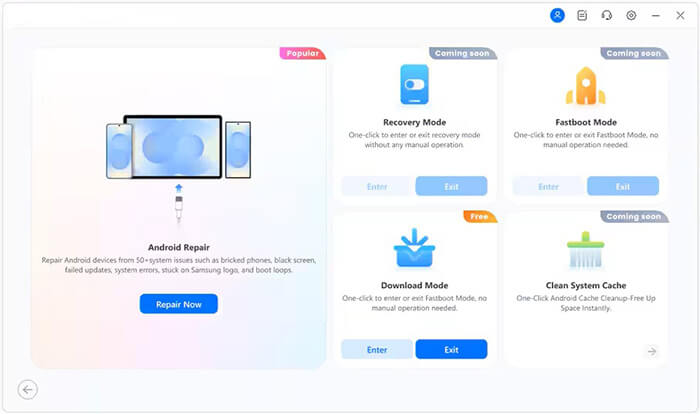
01Launch Android Repair on your computer and connect your crashed Android phone to the PC using a USB cable. Select "System Repair", choose "Android" as your device type, then click "Android Repair" > "Repair Now" to begin.
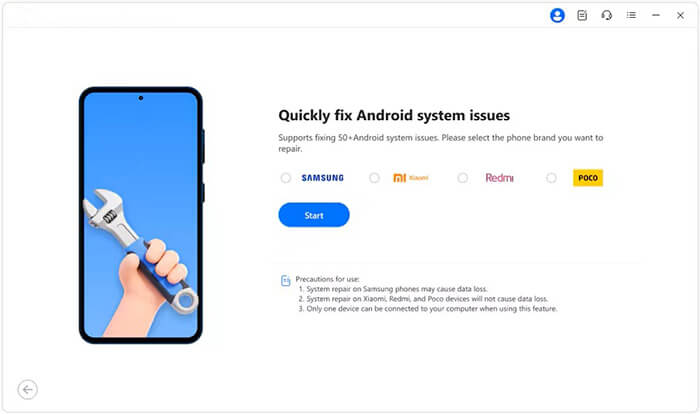
02When prompted, select your device brand and click "Start". You will then be taken to a new screen where you need to click "Start" again to initiate the repair process.
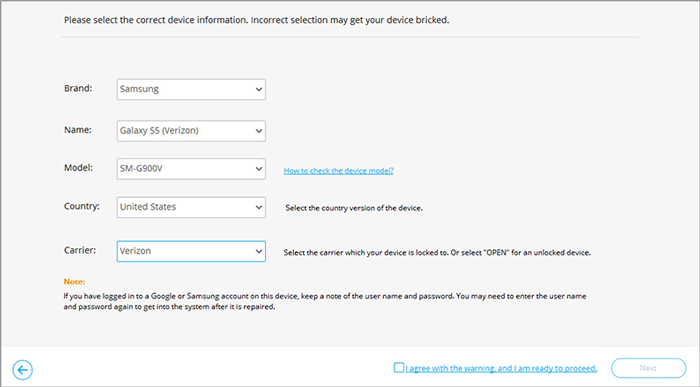
03On the next screen, your phone information will be displayed. Carefully select the correct brand, model, device name, country, and carrier, confirm the warning message, and click "Next" to proceed.
04Follow the on-screen instructions to put your device into Download Mode. The steps may vary depending on your device model.
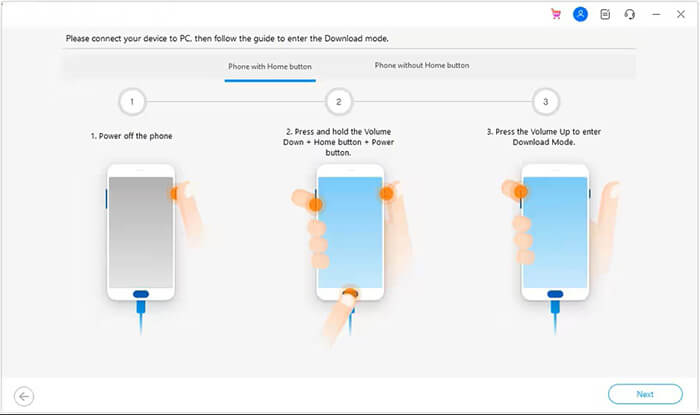
05Once your phone enters Download Mode, click "Next". The program will then download the required firmware package and automatically repair your Android system.
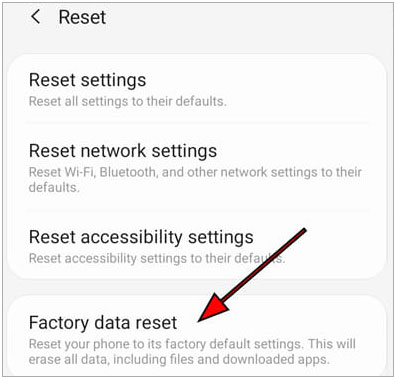
If all else fails, performing a factory reset might be the last resort. However, this will erase all your data, so make sure to back up important files first.
Here's how to perform a factory reset:
Step 1. Open the Settings app.
Step 2. Go to "System", then select "Reset".
Step 3. Tap on "Factory data reset" and confirm.
Android system crashes can be extremely frustrating, especially when they interrupt your daily tasks or keep important apps from working properly. Fortunately, most Android crash issues can be resolved by following the solutions outlined above, from simple fixes like restarting your device or clearing app cache, to more advanced methods such as booting into Safe Mode or updating the system.
If none of the basic troubleshooting steps work, using a professional Android repair tool can save you both time and effort. Android Repair is specifically designed to fix a wide range of Android system problems, including persistent crashes, freezes, and boot issues, without requiring technical knowledge. By choosing the right solution based on your situation, you can quickly restore your device to normal and enjoy a smooth Android experience again.
Related Articles:
Why Can't I See My Pictures in My Gallery? Fix It and Recover Pictures
[Fixed] Apps Keep Crashing on Android Phones
Android Phone Keeps Turning Off Randomly? 15 Fixes Here
Samsung Black Screen of Death: Reasons, Solutions & Preventions




 Free Download for PC


