TL;DR:
Quick Summary on How to Erase SSD Disk:
An SSD (Solid State Drive) offers faster read/write speeds and greater durability compared to traditional HDDs (Hard Disk Drives). However, in some cases, you may need to completely erase the data on an SSD, such as when selling the device, handling sensitive information, or reinstalling the system.
Since SSDs use TRIM commands and garbage collection mechanisms, simple formatting or file deletion does not fully erase the data. Therefore, a more secure method is needed to erase SSD disk. This article will introduce several ways to make SSD data unrecoverable.
Many SSD manufacturers offer dedicated official tools that can safely erase SSD data without affecting the drive's performance. The benefit of using official tools is that they are optimized for their respective SSDs, allowing for data erasure without compromising the drive's lifespan, usually by triggering hardware-level ATA Secure Erase or NVMe Sanitize commands.
Different brands of SSDs have their own official tools, such as:
If your SSD brand does not offer an official erasure tool, or if you prefer a simpler, more efficient method to ensure that the data cannot be recovered, Coolmuster Data Erasure is a better choice. This professional data erasure software can completely wipe all data on the SSD, making it impossible to recover using recovery tools. It also supports a variety of storage devices, including HDDs, SSDs, USB drives, memory cards, and more.
Key features of Coolmuster Data Erasure:
Here is how to securely erase SSD on Windows using Coolmuster Data Erasure:
01Install the software on your PC and launch it.
02Select "Drive Wiper", then choose your SSD disk.
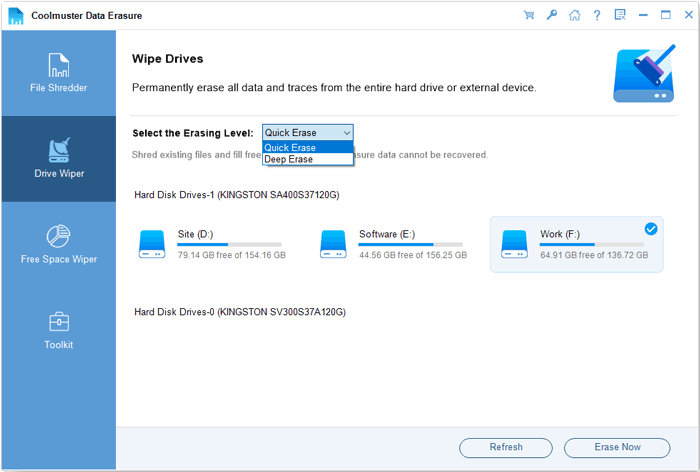
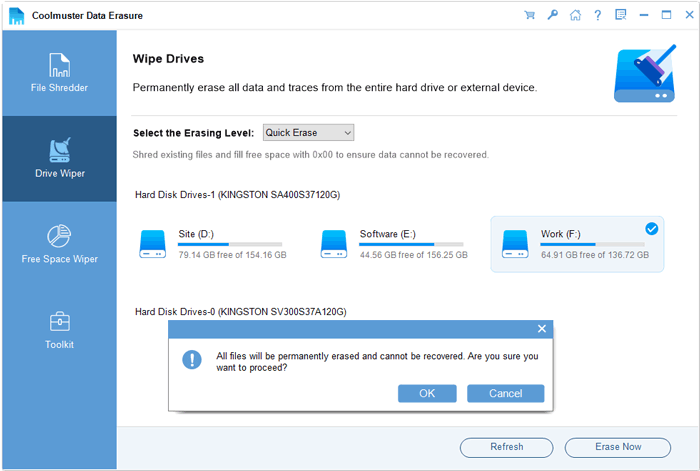
03Choose the "Deep Erase" option and click "Erase Now". Confirm by tapping "OK". The program will permanently erase the data on your SSD.
Video Tutorial:
If you don't want to install software, you can manually erase your SSD using Disk Management in Windows. Disk Management is a built-in Windows tool for managing disk partitions on your computer. However, the data can still be recovered and is not suitable for permanently destroying sensitive information.
Here is how to wipe an SSD on Windows using the Disk Management tool:
Step 1. Press "Windows + X" and select "Disk Management" from the menu.
Step 2. In the Disk Management window, locate your SSD under the list of drives and ensure you select the correct one.
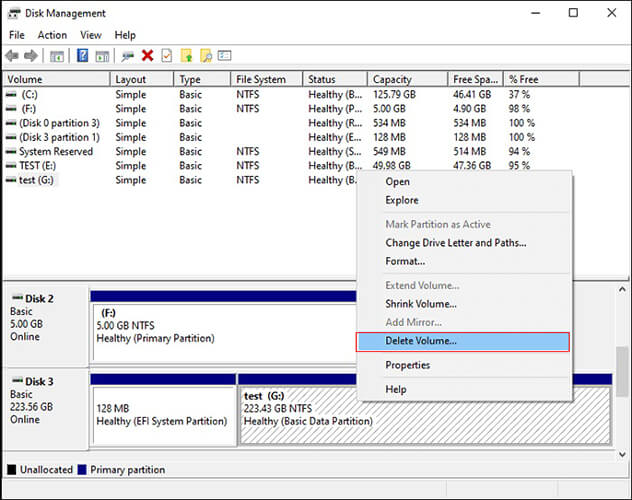
Step 3. Right-click on the SSD's partition and select "Delete Volume" to remove the partition and erase all the data stored on it. Confirm the deletion when prompted.
Step 4. Right-click on the unallocated space on the SSD and select "New Simple Volume". Follow the on-screen instructions to create a new partition if you want to use it again.
Step 5. Right-click on the newly created partition and select "Format" if you want to completely erase all data and prepare the SSD for use.
Diskpart is a built-in advanced disk management command-line tool in Windows that can completely erase partition information on an SSD and reinitialize the SSD. Compared to the Disk Management tool, Diskpart's erasure function is more powerful, but it still cannot guarantee 100% irrecoverability.
Here is how to wipe an SSD on Windows 11 using Diskpart:
Step 1. Type "cmd" in the Windows search box, right-click, and run as administrator.
Step 2. Type "diskpart" and press "Enter" to enter disk management mode.
Step 3. Type "list disk" and press "Enter" to find the disk number corresponding to your SSD (e.g., Disk 1).
Step 4. Type select "disk X" (X is the SSD disk number), and press "Enter" to select the disk.
Step 5. Type "clean all" and press "Enter", then wait for the process to complete (this process is irreversible).
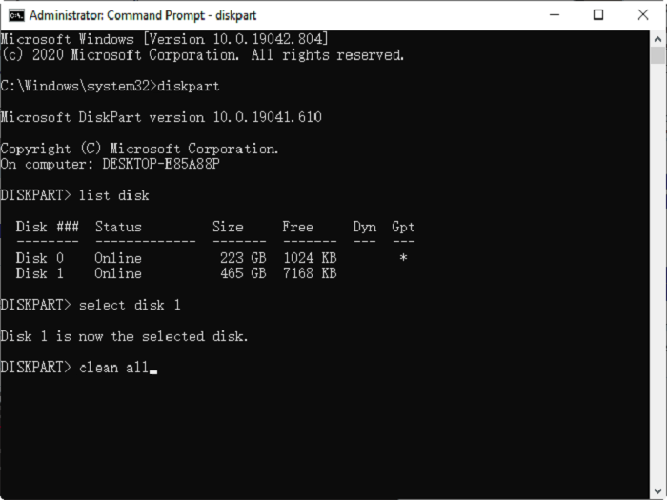
Note: The "clean all" command writes zeros across all accessible sectors. However, due to SSD wear-leveling algorithms and over-provisioned areas, raw data blocks might theoretically persist. For total data security prior to selling or transferring an SSD, software/hardware-level Secure Erase is recommended over Diskpart.
If the SSD is no longer usable, or if you need to ensure that the data can never be recovered, physical destruction is the most thorough method. However, this method is only applicable to discarded SSDs.
Methods include:
Q1. Does formatting an SSD completely erase all data?
No. A Quick Format simply deletes the file system index, leaving actual data intact on the NAND flash memory until overwritten. A Full Format writes zeros to accessible user partitions, but residual data in over-provisioned blocks may remain. To permanently wipe an SSD, use NVMe Sanitize, ATA Secure Erase, or dedicated erasure software.
Q2. What is the difference between ATA Secure Erase and NVMe Sanitize?
ATA Secure Erase is designed for older SATA SSDs and applies a precise voltage pulse to reset all storage blocks. NVMe Sanitize (or NVMe Format) is the modern standard for NVMe PCIe SSDs that wipes user data, controller caches, and encryption keys simultaneously.
Q3. Will securely erasing an SSD degrade its lifespan?
No. Traditional HDD wipe methods (such as multi-pass DoD 5220.22-M overwrite) cause heavy, unnecessary drive wear on flash storage. Hardware Secure Erase and SSD-optimized erasure tools issue direct controller commands, completing the erase process quickly without damaging flash endurance.
Q4. Can I erase the C drive (system drive) while Windows is running?
No. Windows cannot erase the partition containing the currently active operating system. To wipe a system C drive, connect the SSD as a secondary drive to another PC, use a bootable USB tool, or run the erase command from your motherboard's UEFI/BIOS utility.
If you only need to format the SSD, the built-in disk management tools in Windows or Diskpart will suffice. However, if you need to completely erase the data to prevent recovery, it is recommended to use Coolmuster Data Erasure, which provides a more professional data removal method to ensure the security of your information. If the SSD is damaged or no longer in use, physical destruction can ensure that the data is completely irretrievable.
Related Articles:
HDD Secure Erase: How to Securely Erase HDD in 2 Safe Ways
Top 10 Best SD Card Recovery Software | 100% Working
[Solved] How to Use iPhone as USB Drive in a Few Simple Steps
2 Simple Ways to Back Up iPhone to Flash/USB/Thumb Drive [Reassuring Guide]






 Free Download for PC


