"Hiya, so I have an old Samsung J500FN, and I've completely forgotten the password to it, but I would like to recover all the data for it as it has sentimental value, and I've used up all my password attempts. Is there any way I can unlock it without data loss, or is my only option going to a repair shop? Any feedback would be greatly appreciated, thank you."
- From Reddit
Being locked out of your Samsung phone can be stressful, especially when you cannot enter your password and need access to important contacts, messages, photos, or other files. If you fail to enter the password, it may seem like your data is lost forever. Fortunately, there are reliable ways to perform Samsung data recovery when you fail to enter the password, whether you have backups or not.
In this guide, we'll explore the options for Samsung data recovery when you cannot enter your password, helping you regain access to your valuable information safely.
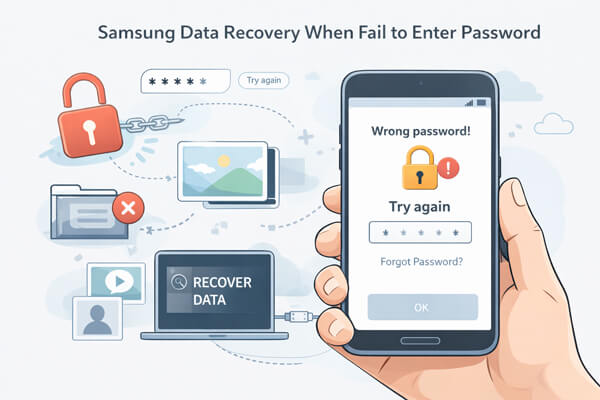
The short answer is yes, you can recover data from a Samsung device even if you can't enter the password. Success depends on two factors: whether you have a backup and your device's condition.
If you enabled backups via Samsung Cloud or Google services, you can retrieve your data without unlocking the phone. Without a backup, professional Android data recovery tools can safely extract data from the device's internal storage, even if the screen is broken or the system is unresponsive. These methods use legitimate protocols and do not compromise device security.
If you've previously enabled backup features on your Samsung device, recovering data when you can't enter the password is straightforward. Below are two common backup methods, Samsung Cloud and Google account, and how to use them to retrieve your data.
Samsung Cloud automatically backs up your device data, including contacts, messages, photos, videos, app data, and system settings, if the feature was enabled before your phone was locked. You can recover this data from another Samsung device or a computer.
Step 1. On another Samsung device or a new phone, go to "Settings" > "Accounts and backup" > "Samsung Cloud".
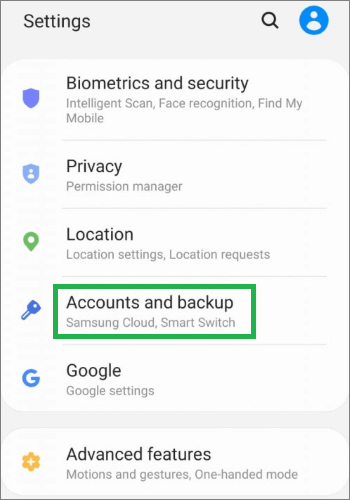
Step 2. Log in with the Samsung account linked to your locked device. Complete any two-factor authentication if prompted.
Step 3. Check the available backups and select the one corresponding to your locked device (verify by device name and backup date).
Step 4. Choose the types of data to recover (contacts, messages, photos, videos, app data).
Step 5. Tap "Restore" to transfer the selected data to the device.
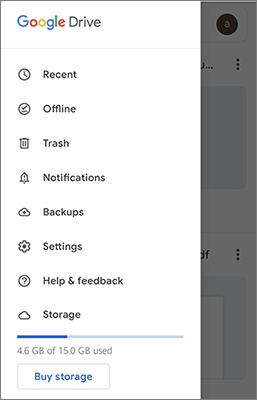
Most Samsung devices run on Android OS, which is deeply integrated with Google services. If you logged in to your Google account on your Samsung device and enabled Google Drive or Google Photos backup, you can recover your data through Google's official platforms, no need to access the locked device.
Here's how to recover data using your Google account:
Recover Photos and Videos via Google Photos:
Recover Contacts, Calendars, and Documents via Google Drive:
Reset Password and Unlock (if applicable):
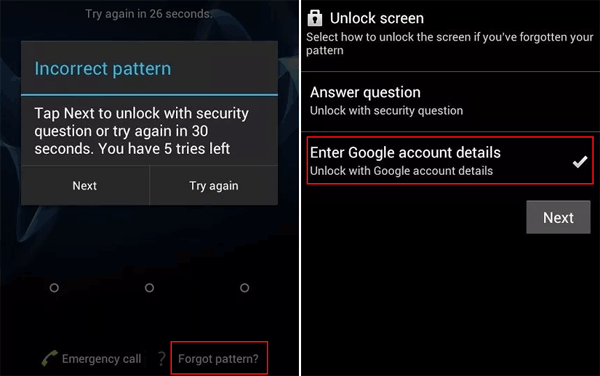
Note: Google may require a 24-hour cool-down period before the new password takes effect.
If you haven't enabled Samsung Cloud or Google backup, or your device has never been backed up, the previous methods won't work. In this case, professional data recovery software is the most reliable solution.
Broken Android Data Extraction is a tool designed specifically for locked, damaged, or unresponsive Android devices. It can safely extract data from your Samsung phone without requiring the password.
Key features of Broken Android Data Extraction:
How to recover data using Broken Android Data Extraction without the password?
01Download and install the program on your computer.
02Launch the program and choose "Broken Android Data Extraction" from the home page. Then, connect your Galaxy to the computer with a USB connector.
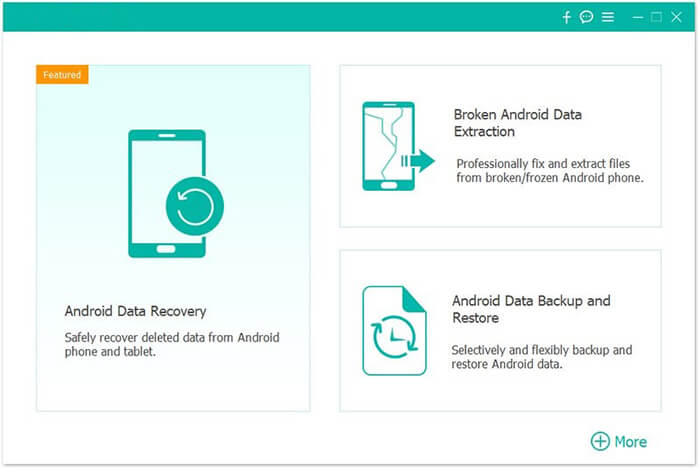
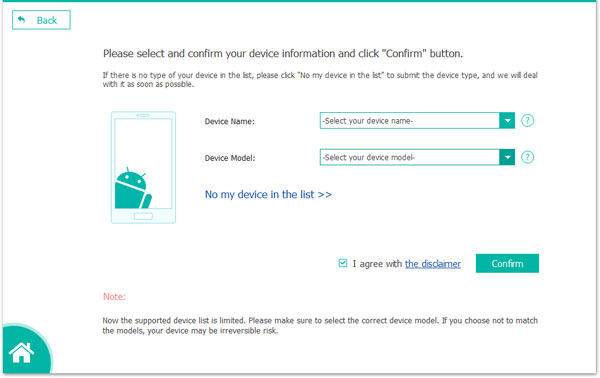
03Choose your Samsung Galaxy's name and model, then click "Confirm".
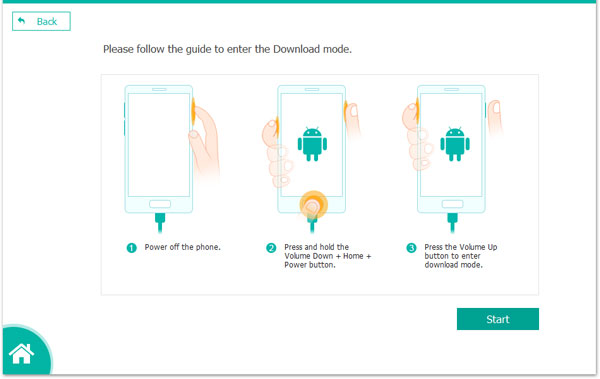
04Next, follow the on-screen instructions to put your Samsung phone into Download Mode until the process is complete.
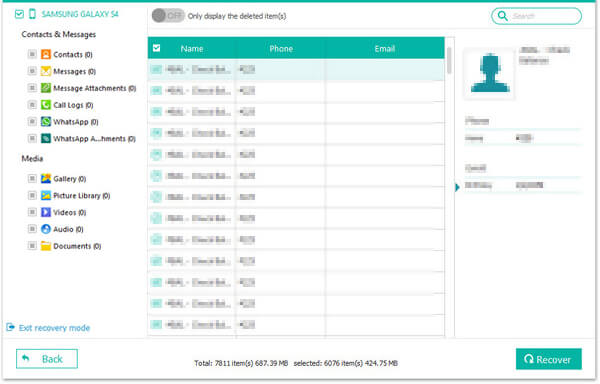
05When the scanning process is ended, all files recoverable from the Galaxy will be displayed here. Preview them one by one and mark those you need. Finally, click on the "Recover" button to save all of them on your computer.
Recovering data from a Samsung device when you cannot enter the password is entirely possible, whether you have a backup or not. If your data is backed up via Samsung Cloud or Google account, you can quickly restore contacts, messages, photos, and other files using official methods. For devices without a backup, professional tools like Broken Android Data Extraction provide a safe and reliable way to recover data directly from your locked device, even if the screen is broken or the system is unresponsive.
By following the steps outlined in this guide, you can regain access to your important data and minimize the risk of permanent loss. Always remember to enable regular backups to make future recovery easier and faster.
Related Articles:
[Ultra Guide] How to Unlock Samsung Phone Forgot Password Without Losing Data
Samsung Data Recovery with Black Screen (8 Practical Solutions)
Samsung Recovery Tool: A Critical Analysis of 9 Popular Software
How to Recover Media from Broken Samsung [4 Effective Methods]







 Free Download for PC

 Download for Mac

