TL;DR:
Photos lost to a "Quick Format" can be successfully recovered using automated software or free command-line tools, provided you stop using the card immediately to prevent data from being overwritten.
Whether you clicked the wrong button on your camera or were forced to format a corrupted card to make it readable again, if you forget to back up the photos stored on the card, you will lose your precious image memory.
Fortunately, formatting doesn't immediately erase your photos; it simply marks the storage space as "available". As long as you haven't overwritten that space with new data, your images are still there. You can recover photos from the formatted SD card with the following recovery solutions. Let's get started.

One of the easiest ways to recover photos from a formatted SD card is by using Coolmuster Data Recovery. This professional recovery software is developed to retrieve deleted, formatted, and lost files from various storage devices, including SD cards, USB drives, external hard drives, etc.
Why Coolmuster Data Recovery stands:
Download Coolmuster Data Recovery.
To recover pictures from a formatted SD card with Coolmuster Data Recovery:
01Download Coolmuster Data Recovery on your computer and install it. Then launch it and plug your formatted SD card into the computer using a card reader.
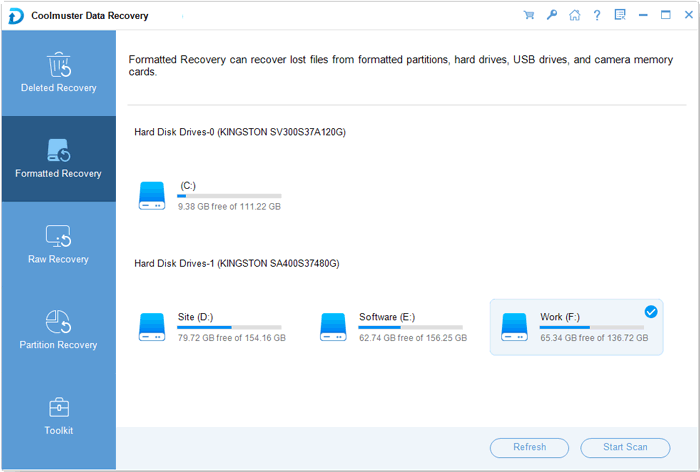
02Choose the "Formatted Recovery" mode from the main interface (if you need a deeper scan, you can later opt for Raw Recovery). Select your SD card from the list of available drives and click "Start Scan". The software will scan for remnants of your formatted files.
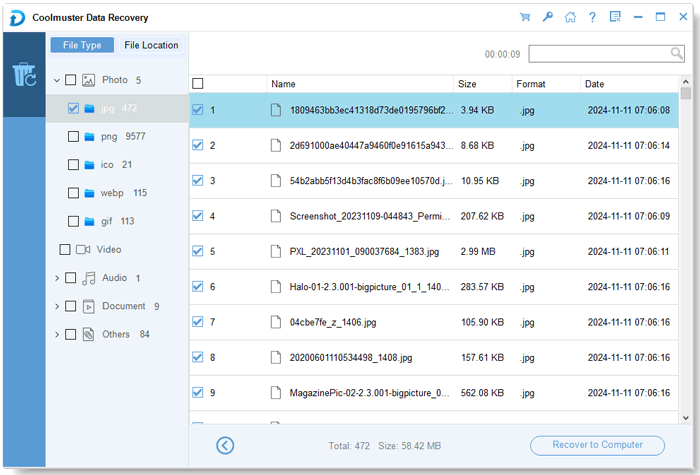
03Once the scan completes, browse through the found photos. Check the boxes next to the images you want to save, and click the "Recover to Computer" button to save them to your computer's hard drive.
Here's the video guide you can follow to recover your photos with ease (about 2 minutes):
For those who prefer a completely free, open-source powerhouse, PhotoRec is a premier choice. It ignores the file system entirely and goes straight after the underlying data, meaning it can safely recover images even from severely corrupted or reformatted cards.
Here's the guide:
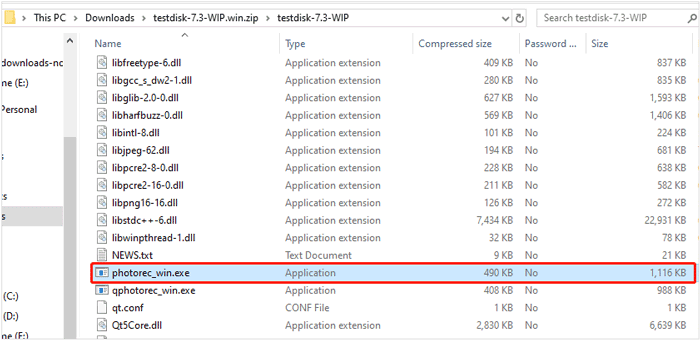
Step 1: Download the TestDisk/PhotoRec package from the official website and extract the files. Run "photorec_win.exe".
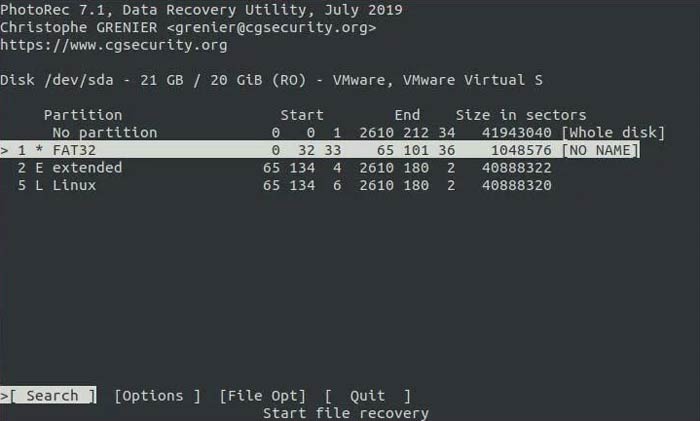
Step 2: Use the arrow keys to select your SD card from the list of disks and press "Enter". Select the partition style (usually Intel for older cards or EFI GPT for newer, high-capacity cards) and select the main partition.
Step 3: Choose "Other" (since the card was formatted, you want it to look for signatures across EXT2/EXT3/FAT/NTFS). Then select "Whole" to scan the entire space of the formatted SD card.
Step 4: Choose a folder on your computer where the recovered files will be saved. Press "C" to confirm, and PhotoRec will begin carving out your lost images.
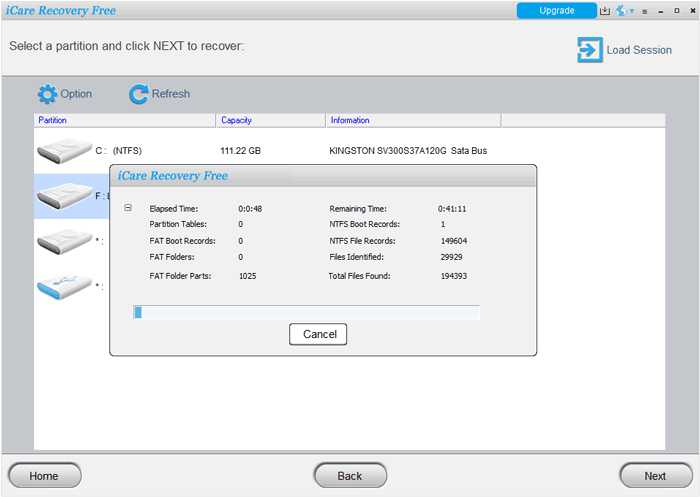
iCare Data Recovery is another dependable utility known for its strong deep-scanning algorithms. Its "Advanced Files Recovery" feature is specifically tailored to handle formatted drives and partition errors. If you don't want a recovery tool with a command-line interface, iCare Recovery can be a practical choice.
To restore photos from a formatted card with iCare Recovery:
Step 1: Connect your SD card to your PC and open iCare Data Recovery. Then click on "Formatted Drive Recovery" on the home screen.
Step 2: Select the drive letter representing your formatted SD card and click "Next" to initiate the scan. Let the software perform a deep search. This might take some time depending on the size of the card.
Step 3: Look through the generated folders, preview the thumbnails to verify your photos, select them, and click "Recover" to extract them to a secure location on your PC.
If you are running Windows 10 or 11 and prefer not to download third-party applications, Microsoft offers its own command-line tool called Windows File Recovery. It is free, secure, and highly customizable. While this method is free, it requires some familiarity with command-line operations.
Here are the steps:
Step 1: Download Windows File Recovery from the Microsoft Store. Launch the tool, which opens a Command Prompt window with administrator privileges.
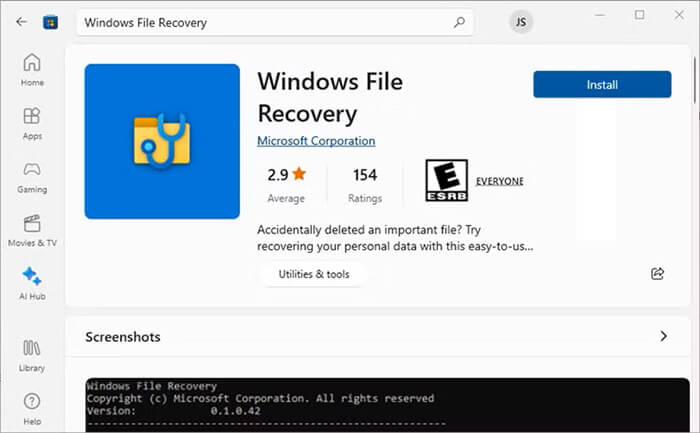
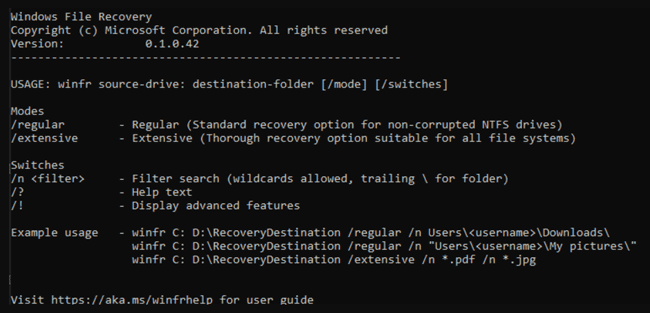
Step 2: The basic command structure is: "winfr source-drive: destination-drive: [/mode] [/switches]".
Step 3: Because an SD card is typically a FAT32 or exFAT file system and has been formatted, you should use the "Signature mode" (/x). Assuming your SD card is drive E: and you want to save files to drive D:, type: "winfr E: D: /x /y:JPEG,PNG".
Step 4: Press "Y" to start the scan. The tool will create a recovery folder on your destination drive containing your restored images.
No matter which tool you choose, data recovery is highly dependent on how you handle the card immediately after data loss. Keep these three golden rules in mind:
Rule 1: Stop using the card immediately. The moment you realize your card has been formatted, eject it. Do not take more photos, and do not browse the card. Writing even a single kilobyte of new data could permanently overwrite your deleted photos.
Rule 2: Never recover data back to the same card. When saving your restored images, always save them to your computer's local hard drive or an external drive. Saving them back to the same SD card during the recovery process can corrupt the very data you are trying to rescue.
Rule 3: Ensure a stable power supply. Data recovery scans can take a long time and consume significant processing power. Make sure your laptop is plugged into a power source so it doesn't shut down mid-process, which can cause permanent logic errors on the SD card.
Q1: Does the type of formatting matter?
Yes, immensely.
Quick Format: This is the default option on most cameras and computers. It deletes the directory path to your files but leaves the actual data intact, making recovery highly successful.
Full Format (Low-Level Format): This option completely overwrites the entire card with zeroes to check for bad sectors. If a full format was performed, the data is permanently erased and cannot be recovered by retail software.
Q2: Are all formats of images recoverable?
Yes. Standard formats like JPEG, PNG, and GIF are exceptionally easy for recovery tools to find because of their predictable file signatures. Professional RAW formats (such as CR2/CR3 for Canon, NEF for Nikon, or ARW for Sony) are also highly recoverable, though you must ensure your chosen recovery software explicitly lists your camera's RAW format as supported.
Q3: What about physically damaged SD cards?
If your SD card is snapped in half, severely chipped, or completely unrecognized by any computer (showing no signs of life in Disk Management), software cannot help you. In these cases, your only option is to send the card to a professional digital forensics laboratory, where specialists can manually remove the NAND flash chip and read the data using hardware bypasses.
It is far from a hopeless situation when you accidentally format an SD card without backing up your photos. By leveraging user-friendly tools like Coolmuster Data Recovery or iCare, or relying on command-line alternatives like PhotoRec and Windows File Recovery, you have a very high chance of getting your images back intact. Just remember to act quickly, stop writing data to the card, and always keep a secondary backup of your memories in the future!
Related Articles:
How to Unformat SD Card Without Hassle (Proven Methods)
How to Move Videos to SD Card | Streamline Android Storage
How to Fix SD Card Corrupted on Android? [Comprehensive Guide]
Why SD Card Keeps Deleting Files? How to Fix It on PC and Android







 Free Download for PC
  Free Download for Mac


