TL;DR:
TestDisk is a free and powerful data recovery tool mainly designed for recovering lost partitions and repairing damaged file systems. While it offers advanced recovery capabilities, its command-line interface can be challenging for beginners. This review explores TestDisk's features, pricing, pros and cons, and introduces Coolmuster Data Recovery as a more user-friendly alternative for recovering lost files.
Storage devices such as SSDs, HDDs, SD cards, and USB flash drives play an essential role in storing, backing up, and transferring important data. However, even with regular backups, data loss can still occur unexpectedly due to accidental deletion, partition loss, file system corruption, malware attacks, hardware failures, or system crashes. While backups are the most reliable way to restore lost files, they aren't always available, making data recovery software an essential solution when valuable data disappears.
Among the many recovery tools available, TestDisk stands out as one of the most recommended free and open-source options. It is widely praised by IT professionals and online communities for its ability to recover lost partitions and repair damaged file systems. But is it the right choice for everyone? In this TestDisk review, we'll examine its key features, pricing, strengths, weaknesses, and recovery process to help you determine whether TestDisk is the right data recovery tool for your needs.
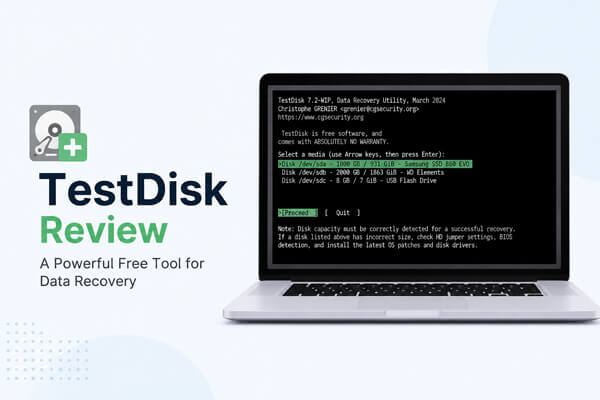
TestDisk is a free and open-source data recovery program developed by Christophe Grenier. Originally created to recover lost partitions and repair disks that fail to boot, it has become one of the most trusted recovery utilities among IT professionals and experienced users. Unlike many modern recovery applications with graphical interfaces, TestDisk operates through a command-line interface (CLI), giving users greater control over the recovery process.
The software supports Windows, macOS, Linux, and several other operating systems. It is compatible with a wide range of storage devices, including internal and external hard drives, SSDs, USB flash drives, memory cards, and other removable media. TestDisk also works with numerous file systems, such as FAT12/16/32, exFAT, NTFS, ext2/ext3/ext4, HFS+, and APFS (limited support), making it suitable for various data recovery scenarios.

TestDisk offers a variety of advanced features designed primarily for partition and file system recovery. Its key capabilities include:
One of TestDisk's biggest advantages is that it is completely free. Released under the GNU General Public License (GPL), it is open-source software, meaning anyone can download, use, and even modify the source code without paying licensing fees.
Unlike many commercial data recovery programs, TestDisk has:
This makes it an attractive option for users looking to recover lost partitions or repair damaged disks without spending money. However, the lack of a paid version also means there is no dedicated customer support. Users typically rely on official documentation, community forums, and online tutorials when they encounter problems.
Like any recovery software, TestDisk has strengths and weaknesses. Understanding both can help you decide whether it meets your recovery needs.
Pros
Cons
Overall, TestDisk is an excellent tool for experienced users who need to repair partitions or recover inaccessible drives. However, those looking for a quick and intuitive file recovery solution may find the learning curve too steep.
Although TestDisk is not difficult once you understand its workflow, first-time users may find its text-based interface confusing. Before using it, avoid writing new data to the affected drive to maximize the chances of successful recovery.
Follow these steps to recover a lost partition with TestDisk:
Step 1. Download TestDisk from its official website, extract the ZIP archive, and launch testdisk_win.exe (or the corresponding executable for your operating system).
Step 2. When prompted, select "Create" to generate a new log file, then press "Enter".
Step 3. Choose the disk containing the lost partition and select the correct partition table type. In most cases, TestDisk detects the partition table automatically.
Step 4. Select "Analyse" to scan the disk for existing and deleted partitions. If the desired partition is not found, choose "Deeper Search" for a more comprehensive scan.
Step 5. Once the lost partition appears in the results, verify that it is correct, then select "Write" to restore the partition table. Restart your computer if prompted to apply the changes.
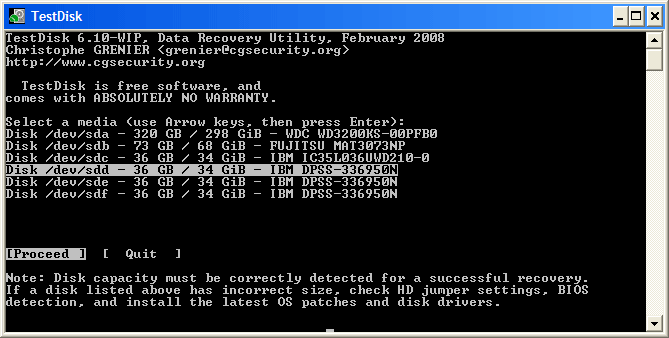
If TestDisk feels too technical or you mainly need to recover deleted files instead of repairing disk structures, Coolmuster Data Recovery can be a more convenient choice. Unlike TestDisk, which relies on a command-line interface and requires users to understand partition-related operations, Coolmuster Data Recovery provides a simple graphical interface that allows users to complete the recovery process with just a few clicks.
Designed for users who want a straightforward recovery experience, Data Recovery helps recover lost or deleted files without requiring advanced technical knowledge. It is especially suitable for beginners who may find TestDisk's recovery commands difficult to understand or users who prefer to preview files before restoring them.
Key features of Data Recovery:
How to use the TestDisk alternative to recover data?
01Download, install, and launch Data Recovery on your computer.
02Connect the storage device containing your lost files, then select "Deleted Recovery" to start the recovery process.
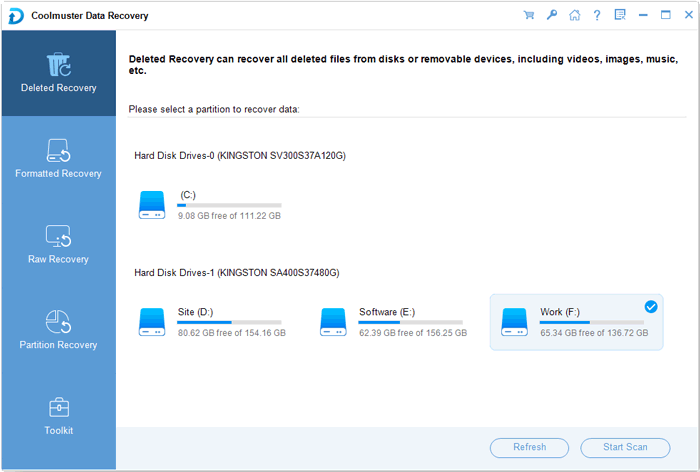
03Choose the target drive from the available drive list and click "Start Scan". The software will scan the selected location to find recoverable files.
04Preview the scanned files using the available viewing modes, then select the files you want to restore.
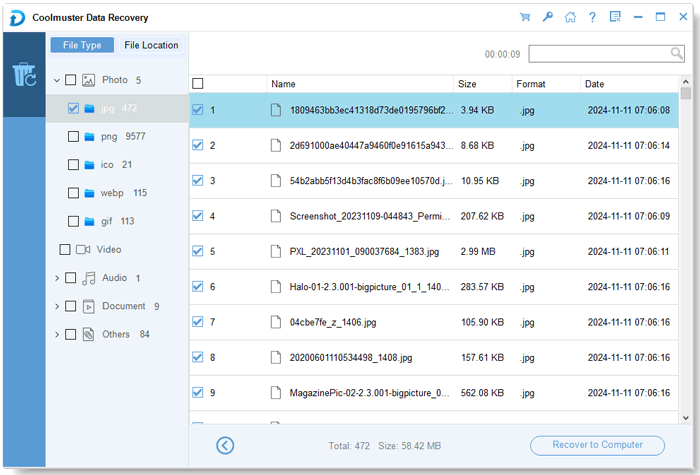
05Choose a destination folder to save the recovered files and click "Recover to Computer" to complete the recovery process.
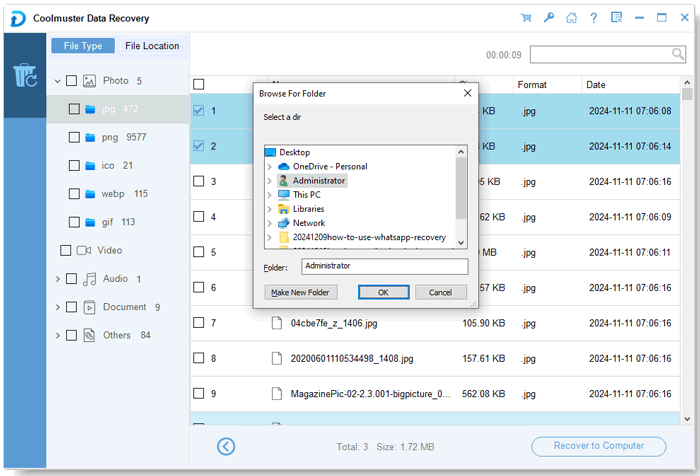
For a more detailed walkthrough, you can watch the following video tutorial to see how Data Recovery works step by step.
TestDisk is a powerful free and open-source data recovery tool that performs well when recovering lost partitions and repairing damaged file systems. Its extensive file system support and advanced recovery capabilities make it a reliable choice for experienced users. However, its command-line interface and technical recovery process can be overwhelming for beginners who only need to restore deleted files.
If you prefer a simpler way to recover lost files without dealing with complex commands, Coolmuster Data Recovery offers a more user-friendly solution. With an intuitive interface and straightforward recovery workflow, it allows you to scan, preview, and restore files with ease. The best choice ultimately depends on whether you need advanced partition repair or a more convenient file recovery experience.
Related Articles:
2026 Top 10 Best SD Card Recovery Software | 100% Working
How to Recover Deleted FAT/NTFS Files Without Trouble (4 Solutions)
How to Recover Deleted Pictures from Leica Camera with Ease
[Tutorial] How to Recover Deleted Files from External Hard Drive?






 Free Download for PC
  Free Download for Mac


