Have you stored some important files on a Toshiba hard drive, but now they have been lost? In this case, Toshiba hard drive recovery is imperative. Fortunately, there are 4 practical methods available to recover lost data, ranging from user-friendly software solutions to built-in system utilities. Learn about this comprehensive guide to restore your information.

Want a straightforward and reliable solution for retrieving lost or deleted files from a Toshiba hard drive? Then you may consider Coolmuster Data Recovery, a robust data recovery program that can scan and recover data from your external hard drive. With it, you can complete the data restoration with simple clicks.
Main features of Coolmuster Data Recovery:
Download Coolmuster Data Recovery.
To recover data from a Toshiba hard drive with Coolmuster Data Recovery:
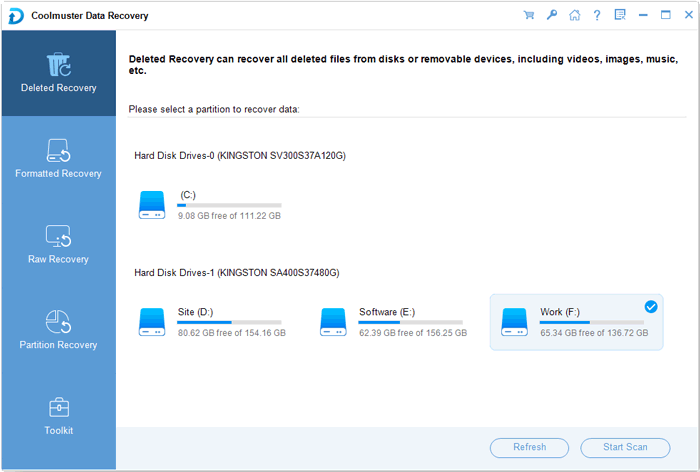
01Connect your Toshiba drive to your PC and open the data recovery software. Then choose a recovery mode, like "Deleted Recovery".
02Select the Toshiba drive from the list of partitions and click "Start Scan". Then the program will start scanning your hard drive and list the files on the interface.
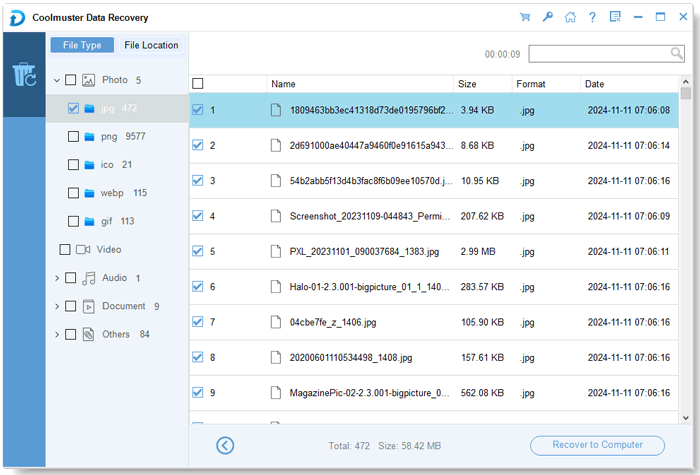
03Once scanned, preview the found files, select the ones you need, and click "Recover to Computer" to save them to a different drive to avoid overwriting data.
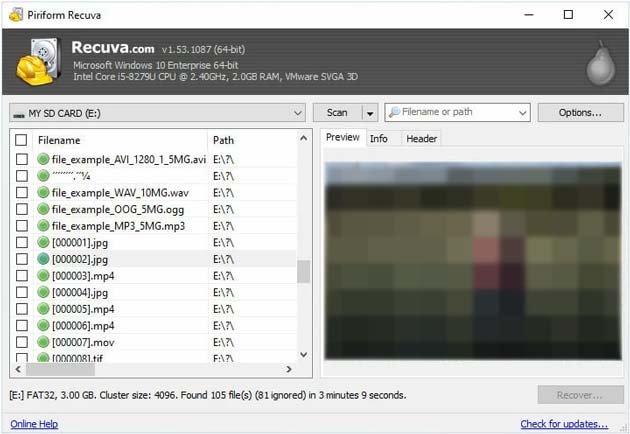
Recuva is a free data recovery tool known for its simplicity and effectiveness, especially for recently deleted files. You can use its free version to restore your data from your Toshiba external hard disk. However, please note that if the drive has suffered a physical "head crash" (where the read/write head touches the spinning platter), every second the drive is powered on for recovery increases the risk of permanent data loss.
To get your data back from a Toshiba hard drive via Recuva:
Step 1: Install and open Recuva on your computer. Follow the Recuva Wizard and specify that you are looking for files on "In a specific location".
Step 2: Select the Toshiba external hard drive as the target location. Next, start the scan (enable Deep Scan for better results if needed).
Step 3: Review the recoverable files and select the ones you need. Finally, click "Recover" and choose a safe destination.
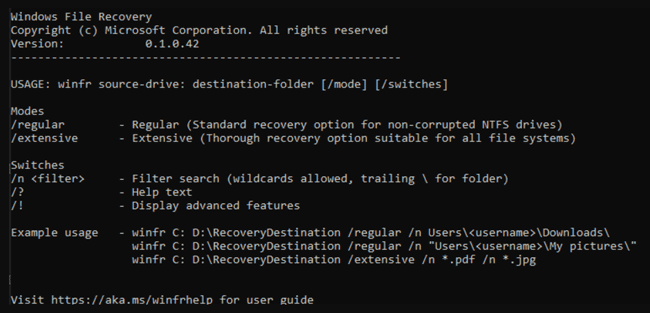
For users comfortable with a command-line interface, Microsoft provides a free tool called Windows File Recovery (available in the Microsoft Store). Unlike many third-party recovery tools, WinFR lacks a graphical user interface (GUI). A single typo or a misunderstood switch can lead to hours of unnecessary scanning or overwriting. So, please be careful to use this program.
To retrieve data from a Toshiba hard disk with Windows File Recovery:
Step 1: Download and launch the Windows File Recovery on your PC.
Step 2: Use the following command structure: winfr source-drive: destination-folder /regular. For example, if your Toshiba drive is E: and you want to save data to D:\Recovery, type: winfr E: D:\Recovery /regular.
Step 3: Follow the prompts to begin the extraction. Then wait for the recovery process to complete.
Sometimes files aren't missing; they are just inaccessible due to file system errors. The CHKDSK (Check Disk) command can repair these logical issues.
To regain your files from a Toshiba HDD via CHKDSK:
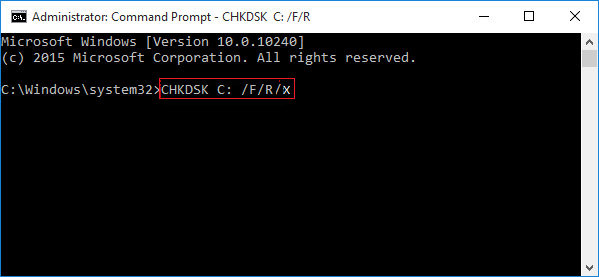
Step 1: Type "cmd" in the Windows search bar and run as administrator.
Step 2: Type "chkdsk E: /f" (replace "E:" with your Toshiba drive letter).
Step 3: This command checks the file system metadata. Once finished, your files may reappear in File Explorer if the directory structure was the only thing broken.
Q1: Why can't I see my Toshiba external hard drive?
This is usually caused by a faulty USB cable, an underpowered USB port, or a missing drive letter in Disk Management. Try plugging it into a port on the back of your PC or assigning it a new drive letter.
Q2: How to fix an external Toshiba hard drive not showing files?
If the drive shows as "Used Space" but no files appear, they might be hidden. Open File Explorer, go to View > Options > Change folder and search options, and select "Show hidden files, folders, and drives".
Q3: Can I repair a corrupted hard drive?
Yes, logical corruption can be fixed using CHKDSK or by reformatting the drive (though formatting erases data). However, if the drive is making clicking noises or is physically damaged, software cannot fix it; you will need a professional data recovery service.
Toshiba hard drives are generally resilient, so it is very possible to recover your data from your Toshiba hard drive. By starting with non-destructive methods like CHKDSK and moving toward powerful recovery software like Coolmuster Data Recovery or Recuva, you stand a high chance of getting your files back.
Related Articles:
Step-by-Step Guide: How to Erase Locked Hard Drive on Windows
[Step-by-Step] How to Overwrite A Hard Drive on Windows/Mac?
Solved: How to Recover Deleted Photos from Kodak Camera (4 Ways)






 Free Download for PC
  Free Download for Mac


