"Hi, I lost an HTC, that one day would never turn back on (would loop infinitely in boot up logos) and it still has a lot of videos and pictures on the internal storage. The phone was not rooted. Is there a way to recover those files from it?"
- From Reddit
Actually, it sometimes happens that an Android phone suddenly becomes completely dead or unresponsive due to hardware failure, battery issues, water damage, or system crashes. When this occurs, users are often left unable to access anything on the device, including photos, contacts, messages, and other important files stored inside.
Fortunately, it is still possible in many cases to recover data from a dead Android phone, depending on the condition of the device and whether backups or external storage were previously used. In this article, we will introduce several effective methods to safely recover data from a dead Android phone.
Yes, in many situations, data recovery from a dead Android phone is possible. Android devices store data in internal flash memory, which usually remains intact even when the phone fails to power on. The key factor is whether the storage chip itself is damaged.
You can often recover data if:
Recovery becomes more difficult if:
Even in the worst cases, professional repair centers may still be able to extract data directly from the memory chip.
We've organized these methods from the easiest (no technical skills required) to the most advanced (for complex cases). Start with Method 1 if you have a cloud backup, and move on to the next if the previous method does not work for your situation.
If you enabled cloud backup on your Android phone before it became unresponsive, this is the fastest and easiest way to recover your data. Most Android devices come with built-in cloud services, and many users also rely on third-party backup options. The most common services include Google Drive (pre-installed on most Android phones) and manufacturer-specific clouds such as Samsung Cloud or Huawei Cloud.
How to use Google Drive (most Android devices):
Step 1. On a computer, tablet, or another Android device, open a web browser and go to drive.google.com.
Step 2. Sign in with the same Google account that was used on your dead Android phone. Using a different account will prevent you from accessing your backup.
Step 3. Once signed in, click "Storage" in the left menu, then select "Backups".
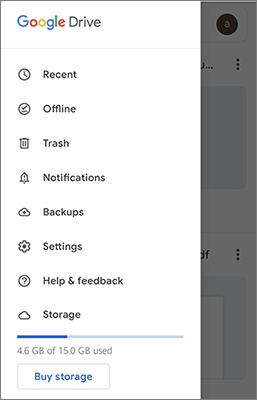
Step 4. A list of available backups will appear. Locate the one associated with your device name or model, and check the backup date to ensure it is the most recent version.
Step 5. Open the backup to view available data such as contacts, photos, messages, and app data. You can restore the entire backup to a new Android device or download selected files individually.
Google Drive provides 15GB of free storage, and larger backups may require a Google One subscription. Also, only selected data types are backed up automatically, such as contacts, app data, and photos. Manually stored local files may not be included unless previously uploaded.
For manufacturer cloud services (e.g., Samsung Cloud), simply sign in to the official cloud portal and restore your backup in a similar way.
If your dead Android phone uses a removable SD card, you may still be able to recover files stored on it. This method only works for data saved on the SD card, such as photos, videos, music, and documents. It cannot recover data stored in internal memory, such as contacts, messages, or app data.
Step-by-step guide:
Step 1. Ensure the dead Android phone is completely powered off. If it still shows any signs of activity, press and hold the power button for about 10-15 seconds to force shutdown.
Step 2. Locate the SD card slot, which is usually on the side of the device or inside the SIM tray. On older devices, it may also be located under the battery cover.
Step 3. Carefully remove the SD card to avoid physical damage, as SD cards are sensitive and can become corrupted if bent or scratched.
Step 4. Insert the SD card into a card reader and connect it to a computer or another Android device.
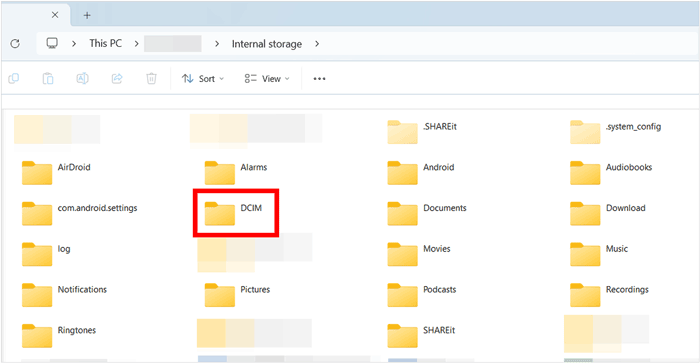
Step 5. Once detected, open "File Explorer" (Windows) or "Finder" (Mac) to access the SD card storage.
Step 6. Navigate through folders such as DCIM (photos), Music (audio files), and Documents, then copy the files you want to recover to a safe location on your computer or another device.
Note: Many newer models, such as Samsung Galaxy S21 and later, no longer support SD cards.
If you are unable to retrieve data from a dead Android phone using the previous methods, a professional third-party tool can be a more effective solution. One of the most widely used options is Broken Android Data Extraction, which is designed specifically for recovering data from unresponsive, bricked, or damaged Android devices.
Key features of Broken Android Data Extraction:
The following tutorial will guide you through the process of recovering data from dead Android by using this program.
01Download, install, and then start the application on your computer. On the left panel, choose the "Broken Android Data Extraction" option. Then, connect your phone to your PC through a USB cable.
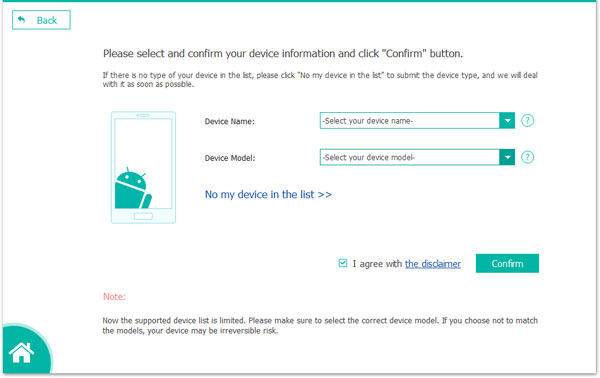
02Choose the preferred fixing mode and hit the "Start" button. Click "Confirm" after selecting the model number and name of your mobile phone. Then, click the question mark to know the model of your device if you aren't sure.
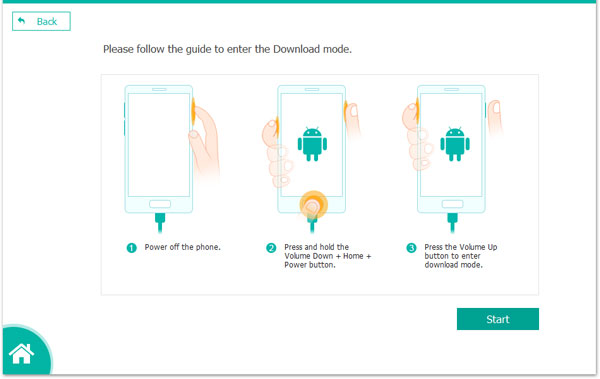
03You will be needed to make sure your phone is in Download Mode. Follow the onscreen prompts regularly to put your dead phone into download mode. The phone will then be detected, and data will be scanned out immediately.
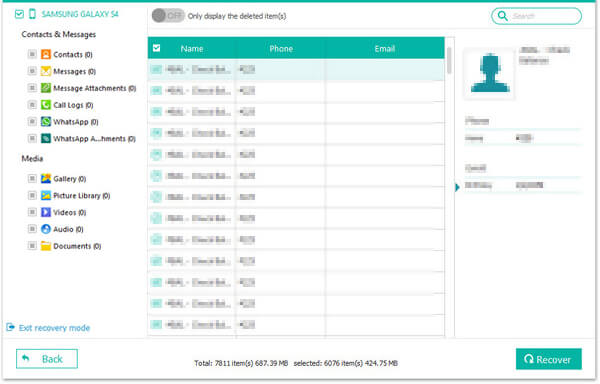
04After previewing the files and documents that you want to recover, hit the "Recover" button to recover contents from dead Android smartphone to the ground.
If all previous methods fail, the last and most reliable option is to seek help from an authorized service center. Professional technicians can diagnose whether the issue is caused by software failure, battery damage, or hardware malfunction, and then attempt advanced data recovery procedures.
In many cases, authorized service centers are able to recover data by repairing the device temporarily, replacing damaged components, or performing chip-level data extraction. This method is especially useful when the phone is completely unresponsive and cannot be detected by a computer or recovery software.
To proceed with this method:
Although this method may cost more than software-based solutions, it usually offers the highest success rate for severely damaged devices.
A dead Android phone does not always mean your data is lost forever. In many cases, your important files, such as photos, contacts, messages, and documents, can still be recovered using the right approach.
If you have enabled cloud backup or stored files on an SD card, recovery can be quick and simple. For more complex situations, Broken Android Data Extraction provides a powerful solution to retrieve data from unresponsive devices. And when everything else fails, authorized service centers offer the most advanced and reliable recovery options.
By choosing the right method based on your situation, you can greatly improve the possibility of recovering data from a dead Android phone safely and effectively.
Related Articles:
Techniques to Recover Data from Phone That Won't Turn On
How to Perform Broken Android Data Recovery [6 Solutions]
How to Recover Data from Broken Android Phone without USB Debugging (High Success Rate)
How to Flash a Dead Android Phone for Software & Hardware Issues [Solved]







 Free Download for PC

 Download for Mac

