Over time, your computer's disk may accumulate a large number of junk files, temporary files, or outdated partitions, which can slow down the system and even take up storage space. While the built-in Disk Cleanup tool in Windows can resolve some of these issues, for users who need to thoroughly clean or reset their disk, using CMD (Command Prompt) is an efficient method. This article will guide you step by step on how to clean your disk using CMD, as well as provide safer alternatives to help you manage disk space securely and efficiently.
Yes, you can definitely clean a disk using the Command Prompt. CMD provides several built-in commands that allow you to manage disk space, delete unnecessary files, format drives, and even handle disk partitions.
If you are sure about using CMD to clean your disk, you can perform the following steps with DiskPart. Please note that this will delete all files on the disk, so make sure to back up any important data first.
Here is how to clean a disk using CMD:
Step 1. Press "Windows + S" and type cmd. Then, right-click "Command Prompt" > select "Run as administrator".
Step 2. Type diskpart and hit "Enter". This will open the Disk Partition tool, giving you access to manage your disks.
Step 3. Type list disk and press "Enter". This will show a list of all the disks connected to your computer. Find the disk you want to clean by its size or disk number.
Step 4. Type select disk X, replacing "X" with the disk number you want to clean, then press "Enter".
Step 5. Execute the cleanup command.
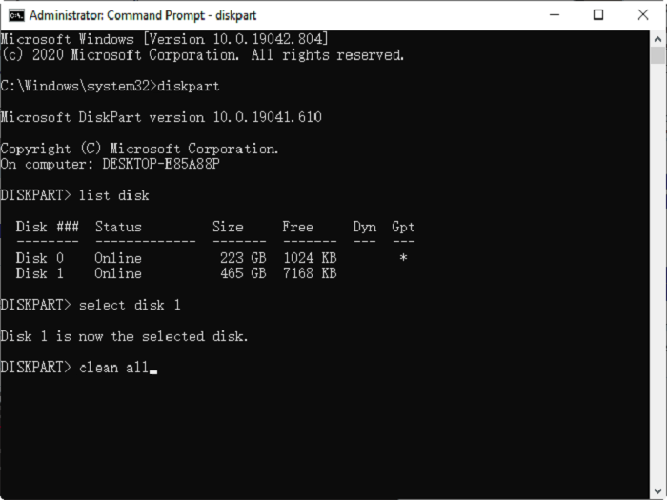
Step 6. After cleaning, type "create partition primary" and press "Enter". You will see confirmation that the partition was created successfully.
Step 7. Format the new partition with NTFS file system and assign a quick format: "format fs=ntfs quick" and press "Enter". This prepares the disk for normal use.
Step 8. Type "assign" to assign a drive letter so Windows can recognize the disk, and then press "Enter". The disk will now appear in File Explorer.
Step 9. At last, type "exit" and press "Enter" to leave DiskPart. Then close the CMD window.
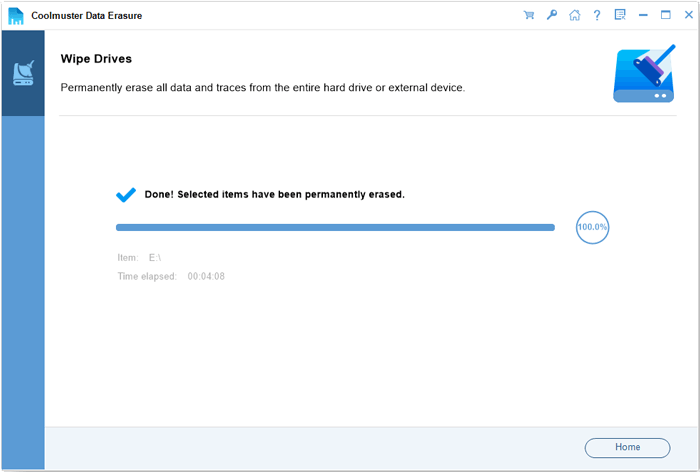
Although using CMD commands to clean a disk is highly effective, many people may be reluctant to use them due to their complexity. In such cases, using a professional disk cleaning tool like Coolmuster Data Erasure becomes a more suitable solution. It can directly erase the entire disk, making data unrecoverable. Additionally, it can help wipe the available space on the disk, permanently deleting any data that has already been removed.
Highlights of Coolmuster Data Erasure:
* Quickly clean a disk without using CMD.
* Safely erase files and folders from HDDs, SSDs, or external drives to prevent data remnants.
* Wipe entire disks, both system and non-system, using Quick Erase or DoD 5220.22-M(E) standards to ensure complete and irreversible data destruction.
* Remove leftover data from free space without affecting existing files, offering both fast and DoD-certified deep wipe options.
* Clean USB drives, partitions, external hard drives, and system drives (C drive) without needing bootable media.
* Comply with government-grade security standards to guarantee the permanent deletion of sensitive data.
How do I clean a disk without using CMD? Follow the steps below:
01Open the data wipe software on your PC after installation.
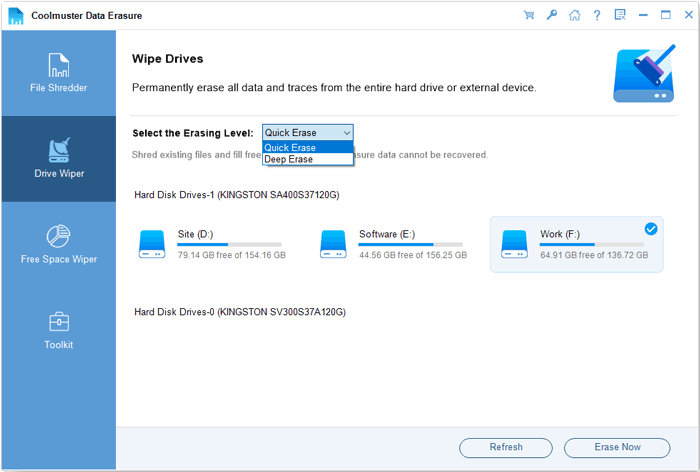
02Select "Drive Wiper" and choose the disk you want to erase. Then, select the "Deep Erase" option.
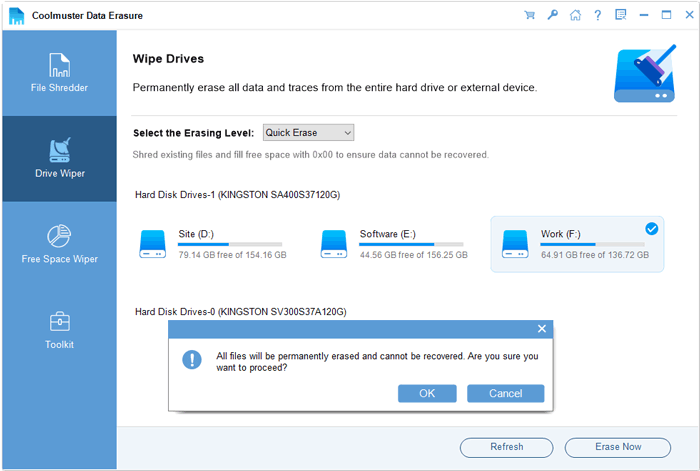
03Click "Erase Now" and confirm by clicking "OK". The program will start wiping your disk, and all data will be permanently erased.
Video Tutorial:
Q1. What is the difference between clean and clean all?
clean: Quickly removes the partition table; data can still be recovered.
clean all: Writes zeros across the entire disk; data cannot be recovered, but it takes longer.
Q2. Why can't CMD find my disk?
The following are the possible reasons:
Q3. Can I recover files after using the clean command?
No, once you execute the clean command in DiskPart, it removes the partition structure of the disk, making it extremely difficult—if not impossible—to recover the data without specialized data recovery software.
Using DiskPart through CMD to clean a disk is indeed a powerful and effective method, but it can be complex and carries the risk of data loss if the wrong disk is selected. If you're looking for a safer, more thorough, and easier way to clean your disk, Coolmuster Data Erasure is a better choice. It not only completely wipes the data but also ensures that the information is unrecoverable, making it ideal for users who need to sell their computer, dispose of hard drives, or handle sensitive information.
Related Articles:
Step-by-Step Guide: How to Erase Locked Hard Drive on Windows
[Step-by-Step Guide] 5 Reliable Ways to Erase SSD Disk on Windows
[Solved] How to Erase SD Card on Windows/Mac/Android/Camera?
Disk Cleanup Not Deleting Files on Windows 10/11: 5 Quick Fixes






 Free Download for PC


