When dealing with old computers, selling hard drives, or simply wanting to completely erase sensitive data, regular deletion or formatting is often insufficient. To prevent data from being recovered, users typically rely on disk wiping tools for deep cleaning. There are many free tools available on the market that can help you securely erase data from hard drives, SSDs, USB drives, or other storage devices. This article will introduce several common and reliable free drive wiper tools, providing guidance to help you choose the most suitable solution.
Although it is not very well-known, I would like to introduce it first. Coolmuster Data Erasure is a professional-grade data wiping tool designed to completely erase all data from devices. It supports hard drives, external hard drives, USB drives, memory cards, and other devices, and includes multiple international security wiping algorithms, such as DoD 5220.22-M, to ensure irreversible data destruction.
The software has a clear interface and simple steps, making it easy for even beginners to securely erase data. It offers two erasing levels, allowing users to choose based on the device type and data sensitivity. Once the erasure is complete, the data is unrecoverable, making it ideal for both personal and business use.
Key features of Coolmuster Data Erasure:
Here is how to use this drive wiper:
01Download and install Coolmuster Data Erasure on your Windows PC, then launch the program.
02Select "Drive Wiper" and choose your preferred erasing level. Next, pick the hard drive you want to erase and click "Erase Now".
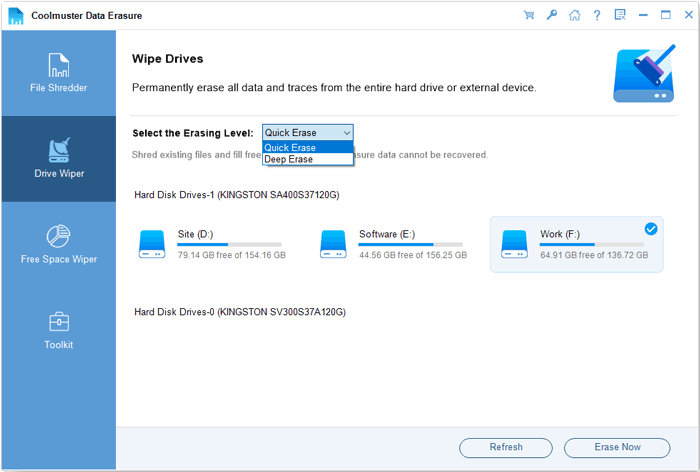
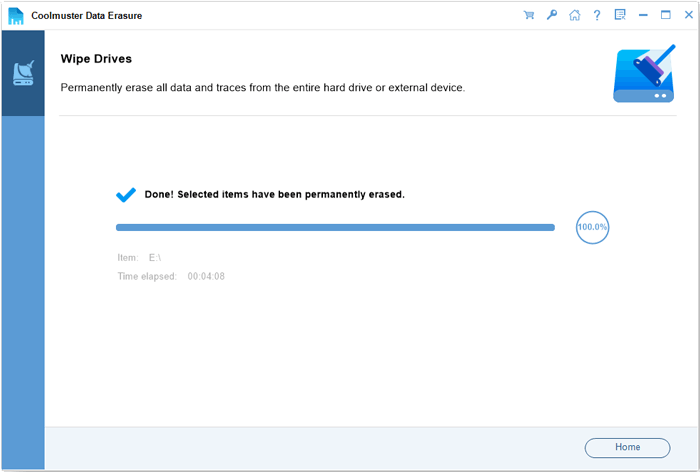
03Confirm by clicking "OK", and the disk wiper will begin completely wiping your drive.
Video Tutorial:
Pros:
* Use professional, secure wiping algorithms.
* Drive Wiper is one of the key features, alongside File Shredder and Free Space Wiper.
* Clean, intuitive interface.
* Support various storage devices.
* Multiple wiping levels available.
Cons:
* The free version allows you to wipe up to 10 files at no cost.
* It must be installed on a computer to work.
* Currently, it is only compatible with Windows 11/10/8/7.
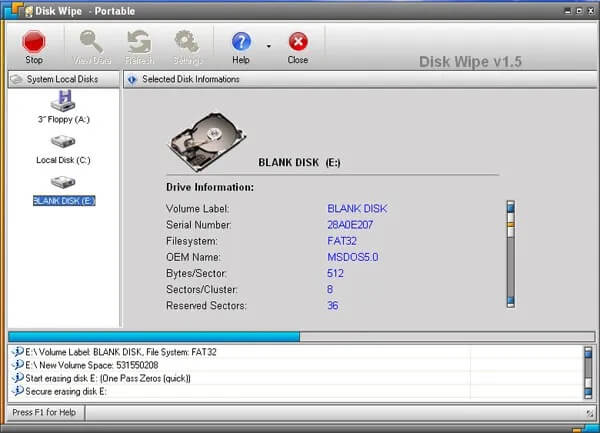
Disk Wipe is a free, portable Windows application designed for permanent data destruction on volumes. With Disk Wipe, you can completely erase all data on a disk, preventing its recovery. Unlike regular hard drive formatting, which leaves room for data recovery, many companies and individuals who simply discard old hard drives have learned this the hard way. Disk Wipe addresses this issue effectively by using powerful algorithms that overwrite the drive with meaningless binary data multiple times. The chance of recovering data from a drive wiped with Disk Wipe is virtually nonexistent.
Pros:
* Free, portable, ad-free, and works offline—ready to use immediately.
* Support secure erase algorithms like DoD 5220-22.M, US Army, Gutmann, etc.
* Can erase entire disks or partitions, with the option to format to NTFS/FAT32 afterward.
* Guided interface, making it easy for regular users to get started quickly.
* Support external storage devices like USB drives and SD cards.
Cons:
* Cannot erase the system drive currently in use (non-bootable tool).
* SSDs may be limited by wear leveling or over-provisioning, making overwrite erasure less effective.
* Multiple overwrites can take a long time on large capacity hard drives.
* Lack audit logs and compliance reports, making it unsuitable for enterprise-level scenarios.
* The interface is outdated, and the community and updates are not as active as tools like DBAN/nwipe.
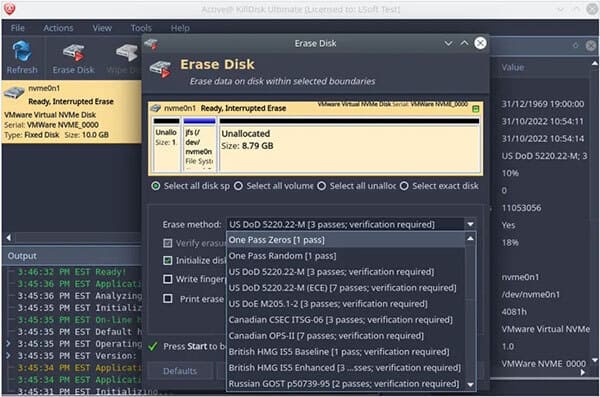
KillDisk is a well-known data destruction tool that offers both free and paid versions. The free version provides basic yet effective data erasure capabilities, allowing all data to be wiped with a single overwrite. It can erase hard drives and USB drives, making it a reliable choice for simple and secure data erasure before disposal.
Pros:
* Compatible with Windows, Linux, and macOS.
* Allow you to create a bootable USB/CD for wiping the OS drive (advanced boot options may require the paid version).
* Simple and effective for basic, secure data deletion.
Cons:
* The free version offers a basic single-pass wipe using zeros.
* Frequent prompts push users to upgrade to the paid professional version for additional algorithms.
* May feel a bit outdated compared to newer tools.
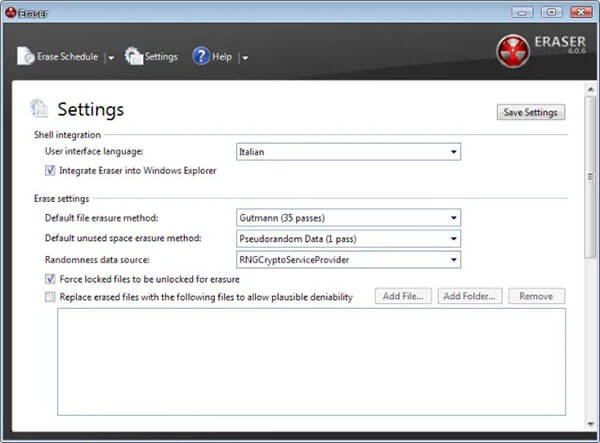
Eraser is a powerful security tool for Windows that enables you to permanently erase sensitive data from your hard drive by overwriting it multiple times with carefully chosen patterns.
Pros:
* Can securely delete specific files, folders, and previously deleted free space.
* Allow users to schedule wiping tasks to run automatically.
* Support various military-grade and customizable wiping methods.
* Free, open-source, and supported by a community.
Cons:
* Available only for Windows.
* Not designed to wipe entire operating system partitions.
* While user-friendly for basic tasks, some users may find the variety of options overwhelming.
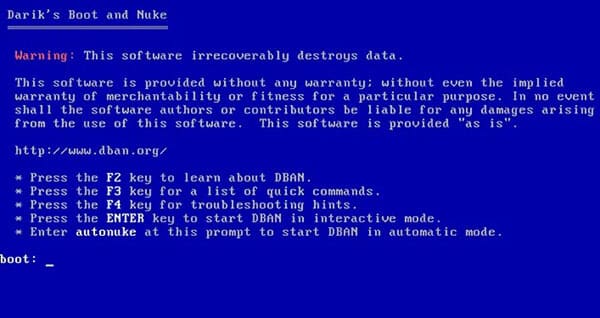
DBAN is a free, open-source data erasure software for personal use. It can remove data stored on hard drives (HDD, not SSD) in laptops, desktops, or servers. Additionally, it can also clear viruses and spyware from Microsoft Windows systems.
Pros:
* Run outside the operating system, allowing it to wipe the primary (boot) drive.
* Specifically designed for bulk data destruction and system disposal.
* Support multiple secure erasure methods (e.g., DoD 5220-22.M, Gutmann).
* A trusted, long-standing name in data sanitization.
Cons:
* Not optimized for modern Solid State Drives (SSDs).
* Can potentially shorten the lifespan of SSDs.
* Command-line interface may be intimidating for beginners.
* Primarily designed to wipe the entire physical disk, rather than just free space or specific files.
* Official development has ceased, requiring community or paid alternatives (e.g., Blancco) for updates.
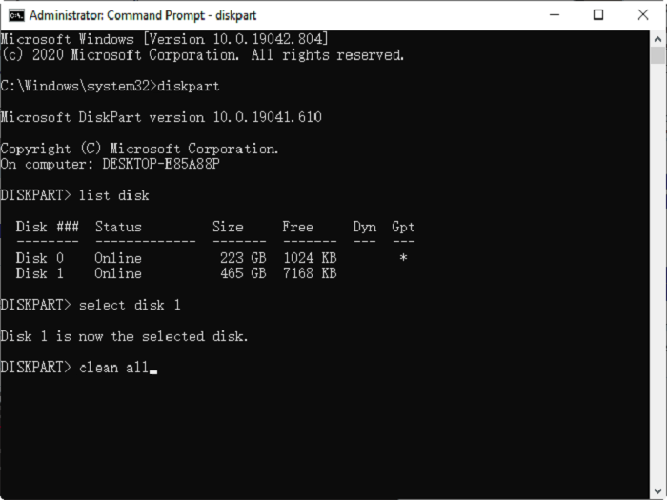
DiskPart is a built-in command-line utility in Windows. The clean all command is a secure method for wiping an entire disk. Unlike the standard clean command, clean all writes zeros to every sector on the disk, effectively erasing all data and partition information.
No software installation is required; users only need to enter a few commands to completely erase the disk data by overwriting all sectors. While it does not support complex algorithms, it performs excellently for regular disk cleaning tasks.
Pros:
* No third-party software installation required; available on all modern Windows versions.
* Securely overwrite the entire disk with zeroes, which is sufficient for most scenarios.
* A fast method for erasing the entire disk and partition table.
Cons:
* Command-line tool with no "undo" option; selecting the wrong disk can lead to catastrophic data loss.
* Only performs a single pass of zeroes; does not support multi-pass standards like DoD.
* Command-line interface may confuse beginners.
* Require basic knowledge of the command prompt and drive identification (using list disk).
In conclusion, selecting the right free drive wiper depends on your specific needs, whether you want top-level security, simple plug-and-play usage, targeted file erasure, or a built-in system solution. Some options focus on maximum data destruction, others emphasize convenience or lightweight performance, and some work directly within your operating system.
No matter which type you choose, always remember that secure wiping is irreversible, so make sure to back up any important data before erasing your drive.
Related Articles:
HDD Secure Erase: How to Securely Erase HDD in 2 Safe Ways
How to Erase USB Drive Completely? 3 Effective Methods Inside!
[Step-by-Step Guide] 5 Reliable Ways to Erase SSD Disk on Windows
Reset Toshiba External Hard Drive: Step-by-Step Guide for Beginners






 Free Download for PC


