TL;DR: This guide explains how to wipe a laptop safely before selling, recycling, or resetting your device. It covers three main methods: use a professional tool like Coolmuster Data Erasure for the most secure, multi-layer overwriting that makes recovery nearly impossible; use the Windows "Reset this PC" option for a built-in but less secure method; or use macOS "Erase All Content and Settings" to fully reset and reinstall the system.
For basic daily use, built-in reset tools are enough, but for privacy protection or device resale, a dedicated data-wiping tool is the safest choice.
If you are searching for how to wipe a laptop, you likely want to completely remove all personal data before selling, recycling, or fixing your device. This guide explains how to wipe a laptop on Windows and Mac using three reliable methods, including a professional data erasure tool and built-in system options.

If you want the most thorough and highest-level method to wipe a laptop before selling, using professional software is the best option. Coolmuster Data Erasure is one such tool. It can permanently delete all data by overwriting the hard drive multiple times, making it almost impossible for any recovery tools to retrieve it. It is especially suitable for selling or recycling your device.
What can Coolmuster Data Erasure do for you?
Here is how to wipe a laptop hard drive via Coolmuster Data Erasure:
01Install the drive wiping tool on your Windows laptop and open the program.
02From the main menu, select "Drive Wiper", then choose the erase level and pick the hard drive you want to wipe.
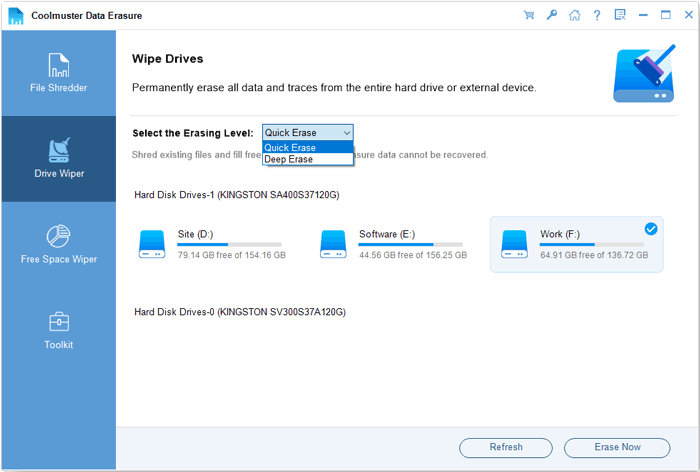
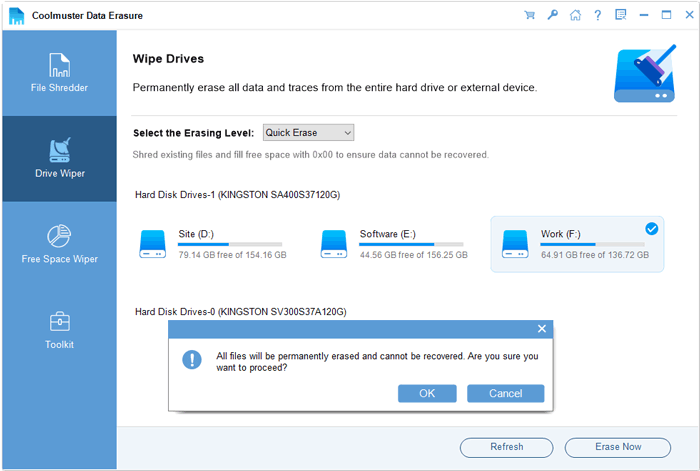
03Click "Erase Now". A confirmation window will appear—click "OK" to continue. The software will securely erase all data on the selected drive. When it finishes, you can repeat the same steps for other drives.
Video Tutorial:
Another common method to wipe a laptop on Windows is using the built-in "Reset This PC" feature. This option reinstalls Windows and removes personal files, making it suitable for general users, although it is less secure than professional data wiping tools.
Here is how to wipe a laptop in Windows 11/10 with Reset This PC:
Step 1. Right-click the Windows "Start" button and select "Settings".
Step 2. Go to "Update & Security".
Step 3. In the left sidebar, select "Recovery".
Step 4. Under "Reset this PC", click "Get Started".
Step 5. Choose "Remove everything" to delete all data, including personal files. (If you want to keep your files, you can select "Keep my files", but it is not recommended.)
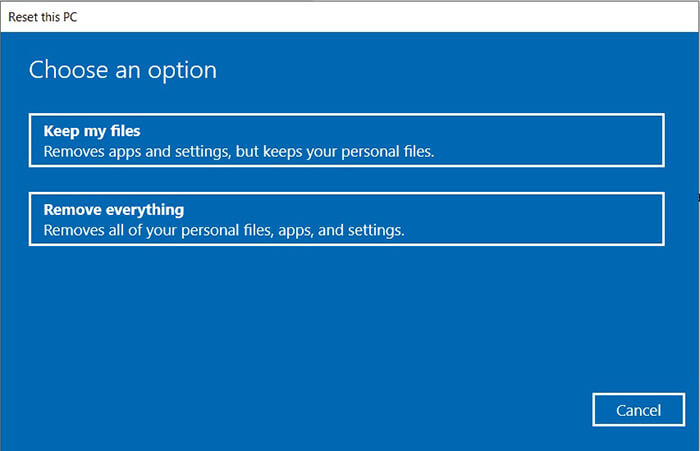
Step 6. Select "Remove files and clean the drive" in the next window.
This process may take some time depending on how much data is stored on your Windows PC. Please wait until it completes.
If you are using a Mac, the process to wipe a laptop is simpler thanks to macOS built-in tools. Apple provides a secure option called "Erase All Content and Settings", which removes personal data and reinstalls macOS automatically.
Here is how to wipe a Mac laptop for recycling:
Step 1. Click the "Apple" menu and open "System Settings".
Step 2. Go to "General" and then "Transfer or Reset".
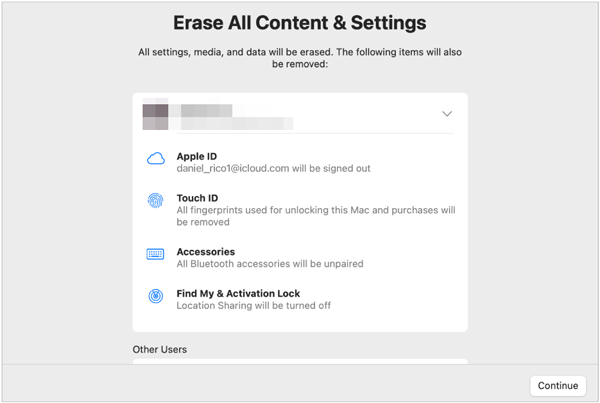
Step 3. Select "Erase All Content and Settings" to start the full wipe process.
Step 4. Sign in with your admin credentials to authorize the reset.
Step 5. Review the data that will be removed, including Apple ID and personal files, then confirm the erase.
Step 6. Wait while the Mac automatically wipes all content and reinstalls macOS.
Step 7. After the restart, complete the setup screen, and the Mac will be ready like a new device.
Q1. Is a factory reset enough to remove all data?
For most users, a Windows factory reset using the "Remove everything" option is generally sufficient. For stronger protection, you can choose the option to fully clean the drive, which overwrites the data and makes it extremely difficult to recover. This process removes all files, applications, and system settings from the device.
Q2. Does erasing a laptop mean the same as formatting it?
Not exactly. Formatting only clears the file structure, while wiping goes further by overwriting the data, making it much more secure.
Q3. How long does it take to wipe a laptop?
It depends on storage size and method. It can take from 30 minutes to several hours.
That's all about how to wipe a laptop. If you only need a basic reset for everyday use, you can use the built-in Windows or Mac tools. However, if you are selling, recycling, or protecting your privacy, it is recommended to use a professional tool like Coolmuster Data Erasure for deep wiping. It permanently deletes data by overwriting the hard drive, ensuring your personal information cannot be recovered and making it the most reliable option before selling or recycling a computer.
Related Articles:
How to Factory Reset PC Windows 10/11: Complete Guide (2026)
How to Delete All Data from HP Laptop? Solved in 3 Safe Ways
Step-by-Step Guide to Delete Everything But OS on Windows & Mac
Step-by-Step Guide: How to Erase Locked Hard Drive on Windows







 Free Download for PC


