TL;DR:
The LOST.DIR folder on Android may contain recoverable files after system crashes, interrupted transfers, or storage errors. This guide explains how to recover LOST.DIR files through:
"I have a Samsung SD card that I've been using for some years, and after a software update a year ago I lost some valuable videos and photos. It wasn't until recently that I discovered the LOST.DIR folder and learned about it, but I can't seem to figure out how to recover the files. Is there an app or PC application that can get this done easily? I'm not very tech-savvy. Any help would be greatly appreciated."
- From Reddit
Have you found a folder named LOST.DIR on your Android phone or SD card and wondered what it is? Unlike regular folders, LOST.DIR is automatically created by the Android system to store file fragments recovered after unexpected interruptions, such as system crashes, incomplete file transfers, or improper SD card removal.
Although LOST.DIR may contain recoverable files, the data inside this folder is often difficult to access because files may have random names or missing extensions. In this guide, we will explain what the LOST.DIR folder means and show you how to perform LOST.DIR recovery using several practical methods.
LOST.DIR is a system folder automatically generated by Android devices, especially on external SD cards. It works similarly to the recovery folders found on other operating systems and is designed to store files that Android attempts to recover after a file system error.
Normally, Android creates files inside LOST.DIR when unexpected situations occur, such as:
The files stored in LOST.DIR usually do not have their original names. Instead, Android may rename them using numbers or random characters. In some cases, file extensions are also missing, making it difficult to identify whether a file is a photo, video, document, or another type of data.
For example, a file originally named holiday.jpg may appear as something like 123456 inside the LOST.DIR folder. Without the correct file extension or a recovery tool, opening these files can be challenging.
Depending on whether the LOST.DIR files still exist, have missing extensions, or have already been deleted, you can try different recovery methods.
If you can still find files inside the LOST.DIR folder but cannot open them, they may only be missing their original extensions. Adding the correct extension manually may help restore access.
Follow these steps:
Step 1. Open the LOST.DIR folder on your Android device or SD card.
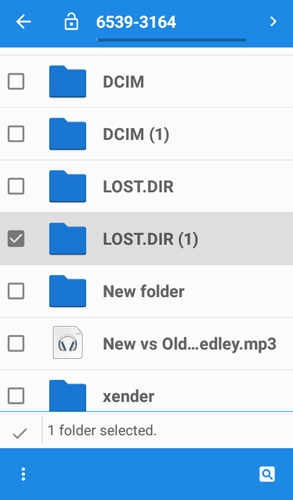
Step 2. Check the files stored inside and identify their possible formats.
Step 3. Add a suitable extension to the file name.
Step 4. Try opening the file with the corresponding application.
For example:
However, this method only works when the file itself is not damaged, and you can correctly guess the original format. If there are many files in LOST.DIR or you do not know their original types, manually renaming them can be time-consuming.
When files in the LOST.DIR folder become inaccessible or are accidentally deleted, manually restoring them can be difficult. In this case, a professional data recovery tool can help scan the storage device and find recoverable files. Since LOST.DIR is commonly found on Android SD cards, you can connect the SD card to a Windows or Mac computer and perform a recovery scan.
Coolmuster Data Recovery is a desktop-based recovery solution that helps retrieve lost files from SD cards and other storage devices. It provides a simple way to scan for lost data and recover files that are no longer accessible through normal methods.
With this professional recovery tool, you can:
How to recover LOST.DIR files with Data Recovery?
01Download, install, and open Data Recovery on your computer.
02Connect the SD card containing the LOST.DIR folder to your computer. Then, select "Deleted Recovery" to enter the recovery mode and prepare for scanning.
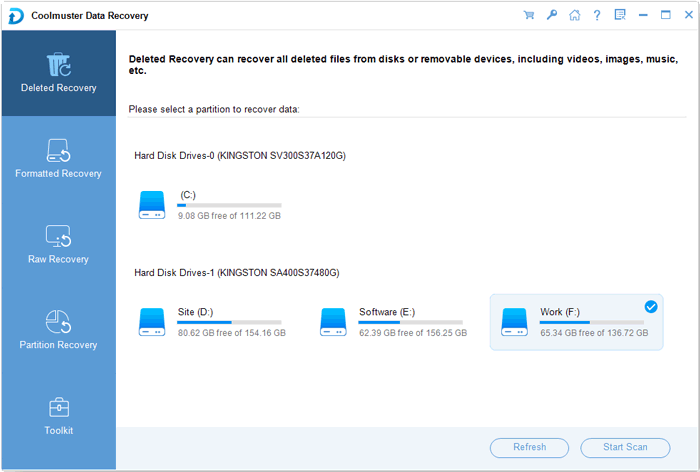
03Choose the connected SD card or target drive from the drive list and click "Start Scan". The software will scan the selected location to find recoverable files that may be lost or stored in the LOST.DIR folder.
04Preview the scanned results and check the available file details. Select the files you want to recover from the scan list.
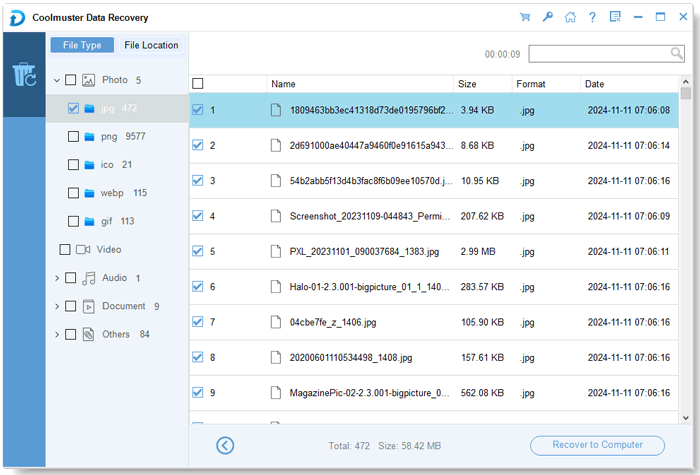
05Select a destination folder on your computer and click "Recover to Computer" to save the recovered files.
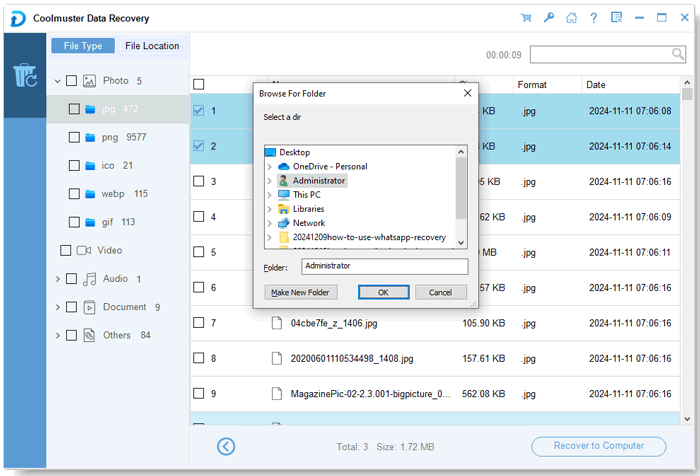
For a visual guide on how to recover lost files from an SD card with Data Recovery, watch the following video tutorial.
If you have enabled cloud backup on your Android device before the LOST.DIR files were lost, you may be able to restore the missing data from your backup account. Although cloud services cannot directly recover files from the LOST.DIR folder, they may contain copies of your photos, videos, documents, and other important files.
Follow these steps to restore your files from a cloud backup:
Step 1. Open the cloud backup service associated with your Android device, such as Google Photos or Google Drive.
Step 2. Sign in with the account used for backup and check whether the lost files are available in your backup or synced data.
Step 3. Select the files you want to recover and choose the download or restore option.
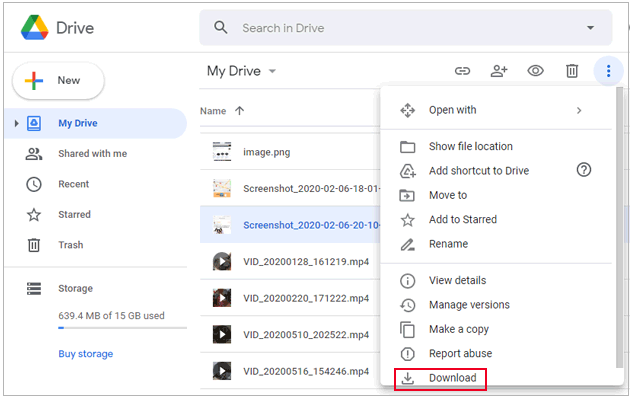
Step 4. Save the recovered files back to your Android device or another safe location.
1. Is LOST.DIR a virus?
No. LOST.DIR is not a virus. It is a normal Android system folder created to store recovered file fragments after unexpected interruptions or storage errors. You do not need to worry if you find this folder on your Android device or SD card.
2. Can LOST.DIR Folder be deleted?
Yes, you can delete the LOST.DIR folder if you do not need the files inside it. However, deleting it does not fix storage problems and may remove files that could potentially be recovered. Android may automatically create the LOST.DIR folder again when the system needs to store recovered file fragments. Before deleting it, check whether it contains important files.
3. Why are LOST.DIR files not opening?
LOST.DIR files may not open because:
You can try adding the correct extension manually or use data recovery software to scan and restore the original files.
The LOST.DIR folder is a normal Android system folder that may contain recoverable files after unexpected interruptions, storage errors, or incomplete file operations. While adding file extensions or restoring from backups may work in some cases, deleted or inaccessible files often require a professional recovery solution.
Coolmuster Data Recovery provides an effective way to scan SD cards and other storage devices for lost files. It allows you to preview recoverable data before recovery and restore important photos, videos, documents, and other supported files through a Windows or Mac computer, making it a practical choice for LOST.DIR recovery.
Related Articles:
How to Recover Deleted Photos from SD Card: 5 Proven Methods
How to Fix SD Card Corrupted on Android? [Comprehensive Guide]
Recover Data from Memory Card: Complete Guide with Practical Tools
How to Realize SD Card Recovery for Android [Must Read in 2026]






 Free Download for PC
  Free Download for Mac


