TL;DR:
Losing an unsaved Word document due to crashes or accidental closure is frustrating, but it can often be recovered using three methods:
We've all been there, spending hours working on an important document in Word, only to accidentally close the program, face a sudden system crash, or have your device shut down without saving. It's incredibly frustrating to lose your hard work.
But here's the good news: it's not always gone for good. There are several ways to recover unsaved Word documents, whether by using a dedicated recovery tool, relying on Word's built-in features, or digging through your computer's temporary files. In this guide, we'll show you three effective methods to get your document back, so you don't lose your progress.
When it comes to the simplest and most reliable method, Data Recovery is the top choice. It's a powerful third-party tool that's well-known for easily recovering lost, corrupted, or overwritten data. Even if your computer is completely unresponsive or if you've experienced a blue screen, black screen, crash, or any other failure that caused you to lose unsaved data, this data recovery tool can save the day.
Key Features of Data Recovery:
Steps to Use Data Recovery to Recover Unsaved Word Document:
01Click the link below to download the software to your computer.
02Open the program, and on the main interface, select "PC & Hard Drive Data Recovery".

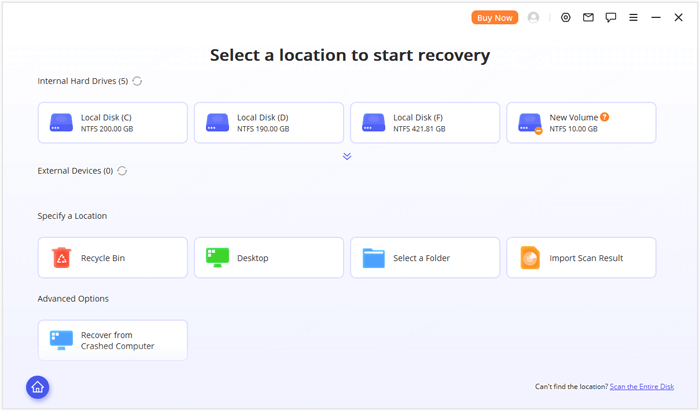
03You'll see an interface displaying all available data recovery locations. Choose your hard drive or desktop, and click on it. If you can't find the partition where your data was lost, click "Scan the Entire Disk" for a full disk scan.
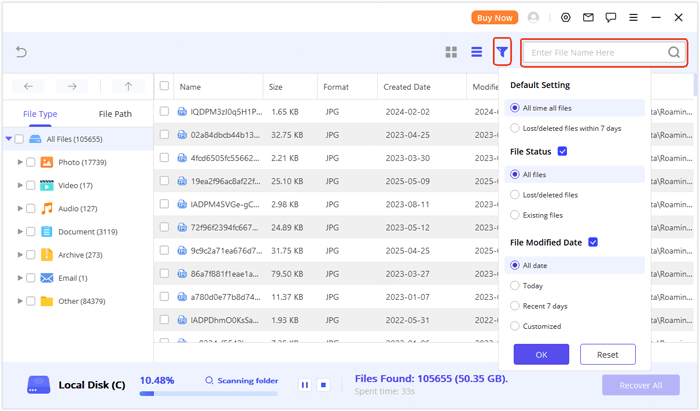
04The scan results will be grouped by file type and path. If you know the type of data or the file path, you can quickly locate the file you're looking for. You can also use the search and filter options to make the process even more efficient.
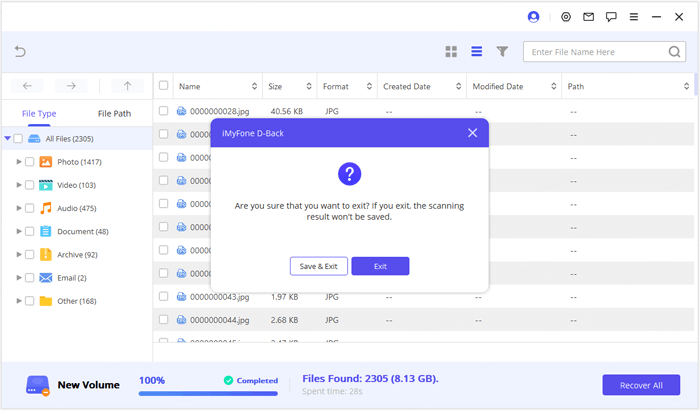
05Once the scan is finished, or if you want to pause it, the program will prompt you to save the scan results. If you're not ready to recover your data right away, you can save the scan file and resume the process later.
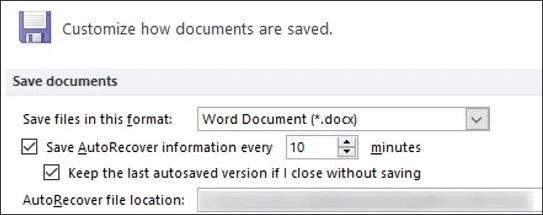
Microsoft Word has a built-in AutoRecover feature that automatically saves temporary versions of your document while you work. This can be a lifesaver in case of an unexpected shutdown or Word crash. By default, AutoRecover saves your document every 10 minutes, and you can configure it to save more or less frequently.
Steps to Recover Unsaved Word Document Using AutoRecover:
Step 1. Open Microsoft Word and click on "File" in the top left corner.
Step 2. Go to "Info" and click on "Manage Document".
Step 3. From the dropdown menu, click on "Recover Unsaved Documents".
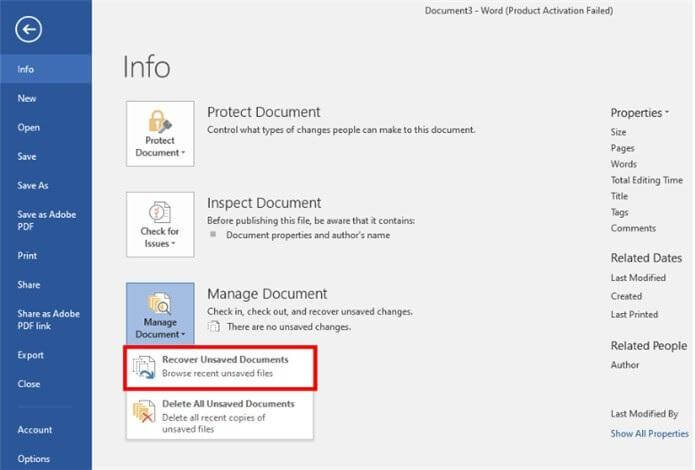
Step 4. A window will appear showing the unsaved documents. Find the one you need and click to open.
Step 5. Once the document opens, make sure to save it to your desired location.
How to Turn on AutoRecover
If AutoRecover is not enabled on your system, or if you want to adjust its settings to save more frequently, follow these steps:
Step 1. Click on "File" > "Options".
Step 2. Under the "Save" tab, ensure the box for "Save AutoRecover information every X minutes" is checked.
Step 3. Adjust the time interval to your preference (e.g., every 5 minutes for more frequent saves).
Step 4. You can also change the location where AutoRecover files are stored by clicking on the "AutoRecover file location" button.
If AutoRecover doesn't work, you can try to recover your unsaved Word document by looking for temporary files on your computer. Whenever you edit a Word document, your system creates temporary files to hold the content while you work. Even if you don't save the document, these temporary files might still be available.
Steps to Recover Unsaved Word Documents from Temporary Files:
Step 1. Press "Win" + "R" to open the Run dialog, type %temp%, and hit "Enter". This opens the system's temporary files folder.
Step 2. In this folder, look for files with the .tmp extension. You can narrow your search by typing "Word" in the search bar to display temporary files linked to Microsoft Word.
Step 3. Temporary files may have random names, but you can sort them by "Date Modified" to find those created around the time you were editing your document.
Step 4. Copy the identified temporary file to your desktop or another location. Rename it by changing the file extension from .tmp to .docx or .doc. Double-click the renamed file to open it in Word. If it's the right document, don't forget to save it immediately.
Alternatively, you can directly check the default location where Word stores unsaved files:
For Windows 10/11. Navigate to C:\Users\[Your Username]\AppData\Local\Microsoft\Office\UnsavedFiles, replacing "[Your Username]" with your actual Windows username. Look for files with the .asd or .tmp extension.
Losing an unsaved Word document can be frustrating, but there are several methods to recover it, including AutoRecover and searching through temporary files. However, these methods aren't always foolproof, and they may not work in every case.
For a more reliable and efficient solution, Data Recovery is highly recommended. This powerful tool makes it easy to recover unsaved or lost Word documents, even from damaged or unresponsive systems, ensuring that you can get your important files back quickly and with minimal effort.
Related Articles:
How to Recover Lost Word Documents on Android with/without Backup
How to Restore Deleted Files from Android Tablet with/Without Backup
Top 11 Phone Memory Recovery for Android Software You Should Know
How to Recover Deleted Files from Android Phone Internal Memory







 Free Download for PC
  Free Download for Mac


