TL;DR:
If your Android phone shows the “Enter Password to Unlock 30/30 Attempts Remaining” message, repeated failed attempts may leave you unable to access the device. This article explores five ways to regain access: waiting for the timeout, using your Google account, trying Find My Device, using professional Android unlocking software, and performing a factory reset.
If you're seeing the message "Enter Password to Unlock 30/30 Attempts Remaining" on your Android device, you're not alone. This common Android lockout prompt is a built-in security feature designed to protect your personal data from unauthorized access, whether from accidental wrong inputs, forgotten passwords, or potential intruders.
In this comprehensive guide, we'll break down exactly what this message means, and the most effective methods to fix the "Enter Password to Unlock 30/30 Attempts Remaining" error, from simple quick fixes to reliable unlocking tools. Whether you have a Samsung, Huawei, Xiaomi, or any other Android phone, these solutions work for most devices.
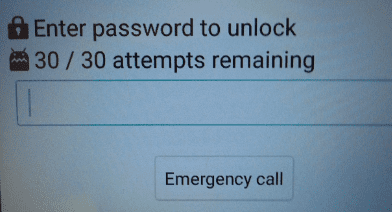
The "Enter Password to Unlock 30/30 Attempts Remaining" message is an Android security alert that appears when you (or someone else) enters an incorrect screen lock password, PIN, or pattern multiple times. Let's break down its key details:
- 30/30 Attempts Remaining: This indicates you have 30 total tries to enter the correct screen lock credentials. Each wrong attempt reduces the remaining count, and once all 30 attempts are used, your device will enforce a stricter lockout.
- Security Purpose: This feature prevents brute-force attacks, where someone tries random passwords to gain access, by limiting the number of attempts and protecting your photos, messages, apps, and sensitive data.
- Common Triggers: The most common reasons for this message include forgotten screen lock passwords/PINs, accidental wrong inputs (e.g., typing too quickly), or unauthorized attempts to access your device.
Now that we understand what the "Enter Password to Unlock 30/30 Attempts Remaining" error means, let's look at the best ways to fix it and regain access to your device.
If you've exhausted all 30 attempts, your device will be locked for a set period of time before you can try again. Typically, the timeout lasts anywhere from 30 minutes to an hour, depending on your device. During this period, you should refrain from attempting to enter the password again. After the timeout expires, you can try entering your password once more.
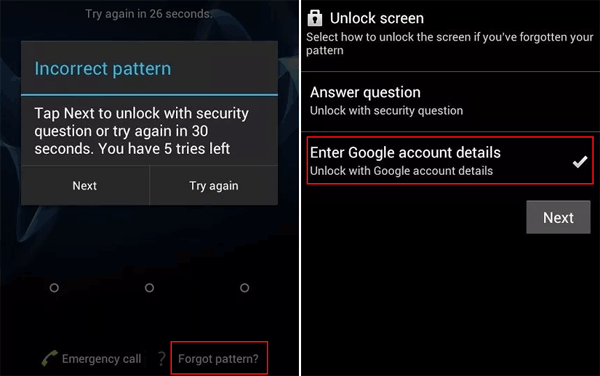
For older Android devices (Android 7.0 Nougat and below), you can unlock your phone using your linked Google account, this is an official method from Google and doesn't require data loss:
Step 1. Continue entering wrong passwords until the "Forgot Password" or "Forgot Pattern" option appears on the screen.
Step 2. Tap "Forgot Password" and sign in with the Google account (email and password) linked to your locked Android device.
Step 3. Follow the on-screen instructions to reset your screen lock (you can set a new password, PIN, or pattern).
If you enabled "Find My Device" (Google's official device tracking tool) before being locked out, you can unlock your phone remotely, this works for most Android devices (Android 8.0+) and is safe for your data:
Step 1. On another phone, tablet, or computer, open a web browser and go to the Find My Device website.
Step 2. Sign in with the same Google account that's linked to your locked Android device.
Step 3. From the list of devices associated with your account, select the locked device.
Step 4. Click "Secure Device" from the menu options.
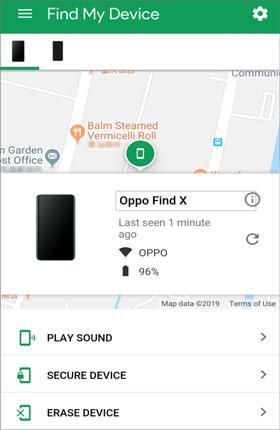
Step 5. Set a temporary password (this will replace your current screen lock) and click "Secure".
Step 6. On your locked device, enter the temporary password to unlock it. You can then reset your screen lock to a new password/PIN/pattern.
If you've reached the "Enter Password to Unlock 30/30 Attempts Remaining" message, chances are you've tried multiple incorrect passwords and are now locked out of your device. This situation can be frustrating, but fortunately, there are tools like Android Unlocker that can help you bypass this issue and regain access to your device, even when you're unable to remember your password.
Here's why Android Unlocker is a great choice:
Here, we take unlocking Samsung device as an example:
01Begin by downloading and installing Android Unlocker on your computer. Once installed, open the software and select the "Remove Screen Lock" option from the main menu.
02Choose "Remove without Data Loss" to ensure no data is erased during the unlock process.
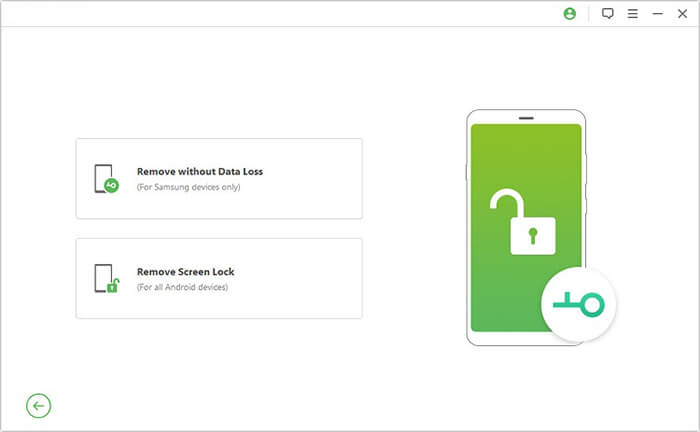
03Use a USB cable to connect your Samsung device to your computer. The program will automatically detect the connected device and proceed to the next step.
04Once your device is detected, select the correct model of your Samsung phone from the list. The software will then download the required data package for your device.
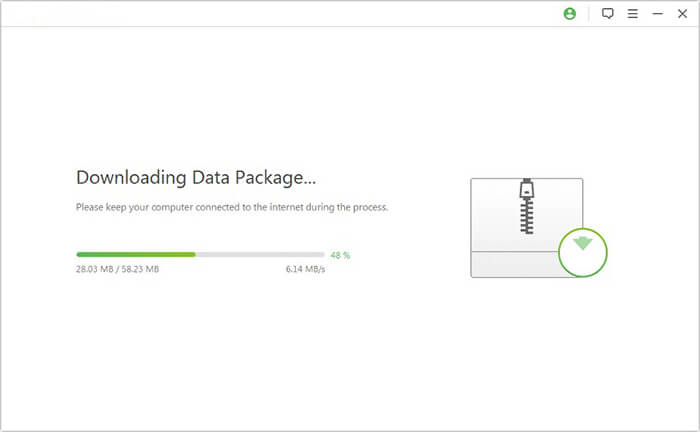
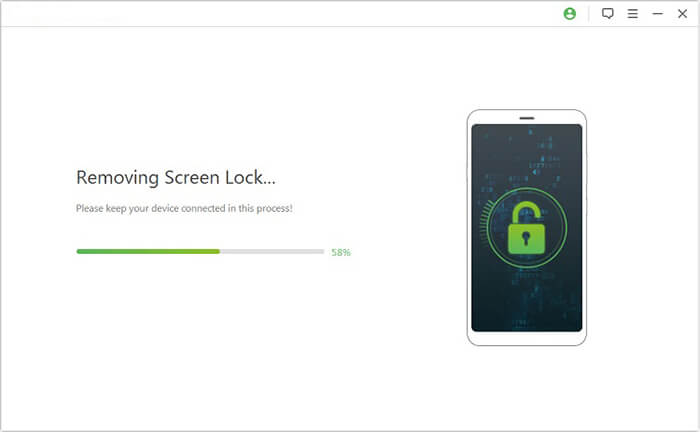
05After the package is downloaded, the unlocking process will begin automatically. This may take a few minutes, so be patient. When the process is complete, your Samsung device will reboot, and the screen lock will be successfully removed.
If all other methods fail, a factory reset is the final option to unlock your device. This method erases all data on your phone (photos, messages, apps, contacts, etc.), so only use it if you have a backup or don't mind losing your data.
Step 1. Power off your Android device completely.
Step 2. Enter Recovery Mode (the button combination varies by brand):
Step 3. Use the "Volume Up/Down" keys to navigate the Recovery Mode menu and select "Wipe data/factory reset".
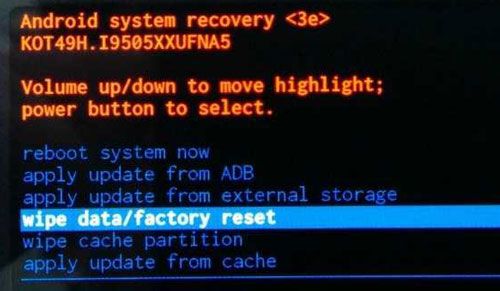
Step 4. Press the "Power" button to confirm your selection.
Step 5. Select "Factory data reset" again to confirm (this step varies by device) and wait for the reset process to complete (this takes 5-10 minutes).
Step 6. Once the reset is done, select "Reboot system now" to restart your device.
Step 7. Set up your device as a new phone (you can sign in with your Google account to restore backed-up data).
1. What happens if you use all 30 attempts?
If you use all 30 attempts, your device will be locked, and you won't be able to make further attempts until the timeout period is over. After the timeout, you can try again, but if you're still unable to unlock your device, you may need to resort to a recovery method, such as using your Google account, performing a factory reset, or utilizing recovery tools.
2. Is there any way to prevent the "30/30 Attempts Remaining" message from appearing in the future?
To avoid seeing the "30/30 Attempts Remaining" message, make sure to keep your password, PIN, or pattern lock secure and memorable. You can also enable backup options such as Google account login or biometric authentication (fingerprint, Face ID) to provide more recovery methods.
3. Is there a way to bypass the 30 attempts limit?
There is no official way to bypass the 30 attempts limit without using recovery options like factory reset or Google account login. The limit is part of the security feature to protect your device from unauthorized access.
Dealing with the "Enter Password to Unlock 30/30 Attempts Remaining" error can be frustrating, but as we've seen, there are several methods to regain access to your device. From waiting for the timeout and using Google account recovery to performing a factory reset, each option has its own advantages depending on your situation.
For a quicker and safer solution, Android Unlocker is a great choice. It allows you to bypass the lock screen without losing data and supports a wide range of Android devices, making it an efficient tool to fix this issue.
Related Articles:
What If You Locked Out of Android Phone? 6 Easy Ways May Help
How to Unlock Android Phone Without Password with 5 Methods
Android Enter PIN to Unlock Not Working - Troubleshooting Guide
How to Unlock Android Phone Password Without Factory Reset [5 Ways]




 Free Download for PC


