If you're considering using DiskPart Clean to clean a disk, you might be wondering whether this command is safe and how it differs from DiskPart Clean All. Because disk cleaning operations can permanently affect stored data, it's important to understand how DiskPart Clean works, what it removes, and when it should be used. Knowing these details in advance helps you clean a disk more safely and effectively.
DiskPart is a built-in command-line disk management utility in Windows that allows users to manage disks, partitions, and volumes at a low system level. The diskpart clean command is specifically designed to remove all partition information and volume formatting from a selected disk. In other words, when you use DiskPart Clean to clean a disk, it clears the disk's partition table and marks the entire disk as unallocated space.
After running the DiskPart clean disk command, Windows treats the drive as if it were brand new. All existing partitions, file systems, and volume labels are removed, making the disk ready for reinitialization and repartitioning.
The DiskPart Clean command mainly does the following:
However, it's important to understand that DiskPart Clean does not permanently erase data. While the disk appears empty to the operating system, the underlying data may still be recoverable with professional recovery tools. To securely erase data and prevent recovery, you would need to use DiskPart Clean All.
The amount of time required for DiskPart Clean largely depends on the disk's performance, but in most cases, the process finishes very quickly. Because the command only removes the partition table and volume information without overwriting actual data, DiskPart Clean usually completes within a few seconds or, at most, a minute.
By contrast, DiskPart Clean All works in a completely different way. It writes zeros to every sector on the disk, which means the time required is directly related to the disk's size and speed. For large-capacity drives, the process can take several hours to complete, making Clean All a much more time-consuming operation.
One of the most common questions users ask is about DiskPart Clean vs Clean All. Although both commands remove disk partitions, they work very differently.
| Feature | DiskPart Clean | DiskPart Clean All |
|---|---|---|
| Main Function | Removes partition and volume information | Overwrites every sector on the disk |
| Data Erasure Level | Logical removal only | Physical data erasure |
| Partition Table | Deleted (MBR/GPT removed) | Deleted and overwritten |
| Actual Data Sectors | Not overwritten | Fully overwritten with zeros |
| Data Recovery Possibility | High (data may be recoverable) | Extremely low (almost impossible) |
| Execution Speed | Very fast (seconds) | Very slow (hours for large disks) |
| Disk Size Impact | Minimal | Directly proportional to disk size |
| Typical Use Case | Repartitioning or reinstalling Windows | Permanently destroying sensitive data |
| Risk Level | High if wrong disk is selected | High risk + long execution time |
Before using DiskPart Clean, it's important to weigh its advantages and limitations.
Pros:
* Built-in Windows tool, no download required.
* It's free.
* Fast cleaning speed (Clean command).
* Good system compatibility.
Cons:
* Command-line based, not beginner-friendly.
* No undo option or safety confirmation.
* High risk of selecting the wrong disk.
* DiskPart Clean does not prevent data recovery.
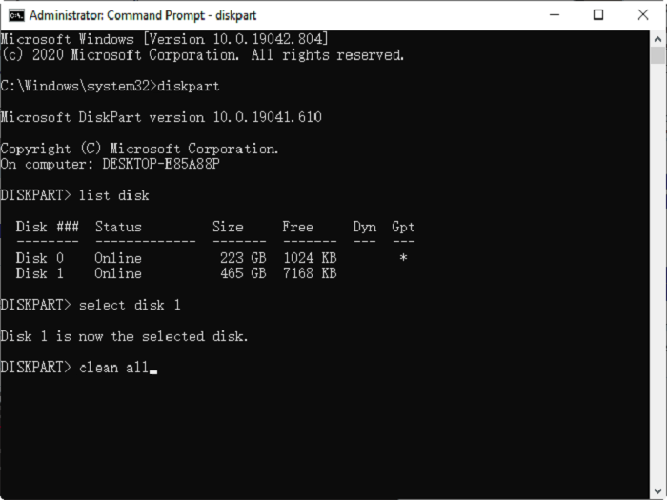
Below are the step-by-step instructions to safely use DiskPart Clean to clean a disk in Windows:
Step 1. Open the "Start" menu, search for "cmd", right-click on it, and choose "Run as Administrator".
Step 2. In the Command Prompt, type "diskpart" and press "Enter" to launch the Diskpart utility.
Step 3. Enter "list disk" to display all the connected disks on your system. Then, type "select disk X" (replace "X" with the disk number you want to clean).
Step 4. Confirm you've selected the right disk by typing "detail disk" and reviewing the disk information.
Step 5. Type "clean" and press "Enter". Diskpart will clean the selected disk and should display the message "Diskpart succeeded in cleaning the disk".
Step 6. After the process is complete, you can close the window to exit Diskpart.
While DiskPart offers a command-line solution for disk management, including the DiskPart Clean command, users who prefer a more intuitive graphical interface or more reliable data erasure methods may consider using professional disk wiping software. Coolmuster Data Erasure is a practical alternative that provides a visual and user-friendly way to clean disks while offering more advanced data wiping options.
With Coolmuster Data Erasure, you can easily erase a hard drive, SSD, USB flash drive, external hard disk, or other storage devices through simple on-screen operations instead of typing complex commands. This approach not only reduces the risk of selecting the wrong disk but also helps ensure that data is permanently removed and cannot be recovered.
Key features of Coolmuster Data Erasure:
* Erase a local disk on your PC without effort.
* Wipe external hard drives and portable storage devices, including SD cards, USB drives, and more.
* Clean the free space by removing only deleted data without affecting your existing files.
* Completely overwrite deleted data, making it impossible for anyone to recover it.
* Compatible with Windows 11/10/8/7.
Here is how to use this Diskpart Clean alternative to clean a disk on a PC:
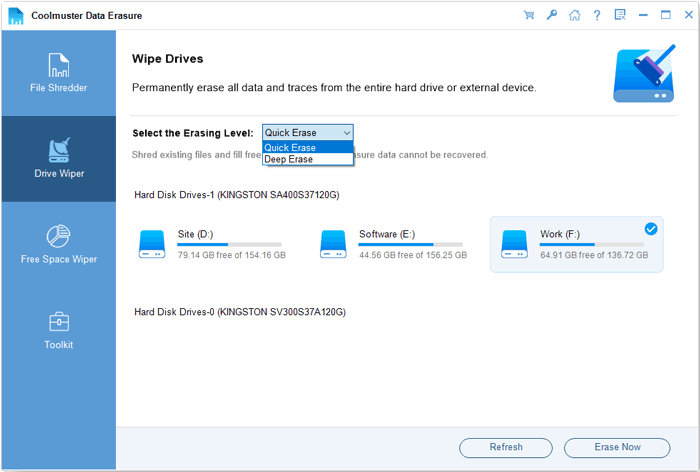
01Download and install the data wipe software on your Windows PC, then open it. To clean an entire disk, select "Drive Wiper" from the left panel.
02Choose the drive you want to erase and select the desired erasure level: "Quick Erase" or "Deep Erase". (Deep Erase offers US DoD 5220.22-M(E), which overwrites data three times).
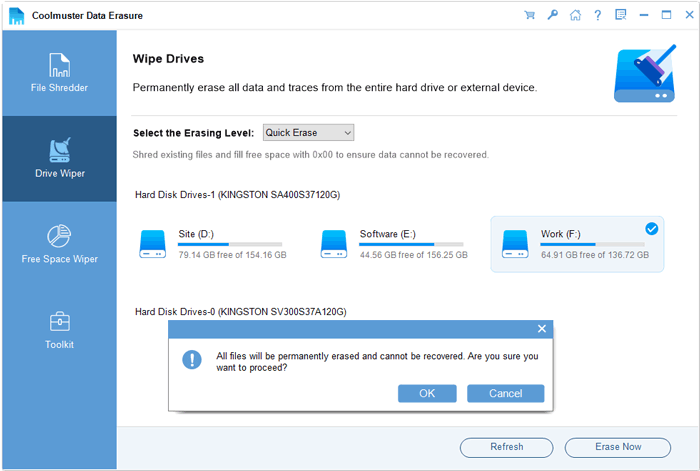
03Click "Erase Now", then confirm by selecting "OK". The software will start erasing the selected drive.
Video Tutorial:
DiskPart Clean is a powerful Windows utility that can quickly reset a disk by removing its partition structure. However, it requires caution, technical knowledge, and careful disk selection. While DiskPart Clean All provides stronger data erasure, it is time-consuming and still risky for non-technical users.
For users who prioritize data security, ease of use, and irreversible erasure, Coolmuster Data Erasure is the better solution. It delivers professional-grade disk cleaning without the dangers of command-line mistakes, making it the ideal choice for safe and effective disk erasure.
Related Articles:
How to Erase USB Drive Completely? 3 Effective Methods Inside!
[Step-by-Step Guide] 5 Reliable Ways to Erase SSD Disk on Windows
How to Clean Disk Using CMD: Step-by-Step Guide for Beginners
[Step-by-Step] How to Overwrite A Hard Drive on Windows/Mac?






 Free Download for PC


