TL;DR: This article reviews the 6 best HEIC to PNG converters, split between offline and online options. Use offline tools for frequent, high-volume, quality-preserving conversions; use online tools for occasional or quick tasks without installing software.
With the widespread adoption of Apple devices, the HEIC format has become the default photo format for iPhone and iPad. Although HEIC files offer high compression efficiency and excellent image quality, their compatibility is relatively poor on some Windows computers and Android devices. Therefore, converting HEIC files to the more universal PNG format is often necessary.
This article will recommend several efficient and reliable HEIC to PNG converters, including both offline and online tools. You can choose the one that best suits your needs.
If you regularly work with HEIC files or need to convert a large number of photos, an offline HEIC to PNG converter is usually the best option. Desktop software often provides faster conversion speeds, batch processing capabilities, better privacy protection, and more customization options than online tools. Below are three of the best offline HEIC to PNG converters worth considering.
Coolmuster HEIC Converter is a dedicated HEIC to PNG converter designed for Windows and Mac users. It enables users to convert HEIC photos to PNG or JPG format without sacrificing image quality. One of its biggest advantages is batch conversion, allowing users to process hundreds of HEIC images simultaneously. The software preserves important image information during conversion and features an intuitive interface that makes the process simple, even for beginners.
Key features of Coolmuster HEIC Converter:
Here is how to convert HEIC to PNG using Coolmuster HEIC Converter:
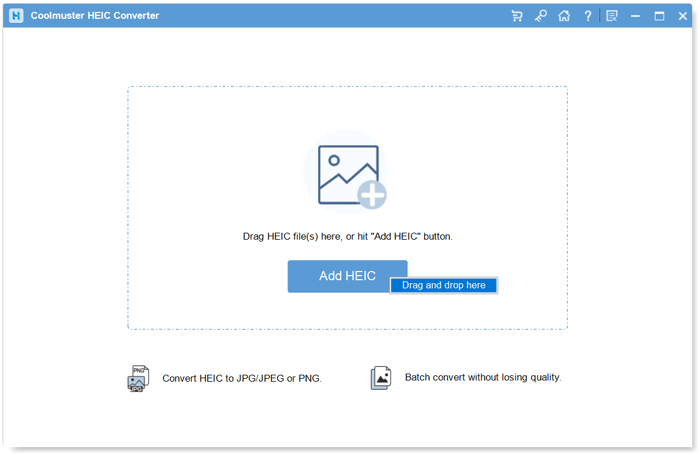
01After installing and launching the software on your computer, the main interface will appear. To start converting HEIC to JPG or PNG, click the "Add HEIC" button or simply drag your images into the dotted-frame area, then select the "Drop and drop here" icon.
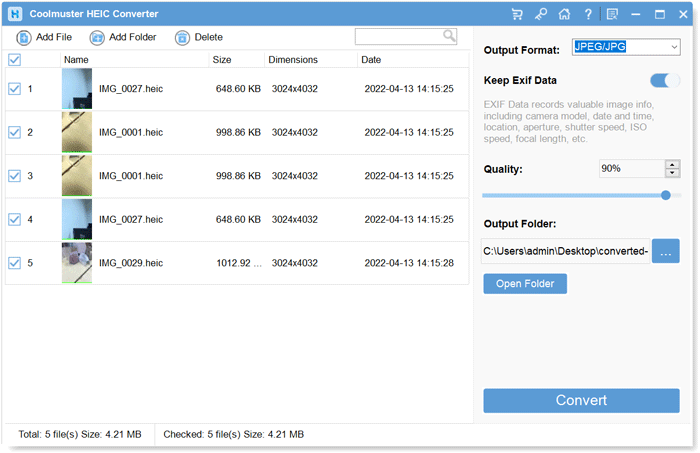
02Once your HEIC photos are imported, check the images you want to convert and choose "PNG" as the Output Format. If you want to preserve the original image information, enable the "Keep Exif Data" option.
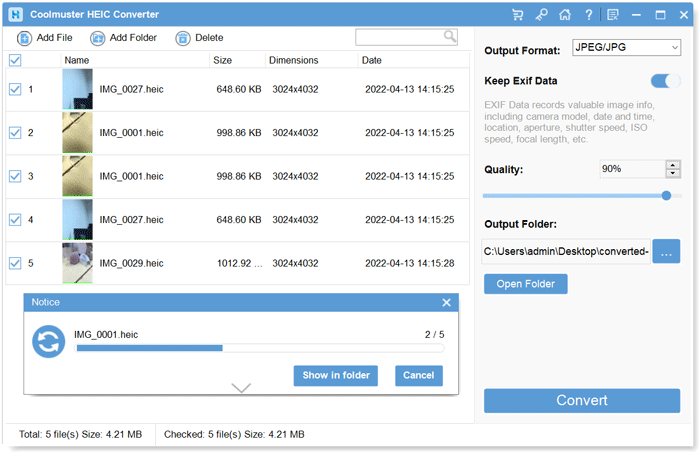
03Next, adjust the Quality settings as needed and select an output folder on your computer to save the converted files. Finally, click the "Convert" button to start converting your HEIC files to PNG.
Video Tutorial:
Pros:
* Support batch conversion, saving time.
* Preserve original image quality with no compression loss.
* Simple operation; conversion can be done via drag and drop.
* Compatible with both Windows and Mac platforms.
Cons:
* The free version has a conversion limit; batch conversion requires a paid upgrade.
* No online version available; software installation is required.
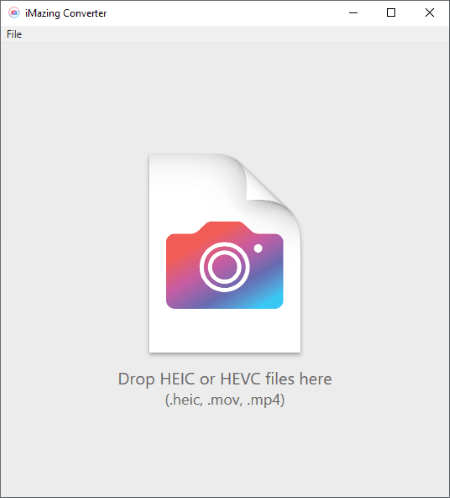
iMazing HEIC Converter is a lightweight, free desktop HEIC to PNG converter app compatible with Windows and Mac. Developed for simple HEIC format conversion, it supports converting HEIC to PNG and JPG formats, and allows users to flexibly adjust output image quality.
As a minimalist conversion tool, it occupies extremely low computer memory, runs smoothly without lagging, and is very suitable for users who only need basic HEIC conversion functions.
Pros:
* Free and lightweight, with a small installation package.
* Offer image quality adjustment options.
* Simple to use, no registration or internet connection required.
* Compatible with both Windows and Mac systems.
* 100% free.
Cons:
* May crash or cause individual image corruption when converting a large batch of HEIC files at once.
* Relatively basic functionality, only supports format conversion.
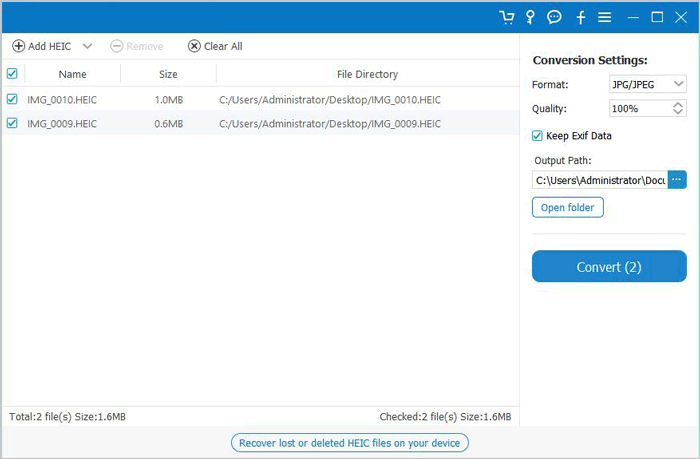
Aiseesoft HEIC Converter is another reliable offline HEIC to PNG converter software, supporting batch conversion of HEIC files to JPEG or PNG. Users can customize output resolution and file naming, while the software maintains the original image quality. Its clean interface makes it easy to use, and it runs on both Windows and Mac systems.
Pros:
* Support batch conversion, improving efficiency.
* Allow customization of output resolution and file naming.
* Preserve original image quality.
* Clean and user-friendly interface.
Cons:
* Free version has limited features; batch processing requires a paid upgrade.
* Only support local file conversion, no online operation available.
If you only need to convert a few HEIC files occasionally, an online HEIC to PNG converter can be a convenient choice. These web-based tools require no installation and can be accessed from virtually any device with an internet connection. Here are three of the most popular online HEIC to PNG converters available today.
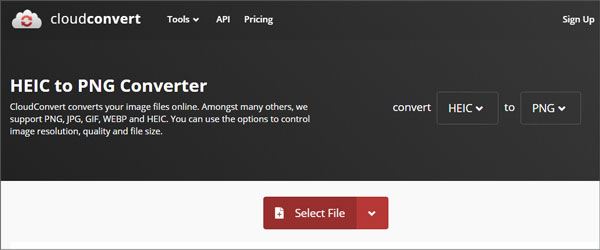
CloudConvert is a widely used online HEIC to PNG converter that supports hundreds of file formats. Users can upload HEIC images directly from their computer or import files from cloud storage services such as Google Drive, Dropbox, and OneDrive. The platform also provides advanced options for adjusting image size, resolution, and compression settings before conversion.
Pros:
* No software installation required; works directly in a web browser.
* Support importing files from cloud storage services such as Google Drive and Dropbox.
* Allow users to adjust image dimensions and compression settings.
* Uploaded files are automatically deleted to ensure privacy and data security.
Cons:
* Free users are subject to daily upload limits.
* Conversion speed depends on network conditions.
* Uploading large files may take longer.
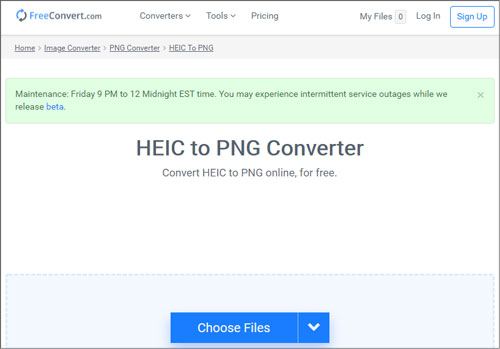
FreeConvert is a browser-based HEIC to PNG converter designed for simplicity and ease of use. Users can upload HEIC files, select PNG as the output format, and customize settings such as image size and quality before converting. The service also emphasizes user privacy by automatically deleting uploaded files after a certain period. For users looking for a quick and hassle-free conversion experience, FreeConvert is a solid option.
Pros:
* Generous free quotas with support for large files and ample daily conversions.
* Strong HEIC compatibility, including encrypted and specially encoded files.
* Batch uploads and conversions improve efficiency.
* Option to keep or remove Exif metadata.
Cons:
* Occasional pop-up ads may affect the browsing experience.
* Batch conversion speed can be inconsistent, especially for large files.
* No built-in cloud storage; converted files should be downloaded promptly.
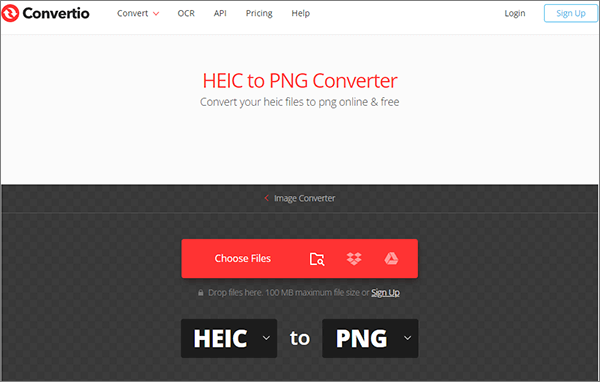
Convertio is a comprehensive online format conversion platform with professional HEIC to PNG converter functions. It supports multiple uploading methods, including local files, Google Drive, and Dropbox, facilitating users to process cloud-stored HEIC photos directly. It realizes lossless conversion of HEIC to PNG, supports batch processing, and provides unified compressed package download for converted files.
With a simple and modern interface, stable server operation, and high conversion success rate, it is one of the most popular online image conversion tools for global users.
Pros:
* Support both local uploads and cloud imports for flexible use.
* Stable performance with a high conversion success rate and minimal file errors.
* Batch download feature automatically packages multiple PNG files for one-click saving.
* Good cross-platform compatibility across devices and browsers.
Cons:
* Strict limits on the free plan with only a small number of daily conversions.
* Short file retention period; converted files are automatically deleted after some time.
* Advanced image customization features require a paid upgrade.
Whether offline or online, each HEIC to PNG converter has its unique advantages. If you want batch processing, high efficiency, and original image quality preservation, Coolmuster HEIC Converter is recommended. It is not only easy to use but also supports both Windows and Mac, making it an ideal choice for everyday HEIC conversion. Online tools, on the other hand, are suitable for occasional conversions or scenarios where installing software is unnecessary—just choose the tool that best fits your usage habits.
Related Articles:
12 Best HEIC to JPG Converter on Windows/Mac/Online [Latest Update]
[Full Guide] How to Open HEIC Files on Android Effortlessly?





 Free Download for PC
  Free Download for Mac


