TL;DR:
This review covers everything you need to know about Apeaksoft Phone Mirror before deciding whether it's the right screen mirroring tool for you.
Screen mirroring has become essential for presentations, mobile gaming, online teaching, and content creation. Apeaksoft Phone Mirror is one of the tools designed to mirror iPhone and Android screens to a computer with minimal delay. But how well does it actually perform in real-world use?
In this Apeaksoft Phone Mirror review, we'll take a close look at what it offers, how it works, its pricing, real user feedback, and whether there's a better alternative worth considering.
Apeaksoft Phone Mirror is a desktop screen mirroring software that allows users to cast their iPhone or Android screen to a Windows or Mac computer. In addition to screen mirroring, it also supports audio mirroring, screen recording, screenshots, and mouse control directly from a PC.
It is commonly used for live demos, online meetings, mobile app testing, gaming streams, and educational purposes.
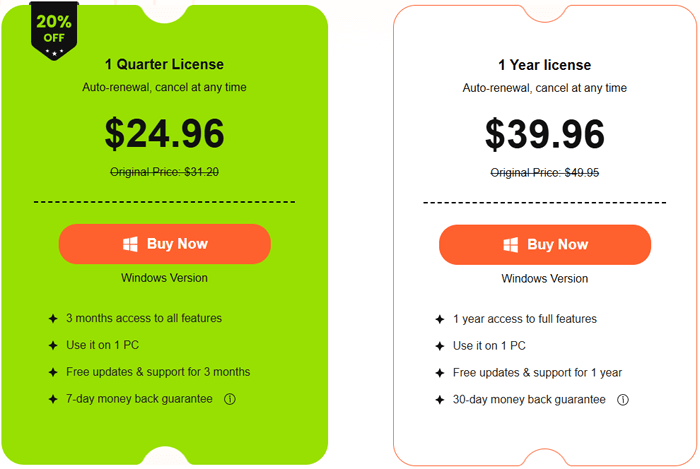
Apeaksoft Phone Mirror offers two main subscription plans:
Both plans unlock full features such as screen recording, audio mirroring, and device control. However, there is no lifetime license option, which may be a drawback for users looking for a one-time purchase.
Below is a step-by-step guide on how to use Apeaksoft Phone Mirror to mirror your iPhone or Android device to a computer.
Step 1. Download and Install Apeaksoft Phone Mirror
Visit the official Apeaksoft Phone Mirror website and click the "Free Download" button to download the installation package. Once the download is complete, open the installer and follow the on-screen instructions to install the software on your computer.
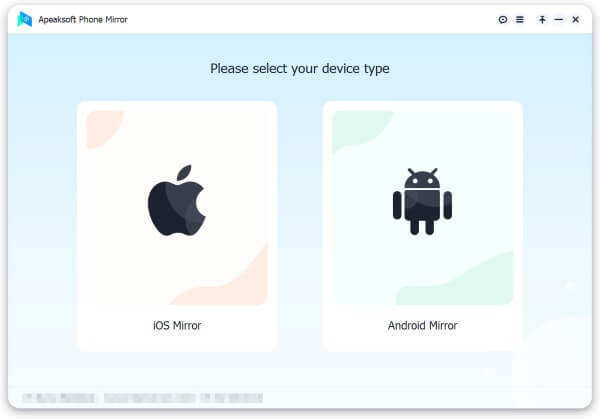
Step 2. Launch the Program and Choose a Mirroring Mode
After installation, launch Apeaksoft Phone Mirror on your computer. On the main interface, select "iOS Mirror" if you are using an iPhone, or choose "Android Mirror" if you are using an Android device.
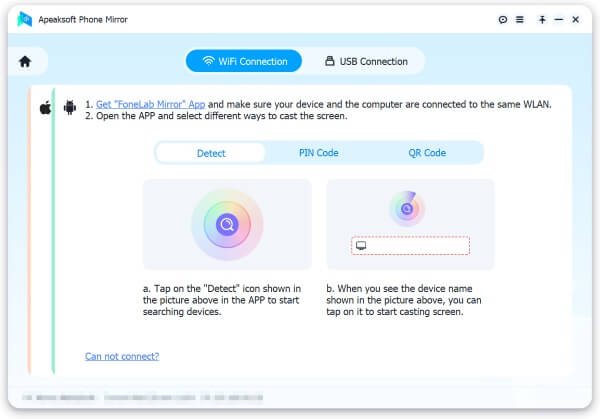
Step 3. Connect Your Device to the Computer
For iOS Devices
For Android Devices
Step 4. Start Mirroring and Use Built-in Tools
Once the connection is established, your phone screen will be displayed on the computer in real time. You can then take screenshots, record the screen, or control your phone directly using the mouse and keyboard on your computer.
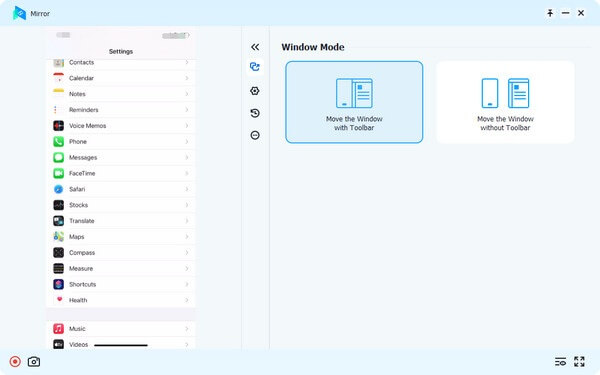
Across major software review platforms, many users have shared their real-world experiences with Apeaksoft Phone Mirror. These reviews offer valuable insights into the software's overall stability, performance, and the quality of its technical support.
"Thanks to Apeaksoft Phone Mirror, I can watch my iPhone screen on my computer with a larger interface."
"Apeaksoft Phone Mirror is a great screen casting tool for me because it is easy to use and quick to learn how to use."
"If you are considering buying Apeaksoft's products because their 30 Day 'NO RISK' Guarantee gives you peace of mind, forget it. Their interpretation of 'NO RISK' is not likely the same as yours, and they will not refund your money, insisting 'it's not their fault', for any number of boiler plate reasons."
If you're searching for a more advanced alternative to Apeaksoft Phone Mirror, Mobile Screen Control is worth considering. This tool is designed to mirror and control Android and iOS devices directly from a computer, offering smooth screen streaming and enhanced interaction with mobile content.
Compared with basic screen mirroring software, Mobile Screen Control focuses more on device control, high-quality recording, and live streaming scenarios, making it suitable for gamers, content creators, educators, and professionals.
Key Features of Mobile Screen Control
How to access your phone via computer with the Apeaksoft Phone Mirror alternative?
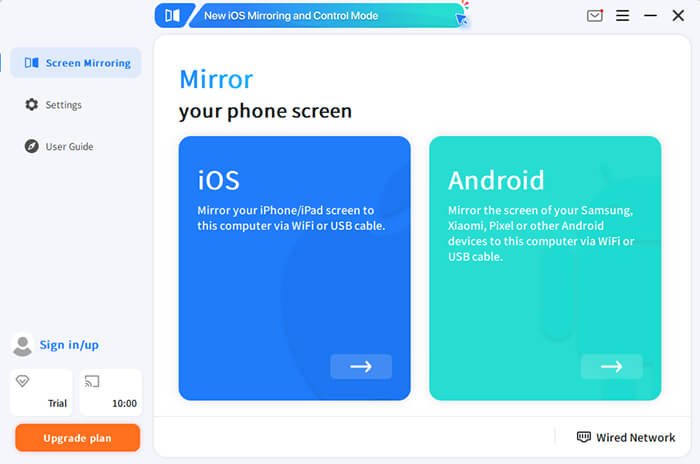
01First, download and install Mobile Screen Control on your computer. After installation, launch the program and select "Android" or "iOS" mode from the main interface.
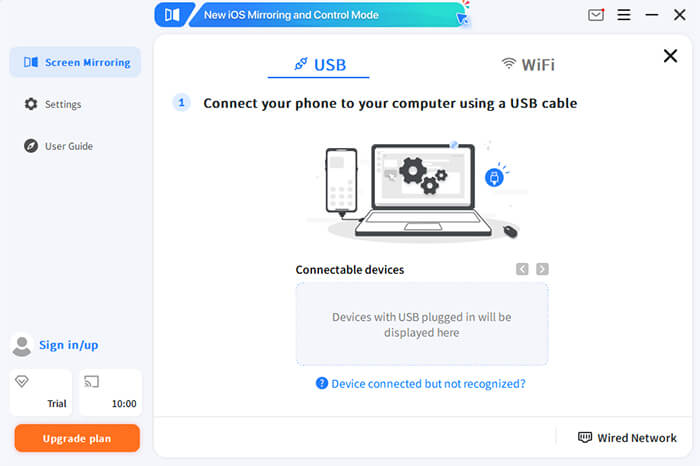
02Next, follow the on-screen instructions to connect your device to the computer. Android users can connect via USB cable or Wi-Fi, depending on their preferences and network conditions.
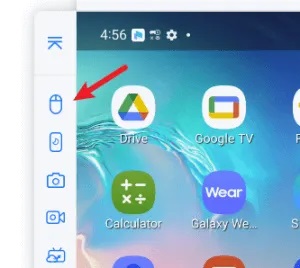
03Once the connection is successfully established, your device's screen will appear on the computer. To enable full device control, click the "Mouse" icon in the sidebar. You can then control your phone directly using your computer's keyboard and mouse.
Apeaksoft Phone Mirror is a reliable option for basic screen mirroring tasks, allowing users to display and record iPhone or Android screens on a computer with multiple connection methods. It works well for presentations, online meetings, and everyday screen sharing, especially for users who prefer a simple setup and a clean interface.
However, for users who require more advanced control features, higher stability during long sessions, or additional functions such as live streaming and gaming support, a more capable alternative like Mobile Screen Control may be a better fit. Ultimately, the best choice depends on your specific usage scenarios and how much flexibility you expect from a screen mirroring tool.
Related Articles:
5 Ways to Cast Android to Windows 10 [Step-by-Step Guide]
Top 6 Ways to Mirror Android Screen to PC in 2026
How to Make Screen Mirroring Full Screen in 5 Proven Ways [Android/iPhone]
How to Deftly Control iPhone from PC with/without USB Cable?




 Free Download for PC
  Free Download for Mac


