TL;DR:
Finding the best Android screen mirroring app depends on your needs. Some apps are designed for gaming with keyboard and mouse controls, others excel at wireless presentations and media streaming, while some focus on remote device access and management.
This guide compares 13 popular Android screen mirroring apps, covering their key features, pros, cons, and ideal use cases, so you can quickly choose the right one for your setup.
Android is no doubt a highly used operating system in most mobile phones. It comes with many features as well as options for customization. Among its many features is screen mirroring. This feature helps users share or mirror their screen gadgets effortlessly, for instance, from Android to PC and vice versa.
To share or mirror your Android screen to another device, you must have a screen mirroring app. This is a wonderful app that assists you in casting from an Android gadget to a PC. This post brings you the best screen mirroring app for Android to PC. So, without further ado, let's start.
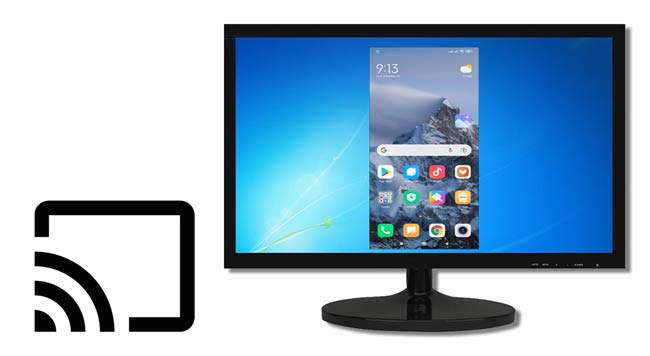
If you're looking for a reliable and beginner-friendly screen mirroring app for Android to PC, Phone Mirror is an excellent choice. It lets you mirror your Android screen to a computer in just a few steps while giving you full control of your phone using a keyboard and mouse.
Unlike many screen mirroring apps that only display your phone screen, Phone Mirror also supports controlling Android devices directly from your PC, making it a practical solution for both work and entertainment.
Key Features
Download this mirroring program without hassle.
How to Mirror Android to PC
01Download and install the best screen mirroring app for Android on your computer. Open the program and choose Android from the home interface.
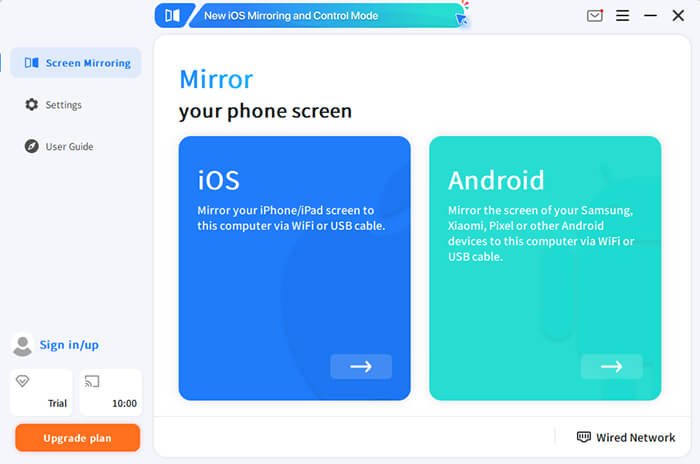
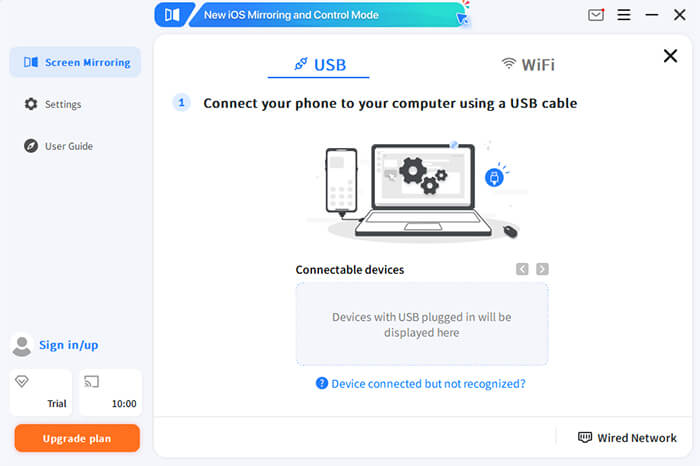
02Connect your Android phone to the computer using a USB cable. You can also switch to a Wi-Fi connection after the initial setup if necessary.
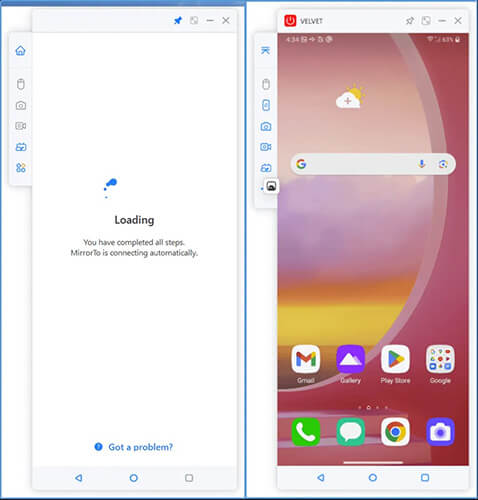
03Once your device is recognized, MirrorTo will automatically display your Android screen on your PC. You can now enjoy mobile games and other things effortlessly.
Pros
Cons
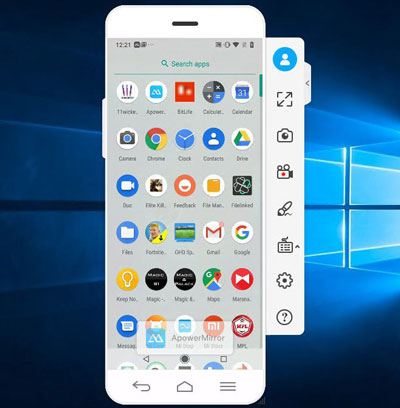
This is also another high-quality streaming application for screen mirroring. It uses mainstream mirroring technology to enhance the visual quality of the videos and anything you are watching. You may mirror the Android device to the PC via USB or Wi-Fi.
Besides, you may also cast the screen to your TV without encountering lag issues. Therefore, you get an ultimate screen mirroring experience with the same option you share with the audio. With ApowerMirror, you can simultaneously mirror a maximum of 4 devices to the PC. You may easily use a mouse to move on the screen and a keyboard for typing. With this app, there is no need to install emulators to play games on the PC.
You won't take a long time to adapt to it due to the availability of pre-set virtual keys and customization options. You may use the app for home entertainment, presentations, gaming sessions, intelligent education, live streaming, and many more. Its cross-platform characteristic makes it stand out among other apps. No matter the device you're using, you may mirror the screen on the PC with ease.
Pros
Cons
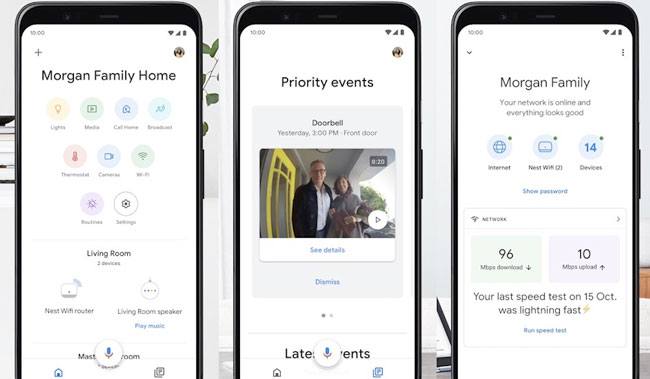
Google Home is an app that works best in broadcasting your device content to other devices. The app also has interesting apps like Chromecast and Netflix, making it with multiple functionalities. You can make connections to your PC or TVs through a wireless connection.
Pros
Cons
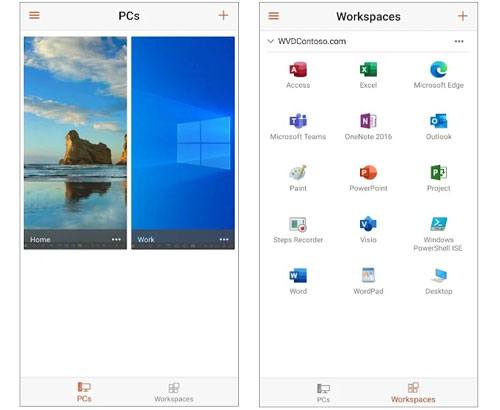
This is another great screen mirroring application that will help you screen your gadget to a computer. Microsoft Remote Desktop can serve as a screen-casting application to access the remote desktop. Get started with the app on the smartphone to connect to a PC. Configure it, and you are ready to go.
Pros
Cons
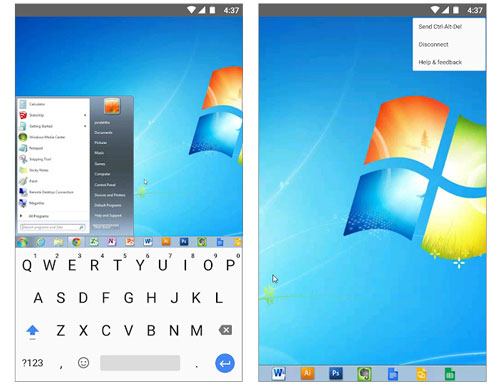
Chrome Remote Desktop is one of the screen mirroring applications from Google, and it promises and delivers more too. The app is available for many more things apart from just screen mirroring from the smartphone. It'll allow you to remotely access the smartphone that can be used for screen mirroring.
Pros
Cons
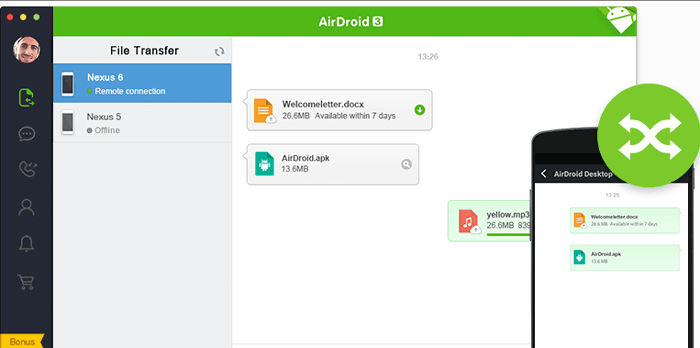
If you've been using an Android for some time now, then you may know about this wonderful app known as AirDroid. AirDroid is a file transfer application with a screen mirroring feature. This feature is available only on the desktop client, and it mirrors the messages and call notifications; on the Pro version, users can remotely open the camera, switch on or off the built-in features, and do many more things.
Pros
Cons
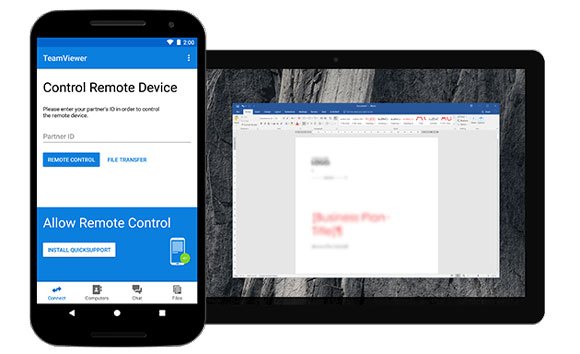
TeamViewer is also one of the best screen mirroring apps for Android to PC. The best thing about this tool is that it functions on non-rooted and rooted devices. The TeamViewer QuickSupport app can mirror, push, and pull Wi-Fi settings on devices and transfer files. Thus, TeamViewer QuickSupport is among the best screen mirroring apps.
Pros
Cons
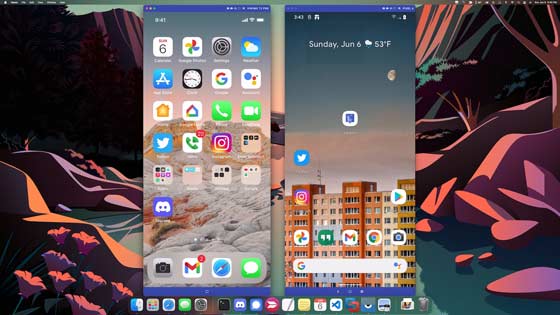
Are you looking for an easier method to mirror an Android screen to a PC? Then, Vysor is your app for that task. This app is very easy to use, and when you mirror your Android screen with it just once, you may play games, take screenshots, use apps, and record screens, just to name a few.
To use this app effectively, download the Vysor mirroring client first on your PC and the Vysor application on your Android. After you are done, connect your Android to your PC using a USB cable and enable the USB debugging prompt. The software on the PC will detect your device shortly and then cast the phone's screen to your PC.
Pros
Cons
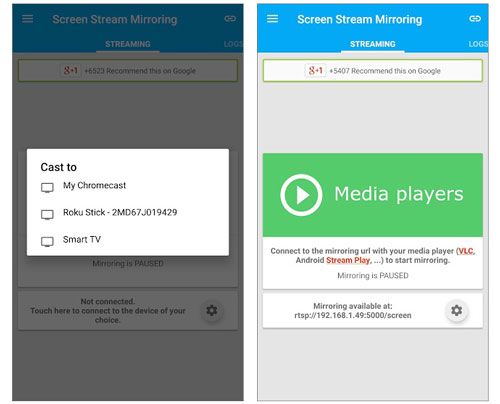
This is also another amazing screen mirroring app for your Android gadget. Everything is likely to fall in place if you have this tool. You may easily share the screen live like the dual-screen. The good thing about Screen Stream Mirroring is that it heavily relies on Wi-Fi instead of USB to cast the screen.
Besides that, mirroring via the screen stream brings additional features such as broadcasting everything directly to Facebook, YouTube, Twitch, and Ustream.
Pros
Cons
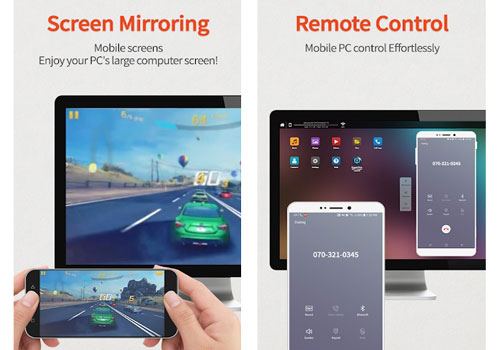
It is one of the best screen mirroring apps for Android to PC; however, it is mainly used for game streaming. If you have this app, you can control your phone using your computer or laptop. With the app, you can enjoy services like pictures and videos on a wide view.
Pros
Cons
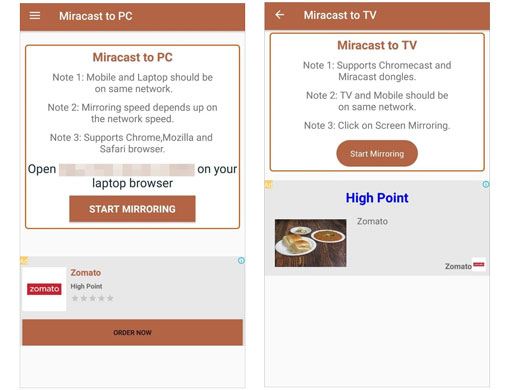
Miracast Display Finder is another mirroring app to cast your phone screen to other devices like laptops, computers, smart TVs, and many others. You can display the entire phone content and functionality to systems such as Windows, Mac Os, Smart TVs, and many others.
Pros
Cons
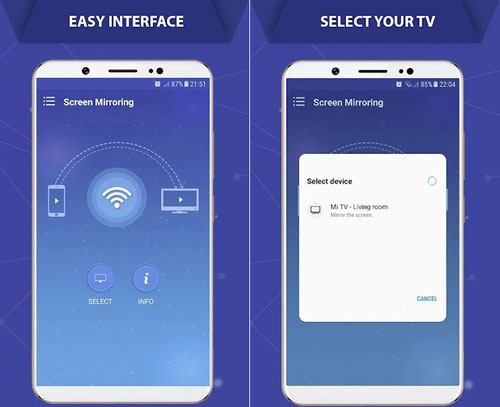
Screen Mirroring Cast to TV is another best screen mirroring app for Android to PC. Here, you will share your phone screen with multiple devices simultaneously. To make the connection, you will have to choose mobile data, mobile hotspot, or Wi-Fi to connect to the other device.
Pros
Cons
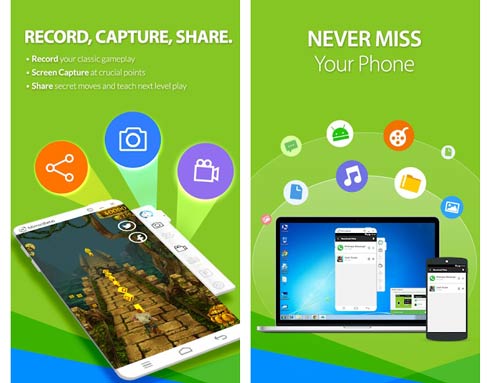
MirrorGo is among the best screen mirroring apps for Android to PC. It is one of the apps that can give you a favorite experience for a bigger screen view. You can mirror your mobile screen and control the phone from the other device wirelessly.
Pros
Cons
The above are the best apps to mirror your Android mobile screen to a Windows PC. Two things that you need to consider while choosing these apps are the ease of connectivity and their user interface. With one of the best mirroring apps based on your preference, you can enjoy the functionalities of mirroring flawlessly, so consider picking the right one. By the way, Phone Mirror is stable and safe to cast your Android screen to the PC, so you can try it without worry.
Related Articles:
5 Ways to Cast Android to Windows 10/11 [Step-by-Step Guide]
Best Screen Share App to Share Screen and Audio with Friends
How to Do Screen Mirroring Samsung to PC or TV? Easily Solved




 Free Download for PC
  Free Download for Mac


