TL;DR:
Looking for the easiest way to mirror your iPhone to a Windows PC? This guide walks you through several effective options and helps you choose the one that best fits your needs.
"Got my first iPhone 17 Pro and look for a way to mirror iphone screen to my PC. I see the iPhone mirroring app on my wife's MacBook Pro. Unfortunately, Windows 11 OS does not provide any tool for doing this. Does anyone know a good and easy way to let me mirror my iPhone to my PC?"
- From Apple Community
Many users want to mirror their iPhone to a Windows PC for presentations, gaming, online classes, recording tutorials, or simply enjoying content on a larger display. Unlike Mac computers, Windows doesn't natively support Apple's AirPlay protocol, so you'll need a compatible screen mirroring application.
Fortunately, several reliable tools make the process simple. In this guide, we'll introduce four effective ways to mirror your iPhone to Windows 10 or Windows 11. Whether you prefer a wired connection for lower latency or wireless mirroring for greater convenience, you'll find a solution that fits your needs.
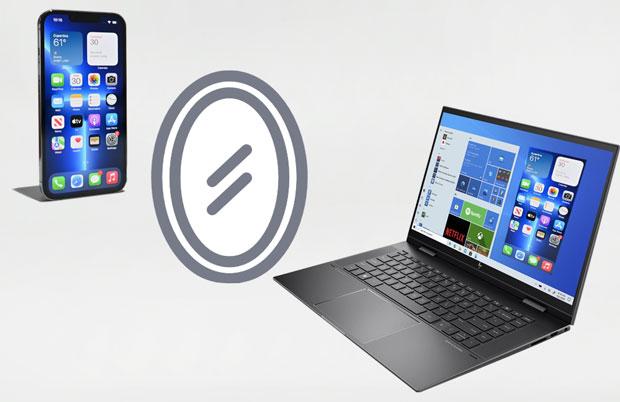
If you're looking for an easy and feature-rich way to mirror your iPhone to a Windows PC, Phone Mirror is one of the best options available. Unlike many free AirPlay receivers that only display your screen, Phone Mirror offers additional features such as screen recording, screenshots, live streaming, and even device control (for supported devices).
It supports both USB and wireless connections, making it suitable for presentations, mobile gaming, online meetings, content creation, and everyday screen sharing. Thanks to its stable performance, intuitive interface, and versatile features, it's an excellent choice for users who want a reliable iPhone mirroring experience on Windows.
Key features of Phone Mirror:
How to mirror iPhone to Windows 10/11 using Phone Mirror?
01Install Phone Mirror on your Windows PC. After the installation is complete, launch the software to enter the home interface.
02On the welcome screen, choose "iOS" as the device you want to mirror. Then, select the connection option that best suits your needs, such as a USB cable or another supported method.
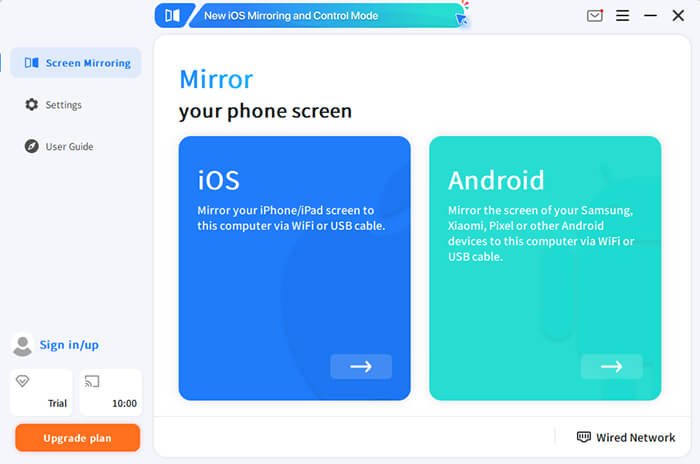
03Connect your iPhone to the computer and complete the pairing by following the instructions displayed in Phone Mirror. If prompted on your iPhone, grant the required permissions to establish the connection.
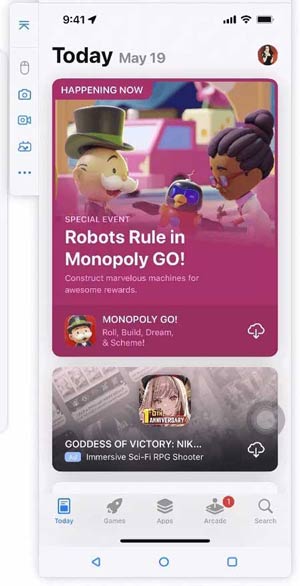
04After the setup is finished, your iPhone screen will be displayed on the computer. You can now view your phone on a larger screen, record your display, capture screenshots, or start streaming your screen whenever needed.
Instead of relying on a full-featured mirroring application, you can also use an AirPlay receiver on your Windows PC. Since iPhones support AirPlay natively, an AirPlay receiver allows your computer to appear as a compatible display without requiring additional apps on your phone.
LonelyScreen is one of the most popular tools for this purpose. It is lightweight and easy to set up, making it a good option for users who only need basic wireless screen mirroring. While the free version offers enough functionality for casual use, its interface looks somewhat dated, and connection stability may vary depending on your network.
How to mirror iPhone to Windows with LonelyScreen?
Step 1. Download and install LonelyScreen on your Windows PC. Launch the program after installation, and if Windows Firewall prompts you to allow network access, click "Allow access".
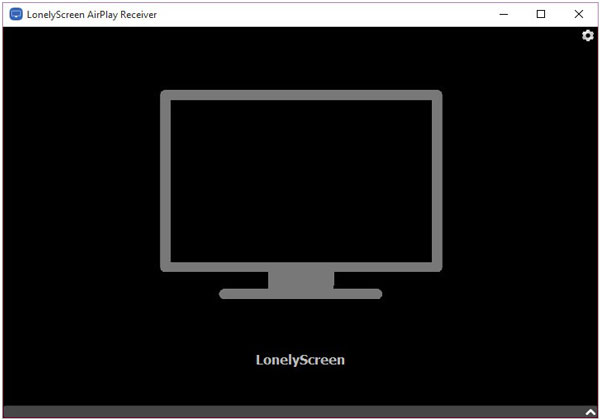
Step 2. Click the default receiver name in LonelyScreen if you'd like to rename your PC, making it easier to identify from your iPhone.
Step 3. Make sure your iPhone and Windows computer are connected to the same Wi-Fi network.
Step 4. Open "Control Center" on your iPhone and tap Screen Mirroring.
Step 5. Select your Windows PC (or the receiver name shown in LonelyScreen) from the list of available devices.
Step 6. After a few seconds, your iPhone screen will be displayed on your Windows computer.
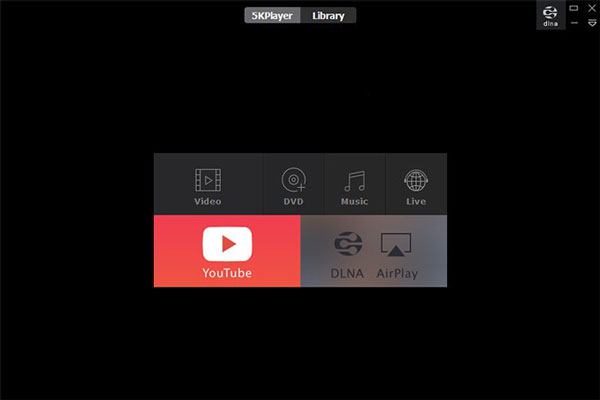
If you're looking for a solution that combines screen mirroring with media playback, 5KPlayer is worth considering. Besides functioning as a multimedia player, it also includes an AirPlay receiver that lets you wirelessly cast your iPhone screen to a Windows computer.
Because it serves multiple purposes, 5KPlayer is a practical choice for users who frequently watch videos or manage local media files in addition to mirroring their iPhone. However, its larger installation size and relatively high system resource usage may not be ideal for low-spec PCs.
To mirror iPhone to PC via 5KPlayer:
Step 1. Install and open 5KPlayer on your Windows PC, then ensure the "AirPlay Receiver" function is enabled.
Step 2. Connect your iPhone and computer to the same Wi-Fi network.
Step 3. Open "Control Center" on your iPhone, tap "Screen Mirroring", and select "5KPlayer" from the available devices.
Step 4. Wait a few moments until your iPhone screen is mirrored to your Windows computer.
LetsView is another cross-platform screen mirroring solution that allows you to display your iPhone screen on a Windows PC without using cables. In addition to screen mirroring, it offers useful features such as recording, real-time annotation, and remote collaboration, making it a practical choice for work, education, and entertainment. However, because it relies on a wireless connection, a stable Wi-Fi network is essential for the best experience, and some premium features are not available in the free version.
Follow these steps:
Step 1. Install and open LetsView on both your Windows PC and iPhone. Ensure the two devices are connected to the same Wi-Fi network.
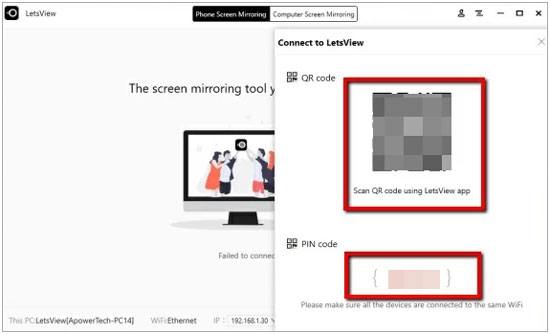
Step 2. On the Windows version of LetsView, display the QR code or PIN code for pairing.
Step 3. Use the LetsView app on your iPhone to scan the QR code or enter the PIN code to establish the connection.
Step 4. If prompted, open "Control Center" on your iPhone, tap "Screen Mirroring", and select the LetsView receiver.
Step 5. Wait a few moments until your iPhone screen appears on your Windows computer.
1. Can you AirDrop from an iPhone to a PC?
AirDrop is great for syncing files between Apple devices, fast, easy, and seamless. However, Windows PC and Android devices don't support AirDrop yet. Thus, you cannot AirDrop from an iPhone to a Windows PC.
2. Why can't my iPhone find my Windows PC for screen mirroring?
If your Windows computer doesn't appear in the Screen Mirroring list, check the following:
3. Will screen mirroring reduce video quality?
Screen mirroring quality depends on the software, your network speed, and the connection type. A stable Wi-Fi network can provide smooth HD mirroring for everyday use, while a USB connection generally offers better image quality and lower latency, especially for gaming, live streaming, or presentations.
Now you know several effective ways to mirror an iPhone to a Windows 10 or Windows 11 PC. If you only need basic wireless screen mirroring, LonelyScreen, 5KPlayer, and LetsView are all worth trying. However, if you're looking for a more stable and versatile solution with additional features like screen recording and live streaming, Phone Mirror is an excellent option. Choose the method that best matches your needs and start enjoying your iPhone on a larger Windows display.
Related Articles:
Can You Mirror iPhone to PC without Software? Answered
Top 4 Ways to Screen Mirror iPad to PC [2026 Updated]
Top 3 Ways to Mirror iPhone to iPad Easily [Latest Tutorial]
How to Deftly Control iPhone from PC with/without USB Cable?




 Free Download for PC
  Free Download for Mac


