TL;DR:
Whether you want to mirror your iPhone screen or manage your device from a Windows PC, the right solution depends on what you need. This guide covers:
"I want to be able to view the iPhone screen, use the mouse and keyboard to control it, and maybe transfer files or record the screen. I know QuickTime can be used for screen viewing, but it doesn't allow full control. What tools would you recommend to control an iPhone from a Windows PC via USB or Wi-Fi without jailbreaking? Are there any limitations I should be aware of?"
- From Microsoft Community Hub
Many users want to control an iPhone from a PC to present apps on a larger screen, record gameplay, or manage calls and messages more conveniently. However, unlike Android devices, iPhones can't be fully controlled from a Windows PC because of Apple's security restrictions.
Although Windows can't completely control an iPhone, there are still practical ways to connect the two devices for different purposes. The following methods will help you choose the solution that best fits your needs.
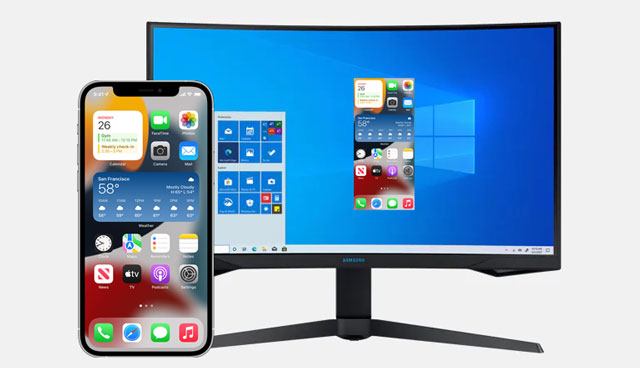
Yes, but the level of control depends on the tool you use and Apple's system restrictions. Unlike Android, iOS doesn't allow third-party software to take unrestricted control of every function on an iPhone. For security and privacy reasons, certain system operations and apps remain inaccessible from a Windows PC without jailbreaking the device.
That said, modern tools have made it much easier to interact with an iPhone from a computer. Depending on the solution you choose, you may be able to remotely access supported iPhone functions with your mouse and keyboard, mirror your screen, record on-screen activities, transfer files, or manage calls, messages, and notifications.
In the following sections, we'll introduce two practical ways to connect your iPhone to a Windows PC and help you choose the one that best fits your needs.
If you're looking for an easy way to control your iPhone from a Windows PC, Phone Mirror is one of the best solutions available. It allows you to remotely access your iPhone or iPad with your computer's mouse and keyboard, or simply mirror the device's screen to a larger display. Whether you're hosting a Zoom meeting, streaming on Twitch or TikTok, creating YouTube content, or demonstrating apps, Phone Mirror makes the experience much more convenient.
Key features of Phone Mirror:
How to control an iPhone from a PC with Phone Mirror?
01Download and install Phone Mirror on your Windows computer. Open the software after the installation is complete.
02On the home screen, choose "iOS" as the device you want to connect, then select either a USB or wireless connection according to your preference.
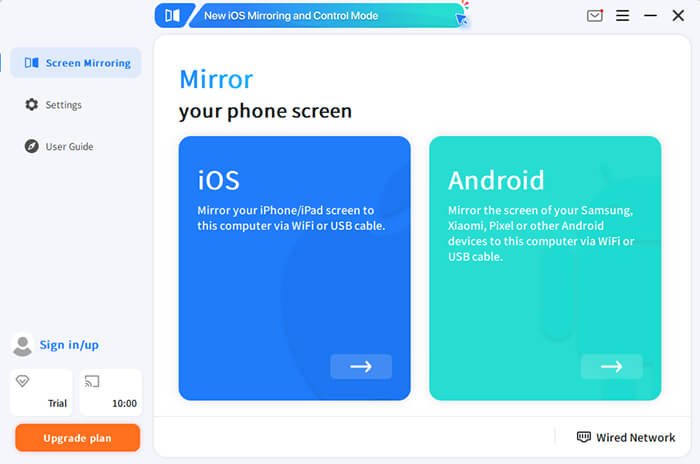
03Connect your iPhone to the computer and complete the setup by following the instructions shown in MirrorTo. If a permission request appears on your iPhone, tap the appropriate option to continue.
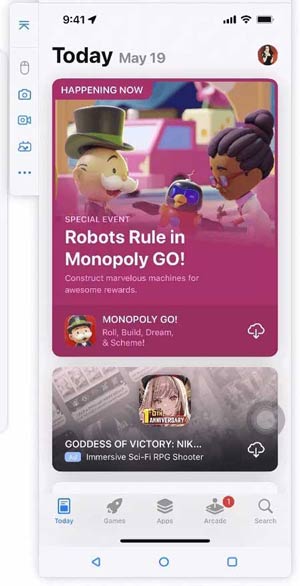
04Once the connection is established, you can remotely access your iPhone from the computer, control supported functions with your mouse and keyboard, mirror the screen in real time, record your display, take screenshots, or share your screen during live broadcasts and online meetings.
If you don't need to mirror or remotely access your iPhone screen, Microsoft Phone Link is a free alternative worth trying. It wirelessly connects your iPhone to a Windows PC via Bluetooth, allowing you to handle everyday tasks without constantly picking up your phone. Once paired, you can make and receive calls, send and receive messages (with some limitations), view notifications, and access your contacts directly from your computer.
How to set up Microsoft Phone Link?
Step 1. Open Phone Link on your Windows PC. If the app isn't already installed, download it from the Microsoft Store.
Step 2. Launch Phone Link and select iPhone as the device you want to connect. Then, scan the QR code displayed on your computer using your iPhone.
Step 3. Follow the on-screen instructions to pair the two devices via Bluetooth. Make sure Bluetooth is enabled on both your PC and iPhone throughout the setup process.
Step 4. When prompted, grant the necessary permissions on your iPhone, including access to notifications, contacts, and Bluetooth. This allows Phone Link to sync supported information with your computer.
Step 5. After the setup is complete, you can manage supported iPhone features from your PC, such as answering phone calls, viewing notifications, checking contacts, and sending or receiving messages without switching devices.
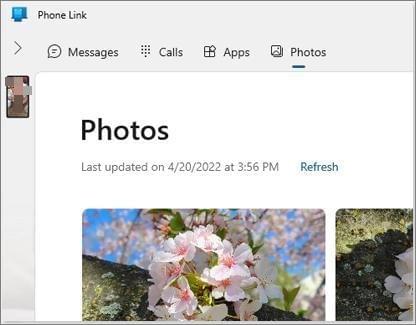
Microsoft Phone Link doesn't support screen mirroring or full remote control of an iPhone. If your goal is to operate your iPhone on a larger screen, record your display, or remotely access supported iPhone functions with your mouse and keyboard, Phone Mirror is the better choice.
Controlling an iPhone from a PC isn't as straightforward as controlling an Android device, but that doesn't mean it's impossible. The right method depends on what you want to do. If you need to remotely access supported iPhone functions, mirror your screen, record videos, or share your display during meetings and live streams, Phone Mirror is the more feature-rich option. If you simply want to stay connected by managing calls, messages, and notifications on your Windows computer, Microsoft Phone Link is a convenient free alternative.
We hope this guide has helped you find the best way to connect your iPhone and PC. Pick the solution that fits your workflow, follow the setup steps above, and you'll be able to work more efficiently without constantly switching between your devices.
Related Articles:
3 Ways to Mirror iPhone to Mac Directly [Latest Guide]
How to Control iPhone with Broken Screen Effortlessly: 6 Proven Ways




 Free Download for PC
  Free Download for Mac


