iPhonetopc is a platform that provides multiple iPhone-to-PC transfer solutions, helping iPhone users easily back up files from iPhone to PC or move data from PC back to iPhone. Whether it's photos, videos, messages, or app data, these tools are designed to simplify the transfer process without complicated operations.
Among all data types, WhatsApp chat history is one of the most important for users. Many people only realize they need a backup after completing the iPhone setup. So, can you transfer WhatsApp after setup iPhonetopc? The answer is yes. In this guide, we will walk you through three practical methods to help you move or back up WhatsApp data even after your iPhone has already been set up.
When your iPhone has already been set up and you want a complete WhatsApp migration solution without resetting the device, WhatsApp Transfer is a professional and efficient choice.
This software is designed specifically for WhatsApp data management. It supports direct device-to-device transfer, full local backup to PC or Mac, and restoration of WhatsApp chats when needed. Compared with cloud-based methods, it gives you more control and does not require factory resetting your iPhone.
Core highlights of WhatsApp Transfer:
How to transfer WhatsApp after setup?
01Download the installation package for your computer, and complete the setup process. Once installed, open the program to access the main dashboard.
02Connect your Android phone and your already-set-up iPhone to the computer using appropriate USB cables. On the Android device, enable USB debugging if prompted. On the iPhone, tap "Trust" when the trust notification appears to allow the computer to access device data.
03After both devices are successfully recognized, select the "Transfer" mode from the main interface. Carefully confirm that the Android device appears as the source and the iPhone as the target device. If the positions are reversed, use the built-in switch function to correct them before proceeding.
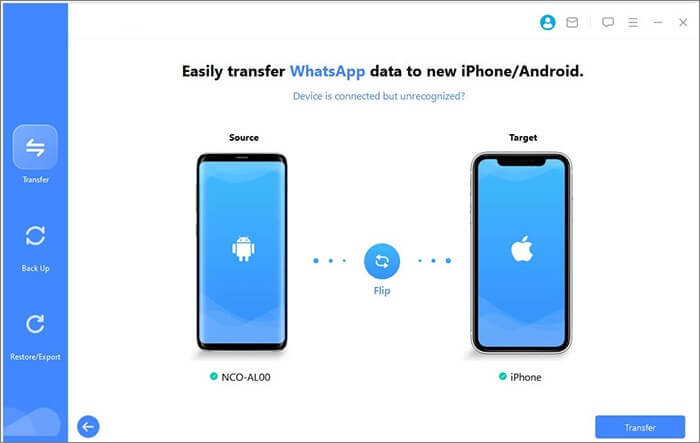
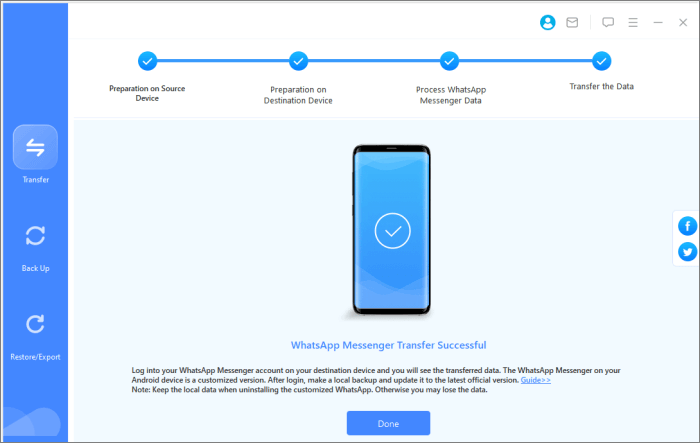
04Once everything is correctly configured, Click the "Transfer" button to initiate the transfer process. The software will automatically analyze and migrate all WhatsApp data, including chats and media files, to the target iPhone without requiring complex configuration.
If your goal is only to save a few important conversations rather than transfer all WhatsApp data, using email can be a quick workaround. Although simple, this approach only works for individual chats and does not allow restoring data directly into WhatsApp.
Step 1. Open WhatsApp on your iPhone and enter the specific chat you wish to export.
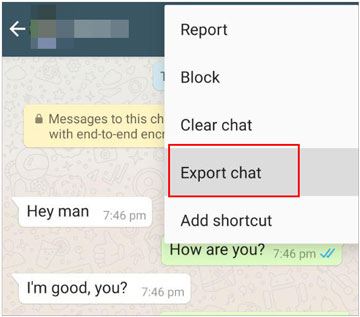
Step 2. Tap the contact name at the top of the conversation screen, scroll down, and select "Export Chat". You will be asked whether to include media files or export text only.
Step 3. Choose the "Mail" option, enter your own email address, and send the file.
Step 4. Afterward, access your email account on your PC, download the attached chat file, and store it locally.
Another option is using Move to iOS, Apple's official migration tool. However, this method only works during the initial iPhone setup stage.
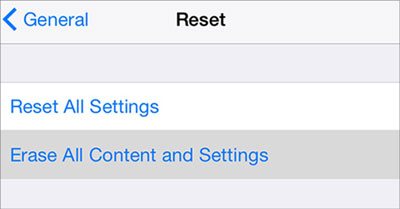
If your iPhone is already set up, you must first erase all content by going to "Settings" > "General" > "Transfer" or "Reset iPhone" > "Erase All Content and Settings".
After erasing your iPhone and reaching the "Apps & Data" screen, choose "Move Data from Android", then follow these steps:
Step 1. On your Android phone, open the Move to iOS app and follow the on-screen instructions.
Step 2. A verification code will appear on your iPhone. Enter this code on your Android device when prompted.
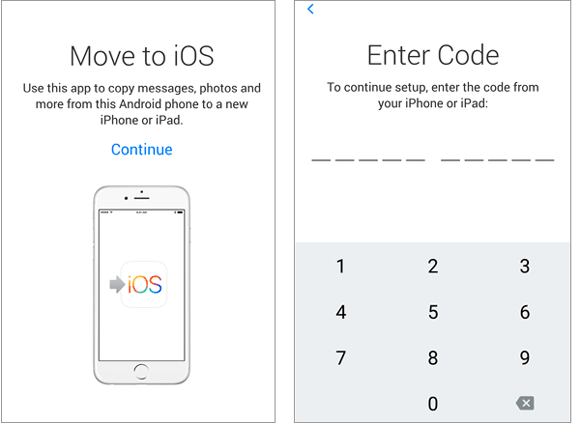
Step 3. Tap "Continue" and follow the instructions displayed on both devices.
Step 4. On the data transfer screen, select WhatsApp.
Step 5. Tap "Start" on your Android phone and wait while WhatsApp prepares the data for export. Once ready, you will be automatically logged out of WhatsApp on the Android device.
Step 6. Tap "Next" to return to the Move to iOS app.
Step 7. Tap "Continue" to transfer data from your Android phone to your iPhone and wait until Move to iOS confirms the transfer is complete.
Step 8. Install the latest version of WhatsApp from the App Store on your iPhone.
Step 9. Open WhatsApp and log in using the same phone number as on your old device.
Step 10. When prompted, tap "Start" and wait for the restoration process to finish.
Step 11. Complete the activation of your new device, and your chat history will then appear on the iPhone.
In summary, all three methods can help you transfer WhatsApp after setup iPhonetopc, but they serve different needs. WhatsApp Transfer is the most complete and flexible solution because it supports full chat and media migration without resetting your iPhone, while also allowing local backup to PC. The Email method is free and easy to use, but it only exports individual chats and cannot restore them back into WhatsApp. Move to iOS is Apple's official tool, yet it requires erasing your iPhone and can only be used during the setup process.
If you want a safe, efficient, and hassle-free experience without data loss or factory reset, WhatsApp Transfer is clearly the best choice. It provides higher success rates, broader compatibility, and better control over your WhatsApp data, making it the most recommended solution for most users.
Related Articles:
How to Transfer WhatsApp from Android to iPhone Without Factory Reset
[Full Guide] How to Extract WhatsApp Messages from iPhone Backup?
How to Transfer WhatsApp from iPhone to OPPO with 3 Practical Ways
3 Ways to Transfer WhatsApp from Android to iPhone Without PC







 Free Download for PC
  Free Download for Mac


