Trying to move your chats to a new phone but finding that WhatsApp chat transfer is not working can be incredibly frustrating. Whether the process gets stuck, fails to start, or freezes halfway, it often leaves users worried about losing important messages and media files.
The truth is, this issue can be caused by several factors. In this guide, we'll walk you through the most common reasons behind the problem and provide practical solutions to fix it quickly. If nothing works, we'll also introduce a reliable alternative to help you transfer your WhatsApp data smoothly.
There are several common reasons why WhatsApp chat transfer may fail or get stuck:
Now that you know the common causes, let's walk through simple, step-by-step fixes to resolve WhatsApp chat transfer issues. Start with the first solution and work your way down, most users fix the problem within the first few steps.
The official WhatsApp transfer method uses Bluetooth to connect the two devices, so proximity is key. Ensure both phones are placed within 1 foot (30 centimeters) of each other, with no obstacles (like walls, cases, or other electronics) between them. Avoid moving either phone during the transfer, as this can disrupt the Bluetooth connection. If you're using a third-party transfer tool, keeping the phones close can also help stabilize Wi-Fi or cable connections.
Both devices need a stable power source and an internet connection to complete the transfer:
Battery: Charge both phones to at least 20% (preferably 50% or more) before starting the transfer. Avoid using the phones for other tasks while the transfer is in progress, as this can drain the battery quickly.
Internet: Use a strong, stable Wi-Fi connection (avoid public Wi-Fi, which is often slow or unreliable). If Wi-Fi isn't available, you can use cellular data, but ensure both devices have a strong signal and enough data. Turn off data saver mode on both phones, as it can restrict the data usage needed for the transfer.
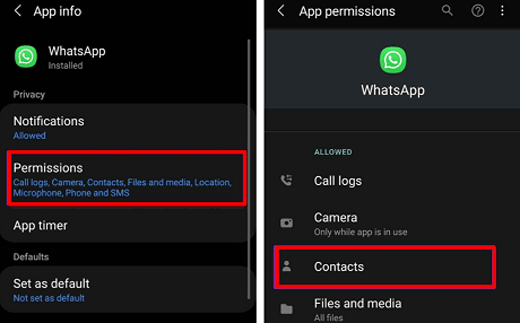
WhatsApp requires specific permissions to transfer chats, if any are missing, the process will fail. Here's how to check and enable permissions on both devices:
Android: Go to "Settings" > "Apps" > "WhatsApp" > "Permissions". Ensure permissions for Storage, Camera, Bluetooth, and Contacts are enabled. If any are disabled, tap them and select "Allow".
iPhone: Go to "Settings" > "WhatsApp". Enable permissions for Camera, Bluetooth, Contacts, and Photos. Without these, WhatsApp can't access the data needed to transfer chats.
After enabling permissions, close and reopen WhatsApp to apply the changes before trying the transfer again.
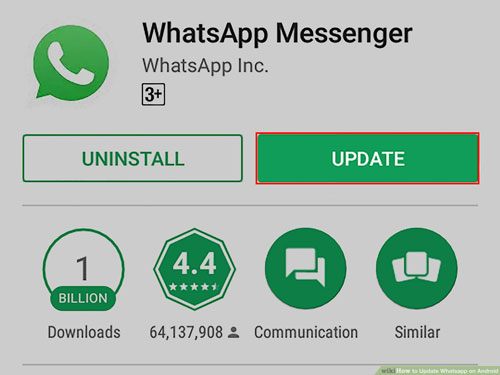
Outdated WhatsApp versions often have bugs that cause transfer failures. Updating the app to the latest version can resolve these issues:
Android: Open the Google Play Store, search for "WhatsApp", and tap "Update" if available.
iPhone: Open the App Store, go to your profile, and scroll down to find WhatsApp. Tap "Update" if it appears.
If updating doesn't work, try reinstalling WhatsApp: Uninstall the app from both devices, restart the phones, then reinstall WhatsApp from the app store.
Note: Reinstalling will not delete your chat backups (if you have them enabled), so you won't lose data.
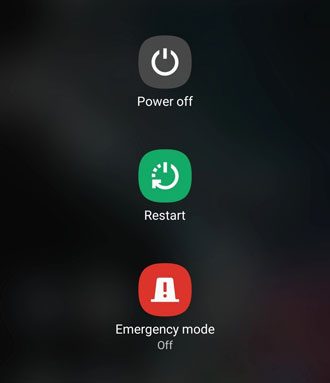
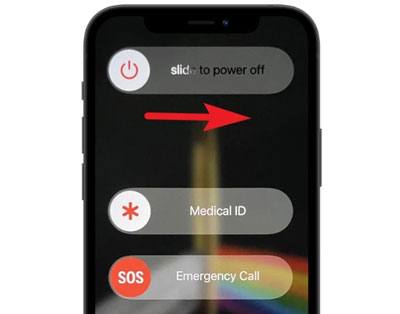
A simple restart can fix temporary glitches that interfere with WhatsApp transfer. Restart both the old and new phones to clear cached data, close background apps, and reset network connections. To restart:
Android: Press and hold the "power" button, then select "Restart".
iPhone: For iPhone X or later, press and hold the "side" button and one "volume" button, then slide to power off. For older iPhones, press and hold the "power" button, then slide to power off. Wait 30 seconds, then turn the phone back on.
After restarting, open WhatsApp on both devices and try the transfer again.
The target phone (new phone) needs enough storage to hold the transferred chats, media, and app data. If storage is full, the transfer will fail, or only partial data will be transferred. Here's how to check and free up storage:
Android: Go to "Settings" > "Storage". Check the available storage. If it's less than 1GB (or the size of your WhatsApp backup), delete unnecessary files (photos, videos, apps) to free up space.
iPhone: Go to "Settings" > "General" > "iPhone Storage". Check available storage. To free up space, delete unused apps, old photos/videos, or offload apps ("Settings" > "General" > "iPhone Storage" > Select an app > "Offload App").
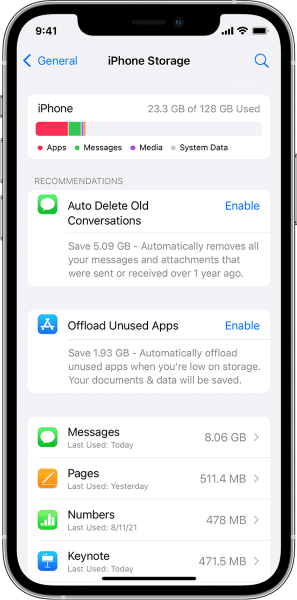
You can also check the size of your WhatsApp backup (on the old phone) to ensure the target phone has enough space: "WhatsApp" > "Settings" > "Chats" > "Chat Backup". The backup size will be displayed here.
If you've tried all the fixes above and WhatsApp chat transfer is still not working, it's time to switch to a more reliable solution. A professional tool like WhatsApp Transfer can help you bypass common issues such as network instability, compatibility limitations, or transfer failures.
Unlike the official method, this type of tool allows you to transfer WhatsApp data directly between devices with a higher success rate and fewer restrictions.
What can WhatsApp Transfer do for you?
How to use WhatsApp Transfer when WhatsApp chat transfer is not working?
01Download and install the software on your computer, then launch it and connect both your phones using USB cables. Make sure USB debugging is enabled on your Android device and tap "Trust" on your iPhone so the program can access your data properly.
02Once both devices are detected, enter the "Transfer" module and check that the source and destination devices are correctly displayed. If they are reversed, click the "Flip" button to switch their positions.
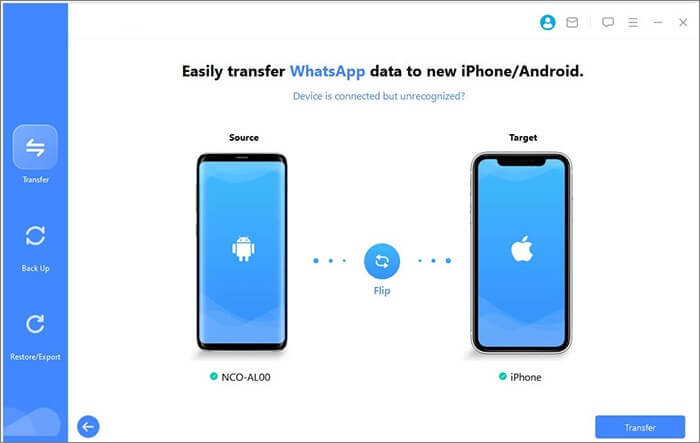
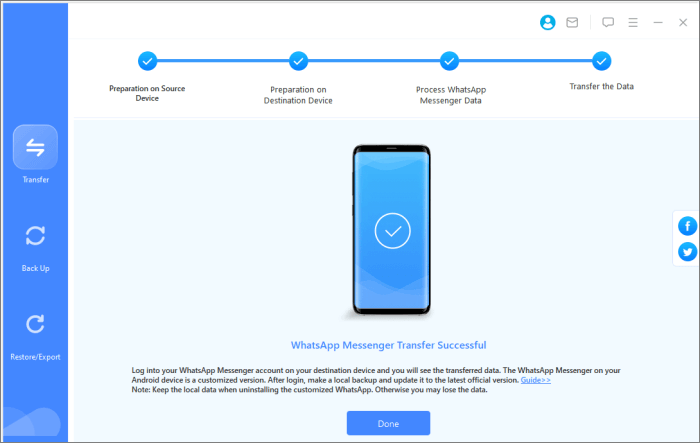
03Click the "Transfer" button to start moving your WhatsApp data. Keep both devices connected during the entire process until all chats and media files are successfully transferred to the other phone.
1. Can I transfer WhatsApp without backup?
Yes, you can transfer WhatsApp without using a cloud backup, but it depends on the method you choose. The official WhatsApp transfer process usually requires Google Drive or iCloud backup to restore your data on a new device.
However, if you use a professional transfer tool like WhatsApp Transfer, you can move WhatsApp chats directly from one phone to another without relying on any backup. This method is often faster and more reliable, especially when cloud backup is unavailable or fails to restore properly.
2. Does WhatsApp transfer overwrite data?
In most cases, WhatsApp transfer will overwrite existing WhatsApp data on the target device. It is recommended to back up important data beforehand to avoid accidental data loss.
3. How long does WhatsApp transfer take?
The time required depends on the size of your WhatsApp data and the speed of your connection. It can take anywhere from a few minutes to over an hour, especially if there are many media files involved.
4. Why is WhatsApp transfer stuck at 99%?
This usually happens due to network instability, large file sizes, or system interruptions. Waiting a few minutes may help, but if it remains stuck, restarting the process or switching to a more stable transfer method is recommended.
It's quite common to encounter issues where WhatsApp chat transfer is not working, especially when switching to a new phone. In most cases, simple fixes like checking your connection, updating the app, or adjusting device settings can help resolve the problem and get the transfer back on track.
However, if the issue still persists after trying all the basic methods, using a more reliable solution like WhatsApp Transfer is often the easiest way to ensure a smooth and successful transfer without unnecessary frustration.
Related Articles:
Cannot Send & Receive WhatsApp Messages, How to Fix?
WhatsApp Not Detecting Local Backup? Fix It Now with These Solutions
WhatsApp Not Working with Wi-Fi? Explore Reasons and Proven Fixes
3 Ways to Transfer WhatsApp from Android to iPhone Without PC




 Free Download for PC
  Free Download for Mac


