TL;DR:
GSM Flasher ADB Bypass FRP Tool is a popular solution for bypassing Google FRP locks on Android devices, but its compatibility and operation requirements may affect the overall experience. This article explores its features, pros and cons, usage process, and a reliable alternative.
Factory Reset Protection (FRP) is a built-in Android security feature designed to prevent unauthorized access after a factory reset. While FRP plays an important role in protecting user data, it can also become a serious obstacle when users forget their Google account credentials or purchase a second-hand device that is still linked to the previous owner's account. In such cases, many users turn to third-party FRP bypass tools for help.
GSM Flasher ADB Bypass FRP tool is one of the utilities frequently mentioned in Android repair and flashing communities. It claims to remove or bypass Google FRP locks using ADB-based operations on supported Android devices. In this article, we will take an in-depth look at what this tool offers, how it works, its advantages and limitations, and whether there is a more reliable alternative worth considering.
GSM Flasher ADB Bypass FRP tool is a Windows-based Android utility mainly designed for bypassing Google account verification on FRP-locked devices. It relies on Android Debug Bridge (ADB) communication to execute commands that modify or disable FRP-related system components. The tool is commonly used by technicians, repair shops, and advanced users who have experience with Android flashing and debugging.
Although it is often promoted as a free and lightweight solution, its real-world performance largely depends on the Android version, device brand, and whether ADB access is available.
GSM Flasher ADB Bypass FRP tool offers a range of features designed to simplify the FRP bypass process and unlock Android devices. Its key functionalities include:
While the GSM Flasher ADB Bypass FRP tool provides an efficient solution for many users, it's important to consider both its advantages and limitations before use. Here are the main pros and cons:
Pros:
Cons:
Using GSM Flasher ADB Bypass FRP tool requires careful preparation and adherence to steps. Below is a step-by-step guide:
Step 1. Disable Antivirus Software
Before installing GSM Flasher ADB Bypass FRP tool, make sure to temporarily disable any antivirus software on your computer. This ensures that the tool runs without interference from security programs.
Step 2. Download and Extract the Tool
Download the GSM Flasher ADB Bypass FRP tool from a trusted source, then extract the contents to a folder on your computer. Ensure that the folder is easily accessible for the next steps.
Step 3. Install ADB Drivers
If you haven't already installed ADB drivers on your computer, download and install the necessary drivers for your Android device. These drivers are essential for the tool to communicate with your phone.
Step 4. Run the Tool
Navigate to the folder where you extracted the tool, and run the exe file to launch GSM Flasher ADB Bypass FRP tool. The tool's user interface will appear on your screen.
Step 5. Enable ADB Mode on Your Device
In the tool's interface, select the "GSM Flasher" option. Then, follow the on-screen instructions to enable ADB mode on your FRP-locked Android device. If your device is already in ADB mode, proceed to the next step.
Step 6. Connect Your Device to the Computer
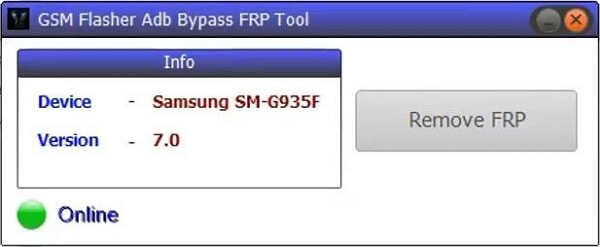
Using a USB cable, connect your Android phone to the computer. The tool will automatically detect your device, and once it's connected, you should see a confirmation message indicating that the device is online.
Step 7. Remove FRP Lock
Once your device is detected, click on the "Remove FRP" tab within the tool. The software will begin bypassing the FRP lock on your Android device. After the process completes, your phone will be unlocked and ready to use without requiring the previous Google account credentials.
For users facing compatibility issues, security concerns, or operational difficulties with GSM Flasher ADB Bypass FRP tool, Android Unlocker is the ideal alternative. This professional tool addresses the limitations of GSM Flasher, offering a more reliable and user-friendly solution for Android lock removal.
Key features of Android Unlocker:
How to use the alternative to GSM Flasher ADB Bypass FRP tool (Standard Mode)?
01Begin by downloading and installing Android Unlocker on your computer.
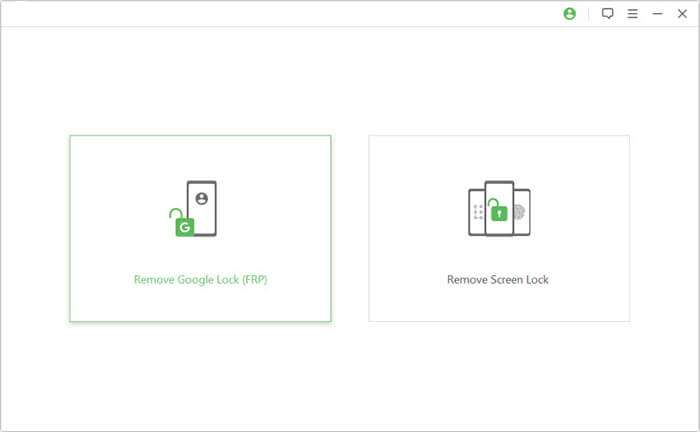
02Open the software and select "Remove Google Lock (FRP)" from the main interface. Then, connect your locked Android device to the computer via USB cable.
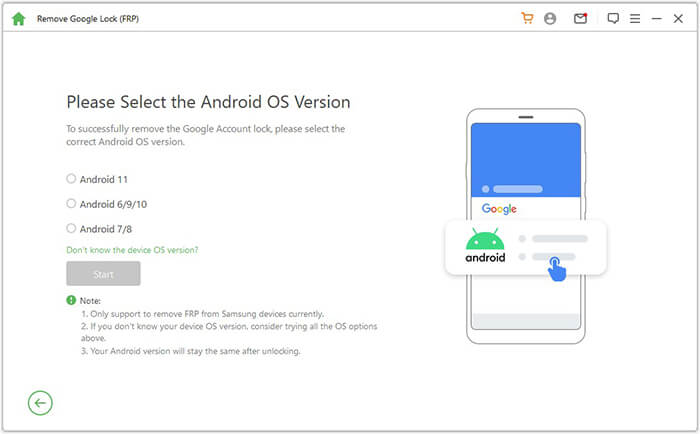
03Follow the on-screen instructions to choose your Android version. Once selected, click "Start" to proceed.
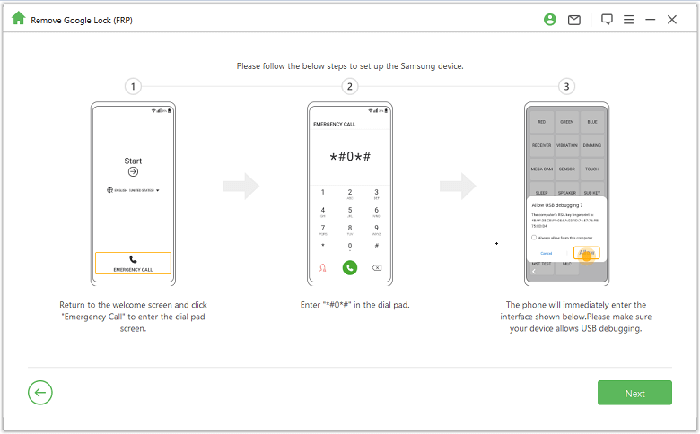
04Follow the prompts on the screen to continue setting up your device.
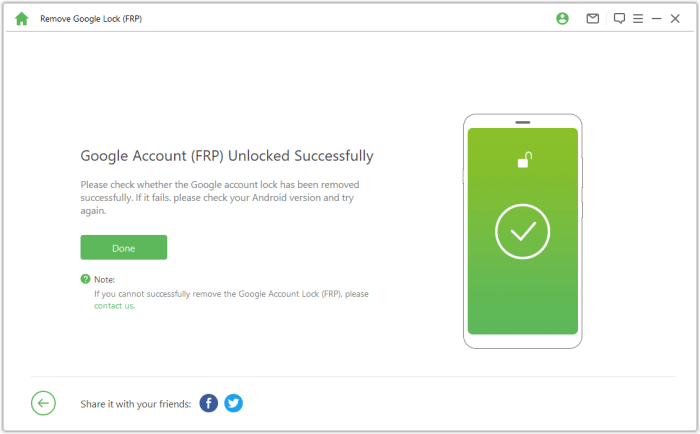
05The software will now remove the Google FRP lock. Do not use your phone during the process. Once completed, the screen may flicker briefly. Restart the device, and the FRP lock will be fully removed.
GSM Flasher ADB Bypass FRP tool is a viable free option for bypassing FRP and screen locks on older Android devices, especially for users with basic technical knowledge. However, its limited support for newer Android versions, security risks, and inconsistent success rate make it less suitable for modern devices.
For a more reliable, user-friendly, and secure solution, Android Unlocker stands out as the best alternative. It offers broad device compatibility, data-safe operation, and easy-to-follow steps, making it ideal for both beginners and advanced users. Whether you're dealing with a forgotten Google account or a locked screen, choosing the right tool ensures you regain access to your device without unnecessary hassle or risks.
Related Articles:
Top 11 FRP Bypass Tools for Android: Unlock Your Device Easily
How to Bypass FRP with ADB Commands and Other Android Unlock
How to Remove Google FRP Lock on Any Phone [3 Solutions]
How to Bypass Google Account on Samsung? 5 Effective Ways for You




 Free Download for PC


