Verification code texts (OTP SMS) are essential for logging into apps, confirming payments, and securing your accounts. However, many Android users encounter the frustrating issue of not receiving these messages at all or receiving them too late.
If you're facing this problem of not receiving verification code texts on Android, don't worry. In this guide, we'll walk you through the common causes and 11 practical fixes to help you restore normal SMS delivery on your Android device.
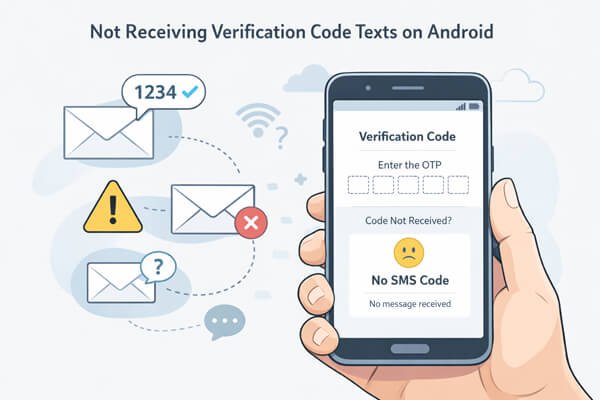
Not receiving verification codes on your Android device can be frustrating, but understanding the reasons makes it much easier to fix. Here are the main causes that could be behind the issue:
Knowing these causes helps you quickly decide which fix to try first, from simple restarts to checking system settings or contacting your carrier.
Now that you know the common causes, let's go through 11 step-by-step fixes to resolve the issue. Start with simpler fixes first, and move to more advanced solutions if needed. Most verification code problems can be solved with basic troubleshooting.
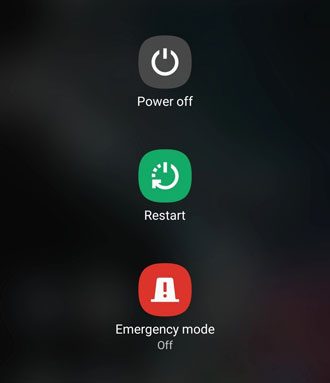
Restarting your Android is often the simplest and most effective way to fix temporary glitches. Sometimes, the system's background processes or network services may freeze, preventing verification codes from arriving. A restart refreshes your network connections, clears the temporary cache, and resets processes that could be blocking SMS reception. Many users find that this alone solves intermittent issues without further troubleshooting.
How to do it:
Press and hold the "power" button, select "Restart", wait for your device to power back on, and then request the verification code again.
Verification codes are delivered through your mobile carrier's network, so a weak or unstable signal can prevent messages from reaching your phone. Even if other apps seem to work, SMS relies on a consistent cellular connection, and signal fluctuations can delay or block verification texts. Crowded areas or buildings with thick walls can reduce signal strength significantly. Checking your signal and moving to a better location can often resolve the issue.
You can check the signal bars on your phone. If they are low (0-1 bars), move to a different location, like near a window or outdoors, and then try requesting the verification code again.
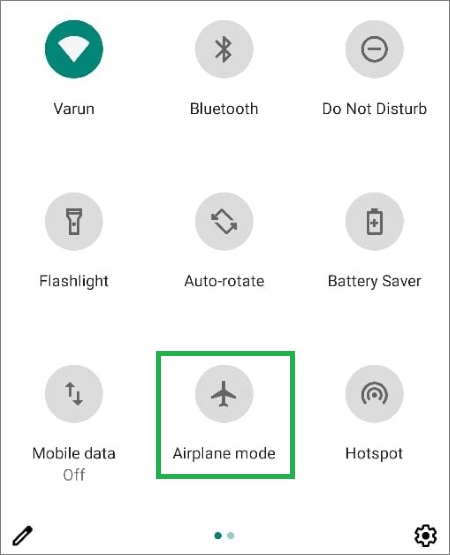
Sometimes the cellular network connection may temporarily fail due to network glitches or registration issues. Toggling Airplane Mode off and on forces your phone to reconnect to the network and can fix these temporary problems. Even if Airplane Mode appears off, switching it on briefly refreshes the network services, helping verification messages get delivered.
How to do it:
Swipe down from the top of your screen to open Quick Settings, tap Airplane Mode to turn it on, wait 10-15 seconds, then tap it again to turn it off. Request the verification code afterward.
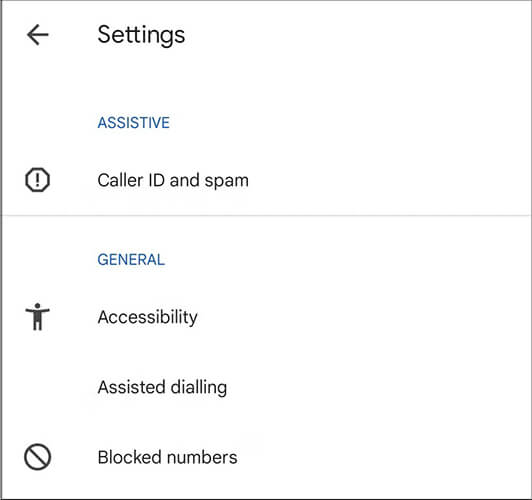
Many verification codes are sent from shortcodes or numbers that your device may not recognize. Your messaging app or security software may filter them as spam or block them entirely. This is particularly common if you have enabled "Block Unknown Senders" or installed third-party spam filters. Checking your spam folder or blocked numbers list can reveal whether the messages are being intercepted before they reach your inbox.
Step 1. Open your default messaging app (e.g., Messages, Samsung Messages).
Step 2. Check the "Spam" or "Junk" folder for the verification code.
Step 3. Go to "Settings" > "Blocked Numbers" and ensure the sender's number or shortcode isn't blocked.
Step 4. If using third-party security/messaging apps, check their spam/block settings. Temporarily disable spam filtering or "Block Unknown Senders" to test delivery.
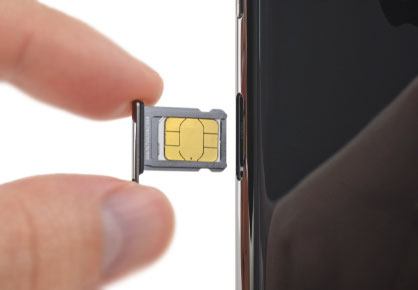
A damaged, improperly inserted, or inactive SIM card can prevent your phone from receiving verification codes. This problem is common after phone drops, SIM swaps, or using dual-SIM devices, where the wrong SIM is set as the default for SMS. Even if your phone shows signal bars, the SIM may not be properly communicating with the network for SMS services. (How to retrieve data from the SIM card?)
How to do it:
Power off your phone, remove the SIM, wipe it gently, and reinsert it securely. If you have a dual-SIM device, make sure the correct SIM is set as the default for SMS. Test the SIM in another device if necessary, and contact your carrier for a replacement if the SIM is damaged.
Sometimes, incorrect or corrupted network configurations, such as APN settings, Wi-Fi settings, or cellular preferences, can prevent SMS delivery. Resetting network settings restores all network-related configurations to default, eliminating errors that may block verification codes. Note that this will also reset Wi-Fi passwords, Bluetooth connections, and VPN settings.
Step 1. Go to "Settings" > "System" > "Reset phone" (or "Settings" > "General Management" > "Reset").
Step 2. Tap "Reset network settings" and confirm.
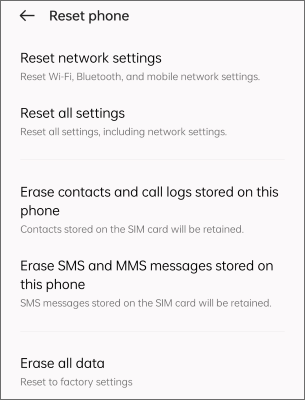
Step 3. Restart your device and request the verification code again.
For apps to detect verification codes automatically, both the messaging app and the app requesting the code need proper SMS permissions. Without these permissions, messages may arrive but won't be recognized by apps, causing failed verification. This is particularly important for Android 13+ devices, which have stricter permission controls.
Step 1. Go to "Settings" > "Apps" > [App Name] > "Permissions".
Step 2. Enable SMS/Text Messages permission.
Step 3. Repeat for your default messaging app.
Step 4. On Android 13+, enable "Allow access to all SMS" if required. Request the code afterward.
A corrupted cache or insufficient storage in your messaging app or verification app can prevent new messages from loading. Even if other messages come through, verification codes may fail due to temporary app-level errors. Clearing the cache eliminates these corrupted temporary files without deleting your messages.
Step 1. Check internal storage (Settings > Storage). Free up space if storage is >90%.
Step 2. Go to "Settings" > "Apps" > [Messaging App] > "Storage" > "Clear cache".
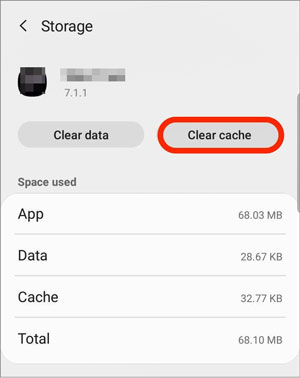
Step 3. If needed, clear app data (backup messages first, as this deletes SMS).
Step 4. Restart the messaging app and request the verification code again. Also, clear the cache for the app requesting the code for the best results.
Bugs in outdated Android versions or app versions can interfere with SMS reception. Updates often include fixes for system-level issues that prevent verification codes from arriving. Keeping both your system and apps up to date ensures compatibility with your carrier's messaging service.
Step 1. Go to "Settings" > "System" > "System Update" (or "Settings" > "About Phone" > "System Update").
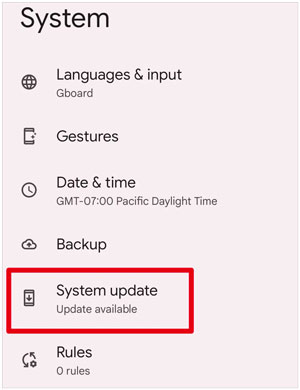
Step 2. If an update is available, tap "Download and Install".
Step 3. Wait for the update to finish and the device to restart.
Step 4. Update your messaging app and the app requesting the verification code via the Google Play Store.
Step 5. Request the verification code again.
If you've tried all the basic and advanced fixes above but still can't receive verification code texts, the problem may be caused by deeper Android system issues. For example, system corruption, firmware bugs, or OS-level glitches can interfere with your phone's ability to connect to carrier services or properly receive SMS messages.
In such cases, manual troubleshooting is often not enough. Using a professional Android system repair tool like Android Repair can help resolve these underlying issues efficiently without risking data loss. This method is especially useful if your phone is also experiencing other problems, such as app crashes, system freezes, or network instability.
Key features of Android Repair:
Steps to fix Android system issues:
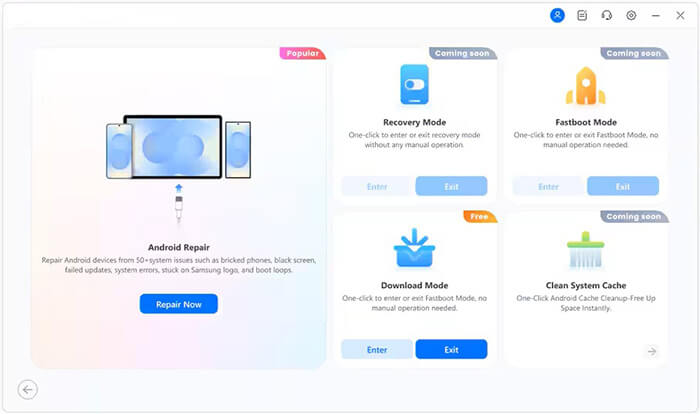
01Launch Android Repair on your computer and connect your Android device using a USB cable. Select "System Repair" > "Android" > "Android Repair", then click "Repair Now".
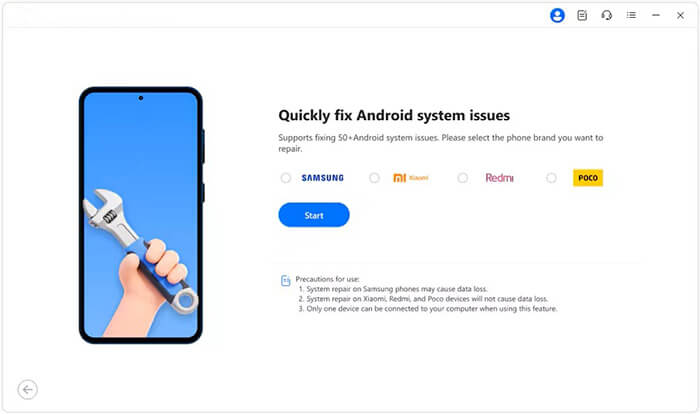
02Choose your device brand (e.g., Samsung, Xiaomi, etc.) and click "Start" to proceed.
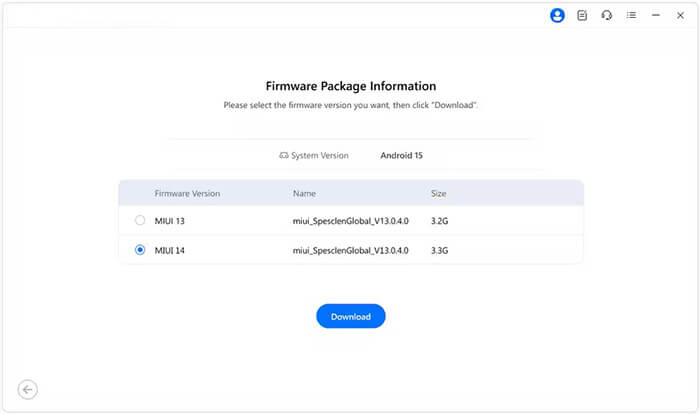
03The program will detect suitable firmware for your device. Review the information, select the correct version, and click "Download".
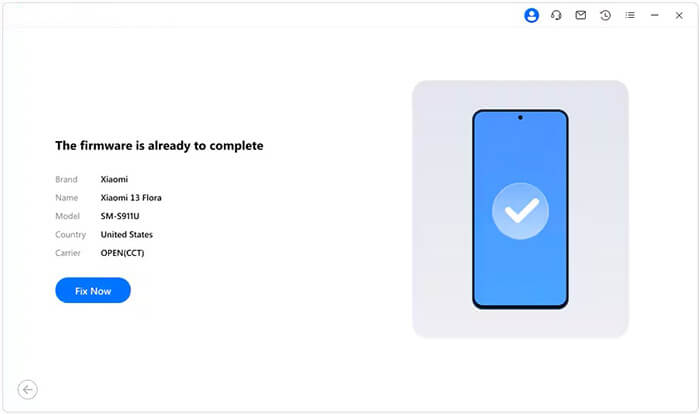
04Once the firmware is downloaded and extracted, confirm your device details and click "Fix Now" to begin the repair process.
If you still can't receive verification code texts after trying all the fixes above, the issue may be related to your mobile carrier. Verification messages are often sent via shortcodes, which can sometimes be blocked, delayed, or restricted by the carrier due to network issues or account settings.
What you can do:
1. How long does it take to receive a verification code SMS?
Usually, verification codes arrive within a few seconds to a minute. However, delays can occur due to network congestion, server issues, or carrier restrictions.
2. Can Wi-Fi calling block SMS codes?
Yes, in some cases. Wi-Fi calling may interfere with SMS delivery depending on your carrier. Disabling Wi-Fi calling and switching to the mobile network can help.
3. Why am I not receiving verification codes but can receive other texts?
This usually happens due to carrier filtering, blocked short codes, or app-specific restrictions. Verification messages are often sent from short numbers, which may be filtered differently than regular SMS.
Not receiving verification code texts on Android can be frustrating, but in most cases, it's caused by simple issues like poor signal, incorrect settings, or message filtering. Starting with basic fixes such as restarting your phone, checking your SIM card, or adjusting network settings can often solve the problem quickly. However, these methods may not always work, especially if the issue is related to deeper system errors.
If you've gone through all the common fixes and still can't receive verification codes, it's very likely that something within the Android system is preventing messages from being delivered properly. In this situation, using a professional Android system repair tool like Android Repair can be a more effective solution, as it can fix hidden system issues and help restore normal SMS functionality with minimal effort.
Related Articles:
Fix Switched from iPhone to Android Not Receiving Texts with 7 Solutions
Where Are Text Messages Stored on Android [Proven Tips]
How to Transfer Messages from iPhone to Android [8 Methods]
Can You Read Text Messages Online? 5 Methods for Android and iPhone Users




 Free Download for PC


