TL;DR:
How to Recover Deleted Files on Android Device:
When you delete a file on Android, it is rarely erased immediately. Instead, Android either moves it to a 30-day temporary Trash bin or marks the internal storage sectors as available for overwriting. If you need to retrieve lost photos, videos, documents, or app data, acting fast is crucial.
This comprehensive guide details 7 tested methods to recover deleted files from Android internal memory, SD cards, and cloud backups—with or without a computer.
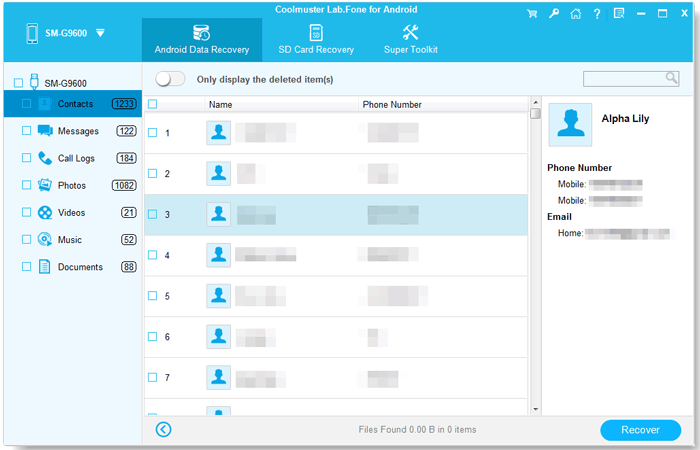
When files are permanently deleted or purged from the trash, specialized desktop recovery software offers the highest recovery success rate. With Coolmuster Lab.Fone for Android, you can directly scan Android internal memory and external micro SD cards to extract lost files safely.
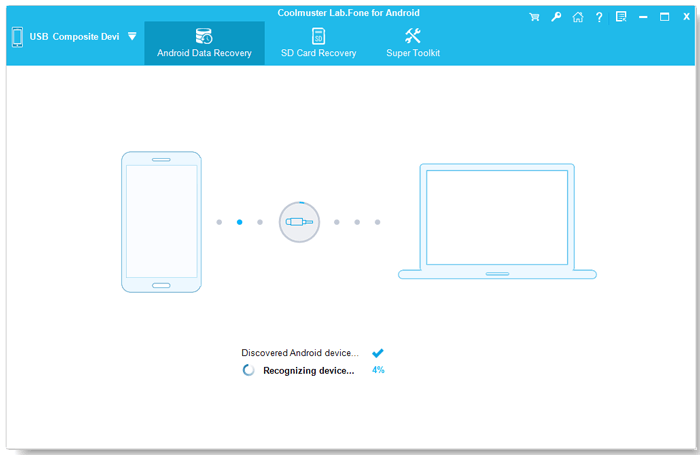
01Download and install Coolmuster Lab.Fone for Android on your computer. Connect your Android device to your computer using a USB cable and enable USB Debugging.
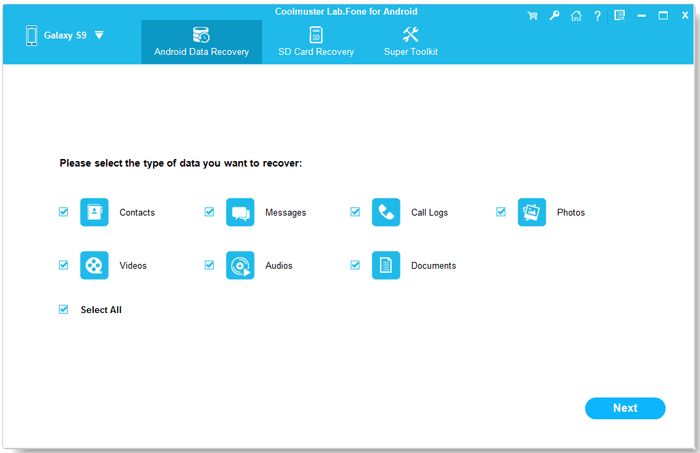
02Select the file types to scan. You can choose from photos, videos, contacts, messages, call logs, and documents. Click Next to continue.
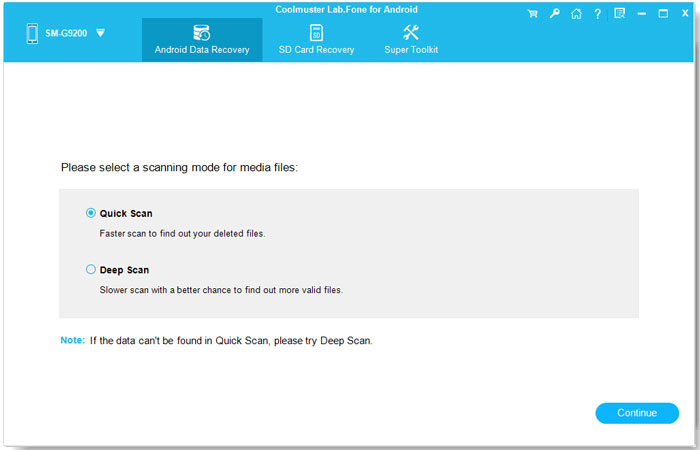
03Select either "Quick Scan" (for quick results) or "Deep Scan" mode (for thorough sector scanning), then click Continue to start scanning data on your Android phone.
04Preview found data (deleted items marked in red), select the files you want to recover, and click the Recover button to save them to your computer.
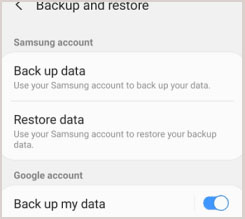
If you regularly perform routine system backups, you can easily restore lost data without third-party recovery software. Here are the steps to recover your lost data from an Android backup:
Step 1. Check if you have a backup. Go to Settings > System (or Accounts and backup) > Backup and restore to confirm your backup history.
Step 2. Restore the backup. Tap Restore data, select the backup file that contains the deleted files, choose the specific categories (such as contacts, call logs, or media files), and follow the on-screen instructions to restore it.
Most modern Android devices (Android 10 and above) feature a built-in Recycle Bin or Trash Folder in system file manager apps (like Samsung My Files or Files by Google) that temporarily stores deleted files for up to 30 days. (Where and how to find Android Recycle Bin.)
Follow these steps to access this folder:
Step 1. Open the File Manager app on your Android device.
Step 2. Look for a folder named Recycle bin or Trash. If you can't find it, tap the three-dot icon at the top right corner of the screen and select Settings.
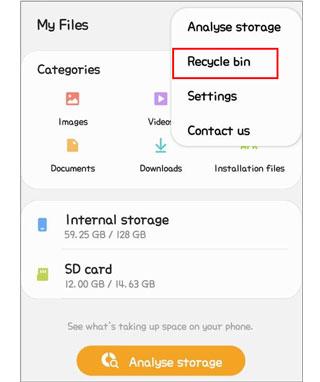
Step 3. Look for the option that says Show Recycle Bin or Show Trash and toggle the switch to turn it on.
Step 4. Once enabled, check if your deleted files remain. If you find the deleted files, select them and tap the Restore button to recover them to their original directory.
See more here if you want to recover deleted files on Android without computer.
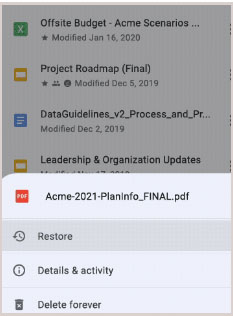
Google Drive is a cloud storage service that allows users to store, share, and access their files from anywhere. It also includes a function that allows users to back up their Android phone. Deleted cloud files remain in Google Drive Trash for 30 days before being permanently purged.
Here is how to recover them:
Step 1. Open the Google Drive app on your Android device.
Step 2. Tap on the three horizontal lines in the top left corner of the screen to open the menu.
Step 3. Select Trash from the menu.
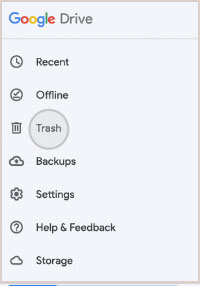
Step 4. You will see a list of files deleted within the last 30 days. Find the file or files you want to recover.
Step 5. Tap on the three-dot menu next to the file and tap Restore to send it back to its original Drive folder.
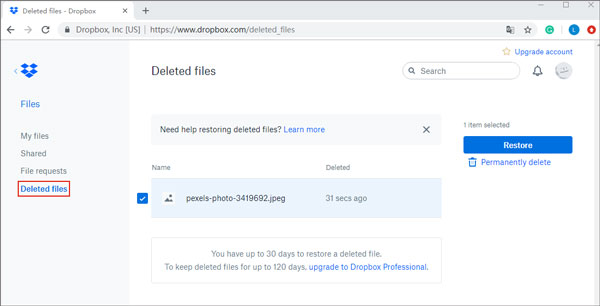
It's possible to recover lost data on Android devices with the help of Dropbox. Dropbox is a cloud-based storage platform that allows users to store files and access them from anywhere. It holds deleted files in a temporary cloud trash for 30 days (or up to 180 days for professional accounts).
Steps to recover lost data on Android via Dropbox:
Step 1. Open the Dropbox app on your Android device and log in to your account.
Step 2. Tap on the Files tab at the bottom of the screen.
Step 3. Tap on the Deleted files option at the top of the screen.
Step 4. Locate the file that you want to recover, tap on it, and select Restore to recover it.
You can recover deleted files from Android phone internal memory without trouble. Let's read this full guide.
How to Recover Deleted Files from Android Phone Internal Memory [Hot]Various data recovery tools are available to help us recover deleted data from our Android phones. Disk Drill is a desktop tool capable of scanning Android internal memory and external SD cards via MTP or ADB modes.
Steps to recover deleted data from your Android phone using Disk Drill:
Step 1. Download and install Disk Drill on your computer. Connect your Android phone to your computer with USB debugging enabled.
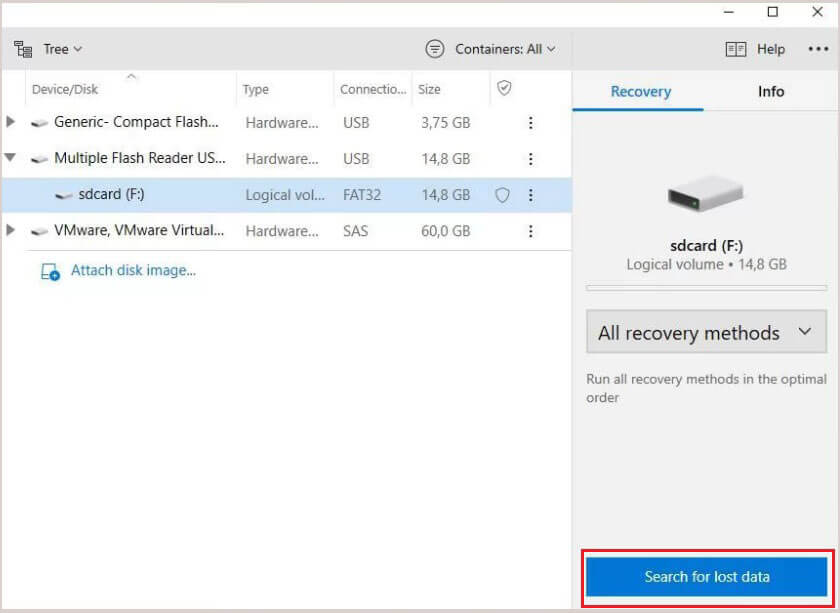
Step 2. Disk Drill will detect it automatically. Choose your Android phone or SD card from the list of connected devices.
Step 3. Click the Search for lost data button to start scanning for deleted files on your Android phone.
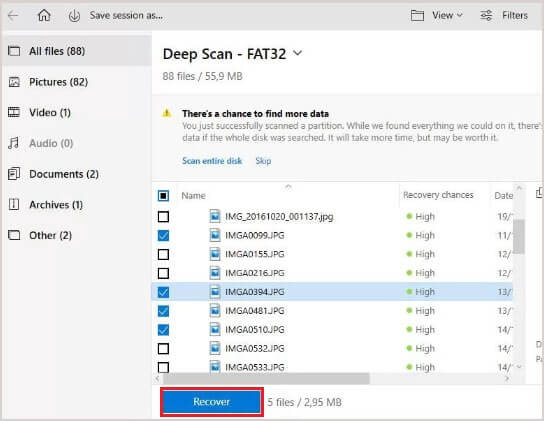
Step 4. Choose the files you want to recover and click the Recover button. Please select a different location on your computer storage to save recovered data and avoid overwriting deleted blocks.
DiskDigger is an Android data app that scans storage for lost images and videos.
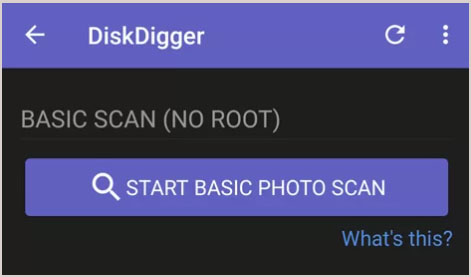
Note: Unrooted devices can only perform a "Basic Scan" (recovering thumbnails and cached files), while rooted devices can perform a "Full Scan" of internal storage memory.
Steps to Recover Files with DiskDigger:
Step 1. Download and install DiskDigger from Google Play Store.
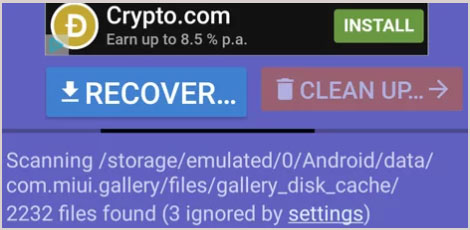
Step 2. Tap on the START BASIC PHOTO SCAN button. DiskDigger will begin scanning your device's storage for cached media files.
Step 3. Select the files you want to recover by checking the boxes next to them.
Step 4. Tap on the RECOVER button at the bottom and choose a location (cloud storage or local app directory) to save the restored files.
To maximize your recovery success rate, keep these fundamental technical principles in mind:
Q1. Where do deleted files go on Android?
Unlike Windows or macOS, Android does not have a single universal trash bin. Instead, deleted items are held in app-specific Trash folders (such as Samsung My Files, Google Photos, or Gallery apps) for up to 30 days before permanent deletion.
Q2. Can I recover permanently deleted files on Android without root?
Yes, if you have cloud backups (Google Drive, Dropbox) or are recovering data from an external SD card. However, deep-scanning raw internal storage for files cleared from the system trash often requires root access due to Android security sandboxing.
Q3. Can I recover files deleted months ago on Android?
Recovery is only possible if the storage sectors where the file was located have not been overwritten by new data or wiped by TRIM background services. Recovery success drops significantly for older files.
Q4. Is data recovery possible after an Android Factory Reset?
Due to File-Based Encryption (FBE) enforced on modern Android systems (Android 6.0 and later), a factory reset wipes the hardware encryption keys. As a result, raw file fragments cannot be decrypted, making recovery after a factory reset impossible unless you restore from a pre-existing cloud backup.
This guide has explored some effective methods to recover your lost data. For direct internal memory scanning and maximum file retrieval success, Coolmuster Lab.Fone for Android is the best choice. With this powerful tool, you can recover lost data from your Android device without hassle.
Additionally, backing up your Android data regularly is always recommended to prevent data loss.
Related Articles:
Android Tablet Data Recovery: How to Recover Deleted Files on Android Tablet
How to Recover Deleted PDF Files on Android Phone and Tablet? (SOLVED)
How to Restore Android Phone with Ease (Backup and Restore Tips)







 Free Download for PC
  Free Download for Mac

 Download for PC
 Download for Mac

