Losing favorite music files from your iQOO phone can be frustrating, whether it's due to accidental deletion, system glitches, or mistaken formatting. Fortunately, iQOO devices (powered by Funtouch OS) offer multiple recovery paths, ranging from built-in features to professional tools.
This article focuses on the most practical and effective methods to recover deleted music files from iQOO phone, covering quick built-in solutions, cloud backup restoration, and a trusted third-party software. Whether you have a backup or not, you'll find a step-by-step solution here to get your music back.
Many Android phones, including iQOO devices, feature a recently deleted or trash folder. When you delete files like music, they often aren't immediately removed from your device but are instead moved to a temporary folder. These files remain there for a certain period (usually 30 days) before they are permanently deleted.
Steps to recover deleted music files from the trash folder:
Step 1. Go to the folder where your music files were originally stored.
Step 2. This folder may be found within your file manager or music app (if supported). For music apps like Google Play Music or iQOO's default music app, check the trash or recently deleted section.
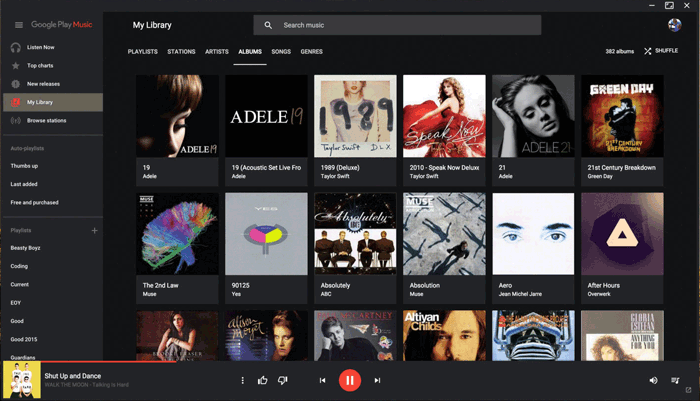
Step 3. Select the music files you want to restore and click on the option to recover them. This action will restore the files back to their original location.
iQOO is a subsidiary of BBK Electronics, so it seamlessly integrates with vivo Cloud (the official cloud service for vivo and iQOO devices). Additionally, if you use a Google account, you can leverage Google Drive/Google Backup to restore music files. This method is ideal if you enabled cloud backup before deleting the music.
Step 1. Open your iQOO phone's "Settings" app, scroll down to find "vivo Cloud" (or "Cloud and Account" on some models). Log in with your vivo account (the one you used to enable backup).
Step 2. Once logged in, tap "My Cloud Disk" to browse all files stored in the cloud. If you enabled "Auto Backup" for music, your deleted files may still be in the cloud disk.
Step 3. If the music files are in "My Cloud Disk", select them and tap "Download" to save them back to your phone's internal storage.
Step 4. If the files were deleted from the cloud disk, go to "Settings" > "Recycle Bin" > "Cloud Disk" (within the vivo Cloud app), select the music files, tap "Recover" to restore them to the cloud disk first, then download them to your phone.
Note: To avoid data loss later, go to "vivo Cloud > Auto Backup" and toggle on "Music" (along with other important file types) to automatically sync music to the cloud.
Restore from Google Drive:
Step 1. Open the Google Drive app on your iQOO phone (or visit drive.google.com on a computer). Tap the menu icon (three horizontal lines) in the upper left corner, then select "Trash".
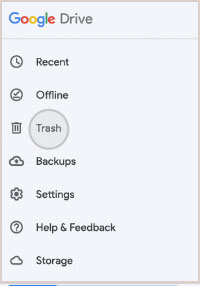
Step 2. Look for the deleted music files (they may be in the "Audio" folder or listed by name). Select the files, tap the three-dot icon, and choose "Restore" to move them back to your Google Drive storage. Then download them to your phone.
Restore from Full Google Backup:
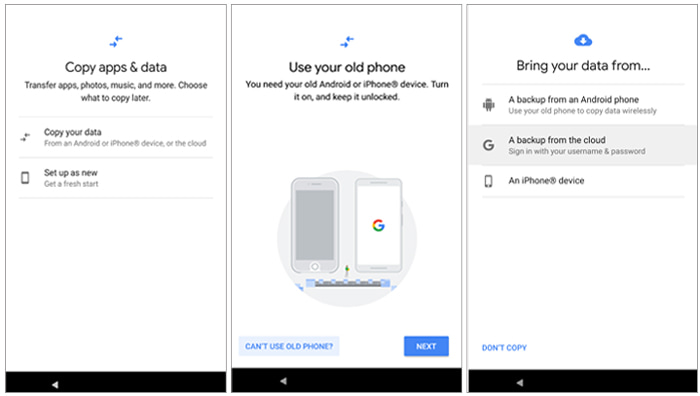
Step 1. If you backed up your entire phone (including music) via Google Backup, you'll need to factory reset your iQOO first (this erases all current data).
Step 2. After resetting, during the initial phone setup, log in to your Google account. When prompted, select the latest backup that contains your music files, and follow the on-screen instructions to restore the backup, this will recover the music along with other backed-up data.
If you don't have a backup and the music files are no longer in the Recently Deleted folder, Coolmuster Lab.Fone for Android is a reliable third-party tool. This software specializes in Android data recovery, supporting deep scanning of your iQOO phone's internal storage and SD card (if used) to recover deleted music, photos, messages, and more, even without root access.
Key features of Coolmuster Lab.Fone for Android
How to recover deleted music files on an iQOO phone from the Android phone's internal storage:
01First, download Coolmuster Lab.Fone for Android on your computer and install it.
02Connect your iQOO phone to the computer using a USB cable. Make sure USB debugging is enabled on your phone (go to "Settings" > "About phone" > Tap "Build number" 7 times to enable "Developer Options", then enable "USB Debugging" under Developer Options).
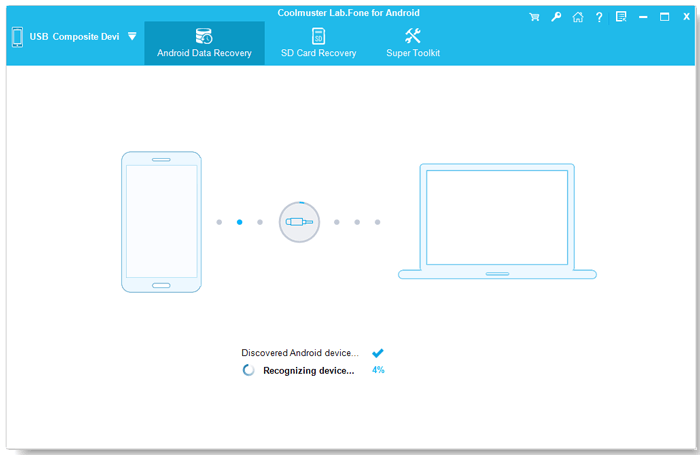
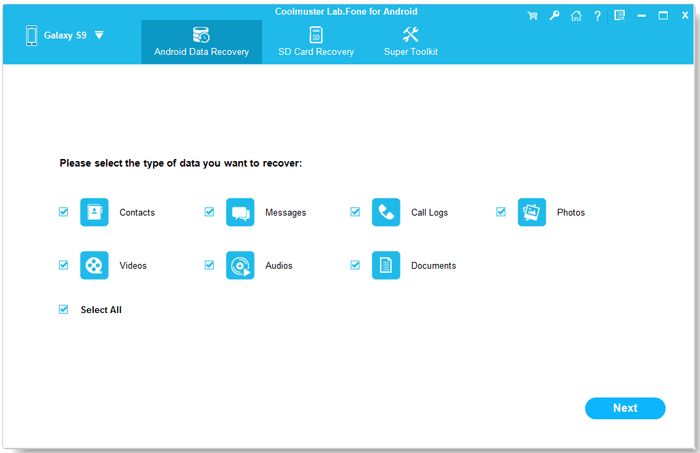
03Once your phone is detected, the software will display an interface with various data types you can recover. Select "Audios" and click "Next" to begin the scan.
04You can choose between Quick Scan and Deep Scan to search for deleted music files.
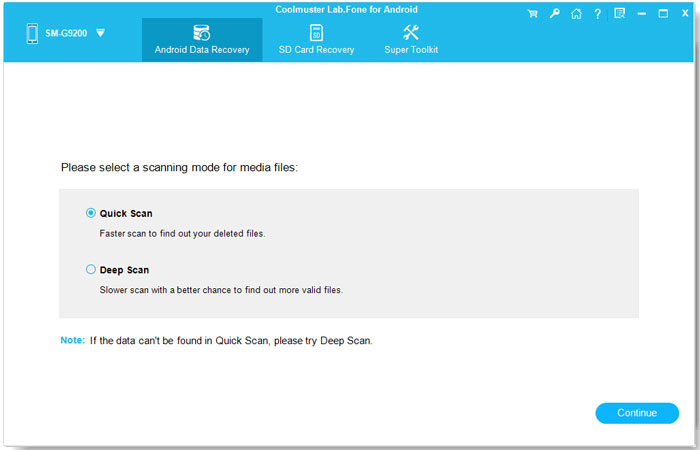
Note: If the files don't show up after scanning, they might still be stored in the phone's internal memory, in which case you may need to root your device to recover them.
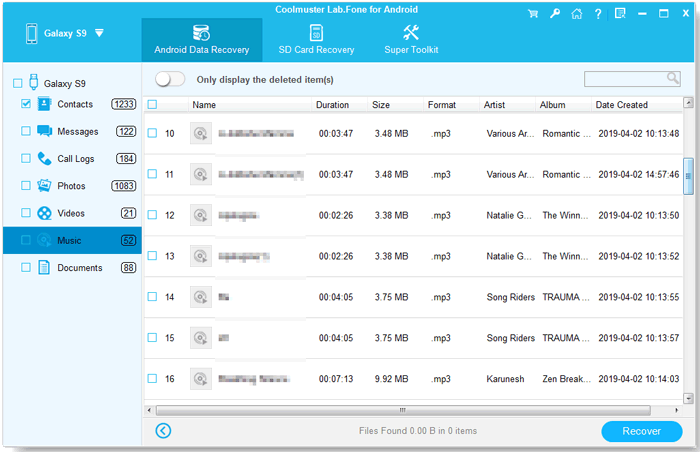
05After the scan, the software will list all recoverable audio files. You can preview the files and select the ones you want to recover. Click "Recover" to restore them to your computer for backup.
For a more visual guide, you can follow the video tutorial linked below.
How to restore deleted music on an iQOO phone from the SD card:
01If your music files were stored on an SD card, choose the "SD Card Recovery" mode from the top menu. Insert your SD card into the computer using a card reader.
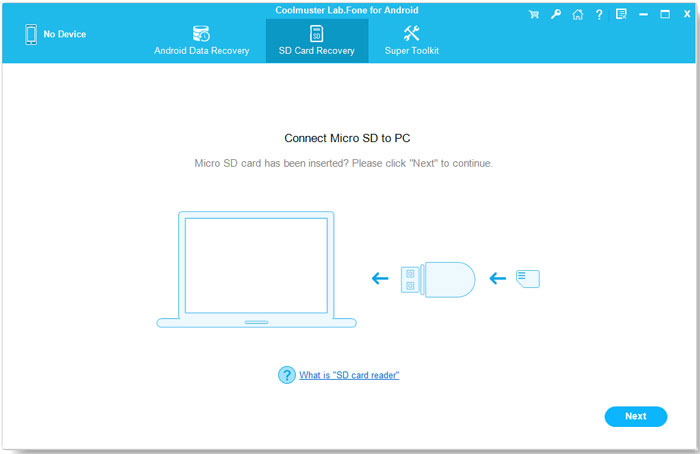
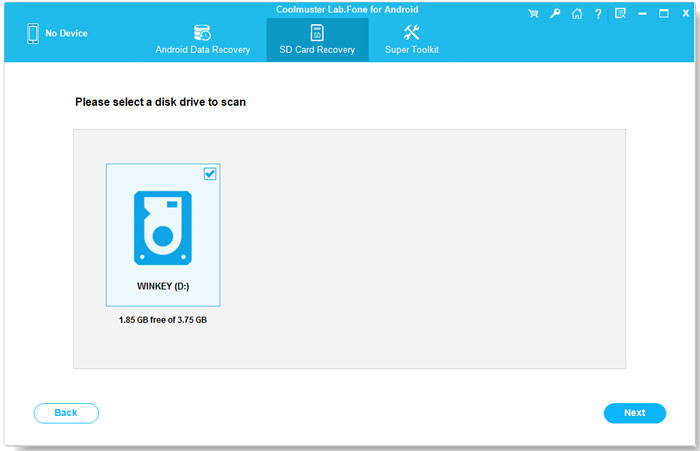
02Click "Next", and the software will detect the SD card. Select the SD card drive and click "Next" to begin scanning it for deleted music files.
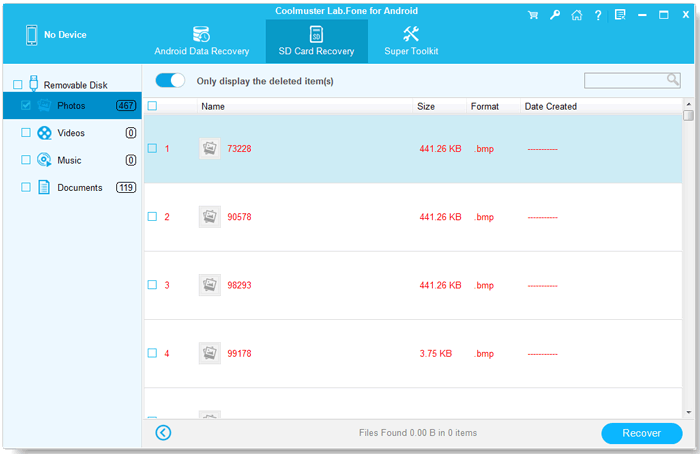
03Once the scan finishes, you'll see all the recoverable files, including photos, videos, and music. Preview the music files, select the ones you want to recover, and click "Recover" to save them to your computer.
If you prefer a more detailed step-by-step demonstration, check out the video tutorial below.
By following the easy steps outlined in this guide, you can quickly recover your lost music files and prevent future data loss by setting up automatic backups with cloud services or using a reliable data recovery tool. For a smoother and more efficient recovery process, Coolmuster Lab.Fone for Android is a great option. It offers a simple and effective way to restore your deleted files, ensuring you get your music back in no time without any hassle.
Related Articles:
How to Recover Deleted Files from iQOO with/without Backup
How to Conduct iQOO Backup and Restore [4 Proven Methods]
[Solved] How to Transfer Music from iQOO to iPhone Quickly and Easily?
How to Retrieve Deleted Text Messages on IQOO with/without Backup







 Free Download for PC
  Free Download for Mac


