Music files are an integral part of our daily lives, storing precious melodies, personalized playlists, and memorable audio recordings. Accidentally deleting these files from your POCO phone can be frustrating. Fortunately, POCO devices offer multiple solutions to retrieve deleted music files, regardless of whether you have a backup. This comprehensive guide will walk you through the most effective methods to recover deleted music files from POCO phone quickly and safely.
When music files are lost from a POCO phone, many users look for a fast and reliable way to get them back. Since deleted audio files are not immediately erased from the device storage, a professional Android data recovery tool can help scan the phone and locate music files that are still recoverable. Coolmuster Lab.Fone for Android is designed for this purpose, allowing users to recover deleted music files while preserving the original file format and audio quality.
Key features of Coolmuster Lab.Fone for Android:
01Download and install Coolmuster Lab.Fone for Android on your computer, then launch the software after installation is complete.
02Connect your POCO phone to the computer using a USB cable. On the phone, enable USB Debugging in the device settings so that the software can detect the device properly.
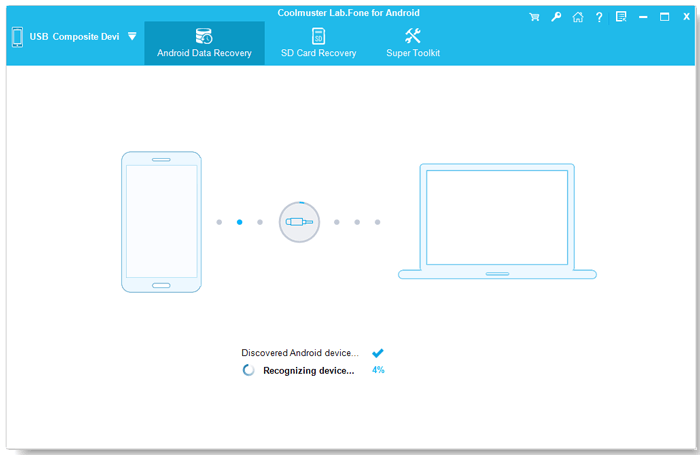
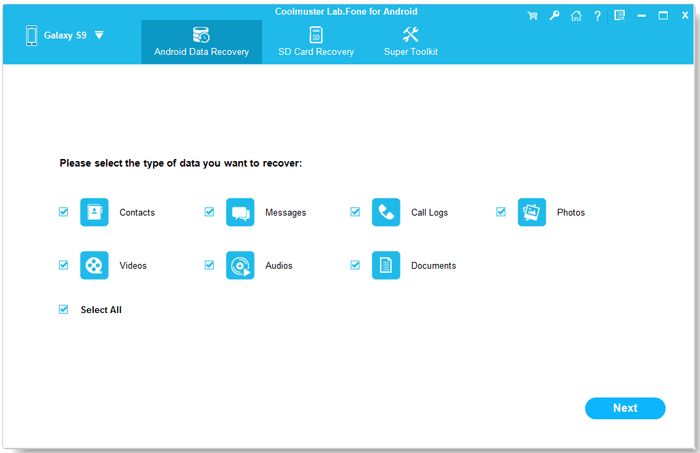
03After the POCO phone is recognized, select the "Audio" option in the program interface to focus the scan specifically on music files.
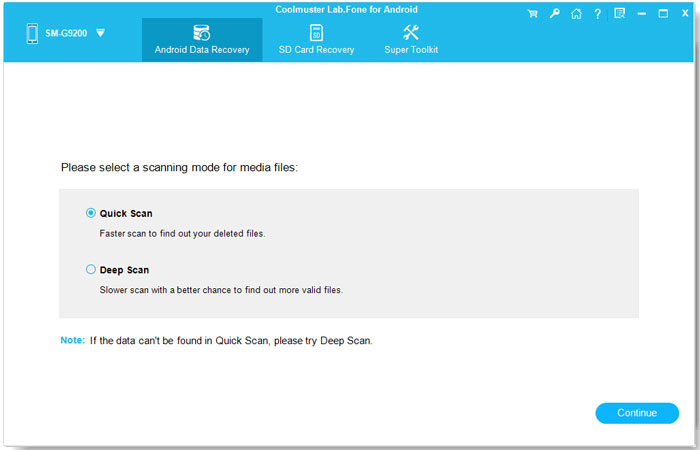
04Choose either "Quick Scan" for recently deleted music files or "Deep Scan" for a more thorough search of the internal storage, then click "Continue" to start scanning.
05Once the scan finishes, preview the detected music files to confirm their content. Select the files you want to recover and click "Recover" to save them to your computer.
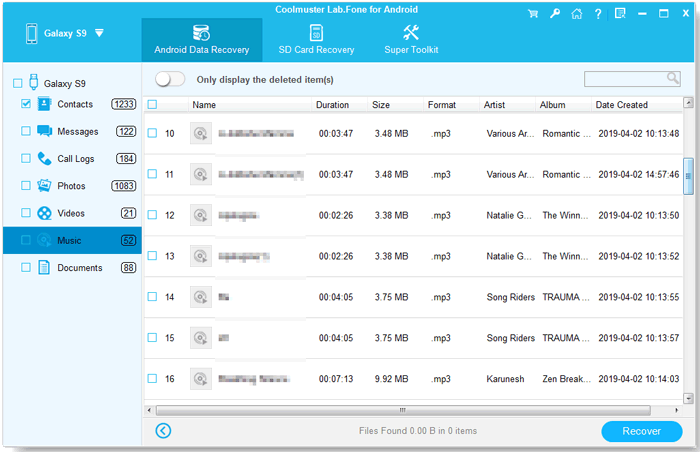
If you prefer a visual walkthrough, you can watch a detailed video tutorial that demonstrates how to recover deleted music files from a POCO phone's internal storage step by step.
01Power off your POCO phone, remove the SD card, and insert it into your computer using a compatible card reader.
02Launch Coolmuster Lab.Fone for Android and select the "SD Card Recovery" option from the main interface.
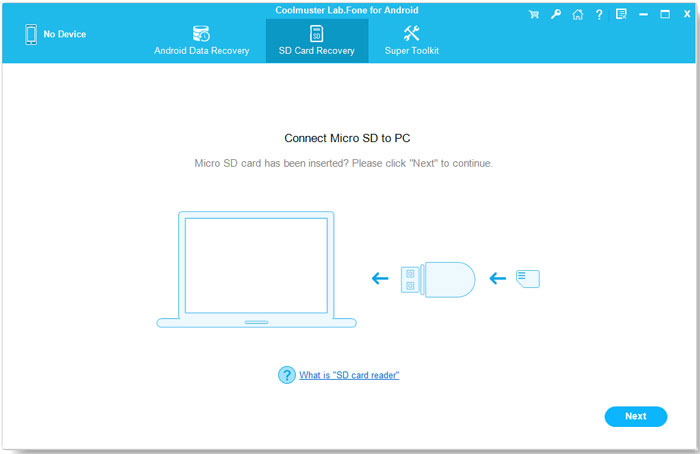
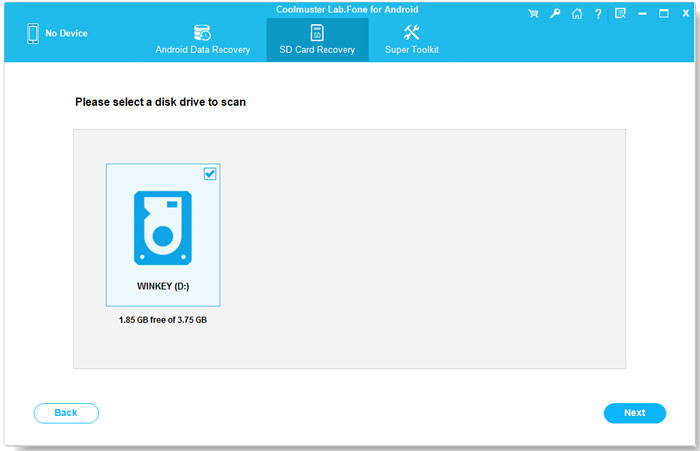
03Click "Next" to allow the software to detect the inserted SD card. Once detected, select the correct SD card drive and click "Next" to begin scanning for deleted music files.
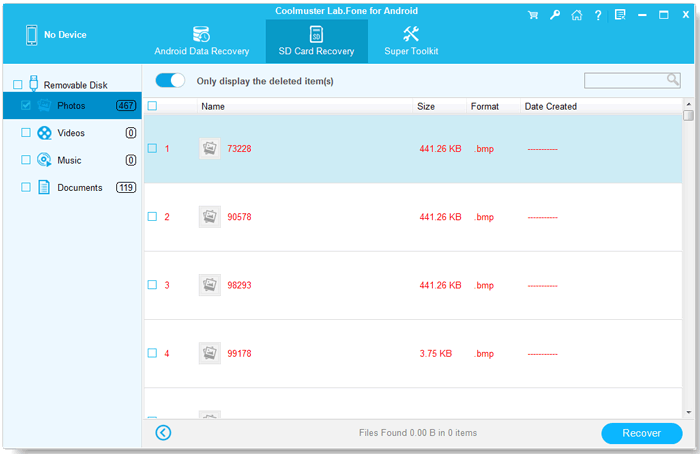
04After the scan is complete, preview the recoverable music files, select the ones you want to restore, and click "Recover" to save them to your computer.
For users who prefer visual guidance, a step-by-step video tutorial is also available to show how to recover deleted music files from an SD card in detail.
In addition to professional recovery tools, POCO phones come with a built-in feature that can help recover recently deleted music files. Most POCO phones (running MIUI or HyperOS) include a Recycle Bin or Trash in the File Manager app, which temporarily stores deleted files for up to 30 days before permanently erasing them. This makes it the easiest way to restore recently deleted music without any third-party software.
Step-by-step guide to restore music from Recycle Bin
Step 1. Open the File Manager app on your POCO phone. You can find it on the home screen or in the app drawer.
Step 2. Tap the three-dot menu icon in the top-right corner and select "Recycle Bin" (or Trash, depending on your system version).
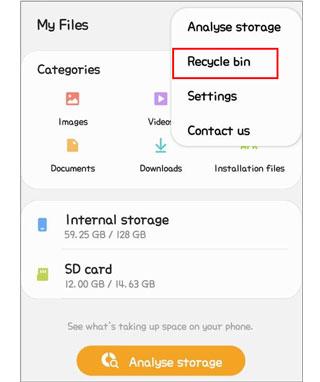
Step 3. Browse through the deleted files to find your music. You can also use the search bar to type the filename for quicker location.
Step 4. Long-press the music file(s) you want to restore, then tap the "Restore" button (usually represented by a curved arrow) at the bottom of the screen. The restored music files will be returned to their original location.
In addition to using recovery tools or the Recycle Bin, cloud backups offer another convenient way to restore deleted music files on your POCO phone. POCO, as a sub-brand of Xiaomi, works seamlessly with Mi Cloud and also supports Google Drive backup, since it runs on Android. If cloud backup was enabled before the music files were deleted, you can restore them directly from these services.
Mi Cloud is Xiaomi's official cloud service that automatically backs up data from your POCO phone, including music, photos, contacts, and more. It is free and reliable for restoring deleted music if your Xiaomi account is linked to the device. Here is how to works:
Step 1. Open the Settings app on your POCO phone.
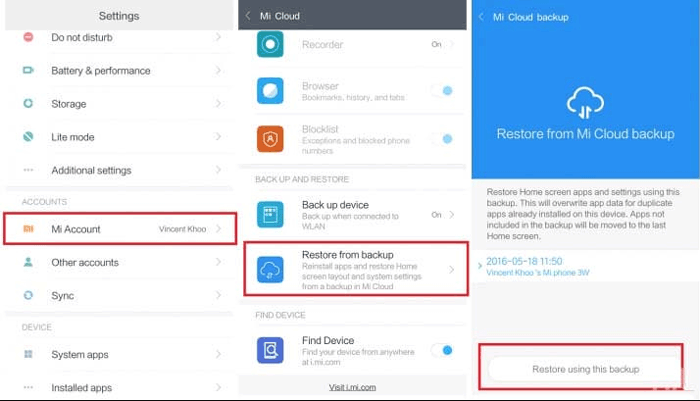
Step 2. Scroll down and tap "Mi Account", then log in with your Xiaomi account credentials (the same one used for backup).
Step 3. Select "Mi Cloud" from the menu and ensure that the "Music sync" option was enabled before the deletion.
Step 4. Tap "Restore from backup" and select the backup version containing the deleted music files (check the backup date for reference).
Step 5. Tick the "Music" option and tap "Restore using this backup". Wait until the process is complete, the deleted music files will be downloaded back to your POCO phone.
Google Drive provides 15GB of free storage and can automatically back up Android data, including music files, if the backup feature was enabled. Deleted music can be recovered via the Google Drive app on your phone or the web version. Here is how it works:
Step 1. Open the Google Drive app on your POCO phone (or visit drive.google.com on a computer) and log in with your Google account.
Step 2. Tap the "menu" icon (three horizontal lines) in the top-left corner and select "Trash".
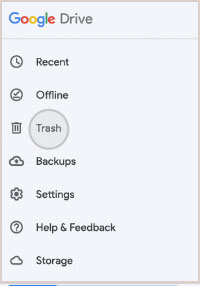
Step 3. Browse the "Trash" folder to find your deleted music files. Google Drive keeps deleted files in Trash for 30 days.
Step 4. Long-press the music file(s) you want to recover, then tap the three-dot menu icon and select "Restore".
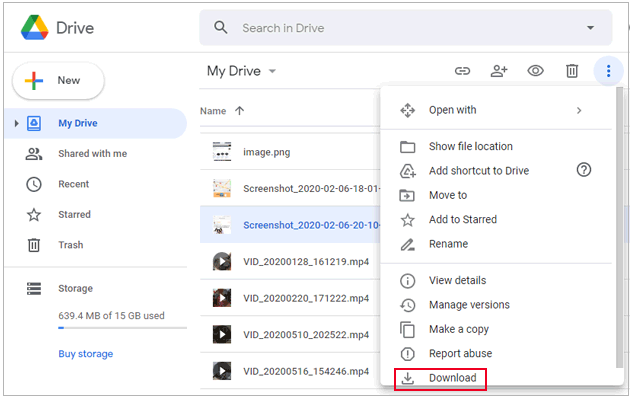
Step 5. If the music files were backed up in a specific folder (not in Trash), navigate to "My Drive", locate the folder, select the files, and tap "Download" to save them to your POCO phone.
While the above methods can help recover deleted music, prevention is always better than cure. Regularly backing up your music and other important data can save you a lot of trouble in case of accidental deletion.
For situations where music files have already been lost, using a professional Android data recovery solution like Coolmuster Lab.Fone for Android provides a reliable and efficient way to restore your deleted songs from your POCO phone. With this tool, you can recover music from both internal storage and SD cards, preview files before restoring, and keep the original quality intact. Of course, you can also choose other recovery methods according to your needs, such as the Recycle Bin or cloud storage.
Related Articles:
How to Recover Deleted Files from POCO with 4 Easy Solutions
How to Perform POCO Backup and Restore Easily
How to Restore Deleted Contacts on POCO with/without Backup
How to Retrieve Deleted Text Messages on POCO | 4 Proven Solutions







 Free Download for PC
  Free Download for Mac


