TL;DR:
Backing up your Android phone protects your photos, messages, contacts, and app data from loss, theft, or damage. This guide covers 7 reliable methods:
Choose the method that best fits your needs—whether you want full automation, selective control, or platform-specific tools.
Learning how to back up Android phone data is the most critical step you can take to prevent permanent data loss from unexpected screen damage, theft, or system crashes. Whether you are upgrading to a brand-new device or simply running out of local storage, keeping an offline or cloud-based copy of your files is essential.
This comprehensive guide breaks down the absolute best methods to back up Android phone contacts, messages, photos, call logs and more safely to a PC, Mac, or cloud service.
| Method | Best For | Backup Destination | Highlights |
|---|---|---|---|
| Coolmuster Android Backup Manager | Complete 1-Click Backup | PC / Mac Hard Drive | Fast, local, full system restoration |
| Coolmuster Android Assistant | Selective Management & Editing | PC / Mac Hard Drive | Preview files, edit contacts, transfer specific data |
| Google Account / Google One | Set-and-Forget Cloud Syncing | Google Cloud | Automatic background backups, native restore |
| Windows File Explorer | Quick Media Transfer | Windows PC | No software required; limited to media files |
| Android File Transfer | Quick Media Transfer (Mac Users) | macOS | Basic drag-and-drop for Mac owners |
| Dropbox / Third-Party Cloud | Cross-Platform Sharing | Alternative Cloud | Great for custom document and photo sync |
| Samsung Smart Switch | Samsung Device Owners | PC / Mac / SD Card | Official OEM ecosystem tool |
For users who prefer a secure, offline copy of their entire device without relying on internet speeds or cloud subscription fees, Coolmuster Android Backup Manager is the most efficient local solution. With its Android Backup and Restore feature, it creates a complete desktop backup of your phone's ecosystem that can be restored with a single click.
01Download and Launch: Download and install Coolmuster Android Backup Manager on your Windows PC or Mac, then launch the software.
02 Connect Your Device: Connect your Android phone to the computer via a USB cable. Follow the on-screen prompts to enable USB debugging on your phone.
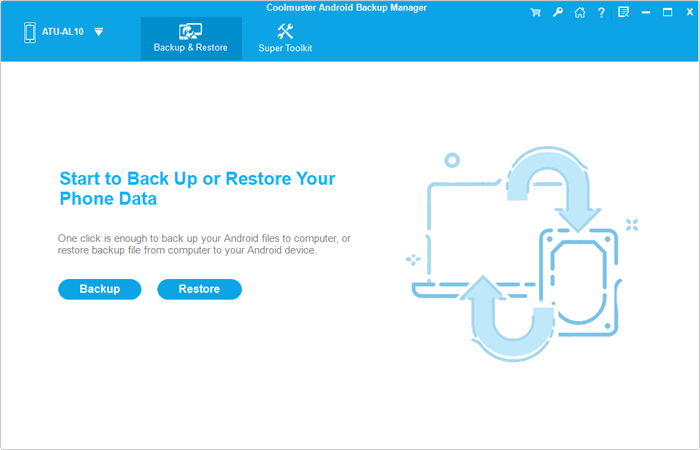
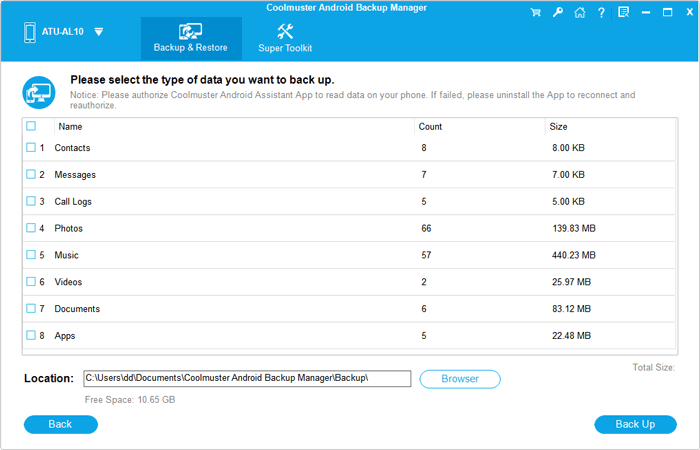
03Execute the Backup: Click on the Backup option from the main interface. Check the boxes next to the data types you want to save, choose a destination folder on your computer's hard drive, and click the Back Up button.
Video guide:
If you don't want a massive, all-or-nothing backup file, Coolmuster Android Assistant offers granular, selective data management. This tool allows you to preview individual files before transferring them, edit phone data directly from your desktop, and manage your device's storage layout smoothly.
01 Open the Software: Install and launch Coolmuster Android Assistant on your PC or Mac.
02 Establish Connection: Connect your Android phone via a USB cable or local Wi-Fi. Once recognized, your phone's storage and file categories will display on the left sidebar.
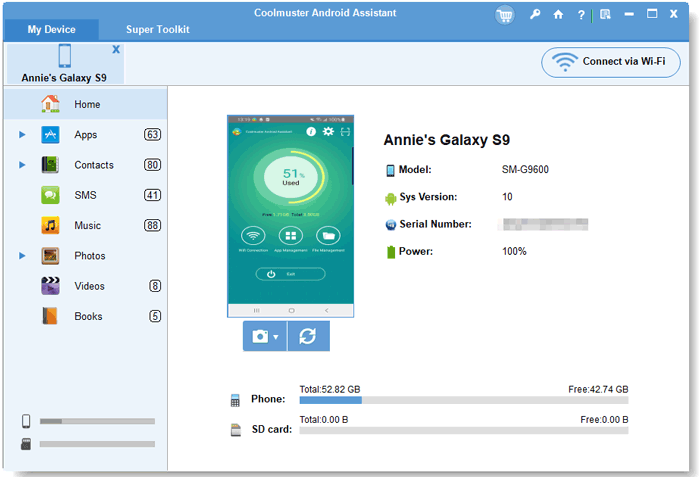
03Select and Export Data: Click on a data category (e.g., Contacts or Messages). Preview the specific items, check the boxes next to the files you want to keep, and click the Export button at the top menu to save them to your computer.
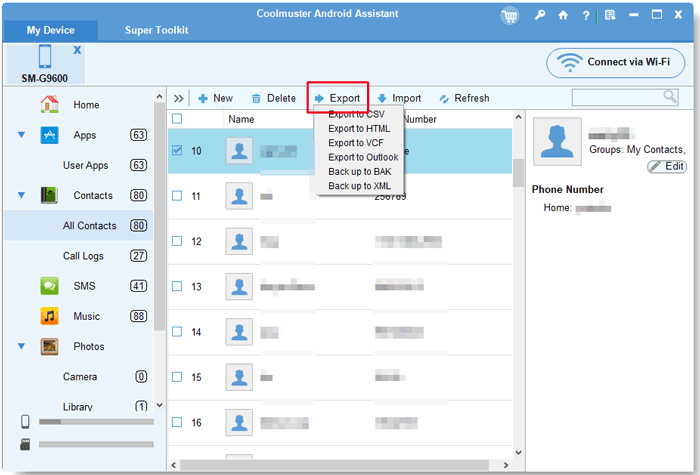
Video guide:
To back up your Android phone, Google provides a built-in cloud backup framework linked directly to your Gmail account. This is the standard "set-and-forget" option that runs automatically in the background when your phone is connected to Wi-Fi and charging. You can save important data like contacts, calendar events, photos, and app data. Google offers a free backup service via Google Drive.
Step 1. Open the Settings app on your Android device.
Step 2. Scroll down and select Google (or System > Backup depending on your phone's brand).
Step 3. Tap on Backup (or Backup & Restore).
Step 4. Ensure the toggle for Backup by Google One is switched on.
If you have Google One, it will be displayed here, showing how much storage is available.
Step 5. To force an immediate sync, tap Back up now.
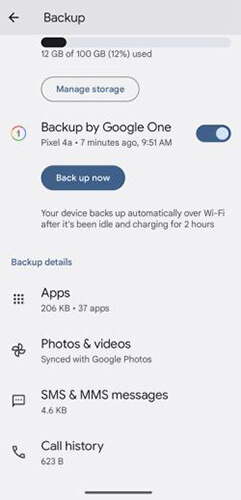
Note on Storage Limits:
Google offers 15 GB of free shared cloud storage across Gmail, Google Drive, and Google Photos. High-resolution photo backups and large video files will quickly exhaust this limit, requiring a paid Google One monthly subscription.
For quick transfers of media folders without downloading third-party software, Windows File Explorer allows basic drag-and-drop actions to copy and access videos, photos, and music from your Android device. However, this method uses MTP (Media Transfer Protocol), which restricts access to core system data.
Step 1. Connect your Android device to a Windows PC via a USB cable.
Step 2. Unlock your phone screen, swipe down the notification panel, tap the USB system notification, and select File Transfer (or MTP).
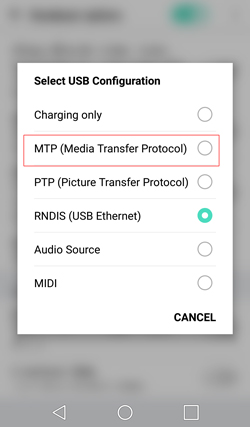
Step 3. Open This PC / File Explorer on your computer and locate your Android device under portable drives.
Step 4. Double-click through to the internal storage, find folders like DCIM (Photos), Pictures, Music, or Movies, and copy-paste them to your local hard drive.
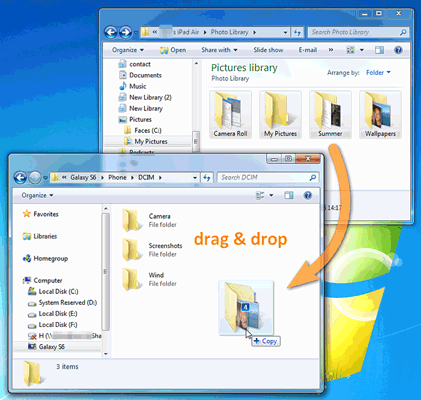
Limitations: You cannot back up Android text messages, call logs, calendar data, contacts, or app settings using Windows File Explorer. Large file transfers over MTP can also occasionally freeze mid-process.
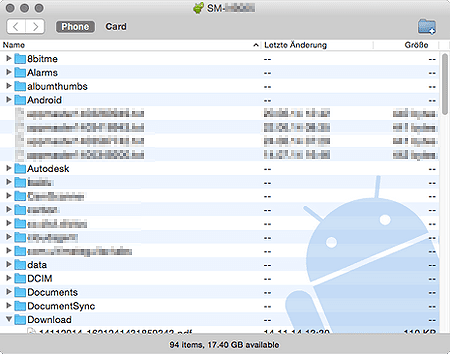
Because macOS does not natively support Android's MTP file system, Mac users need a dedicated utility program to copy media files manually. With the specialized Android File Transfer software, you can transfer files from your Android device to a Mac computer.
Step 1. Download and install the official Android File Transfer app on your Mac.
Step 2. Connect your Android phone to the Mac using a compatible USB cable.
Step 3. Unlock your phone and set the USB settings mode to File Transfer.
Step 4. The Android File Transfer window should open automatically on your Mac screen. Drag and drop your target folders (such as DCIM or Documents) onto your desktop or local finder folders.
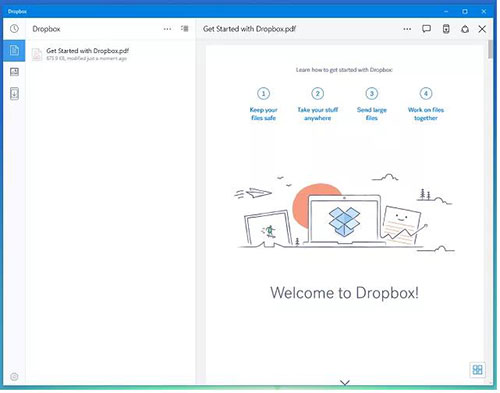
If you prefer to keep your files separate from the Google ecosystem or need cross-platform sharing capabilities, third-party cloud apps like Dropbox, Microsoft OneDrive, or Box offer flexible cloud storage to back up your Android phone, including documents, photos, videos, and more.
Step 1. Download the Dropbox app from the Google Play Store and sign in.
Step 2. Tap the + (Plus) icon at the bottom right corner of the application layout.
Step 3. Choose Upload files to manually select specific documents, audio files, or compressed folders.
Step 4. To automate your media management, navigate to the app's Settings, locate Camera Uploads, and toggle it on to upload photos and videos to the cloud automatically.
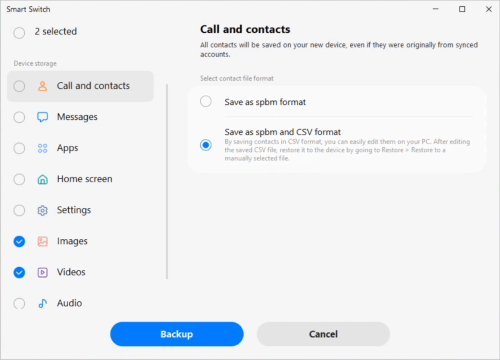
If you own a Samsung Galaxy phone, the company provides its own ecosystem solution called Smart Switch. This tool is designed primarily for local desktop backups or direct device-to-device upgrades.
Step 1. Download and open Samsung Smart Switch on your Windows PC or Mac.
Step 2. Connect your Galaxy device to the computer using a USB cable.
Step 3. Once the desktop application detects your phone, click the large Backup button.
Step 4. Unlock your phone screen and grant permissions if prompted to start the data extraction process.
Yes, Google's native backup saves basic text messages (SMS) and call histories. However, it does not back up rich media attached to carrier messages automatically, nor does it save chat histories from third-party applications like WhatsApp, Signal, or WeChat. Those require separate internal app cloud configurations.
If you can still see the display and connect an external mouse via a USB OTG (On-The-Go) adapter, you can navigate your phone settings to initiate a backup. If the screen is completely black or unresponsive, you can use desktop programs like Coolmuster Android Assistant to extract files—provided you have previously authorized USB debugging on that specific computer.
See more about how to back up Android with broken screen safely and efficiently here.
Android Backup Manager is built for speed and simplicity, letting you compress and save or restore your entire phone's data layout in one click. Android Assistant acts as a full-scale mobile manager, allowing you to visually browse, selectively export files, edit your contacts list, and text directly from your computer monitor.
This is usually caused by Windows MTP drop-outs. The native Media Transfer Protocol built into Android is easily overwhelmed when processing thousands of small, individual files (like cached images or app thumbnails) simultaneously. For large data migrations, using dedicated local desktop transfer tools is highly recommended to prevent connection timeouts.
You may want to know "which is the best way to back up my Android phone". There is no single "correct" way to handle mobile data security. Cloud-based tools like Google One offer convenient automation, but they come with recurring subscription costs for storage upgrades. On the other hand, desktop tools offer faster, high-security transfers with zero ongoing fees.
If you want a secure offline storage plan, Coolmuster Android Backup Manager provides a reliable 1-click total backup system. If you prefer to visually organize, edit, and select exactly which contacts, text messages, and photos move over to your hard drive, Coolmuster Android Assistant serves as the perfect desktop companion for managing your device.
Related Articles:
Android Full Backup: 4 Best Ways to Back Up Everything on Android Phone
Android Backup to SD Card: How to Back Up Android Phone/Tablet to SD Card
Back Up Photos for Android: Top 8 Straight-to-the-Point Methods





 Free Download for PC
  Free Download for Mac


