"My samsung experience service keeps stopping, even though done all the steps as said in support. Google. What should I do?"
- From Google Community
Seeing the error message "Samsung Experience Service keeps stopping" on your Samsung phone can be frustrating. The pop-up may appear repeatedly, freeze your screen, or even prevent you from using certain features properly. In this article, we will explain what Samsung Experience Service is, why the error happens, and provide step-by-step solutions to fix the problem completely.
Samsung Experience Service is a built-in system component developed by Samsung for Galaxy devices. It was originally part of the Samsung Experience UI, which later evolved into One UI.
This service helps manage and enhance user experience features such as:
Since it works closely with the system interface, any malfunction can affect overall device performance.
The error "Samsung Experience Service keeps stopping" is usually caused by software-related issues rather than hardware problems. Common reasons include:
We've compiled 9 effective fixes to resolve the "Samsung Experience Service keeps stopping" error. We recommend starting with the simplest fixes and moving to more advanced solutions if the issue persists. Follow each step carefully to avoid data loss or further issues.
Clearing the cache of Samsung Experience Service is the first and most effective fix for most temporary glitches. This process deletes corrupted temporary data without affecting your personal files or app settings. Here's how to do it:
Step 1. Open your Samsung device's Settings app.
Step 2. Scroll down and tap "Apps" (or Applications, depending on your device model).
Step 3. Tap the three-dot menu icon in the top-right corner and select "Show system apps" (this ensures you can see Samsung Experience Service, which is a system app).
Step 4. Scroll through the list and find Samsung Experience Service.
Step 5. Tap "Storage" or "Storage & cache".
Step 6. Tap "Clear cache". A confirmation pop-up may appear, tap "OK" to proceed.
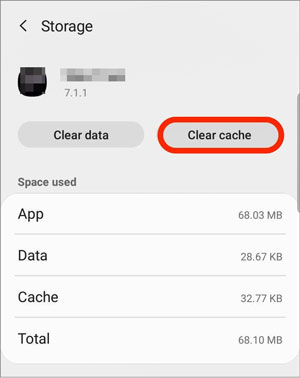
Step 7. Restart your device and check if the error persists.
If clearing the cache doesn't work, you can try clearing the app data (tap "Clear data" instead of Clear cache), but note that this will reset the service to its default settings (no personal data will be lost, as it's a system service).
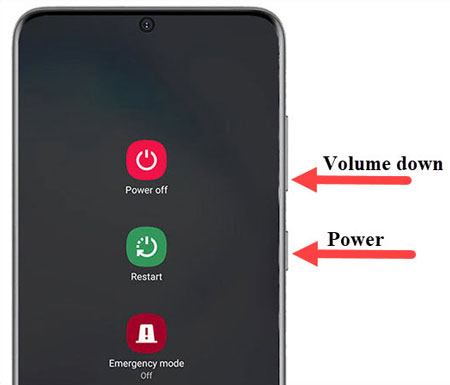
A forced restart can resolve temporary system glitches that cause Samsung Experience Service to crash. This is different from a regular restart, as it forces the device to shut down and reboot immediately, closing all background processes. The steps vary slightly by Samsung device model:
Outdated versions of Samsung Experience Service can cause compatibility issues and crashes. Samsung regularly releases updates for system apps through the Galaxy Store. Here's how to update Samsung Experience Service:
Step 1. Open the Galaxy Store app on your device (it's a pre-installed app with a shopping bag icon).
Step 2. Tap the three-dot menu icon in the top-right corner and select "My page".
Step 3. Tap "Updates" to see a list of apps with available updates.
Step 4. Scroll through the list and find Samsung Experience Service.
Step 5. Tap "Update" next to it. If no update is available, the app is already up to date.
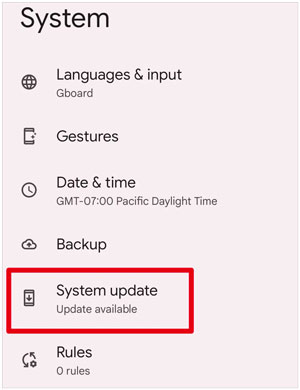
Additionally, update your device's operating system to ensure compatibility: Go to "Settings" > "System update" > "Download and install".
Resetting app preferences can fix conflicts between apps and system services, including Samsung Experience Service. This process resets default app settings (like default launchers, notification settings, and permission preferences) but does not delete any personal data or apps. Here's how to do it:
Step 1. Open your device's Settings app.
Step 2. Scroll down and tap "Apps" (or Applications).
Step 3. Tap the three-dot menu icon in the top-right corner and select "Reset app preferences".
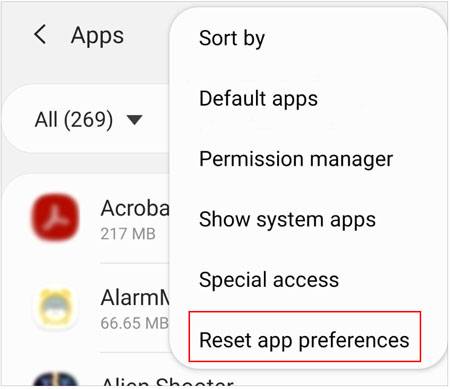
Step 4. A confirmation pop-up will appear, explaining that this will reset default apps, notification settings, and permissions. Tap "Reset" to proceed.
Safe Mode is a diagnostic mode that disables all third-party apps, allowing you to determine if a third-party app is causing the Samsung Experience Service to crash. If the error doesn't appear in Safe Mode, the issue is likely due to a conflicting third-party app. Here's how to enter Safe Mode:
Step 1. Press and hold the "Power" button until the power menu appears (options like Power off, Restart).
Step 2. Tap and hold "Power off" until a pop-up appears that says "Safe Mode".
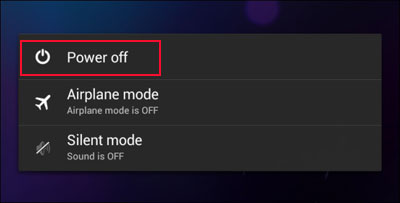
Step 3. Tap "Safe Mode" to confirm. Your device will restart, and "Safe Mode" will appear in the bottom-left corner of the screen.
While in Safe Mode, use your device for a few minutes and check if the error pop-up appears. If it doesn't:
Step 1. Restart your device to exit Safe Mode (it will return to normal mode automatically).
Step 2. Uninstall any recently installed third-party apps (especially those installed around the time the error started).
If you're not sure which app is causing the issue, uninstall apps one by one and check for the error after each uninstallation.
If the error still appears in Safe Mode, the issue is likely with the system itself (not a third-party app), and you'll need to try more advanced fixes.
The cache partition is a dedicated section of your device's storage that stores system-wide cache data. Over time, this cache can become corrupted, leading to system errors like Samsung Experience Service crashes. Wiping the cache partition deletes this corrupted data without affecting your personal files. Here's how to do it:
Step 1. Turn off your Samsung device completely.
Step 2. Enter Recovery Mode (the steps vary by device):
Step 3. In Recovery Mode, use the "Volume Down" button to scroll to "Wipe cache partition".
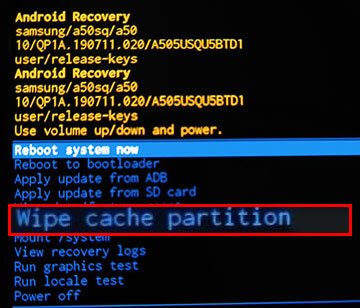
Step 4. Press the "Power" button to select it.
Step 5. Scroll to "Yes" (using Volume Down) and press "Power" to confirm.
Once the process is complete, select "Reboot system now" (using Power) to restart your device.
If none of the previous methods resolve the issue, the "Samsung Experience Service keeps stopping" error may be caused by deeper system-level problems. In such cases, using a professional Android system repair tool is a more reliable solution.
Android Repair is designed specifically to fix Samsung firmware-related issues and restore the system to normal working condition without requiring advanced technical knowledge.
Key features of Android Repair:
How to use Android Repair to fix Samsung Experience Service keeps stopping?
01Launch Android Repair on your computer and enter the "System Repair" section from the main screen. Then, select "Android Repair" to access the Android system recovery module.
02Connect your Samsung device to the computer using a USB cable. Once the software detects the device, click "Android" > "Android Repair" > "Repair Now" to continue.
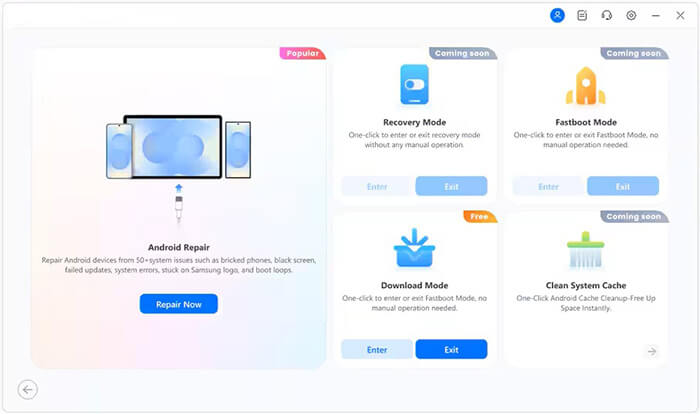
03When prompted to provide device details, select "Samsung" as the brand and click "Start" to move forward.
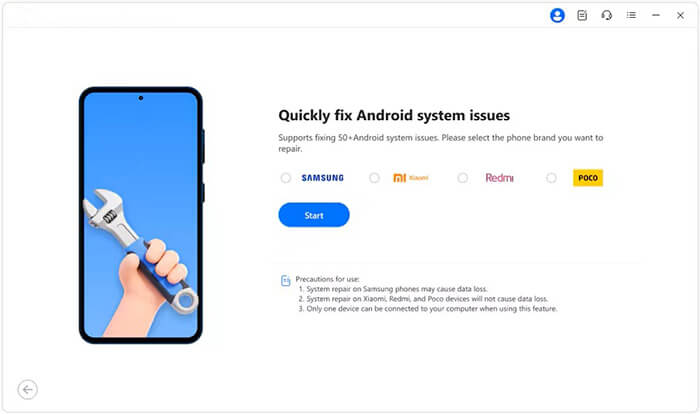
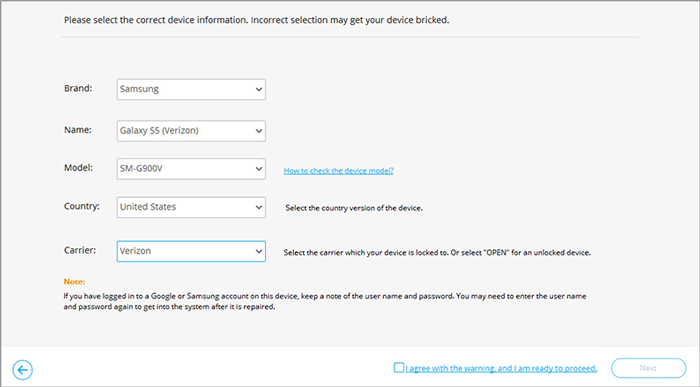
04Choose the correct device information, including model, country, and carrier. Tick "I agree with the warning", click "Next", then type "000000" in the confirmation box and click "Confirm".
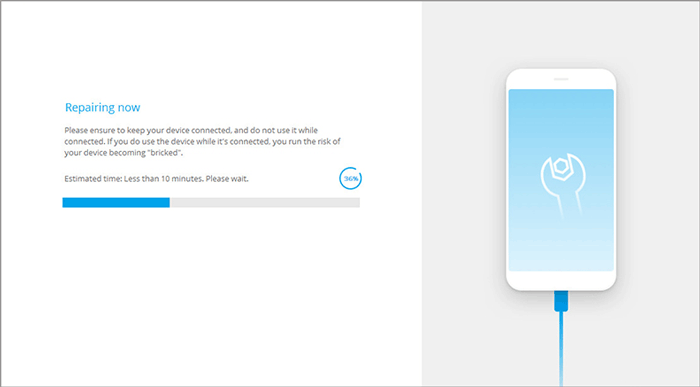
05Follow the instructions displayed on the screen to boot your Samsung phone into Download Mode, then click "Next". The program will automatically download the matching firmware package and repair the underlying system issue that is causing Samsung Experience Service to crash repeatedly.
A factory reset is a last-resort fix for persistent system issues. It erases all personal data (apps, photos, contacts, messages, etc.) and restores your device to its factory settings. Before proceeding, back up all your important data to cloud storage, a computer, or external drive. Here's how to perform a factory reset:
Step 1. Open your device's Settings app.
Step 2. Scroll down and tap "General management" (or System, depending on your device).
Step 3. Tap "Reset" (or Factory data reset).
Step 4. Tap "Factory data reset" again (you may need to scroll down to find it).
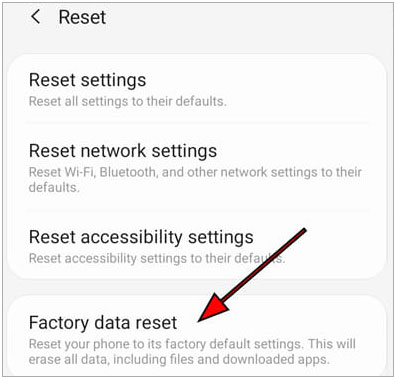
Step 5. Review the warning message (it will remind you that all data will be erased) and tap "Reset" (or Delete all).
Step 6. If prompted, enter your device's PIN, password, or pattern to confirm.
Your device will restart and begin the factory reset process, which may take 10 - 15 minutes. Once it's complete, set up your device as a new one (or restore from your backup) and check if the error is resolved
If none of the above fixes work, the issue may be due to hardware problems (e.g., a faulty storage chip) or severe system corruption that can't be fixed with software solutions. In this case, seek professional assistance from Samsung's official support channels:
Samsung Service Centers: Visit a nearby Samsung authorized service center, where certified technicians can diagnose and repair your device. They use genuine Samsung parts and have the expertise to fix hardware and software issues.

Samsung Experience Stores: These stores have Galaxy Experts who can provide in-person support, troubleshoot the issue, and offer repair services if needed.
Samsung Online Support: Contact Samsung's customer support via their website, email, or phone. They can guide you through additional troubleshooting steps or help you schedule a repair.
If your device is still under warranty, the repair may be free of charge. Be sure to bring your device's warranty card (if applicable) and proof of purchase when visiting a service center.
The "Samsung Experience Service keeps stopping" error may look serious, but in most situations, it's caused by software conflicts or temporary system instability rather than hardware failure. With proper troubleshooting, the issue can usually be resolved without replacing your device or visiting a repair center.
If standard fixes don't work and the error continues to appear, it often signals deeper firmware corruption. In that case, Android Repair offers a more thorough way to restore your Samsung device to a stable state. By addressing the root cause instead of just the symptoms, you can eliminate the error completely and get your phone running smoothly again.
Related Articles:
Downloading Do Not Turn Off Target on Samsung: What It Means & How to Fix It
Samsung Stuck on Logo: Causes and 6 Effective Solutions to Fix It
Samsung Data Migration Not Working: Causes & Comprehensive Fixes
How to Fix Google Play Services Keeps Stopping with 11 Easy Solutions







 Free Download for PC

 Download for Mac

