Samsung Data Migration (SDM) is an official tool that helps transfer data from old hard drives (HDDs) to Samsung solid-state drives (SSDs), making upgrades easier for users. However, many encounter the frustrating "Samsung Data Migration not working" issue, including software crashes, unrecognized drives, and failed migrations. These issues can delay the upgrade process and risk important data.
In this article, we will explore the causes of the problem and offer 7 practical solutions. Additionally, we'll introduce a reliable alternative tool for transferring data between Samsung mobile devices.
Before diving into the fixes, it's crucial to understand the potential causes of the "Samsung Data Migration not working" issue. Identifying the root cause can help you target the right solution and avoid unnecessary troubleshooting. The main reasons include the following aspects:
Now that we know the possible causes, let's proceed with the step-by-step solutions. We recommend following the order below, as the earlier solutions are simpler and can resolve most common issues.
Sometimes, the "Samsung Data Migration not working" issue is caused by temporary system glitches or background process conflicts. A simple restart can clear these glitches and refresh the system resources. Here's how to do it:
Step 1. Close all programs, including antivirus or disk management processes.
Step 2. Click the "Start" menu, select "Power", and then "Restart".
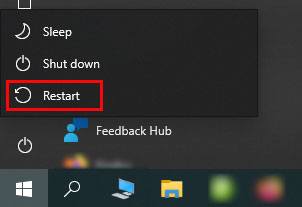
Step 3. After the restart, right-click the SDM icon and select "Run as administrator".
Unstable or faulty connections are one of the most common causes of SDM malfunctions. Follow these steps to check and fix the connections:
Step 1. Prefer Direct SATA Connection
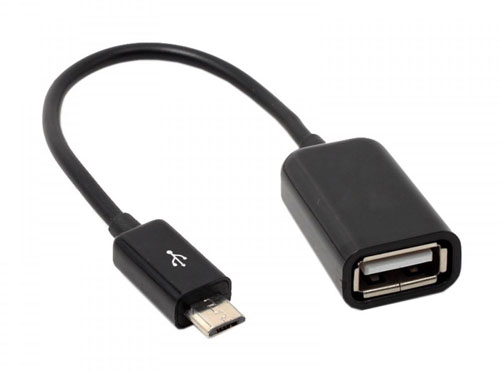
If you are using a USB adapter to connect the target Samsung SSD, replace it with a direct SATA connection (connect the SSD to the motherboard via a SATA cable). USB adapters can be unstable and may not provide sufficient power for the migration process.
Step 2. Replace Cables and Ports
Try using a different SATA cable (a faulty cable can cause data transmission errors) and connect the drive to a different SATA port on the motherboard. This helps rule out issues with the original cable or port.
Step 3. Check Drive Recognition
Press the "Win + R" keys, type "diskmgmt.msc" in the Run dialog box, and press "Enter" to open Disk Management. Check if both the source HDD and target Samsung SSD are listed and in an "Online" state. If a drive is marked as "Offline" or "Not Initialized", right-click it and select the appropriate option to bring it online or initialize it.
Note: Initializing a drive will erase all data, so only do this if the drive is new and has no important data.
Drive health issues, such as bad sectors or file system errors, can prevent SDM from reading or writing data correctly. To avoid migration failures, it's important to check the status of both the source and target drives. Here's how to do it:
Step 1. Check Drive Health with Samsung Magician
If you have a Samsung SSD, download and install Samsung Magician, Samsung's official drive management tool. Use the "Drive Health" feature to check if the SSD has any errors or bad sectors.
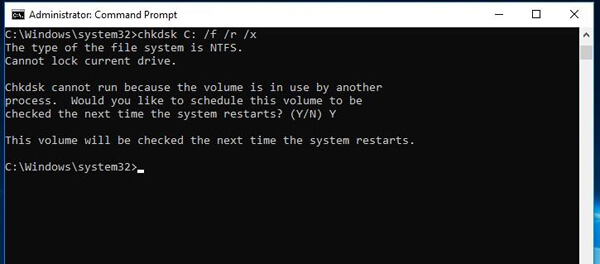
Step 2. Fix File System Errors with CHKDSK
Open "Windows Terminal (Admin)" and type chkdsk X: /f /r /x (replace "X" with the drive letter of the source or target drive). The /f fixes file system errors, /r locates bad sectors and recovers readable information, and /x forces the drive to dismount before the check.
Step 3. Replace Faulty Drives
If the health check reveals severely bad sectors or drive failure, it's recommended to replace the drive before proceeding with data migration, as using a faulty drive can lead to data loss.
Incompatibility between Samsung Data Migration (SDM) and your system or drives can prevent it from working. Here's how to check compatibility:
Step 1. Check System Requirements
Visit the official Samsung Data Migration download page to confirm your system meets the minimum requirements. SDM typically supports Windows 7 and later. Ensure that your operating system (e.g., Windows 10, Windows 11) is compatible with SDM. Older versions may not work well with the latest Windows updates.
Step 2. Check Drive Compatibility
SDM is designed to work with Samsung SSDs as target drives (e.g., Samsung 870 EVO, 980 PRO). Ensure that your target drive is a compatible Samsung SSD. While the source drive can be any non-Samsung HDD or SSD, some older or uncommon models may not be supported. Visit the Samsung website for a list of supported drives.
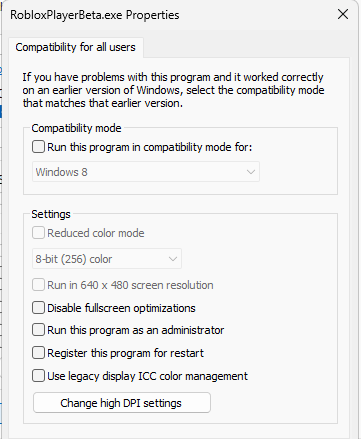
Step 3. Resolve Compatibility Mode Issues
If you're using an older SDM version on a newer version of Windows, try running SDM in compatibility mode:
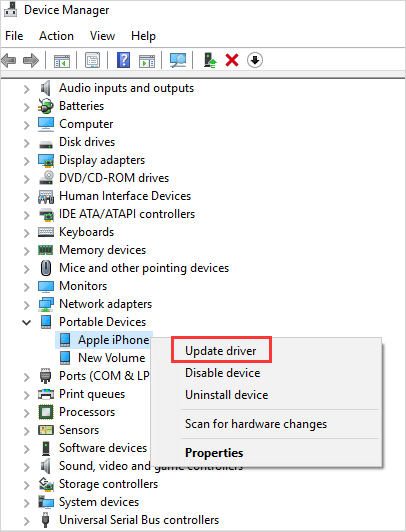
Outdated or missing drivers, especially for the SATA controller, can lead to communication issues between the system and drives, causing Samsung Data Migration (SDM) malfunctions. To fix this, ensure your system drivers, particularly storage-related components, are up to date. Here's how:
Step 1. Update Disk Drivers
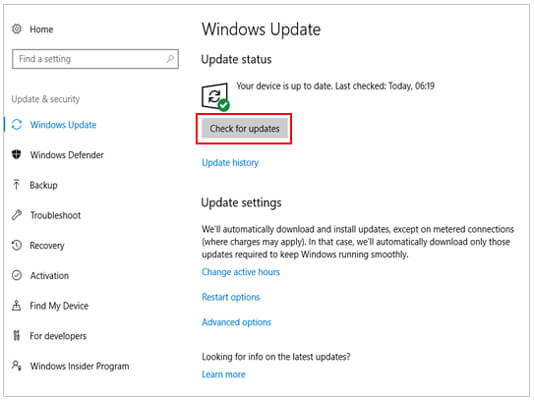
Step 2. Update Windows
Outdated versions of Windows can also cause driver compatibility issues.
Step 3. Reinstall Disk Drivers
If updating doesn't work, try reinstalling the drivers:
Cluttered or poorly maintained hard drives can slow down the migration process and cause Samsung Data Migration (SDM) to fail. To ensure the migration process goes smoothly, clean both the source and target drives by following these steps:
Step 1. Delete Unnecessary Files
Manually delete any files you no longer need (e.g., old documents, unused applications, large media files) from the source drive to free up space. You can also use the Windows Disk Cleanup tool:
Step 2. Defragment the Source HDD
If the source drive is an HDD (SSD drives should never be defragmented), defragmenting it can improve data access speed and reduce migration errors:
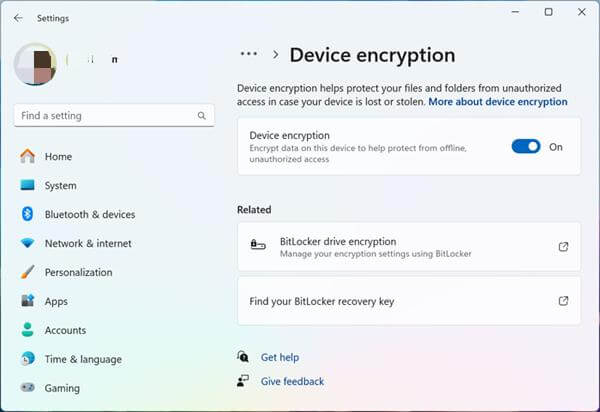
Step 3. Disable Disk Encryption
If the source or target drive is encrypted with BitLocker or other encryption software, SDM may not be able to access the data. You need to disable encryption before proceeding:
Go to "Settings" > "Update & Security" > "Device encryption" (or BitLocker) and follow the prompts to turn off encryption. Be sure to back up your encryption key before disabling it.
An outdated version of Samsung Data Migration (SDM) can lead to bugs, compatibility issues, or malfunctions during the migration process. To resolve these issues, make sure you are using the latest version of SDM. Here's how to update the tool:
Step 1. Uninstall the Old Version
Step 2. Download the Latest Version
Visit the official Samsung Data Migration page on the Samsung website and download the latest version. Make sure to download the version that is compatible with your operating system.
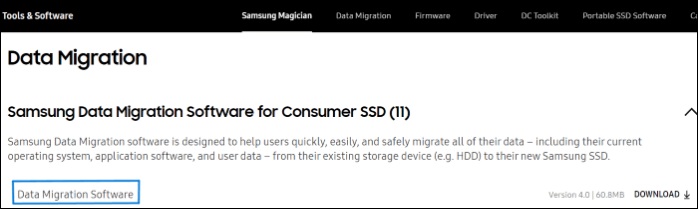
Step 3. Install and Launch the Latest Version
While Samsung Data Migration is excellent for transferring data to Samsung SSDs, it is not designed for data transfer between Samsung mobile devices (e.g., Samsung smartphones, tablets). If you need to transfer data (such as contacts, messages, photos, videos, and apps) between two Samsung devices, we recommend using Coolmuster Mobile Transfer. This tool is a professional data transfer solution that supports one-click data transfer between Android devices, iOS devices, and even between Android and iOS. It is easy to use, fast, and secure, ensuring that your data is transferred without loss.
Follow these steps to transfer data from a Samsung to a Samsung:
01Start by downloading and installing Coolmuster Mobile Transfer on your computer (Windows or Mac). Ensure that the program is compatible with your system for seamless operation.
02Connect your source Samsung device (the one you want to transfer data from) and target Samsung device (the one you want to transfer data to) to your computer using USB cables. Once connected, the software will automatically detect both devices and display them on the main interface.
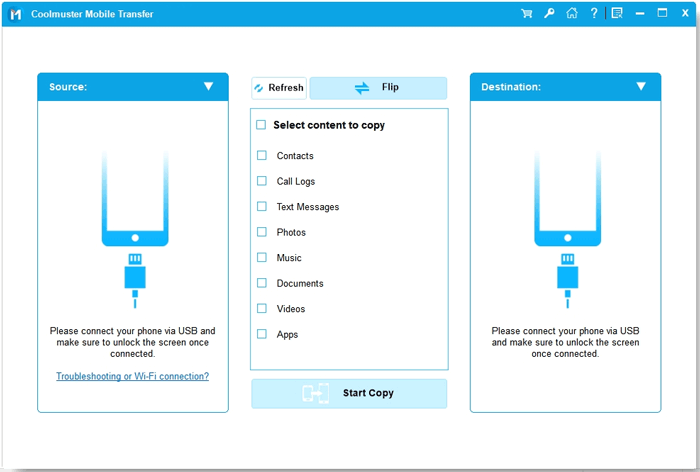
03Verify that the source and target devices are correctly positioned. If you need to swap them, simply click on the "Flip" button to switch the positions.
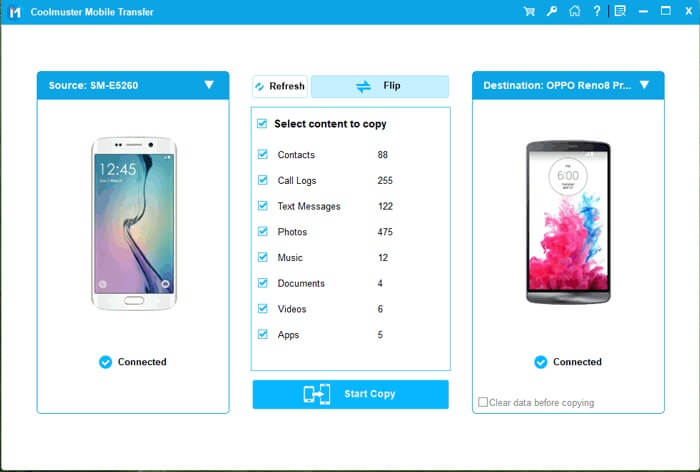
04Now, select the types of data you wish to transfer and tick the checkboxes next to the items you want to transfer. Once you've made your selection, click the "Start Copy" button to begin the transfer process. The software will quickly move the selected data from your source Samsung device to your target Samsung phone.
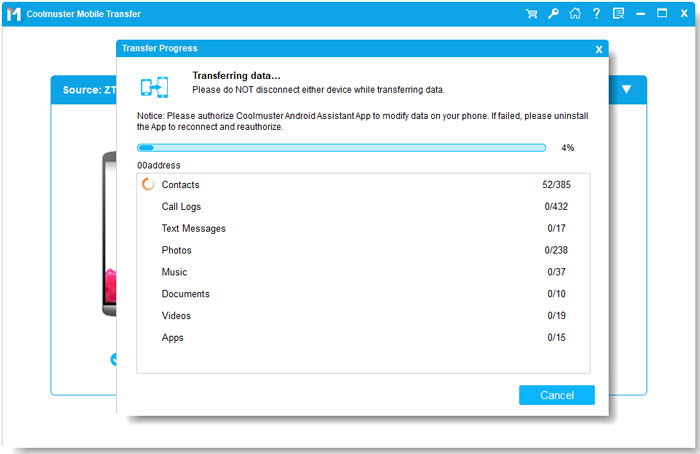
To see the steps in action, check out our video tutorial on how to use Coolmuster Mobile Transfer for data transfer between Samsung devices.
The "Samsung Data Migration not working" issue can be caused by various factors. By following the 7 solutions in this guide, you can resolve most of these issues efficiently. If you need to transfer data between Samsung mobile devices, Coolmuster Mobile Transfer is a reliable alternative that offers one-click, secure data transfer.
We hope this guide helps you fix the SDM issue and complete your data migration or transfer smoothly. If you have any questions, feel free to leave a comment below.
Related Articles:
How to Fix Samsung Data Migration Stuck at 0? 100% Working
Samsung to iPhone Transfer: Easily Transfer Data from Samsung to iPhone
How to Transfer Samsung Notes to New Phone [Newest Ways]
5 Easy Ways to Transfer Data from OnePlus to Samsung (Updated)







 Free Download for PC
  Free Download for Mac


