"I have an old Samsung Galaxy J1 that would turn on and then go to a screen with some cogs that said 'Optimizing Android', but whenever it was just about to finish, it would shut down. I got a new battery for it and tried to force restart it, but now it is stuck on a screen that says 'Downloading...Do not turn off target'. It has been like this for 4 days now. How can I fix it?"
- From Android Community
Seeing the message "Downloading...Do Not Turn Off Target" on your Samsung phone can be confusing and stressful, especially when the screen seems stuck, and the device won't respond. Many users worry about whether it's safe to turn off the phone or if doing so could cause permanent damage. In this guide, we'll explain what this message actually means, why it appears on Samsung devices, and how to fix the issue using safe and effective methods.
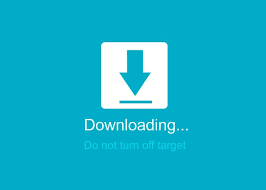
"Downloading Do Not Turn Off Target" is a system message that appears when a Samsung device enters Download Mode. This mode is mainly used for installing firmware, applying system updates, or flashing software using tools like Odin. The message is a warning telling users not to power off the device while the system is waiting for or processing firmware-related actions.
In normal situations, Download Mode is triggered intentionally during system updates or manual firmware installation. However, if the phone enters this mode unexpectedly or gets stuck on this screen, it usually indicates a system issue rather than a normal update process.
There are several common reasons why a Samsung phone may display this message:
The solution to this issue depends on whether the phone is actively downloading/firmware (flashing) or stuck in the mode accidentally. Below are 6 step-by-step methods to fix it, starting with the simplest (and most effective for accidental entry) and moving to more advanced options for persistent issues.
If the message appears during a system update or firmware installation, the safest option is to wait. Some processes take longer than expected, especially on older devices or slower networks. Make sure the phone has enough battery power or is connected to a charger, and allow several minutes to see if it finishes and reboots automatically.
This is the simplest and most effective fix for accidental entry into Download Mode. A force restart will shut down the phone completely and boot it back up normally, bypassing the Download Mode screen. Here's how to do it:
Step 1. On your Samsung phone, press and hold the "Power" button (or Side Key) for 10 - 15 seconds.
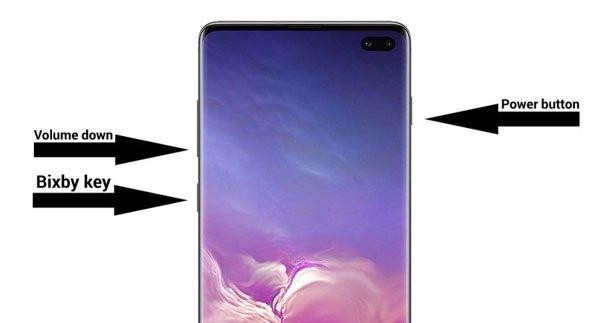
Step 2. Keep holding the button even if the screen goes black; don't release it until you see the Samsung logo appear.
Step 3. Once the logo appears, release the button. Your phone will boot up normally, and the "Downloading Do Not Turn Off Target" message will be gone.
If a force restart doesn't solve the problem, you can try booting your Samsung phone into Recovery Mode, which allows you to reboot the system or clear cached system files that may be causing the device to stay in Download Mode.
Step 1. Force restart the phone as described in Method 3.2 to make sure the device is completely powered off.
Step 2. Press and hold the "Power" button and "Volume Up" button at the same time until the Samsung logo appears on the screen.
Step 3. Release the buttons when the Android System Recovery menu is displayed.
Step 4. Use the "Volume Up/Down" buttons to highlight "Wipe cache partition", then press the "Power" button to confirm.
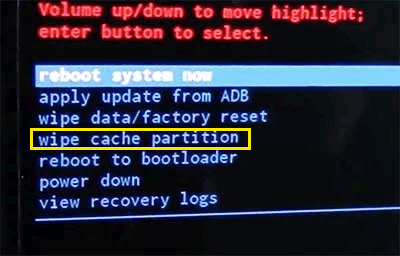
Step 5. After the cache is cleared, select "Reboot system now" to restart the phone.
If the phone boots normally after restarting, it should exit Download Mode. If the issue persists, the system firmware may be corrupted and require a more advanced solution.
If your Samsung phone keeps showing "Downloading Do Not Turn Off Target", the system firmware may be damaged or incomplete. Reinstalling the official firmware with Odin can fix serious software issues, but this method is more technical and may erase data.
Step 1. Download the correct official Samsung firmware for your specific device model from a trusted source, and extract the firmware files on your computer.
Step 2. Download and launch Odin on your Windows PC, then power off your Samsung phone completely.
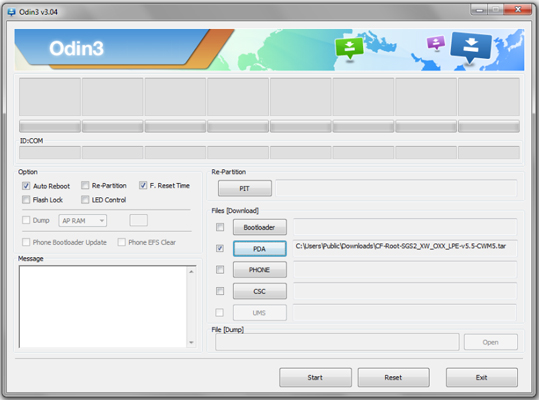
Step 3. Boot the phone into Download Mode by pressing and holding the "Power" button, "Volume Down" button, and "Home" button (or "Power" + "Volume Down" on newer models), then confirm when prompted.
Step 4. Connect the phone to the computer using a USB cable and wait until Odin detects the device.
Step 5. Load the firmware files into Odin by clicking the corresponding slots (such as AP, BL, CP, or CSC), then click "Start" to begin flashing the firmware.
Step 6. Wait for the process to finish and allow the phone to reboot automatically. Once completed, the device should boot normally and exit Download Mode.
If firmware reinstallation is not an option or does not resolve the issue, performing a factory reset may help remove corrupted system files. This method will erase all data on the device, so you can back up your Samsung data before doing it.
Step 1. Power off the Samsung phone completely.
Step 2. Press and hold the "Power" button and "Volume Up" button until the Android System Recovery screen appears.
Step 3. Use the "Volume" buttons to navigate to "Wipe data/factory reset", then press the "Power" button to confirm.
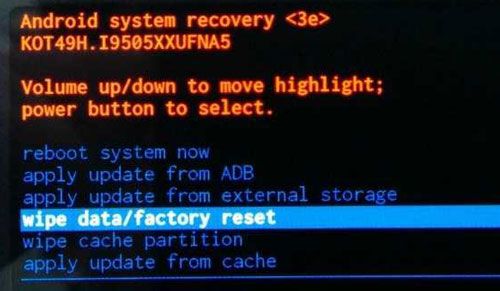
Step 4. Select "Yes" to confirm the reset and wait for the process to complete.
Step 5. After the reset finishes, choose "Reboot system now" to restart the phone. If the device boots successfully after the reset, the "Downloading Do Not Turn Off Target" issue should be resolved.
When the "Downloading Do Not Turn Off Target" screen keeps appearing, and manual fixes fail, using a professional Android system repair tool can be a more reliable solution. Android Repair is designed to fix Samsung system issues related to Download Mode, boot failures, and corrupted firmware without requiring technical skills.
Key features of Android Repair
How to use Android Repair to fix downloading do not turn off target?
01Start Android Repair on your computer and go to "System Repair" from the main interface. From there, select "Android Repair" to enter the Android system repair module.
02Connect your Samsung phone to the computer with a USB cable. After the device is recognized, choose "Android" > "Android Repair" > "Repair Now" to proceed.
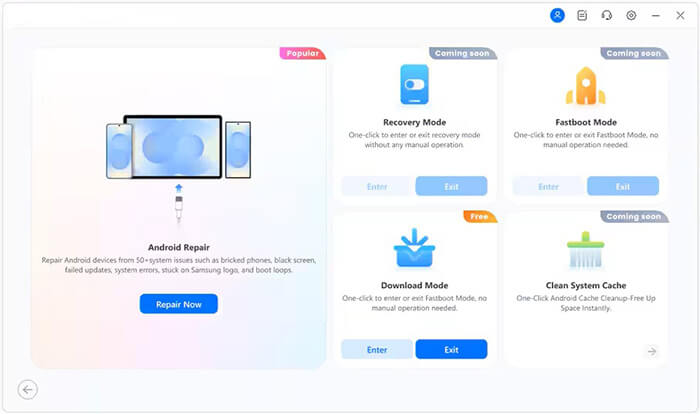
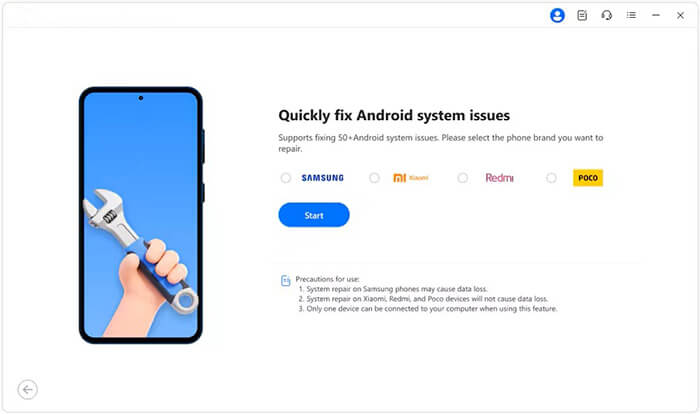
03When the program asks for device details, select "Samsung" as the brand and click "Start" to continue.
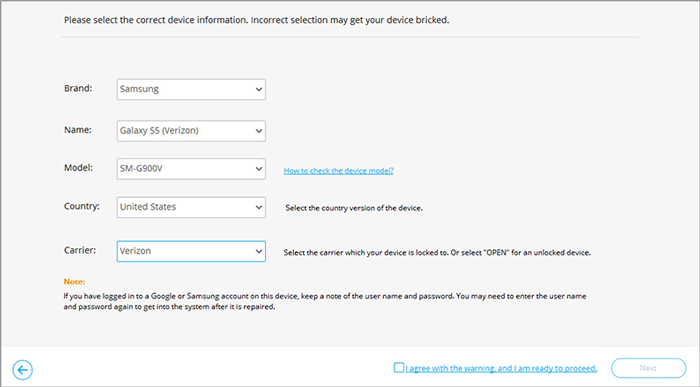
04Choose the correct device information, including model, country, and carrier. Check "I agree with the warning", click "Next", then enter "000000" in the confirmation window and click "Confirm". Keep in mind that this repair process will erase all data on the device.
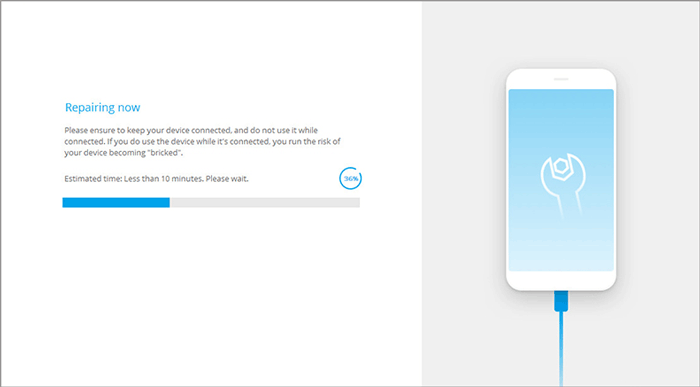
05Follow the on-screen instructions to put your Samsung phone into Download Mode, then click "Next". The software will automatically download and verify the required firmware and repair the system issue causing the phone to stay on the "Downloading Do Not Turn Off Target" screen.
The "Downloading Do Not Turn Off Target" message on Samsung devices is usually linked to Download Mode or firmware-related issues rather than hardware damage. In many cases, simply waiting, force restarting, or clearing the cache via Recovery Mode can resolve the problem. For more persistent issues caused by corrupted or incomplete firmware, reinstalling the system or using a professional repair tool is often necessary.
One reliable option is Android Repair, which guides users through a safe and straightforward process to repair Samsung phones stuck in Download Mode. By starting with simple steps and moving to advanced solutions only when needed, you can restore your device safely and get it back to normal operation.
Related Articles:
[Odin Mode Samsung] How to Get Out of Odin Mode on Samsung Devices
Samsung Stuck on Logo: Causes and 6 Effective Solutions to Fix It




 Free Download for PC


