TL;DR:
If you are experiencing Visual Voicemail not working on Android, you can try these solutions to restore the feature:
"Visual voicemail is not working. I used it in the past, but a few months after purchasing the S22 Ultra it stopped working. I can't find a solution. I installed, uninstalled, cleared cache, etc. I talked to Att; nothing works."
- From Samsung Community
Visual Voicemail makes it easier to manage voicemail messages by allowing you to view, play, delete, and organize messages directly from your phone screen instead of dialing a voicemail number. However, some Android users may find that Visual Voicemail suddenly stops working, fails to load messages, or does not appear in the Phone app.
If you are facing this issue of Visual Voicemail not working on Android, there are several ways to troubleshoot and restore the feature. In this guide, we will walk you through the possible solutions, from checking voicemail settings and refreshing network connections to updating your device and contacting your carrier when necessary.
Before fixing the problem, it is helpful to understand what causes Visual Voicemail to stop working. The most common reasons include:
Not every mobile carrier or plan supports Visual Voicemail. If the service has not been enabled on your account, or if there is an issue with your carrier's voicemail server or account configuration, Visual Voicemail may not appear, fail to load, or stop working properly.
Visual Voicemail requires mobile data or an internet connection to sync voicemail messages. A weak signal or unstable network may prevent messages from loading correctly.
Since Visual Voicemail is usually managed through the Phone app, corrupted cache files, temporary bugs, or app errors may affect its performance.
An outdated Phone app, carrier service, or Android system version may cause compatibility issues and prevent Visual Voicemail from working normally.
Some Android devices limit background activity or change app permissions to save battery, which may stop Visual Voicemail from syncing properly.
Once you identify the possible cause, you can try the following fixes one by one.
Before trying other fixes, make sure that Visual Voicemail is available for your carrier and mobile plan. Some Android phones may show voicemail-related options, but the feature will not work unless your carrier supports and enables it.
To check:
If Visual Voicemail is not included in your plan, the feature may not work properly regardless of your device settings.
Visual Voicemail requires a stable network connection to download voicemail information, sync new messages, and display voicemail details in the Phone app. If your mobile data connection is unstable, messages may fail to load or remain stuck.
To check your network connection:
Also, check whether Data Saver mode or app restrictions are preventing the Phone app from accessing mobile data.
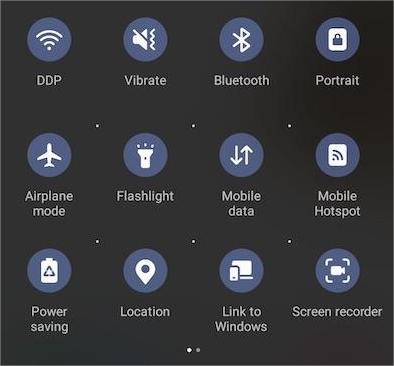
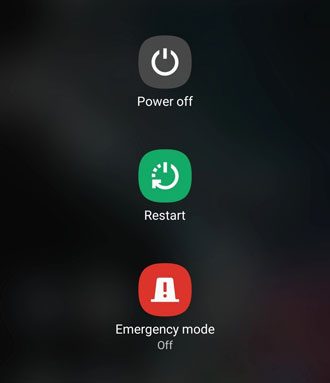
Restarting your Android phone is one of the simplest ways to fix temporary system errors that may affect Visual Voicemail. Background processes, network services, or the Phone app may occasionally encounter minor glitches. A restart refreshes these processes and allows your device to reconnect with your carrier's voicemail service.
Follow these steps:
The Phone app stores temporary cache files to improve loading speed and performance. However, outdated or damaged cache data can sometimes interfere with Visual Voicemail and prevent messages from appearing correctly.
You can clear the Phone app cache with these steps:
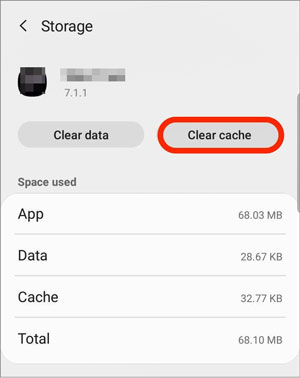
If clearing the cache does not help, you can also try clearing the app data. However, this may reset some Phone app preferences, so make sure you are aware of the changes before proceeding.
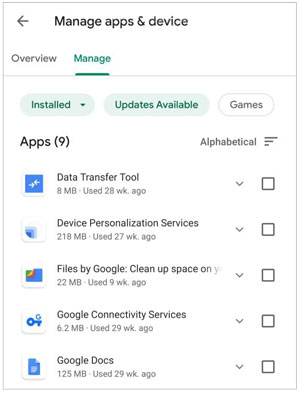
An outdated Phone app or Android system version may cause compatibility issues with Visual Voicemail. System updates often include bug fixes and improvements for network-related features.
To update the Phone app:
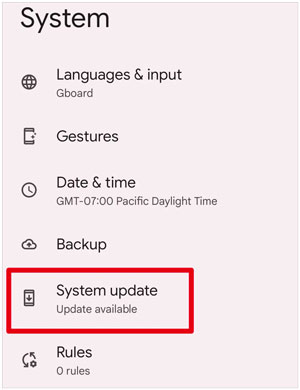
To update Android:
Incorrect network configurations can prevent your Android phone from properly communicating with your carrier's voicemail service. Resetting network settings can refresh cellular, Wi-Fi, and Bluetooth-related configurations.
To reset network settings:
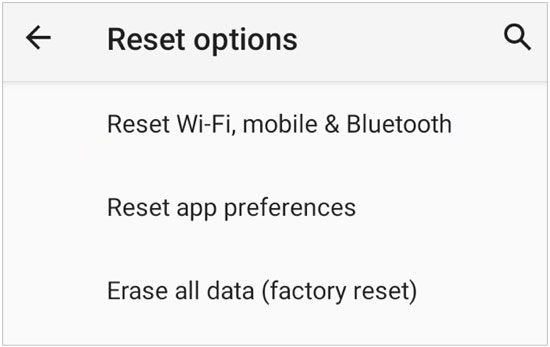
After completing the process, reconnect to your Wi-Fi network and test Visual Voicemail again.
Android battery optimization features may limit background activity to improve battery life. However, these restrictions can prevent the Phone app from syncing Visual Voicemail messages properly.
To remove battery restrictions:
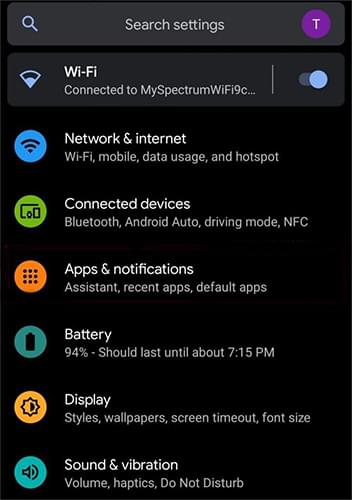
After changing this setting, leave your phone connected to the internet for a few minutes and check whether new voicemail messages appear.
Sometimes Visual Voicemail may stop responding because the feature becomes temporarily disconnected from your carrier service. Turning it off and enabling it again can refresh the connection.
Try these steps:
After re-enabling it, give your phone some time to synchronize voicemail information.
If Visual Voicemail is still not working after trying the above methods, the problem may be related to deeper Android system issues. System crashes, firmware errors, or corrupted operating system files can affect built-in features, including Phone and voicemail services.
In this case, you can try Android Repair, a professional Android system repair tool designed to fix various system-related problems without requiring advanced technical knowledge.
Key features of Android Repair:
How to use Android Repair to fix Android Visual Voicemail issue?
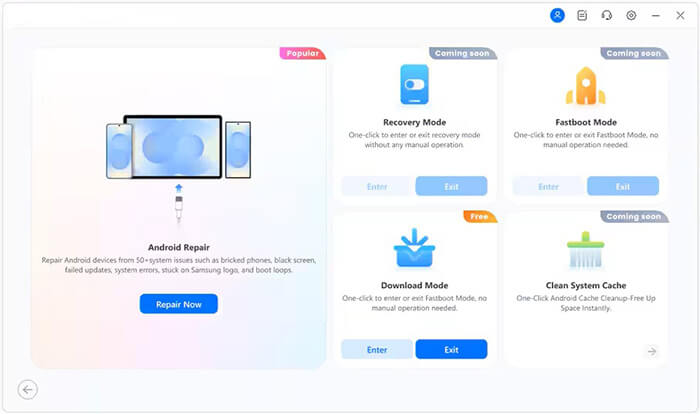
01Open Android Repair on your computer. From the main interface, select "System Repair", then choose "Android Repair" to continue.
02Connect your Android phone to the computer using a USB cable. After the program detects your device, click "Repair Now".
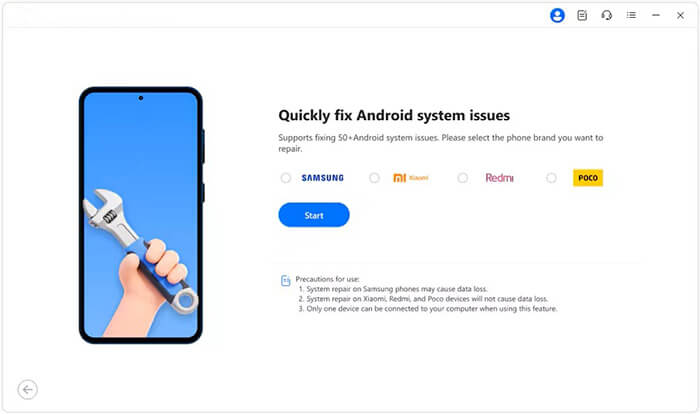
03Enter your device information, including the brand, model, region, and carrier if required, then click "Start" to proceed.
04Follow the instructions provided by the program to put your Android device into Download Mode (or Odin Mode for certain Samsung devices).
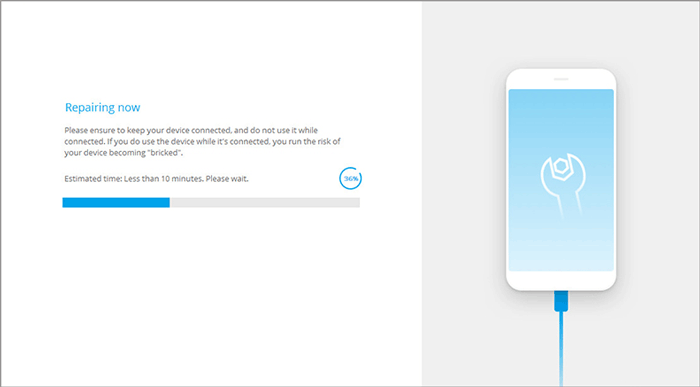
05Once your phone enters the required mode, Android Repair will automatically download the appropriate firmware and repair the Android system. After the process is complete, your device will restart, and system issues affecting Visual Voicemail and other built-in features may be resolved.
If Visual Voicemail is still not working after trying the previous solutions, the problem may be related to your carrier's voicemail system or account configuration. In some cases, the voicemail service may need to be refreshed, re-provisioned, or fixed from the carrier's side. Contact your carrier and ask them to check:
Since Visual Voicemail relies on carrier services, some issues cannot be fixed through phone settings alone.
Visual Voicemail not working on Android can happen for various reasons, from simple network problems to more complex system or carrier-related issues. In most cases, you can restore the feature by checking your voicemail settings, refreshing your network connection, updating your device, or adjusting app permissions.
If basic troubleshooting methods do not solve the problem, Android system errors may be preventing Visual Voicemail from functioning properly. In that case, tools like Android Repair can help repair underlying system issues that affect built-in features.
However, if the problem comes from your carrier's voicemail service, only your carrier can refresh or reactivate the service. By following the solutions in this guide, you should be able to identify the cause and get Visual Voicemail working normally again on your Android phone.
Related Articles:
How to Delete Voicemail on Android? 5 Useful Solutions (Proven)
How to Fix Voicemail Not Working on iPhone? - 11 Proven Fixes
What to Do When Android Phone Won't Turn On | 7 Solutions [Tested]
Troubleshooting Guide: com.android.phone Has Stopped on Android Devices







 Free Download for PC

 Download for Mac

