"I ran my Disk Cleanup to free up some space, and I checked the Windows update cleanup. It detected 300+ mb to be removed. Everything was working fine until it hung up in Windows update cleanup. It's been running for 30 minutes as I write this. My question is, how long will the process take? And will canceling the Disk Cleanup cause problems?"
- from Microsoft Community
Disk Cleanup is a built-in Windows tool that helps users free up space by removing unnecessary files like temporary files, system cache, and outdated Windows updates. However, many users run into a problem where Disk Cleanup gets stuck on Windows update cleanup process. This issue can be frustrating as it halts the cleanup, leaving unwanted files behind and taking up valuable storage space.
This article will give you a comprehensive understanding of the reasons behind Disk Cleanup stuck on Windows update cleanup and provide several effective solutions to help you quickly restore the system cleanup function.
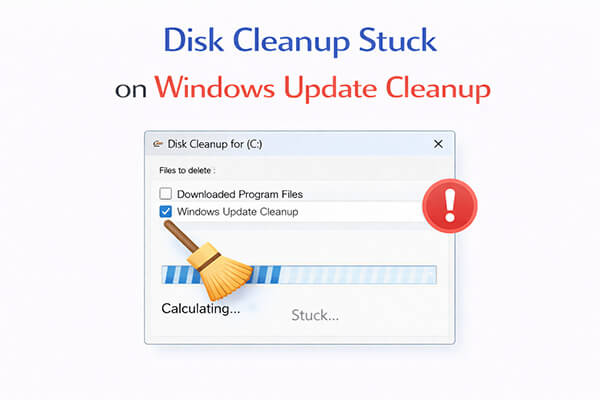
Before jumping into solutions, it's important to understand why Disk Cleanup is stuck on scanning Windows update cleanup. The following are some possible reasons:
1. The update files are too large.
The Windows update cache can take up several gigabytes of space, and the cleanup process needs to scan and delete a large number of files, which naturally takes a long time.
2. The system is still running update services in the background.
If the Windows Update service is still running, the cleanup tool may be locked, causing it to get stuck.
3. System files are corrupted.
Damage to system components (such as the update database) can prevent the cleanup process from executing properly.
4. Disk performance is low.
When using a mechanical hard drive or when the disk is highly fragmented, read and write speeds are slower, which may also cause the process to freeze or lag.
Now that you know the causes, let's go through 6 effective methods to fix Disk Cleanup stuck on Windows update cleanup in Windows 11/10.
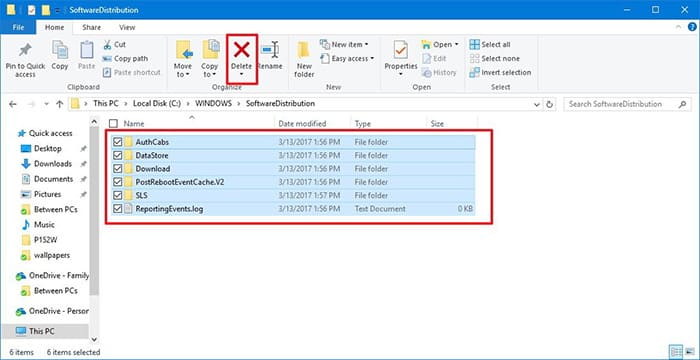
When Disk Cleanup is stuck on Windows update cleanup, the most common reason is a corrupted update cache. The SoftwareDistribution folder stores temporary update files, and clearing it can resolve the issue.
Here are the steps:
Step 1. Press "Win" + "R", type "services.msc", then press "Enter".
Step 2. Find "Windows Update", right-click, and select "Stop".
Step 3. Navigate to: "C:\Windows\SoftwareDistribution".
Step 4. Delete all files inside the folder.
Step 5. Go back and restart the Windows Update service.
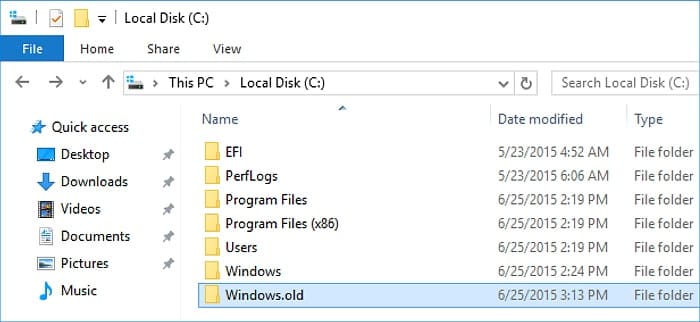
Another major reason Disk Cleanup gets stuck on Windows update cleanup is a large Windows.old folder. This folder contains previous system files and can slow down or freeze the cleanup process.
Here is how to do it:
Step 1. Open File Explorer and go to "C:\Windows.old".
Step 2. Remove all files inside the Windows.old folder.
Step 3. Then run Disk Cleanup again to check whether the issue has been fixed.
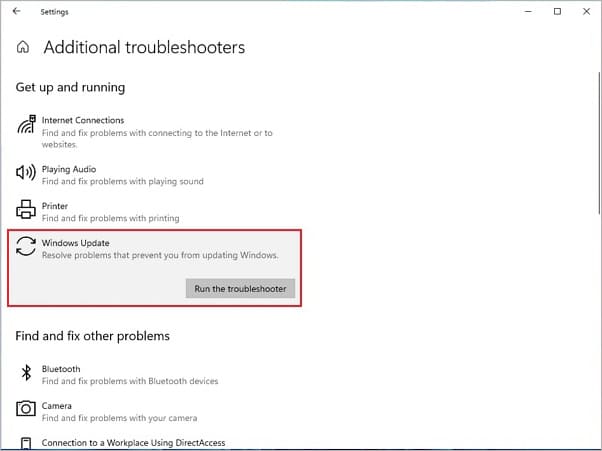
Windows Update Troubleshooter is a built-in tool designed to detect and resolve common Windows issues. You can run it to fix the "Disk Cleanup stuck on Windows update cleanup" problem. Follow these steps:
Step 1. Press the "Windows" key and click the "gear" icon to open "Settings".
Step 2. Choose "Update & Security" from the menu.
Step 3. Go to the "Troubleshoot" > "Additional troubleshooters" section and select "Windows Update".
Step 4. Click "Run the troubleshooter" and allow it to scan for issues. When it finishes, check whether the problem has been resolved.
If Disk Cleanup is stuck due to deeper system corruption, you need to repair the Windows image using DISM. This tool fixes underlying issues that Disk Cleanup depends on.
Here is how to fix Disk Cleanup stuck on Windows Update Cleanup:
Step 1. Search for "Command Prompt", right-click, and choose "Run as administrator".
Step 2. Enter the following command and press "Enter": "DISM /Online /Cleanup-Image /RestoreHealth".
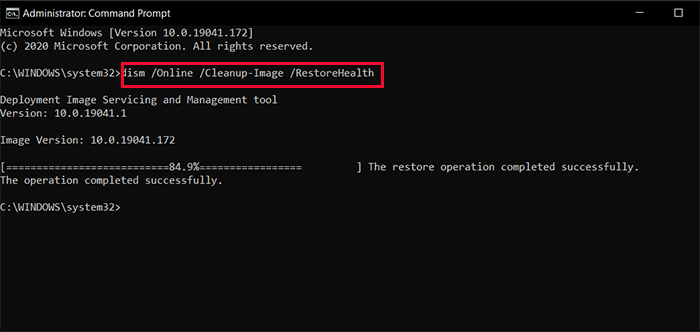
Step 3. Wait for the process to complete. These DISM commands will scan for and repair any corrupted files that may be causing the error.
System File Checker (SFC) is a powerful tool that scans for and repairs corrupted or missing system files in Windows. It can also help resolve the issue of Disk Cleanup getting stuck during Windows Update Cleanup. Follow these steps to run SFC on your computer:
Step 1. Open Command Prompt as administrator
Step 2. Then type "sfc /scannow".
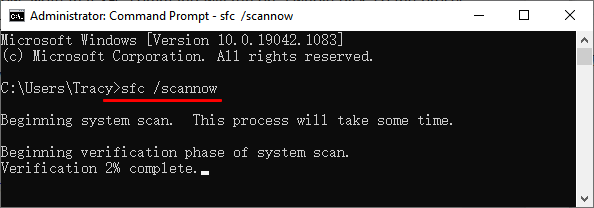
Step 3. Press "Enter" and wait for the scan to finish.
Step 4. It will begin scanning for any corrupted or missing system files, and SFC will automatically repair any issues it detects. After that, restart your computer.
Sometimes, third-party software conflicts can interfere with Disk Cleanup. Performing a clean boot allows the tool to run in a minimal environment. Here is how to do it:
Step 1. Press "Win" + "R", type "msconfig", and press "Enter" to open the "System Configuration" window.
Step 2. Go to the "Services" tab, check "Hide all Microsoft services", and click "Disable all".
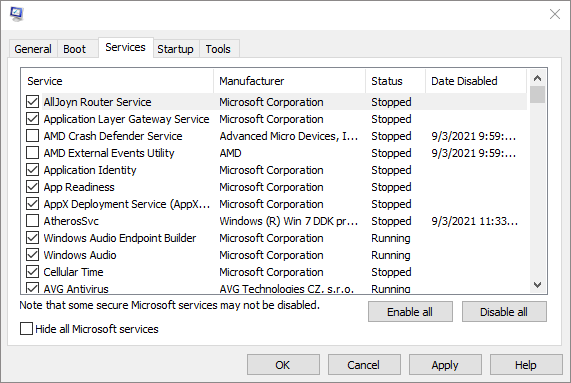
Step 3. Switch to the "Startup" tab and click "Open Task Manager".
Step 4. In Task Manager, select all startup items and click "Disable", then close Task Manager.
Step 5. Back in the "System Configuration" window, click "OK" to save the changes.
If you're tired of Disk Cleanup getting stuck on Windows Update Cleanup or need a safer way to permanently erase data, the professional data erasure tool Coolmuster Data Erasure could be an excellent choice. It is designed to securely and permanently delete files, folders, and entire partitions. Additionally, it can erase only the free space, ensuring that previously deleted files are completely removed.
What can Coolmuster Data Erasure do for you?
Here is how to use Coolmuster Data Erasure to erase your drive completely:
01After downloading, install this tool on your PC and launch the program.
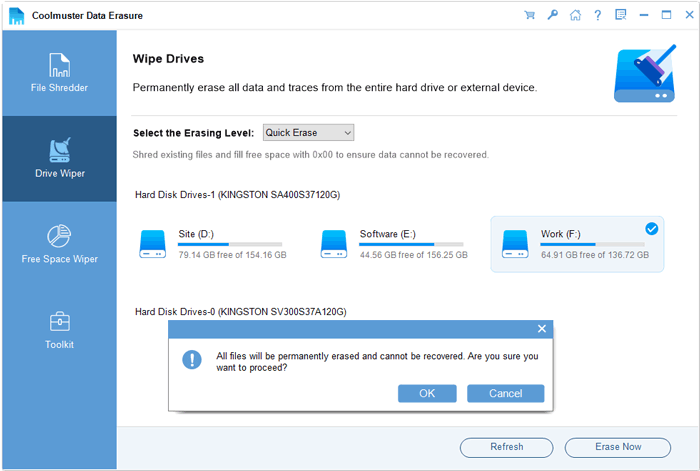
02To erase all data from your computer, select "Drive Wiper" from the side panel. Choose the drive you want to wipe and pick an erasing mode.
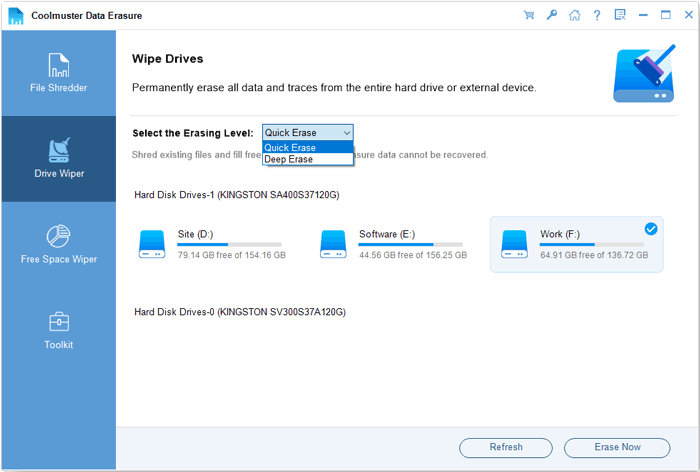
03Click "Erase Now" and confirm the action by selecting "OK" in the pop-up. The software will then start deleting all data from your PC.
Video Tutorial:
Q1. How long does Windows Update Cleanup take?
The time required for Windows Update Cleanup depends on your system's configuration and the amount of data to be removed. Typically, the process can take anywhere from a few minutes to over an hour.
Q2. Why is Windows Update Cleanup taking so long?
The process can take a long time due to the large amount of data being removed or the limited system resources available for the cleanup.
Q3. Why won't Windows Update Cleanup delete files?
Windows Update Cleanup may fail because of permission restrictions, corrupted files, or incomplete updates.
When you encounter the issue of Disk Cleanup getting stuck on Windows Update Cleanup, there's no need to wait blindly. The six methods provided in this article can effectively resolve the problem. If you want a faster and more reliable cleanup experience, consider trying Coolmuster Data Erasure. It ensures that your data is completely erased, giving you peace of mind.
Related Articles:
Disk Cleanup Not Deleting Files on Windows 10/11: 5 Quick Fixes
How to Force Delete a File on Windows and Mac: Complete Guide
Step-by-Step Guide to Delete Everything But OS on Windows & Mac







 Free Download for PC


