If you only press "Delete" and empty the Recycle Bin, your PowerPoint files are not truly gone. In fact, they can still be recovered using professional recovery tools. This is a serious risk if your PPT files contain confidential business data, personal information, or sensitive presentations.
That's why more users are searching for reliable ways to permanently shred PowerPoint files so they can never be recovered again. In this guide, we'll walk you through 3 effective methods to help you completely destroy PPT files.
When it comes to securely deleting files beyond recovery, using a professional data erasure tool is the most effective approach. Coolmuster Data Erasure is designed to permanently shred PowerPoint files by overwriting the storage space multiple times with advanced algorithms. Unlike simple deletion, this method ensures that the original data is completely destroyed, making recovery impossible, even with advanced recovery software. It's ideal for users who want a safe, easy, and foolproof solution without dealing with complex commands. Besides local disks, it also supports shredding PowerPoint files saved on external hard drives, USB flash drives, and SD cards.
What can Coolmuster Data Erasure do for you?
Here is how to permanently shred PowerPoint files on Windows using Coolmuster Data Erasure:
01Download and install the Coolmuster Data Erasure software on your PC, then open the application.
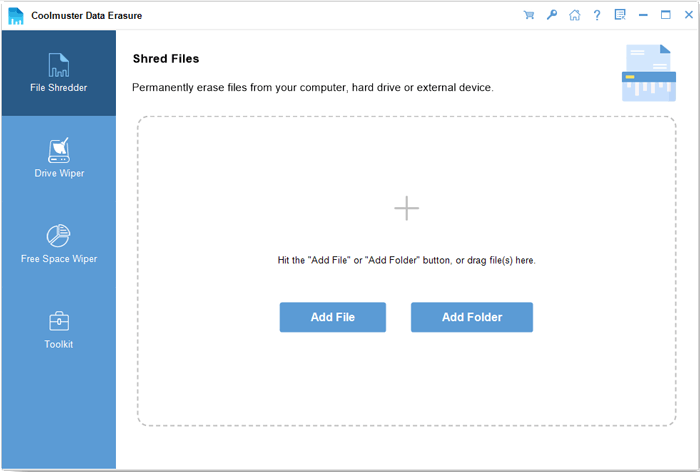
02Go to the "File Shredder" tab and click "Add File" to select the PowerPoint files you want to delete.
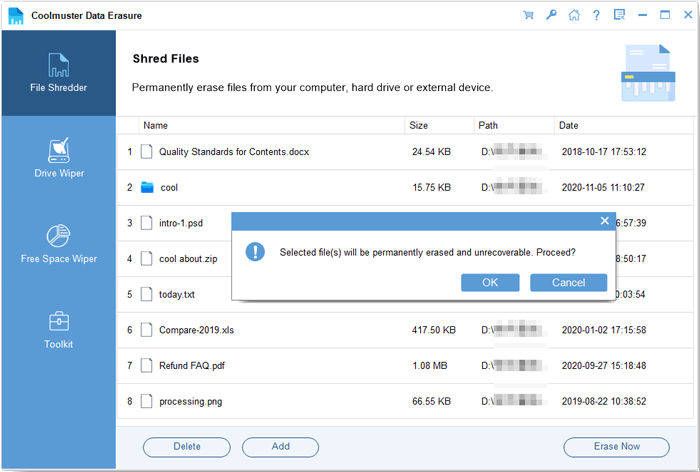
03Once you've added them, click "Erase Now" at the bottom of the screen. Confirm by selecting "OK" on the pop-up. The software will begin erasing the selected PowerPoint files.
Video Tutorial:
The integrated "Reset This PC" feature in Windows is a built-in system solution that can also be used to permanently delete all local Microsoft PowerPoint files and other stored data. It is important to note that this method will erase all data on the entire computer, not just individual PowerPoint files. Therefore, you must back up all important files in advance to avoid unnecessary data loss.
Here is how to erase Microsoft PowerPoint files on Windows using the "Reset This PC" feature:
Step 1. Click "Start" and go to "Settings" > "Update & Security" (or "System" in Windows 11) > "Recovery". In the "Reset this PC" section, click "Get started".
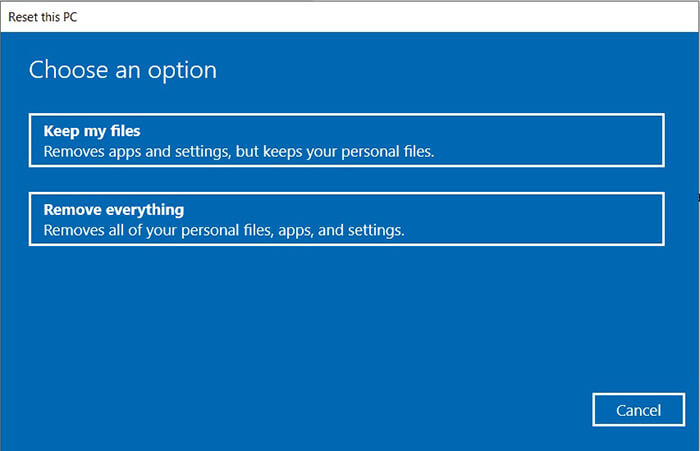
Step 2. You'll be presented with two options: "Keep my files" and "Remove everything". Select "Remove everything".
Step 3. On the next screen, you'll be asked, "How would you like to reinstall Windows?" Choose either "Cloud download" or "Local reinstall".
Step 4. Then, when asked, "Do you want to clean the drives too?", select "Fully clean the drive" (or the equivalent option for maximum security).
Step 5. Follow the remaining prompts to initiate the reset process. Note that this process will take some time to complete.
For users who are familiar with Windows command operations, PowerShell provides a free and built-in way to permanently wipe PowerPoint files through professional command lines. This method does not require downloading any third-party software, which is convenient for users who pursue lightweight operation and do not want to install extra programs.
However, PowerShell operations have certain technical thresholds. Wrong commands may cause accidental deletion of system files or important data. It is only recommended for users with basic computer operation knowledge.
Here is how to wipe Microsoft PowerPoint files on a PC using PowerShell:
Step 1. Type "PowerShell" in the Windows search bar. Right-click on "Windows PowerShell" and select "Run as administrator".
Step 2. In the PowerShell window, enter the following command to delete the PowerPoint file: Remove-Item "C:\Path\Filename.pptx" (Replace "C:\Path\Filename.pptx" with the actual file path and filename.)
Step 3. Press "Enter" to execute the command and delete the specified PowerPoint file.
Step 4. Enter the following command to overwrite the free space on the drive: "cipher /w:C:" (Replace C: with the target drive letter where the PowerPoint file was stored.)
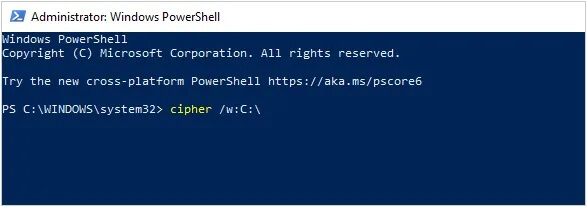
Step 5. Press "Enter" to execute the command and begin overwriting the free space.
Step 6. Wait for the command to complete. PowerShell will overwrite the free space on the drive, which may take some time.
Step 7. Once the process is finished, the deleted PowerPoint file will be permanently erased and unrecoverable.
Q1. Is deleting PowerPoint files and emptying the recycle bin enough for permanent deletion?
No. Regular deletion and recycle bin cleaning only hide PowerPoint file icons and directory information instead of erasing actual data on the hard drive. The raw data of PPT files still remains in the disk storage space. Common data recovery software can quickly scan and restore these deleted presentations.
Q2. Can I permanently shred PowerPoint files stored on external hard drives?
Yes. Among the three methods above, Coolmuster Data Erasure fully supports external storage devices. You can connect USB flash drives, external hard drives, and memory cards to your computer, then use this tool to selectively shred PowerPoint files on external devices.
Q3. Can I permanently delete a PowerPoint file from the cloud (e.g., Google Drive, OneDrive)?
Shredding files is most effective on locally stored files. For cloud files, while you can delete them, they may still be recoverable from the cloud provider's backup or trash folder. To ensure complete removal, make sure to empty the Trash or Recycle Bin in the cloud service, or use their data management options for secure deletion.
Q4. Can I recover PowerPoint files after using Coolmuster Data Erasure?
No. Coolmuster Data Erasure adopts multiple layers of overwriting algorithms and military-grade erasure standards. Once you permanently shred PowerPoint files with this tool, the original file data will be completely covered and destroyed. No professional data recovery tools or technical means can restore the shredded PPT files, ensuring absolute data security.
Simply deleting files is not enough if you want to protect your privacy. To truly permanently shred PowerPoint files, you need methods that overwrite and destroy the data completely.
Among all options, Coolmuster Data Erasure stands out as the most reliable and user-friendly solution. Whether you want to delete a few PPT files or wipe an entire drive, it ensures your data is gone for good—no recovery possible.
Related Articles:
[Full Guide] How to Shred Photoshop Files Permanently and Securely?
Top 6 Free Drive Wipers to Erase a Disk Without Any Hassle
How to Force Delete a File on Windows and Mac: Complete Guide
How to Permanently Delete Files so They Can't Be Recovered? - 4 Easy Ways







 Free Download for PC


