In daily design or office work, we often deal with a large number of Photoshop (PSD) files. However, what many people don't know is that simply deleting a file or emptying the recycle bin doesn't truly erase the data. Some professional data recovery tools can still retrieve it, which poses a potential risk for files containing privacy information or business secrets. If you're looking for a way to shred Photoshop files permanently, this article will provide you with a detailed solution.
Coolmuster Data Erasure is a powerful tool designed specifically to shred files securely. This software offers three primary methods to permanently erase Photoshop files, ensuring that they cannot be recovered by any data recovery software. Below, we will discuss each of these methods in detail.
Key features of Coolmuster Data Erasure:
If you need to delete specific PSD files or project folders containing sensitive client information or proprietary designs, the File Shredder mode is the ideal choice. This feature allows you to precisely delete selected files without affecting other content on the drive.
Here are the steps:
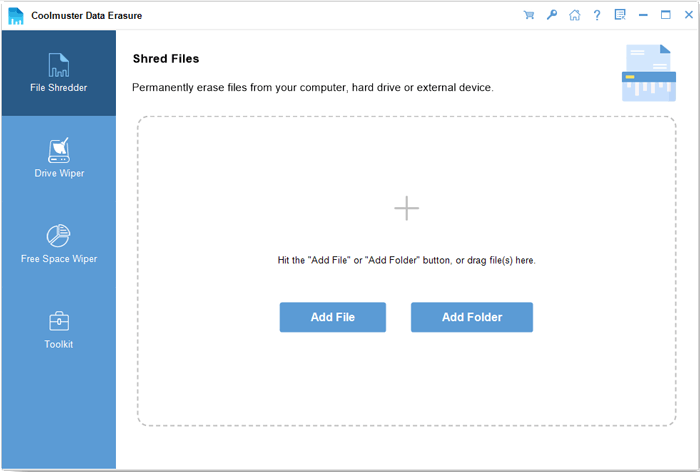
01Open this tool on your PC and choose the "File Shredder" module from the left menu.
02Click the "Add File" button to browse and select the specific Photoshop files you want to erase. Alternatively, click "Add Folder" to include the folder containing your PSD images.
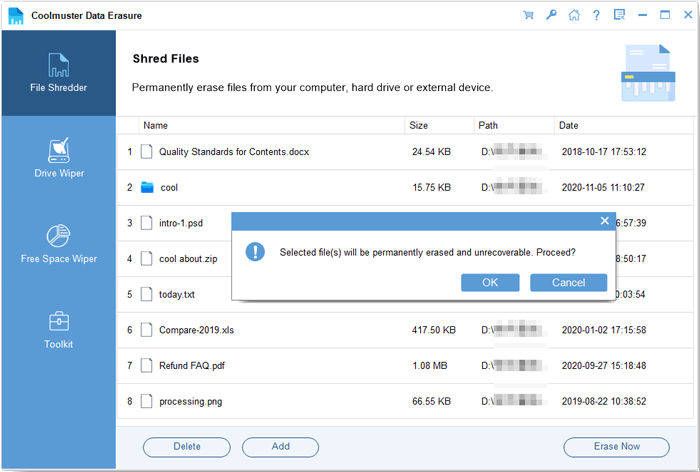
03Then, click "Erase Now" and confirm by selecting "OK" in the pop-up window. Your Photoshop files will be completely shredded.
For users who need to completely erase all Photoshop files from an entire hard drive or external storage device, the "Drive Wiper" mode is the best choice. This mode thoroughly wipes all data from the entire hard drive or external storage device, including any PSD files, making it especially useful when you plan to sell, donate, or repurpose the device.
Here is how to do it:
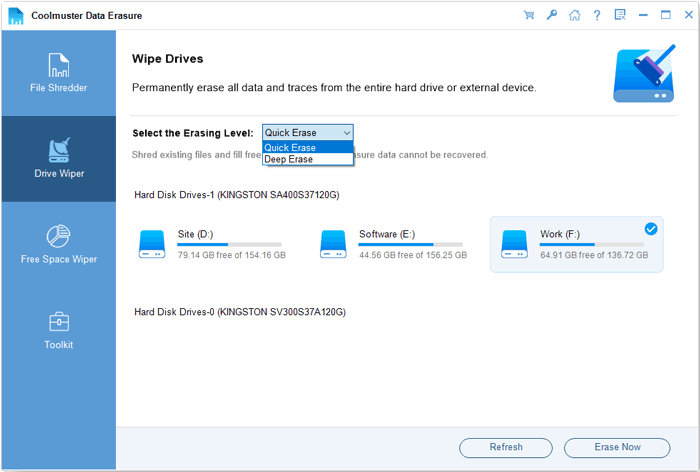
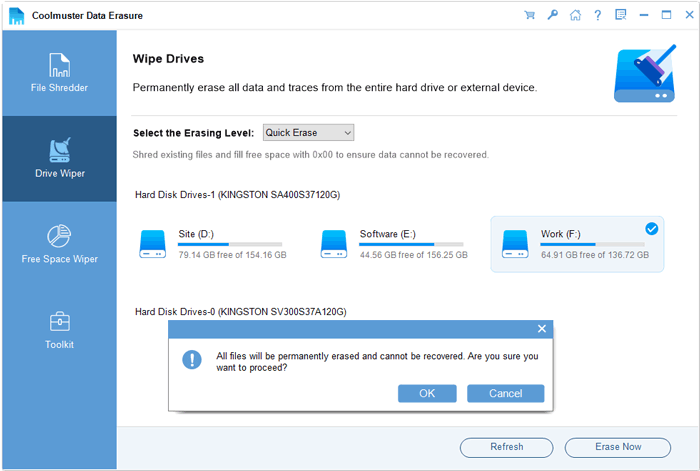
01Launch the software and select "Drive Wiper" from the main interface. Choose the local disk or external drive where your Photoshop projects are stored. Be cautious, as this will erase all files, including software and documents.
02Pick an erasing level: "Quick Erase" or "Deep Erase". The Deep Erase level adheres to the US DoD 5220.22-M(E) standard, performing three overwrite passes.
03Then, click "Erase Now" and confirm by selecting "OK" to start the deep-cleaning process.
If your goal is to destroy Photoshop files that have already been deleted but still exist in the disk's free space, the Free Space Wiper feature can accomplish this. This mode only overwrites the unused space on the drive, and deleted PSD files may still be recoverable.
To do it, follow the steps below:
01Open the software on your computer and choose the third tab, "Free Space Wiper". Select the drive from which you want to erase deleted PSD data, then choose an erasure level.
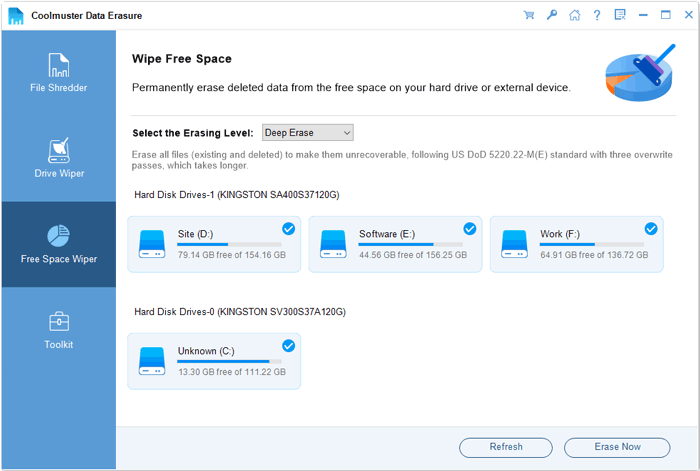
02Click "Erase Now" and confirm by selecting "OK" to begin the process. Your deleted files will be permanently removed.
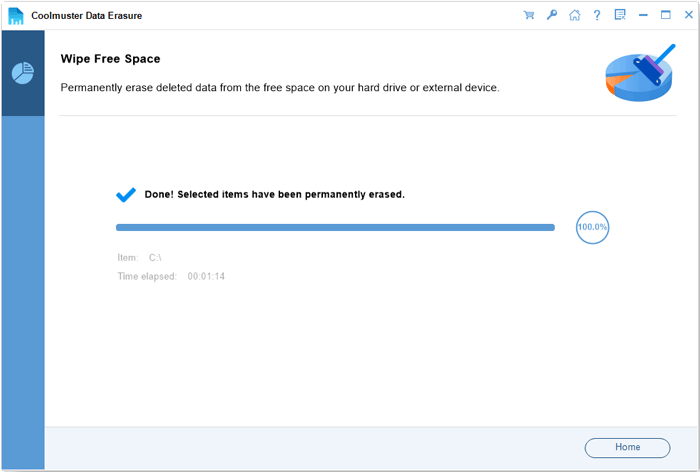
Video Tutorial:
For those who prefer not to use third-party software, there are native system tools and commands that can help you permanently delete Photoshop files. Although these methods may not be as secure as using specialized software like Coolmuster, they are still helpful for basic file deletion.
Windows systems have a built-in "cipher" command that can overwrite free space to shred deleted Photoshop files permanently. Additionally, you can use the "del" command with specific parameters to delete and overwrite files directly. Here are two effective methods to shred Photoshop files permanently on Windows:
Step 1. Press "Win" + "R", type "cmd", and hit "Enter" to open the Command Prompt.
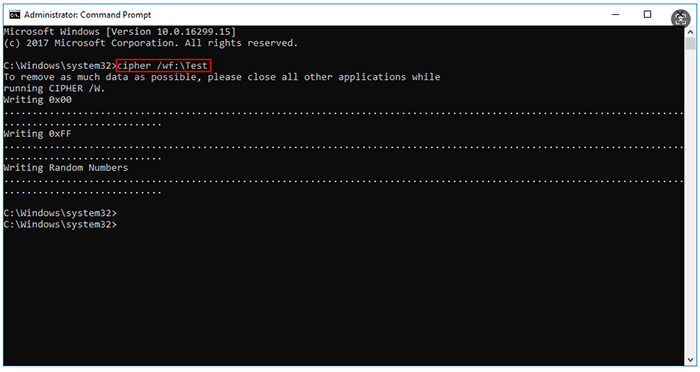
Step 2. In the Command Prompt window, type the command: "cipher /w:YourFilePath" (replace "YourFilePath" with the path where your Photoshop files were stored, e.g., cipher /w:D:\PhotoshopFiles).
Step 3. Press "Enter" to execute the command. The system will overwrite the free space in the specified path with 0s, 1s, and random data, which shreds the residual data of deleted Photoshop files permanently.
Step 4. Wait for the command to finish (the time depends on the size of the free space). Once completed, the deleted Photoshop files can no longer be recovered.
Step 1. Open Command Prompt as an administrator.
Step 2. Type the command: del /f /s /q "YourPSDFilePath" (replace "YourPSDFilePath" with the full path of the Photoshop file you want to shred permanently, e.g., del /f /s /q "D:\PhotoshopFiles\design.psd").
Step 3. Press "Enter" to delete the file. The "/f" parameter forces deletion, "/s" deletes files in subfolders, and "/q" disables confirmation prompts.
Step 4. To ensure the file is shredded permanently, follow up with the cipher command (Method 1) to overwrite the free space where the file was stored.
Mac systems have built-in terminal commands that can shred Photoshop files permanently by overwriting the file data. The most commonly used commands are "srm" and "shred", which are powerful and easy to use. Here's how to shred Photoshop files permanently on Mac using terminal commands:
Step 1. Open Terminal (you can find it in "Applications" > "Utilities", or use Spotlight Search by pressing "Command + Space" and typing "Terminal").
Step 2. In the Terminal window, type the command: srm -rfv "YourPSDFilePath" (replace "YourPSDFilePath" with the full path of the Photoshop file or folder you want to shred permanently, e.g., srm -rfv "/Users/YourName/Desktop/PhotoshopDesigns").
Step 3. Press "Enter" to execute the command. The "-r" parameter recursively deletes folders, "-f" forces deletion, and "-v" shows the operation progress. This command overwrites the file data multiple times, shredding the Photoshop files permanently.
Step 4. For higher security, use the command: srm -s "YourPSDFilePath", which follows the DoD 5220.22-M standard (3 passes of overwriting) to ensure the files are irrecoverable.
Step 1. Open Terminal and type the command: shred -u -z "YourPSDFilePath" (replace "YourPSDFilePath" with the path of your Photoshop file).
Step 2. Press "Enter". The "-u" parameter deletes the file after overwriting, and the "-z" parameter adds a final overwrite with zeros to hide the traces of the erasure. This command will permanently shred the Photoshop file.
Shredding Photoshop files permanently is crucial for protecting your creative work, client confidentiality, and personal privacy. While system commands can help you shred Photoshop files permanently, they require technical knowledge and are prone to errors (e.g., accidentally erasing important files). For a safe, efficient, and user-friendly solution, we highly recommend Coolmuster Data Erasure.
Related Articles:
Disk Cleanup Not Deleting Files on Windows 10/11: 5 Quick Fixes
Top 6 Free Drive Wipers to Erase a Disk Without Any Hassle
How to Force Delete a File on Windows and Mac: Complete Guide
Step-by-Step Guide to Delete Everything But OS on Windows & Mac







 Free Download for PC


