TL;DR: This guide introduces 6 SD card format tools for Windows and Mac, including built-in options (Windows File Explorer, Disk Management, DiskPart, and macOS Disk Utility), the official SD Memory Card Formatter, and the advanced Coolmuster Data Erasure tool.
Each method helps format or manage SD cards depending on your needs, from quick fixes and compatibility formatting to secure, irreversible data wiping for privacy protection.
When your SD card becomes corrupted, slows down, or is not recognized by your device, using reliable SD card format tools is often the fastest solution. A proper format can restore performance, fix file system errors, and prepare the card for reuse in cameras, phones, drones, and computers.
In this guide, we will introduce the best SD card format tools for Windows and Mac, helping you choose the best program to format an SD card for your needs.
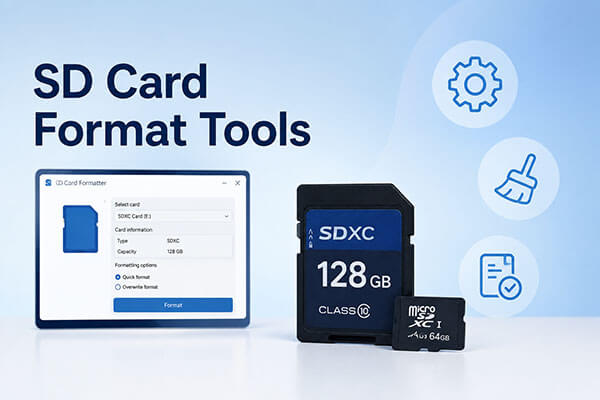
In the Windows system, there are various built-in or professional tools that can be used to format an SD card, and each method is suitable for different needs. Below are the most commonly used tools to format SD cards in Windows.
Coolmuster offers a powerful solution called Coolmuster Data Erasure, which goes beyond a basic SD card format program. Instead of only deleting file references, it permanently wipes all data, making it unrecoverable. This makes it ideal for users searching for the best program to format an SD card with strong privacy protection, especially when selling or recycling SD cards.
Key features of Coolmuster Data Erasure:
Here is how to erase an SD card using Coolmuster Data Erasure:
01Launch the program on your Windows PC after downloading and installing it. From the left panel, click "Drive Wiper", then select your SD card.
02To fully remove both existing and deleted data, choose the "Deep Erase" mode.
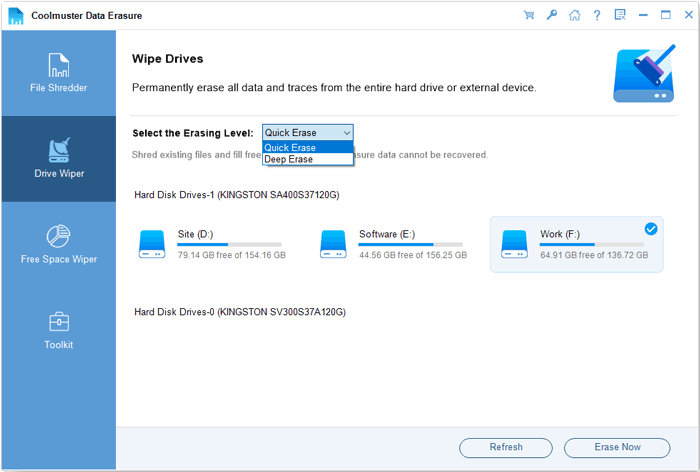
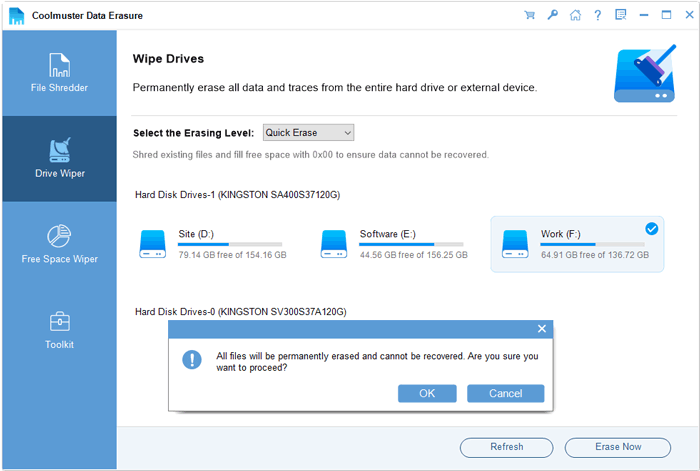
03Click "Erase Now", then confirm by selecting "OK" in the pop-up window to begin erasing your SD card.
Video Tutorial:
Windows Disk Management is a built-in utility that works as a basic SD card format program without requiring additional downloads. It is widely used for quick formatting and partition management. It is especially useful for users who need a simple way to format SD cards to FAT32 or exFAT without advanced settings.
Here is how to format SD cards to FAT32/exFAT using Windows Disk Management:
Step 1. Insert the SD card into your computer.
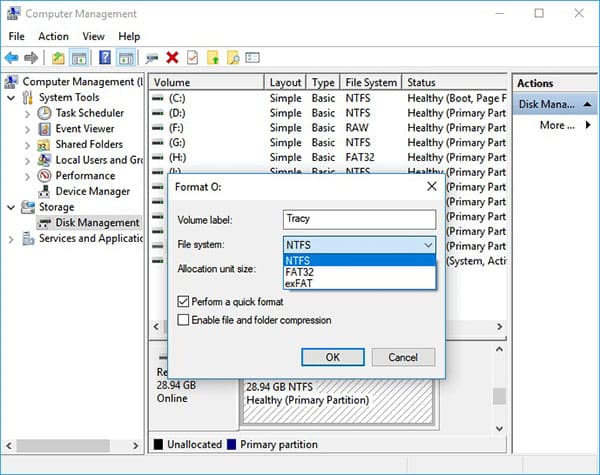
Step 2. Press "Windows" + "X" and select "Disk Management". Right-click the SD card you want to format, then choose "Format" from the context menu.
Step 3. In the Format window, configure the volume label, file system, and allocation unit size, then click "OK" to proceed.
Windows File Explorer is another SD formatting tool that allows you to format micro SD cards and other SD memory cards using the NTFS, FAT, FAT32, or exFAT file system. Thanks to its intuitive interface, users can complete the process with little to no technical expertise.
Here is how to format an SD card using Windows File Explorer:
Step 1. Insert your SD card into your computer, then open File Explorer and double-click "This PC".
Step 2. Locate your SD card, right-click it, and select "Format".
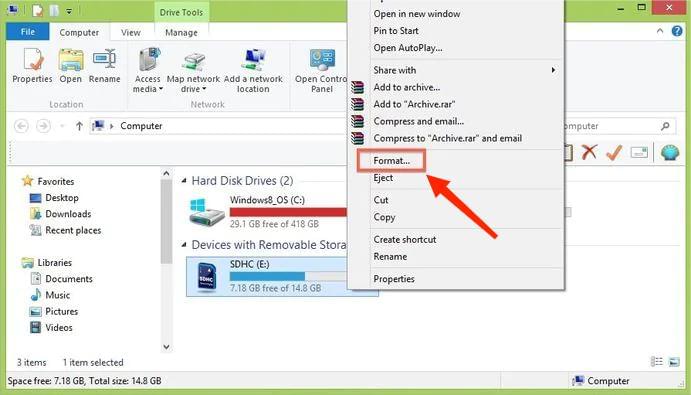
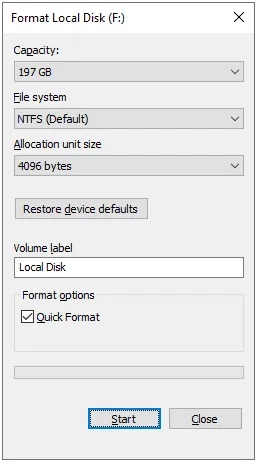
Step 3. Select the desired file system, optionally check "Quick Format", and then click "Start" to begin formatting the SD card.
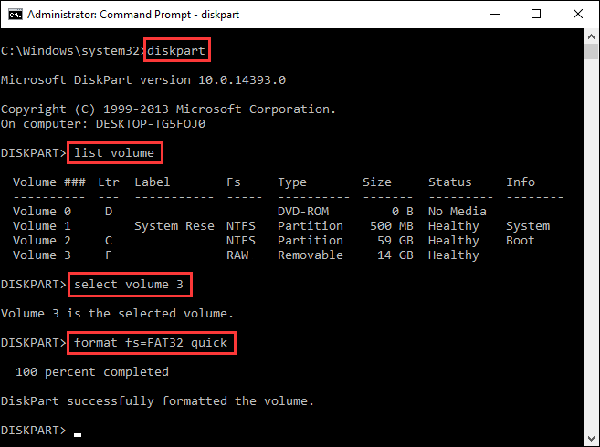
DiskPart is a powerful command-line tool included in Windows. It is suitable for advanced users who need full control over disk structure. This method requires some technical knowledge because you need to enter command-line instructions manually. If you're new to computers or concerned about accidentally causing data loss due to incorrect commands, consider using the micro SD card format program introduced above instead.
To format your micro SD card using DiskPart, follow the steps below:
Step 1. In Windows 11 or Windows 10, type "cmd" in the search box. Right-click "Command Prompt" from the search results and select "Run as administrator."
Step 2. In the Command Prompt window, type "diskpart" and press "Enter".
Step 3. Type "list disk" and press "Enter" to display all available drives.
Step 4. Type "select disk X" (for example, select disk 2) to choose the SD card you want to format, then press "Enter".
Step 5. Type "list volume" and press "Enter".
Step 6. Type "select volume X" (for example, select volume 10) and press "Enter".
Step 7. Type "format fs=ntfs (or format fs=exfat)" and press "Enter" to format the drive using NTFS or exFAT.
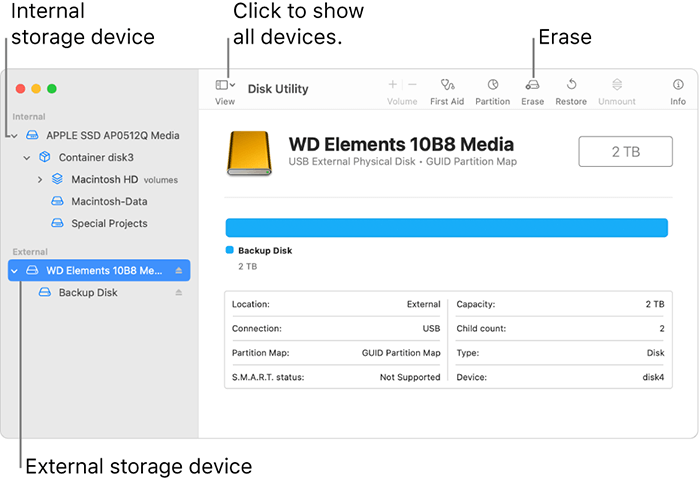
On macOS, the built-in Disk Utility acts as the main SD card format program. Here is how to format an SD card on Mac using Disk Utility:
Step 1. Insert the SD card into your Mac using a card reader.
Step 2. Open Disk Utility from "Applications" → "Utilities" or use Spotlight search.
Step 3. Select your SD card from the "External" section in the left sidebar, making sure you choose the correct drive.
Step 4. Click "Erase", choose a name and format such as exFAT or MS-DOS (FAT), then confirm the action.
Step 5. Wait for the process to finish and click "Done".
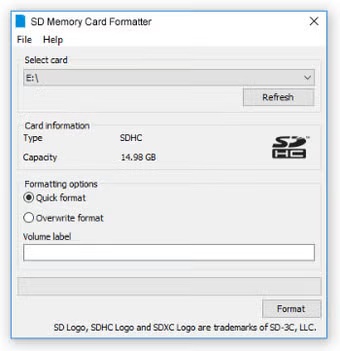
The SD Association developed the SD Memory Card Formatter, a tool specifically designed for formatting SD, SDHC, and SDXC memory cards. This utility helps ensure optimal performance and can effectively resolve SD card issues.
Here is how to format an SD card on Windows/Mac using the SD Memory Card Formatter:
Step 1. Download and install the SD Memory Card Formatter.
Step 2. Insert your SD card and launch the program.
Step 3. Select the correct drive and click "Format".
Step 4. Click "Yes" to confirm and start the formatting process. After the process is complete, your SD card will be properly formatted.
Choosing the right SD card format tools can make a significant difference in your SD card's performance, compatibility, and reliability. Whether you use Windows built-in utilities like File Explorer, Disk Management, and DiskPart, macOS Disk Utility, or the official SD Memory Card Formatter, each SD card format program is designed for different needs.
If your priority is securely erasing sensitive data before selling or disposing of a storage device, Coolmuster Data Erasure is a more advanced option that permanently wipes your SD card beyond standard formatting.
Related Articles:
2026 Top 10 Best SD Card Recovery Software | 100% Working
How to Fix "SD Card Won't Format" Error? Step-by-Step Guide
How to Undelete SD Card Effectively (Practical Recovery Tutorial)
How to Realize SD Card Recovery for Android [Must Read in 2026]






 Free Download for PC


