"My micro SD card was acting up in my cell phone, so I decided to put it into my computer with its adapter, back up all my data, and try to reformat it. I am able to back up my data, but for some reason, the SD card won't format. After scrounging the internet for the past two days and trying what I feel is almost everything, I wanted to come here to ask for help."
- from Microsoft Community
When you try to format an SD card, you may find that the system shows messages such as "Unable to format", "Format failed", or the process gets stuck. This situation is actually very common. Whether you are trying to clear storage space, fix errors, or make the SD card usable again, this issue can be very frustrating. Don't worry—this article will give you a comprehensive overview of the common causes of "SD card won't format" and provide a series of simple and effective solutions to help you quickly restore normal use of your SD card.
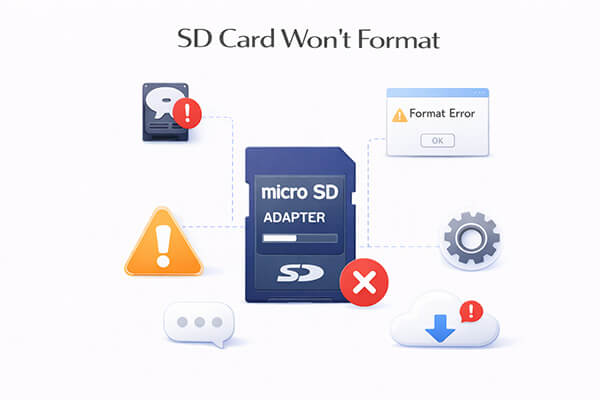
Before starting the troubleshooting process, let's first understand the common reasons why an SD card won't format. This will help you find the appropriate solution more quickly.
If your SD card cannot be formatted, don't worry. Below are 6 effective solutions. Follow them step by step until your issue is resolved.
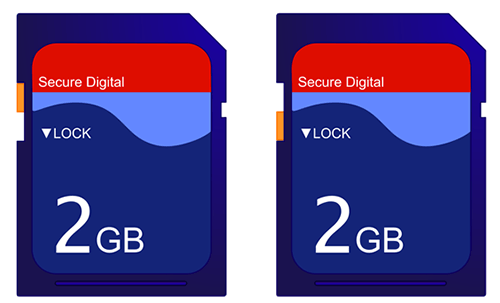
Before trying any technical solution, always check if your SD card is write-protected. This is the most overlooked reason behind errors like "can't format SD card". Many SD cards have a physical lock switch. If it's enabled, your computer will block formatting attempts.
Step 1. Safely eject your SD card from the device to prevent any errors.
Step 2. Locate the switch on the adapter while holding it with the label side facing up.
Step 3. Find the small sliding tab on the left edge; if it is set to the locked position, slide it upward to unlock it.
Step 4. After that, reinsert the adapter into your computer or device and attempt to format the SD card again.
If there is no physical write protection but the SD card still shows as read-only, it may be due to system-level write protection. In this case, you can remove the restriction using the Command Prompt (CMD) tool.
How do you fix an SD card that won't format?
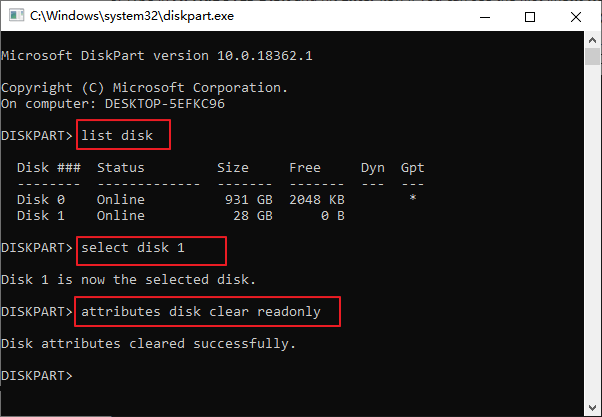
Step 1. Enter "cmd" in the search bar, then select "Run as administrator" to open Command Prompt.
Step 2. Type "diskpart" and press "Enter" to launch the DiskPart utility.
Step 3. Type "select disk 1" (replace "1" with the actual disk number of your SD card), then press "Enter".
Step 4. Type "attributes disk clear readonly", press "Enter", and wait until you see the message "Disk attributes cleared successfully".
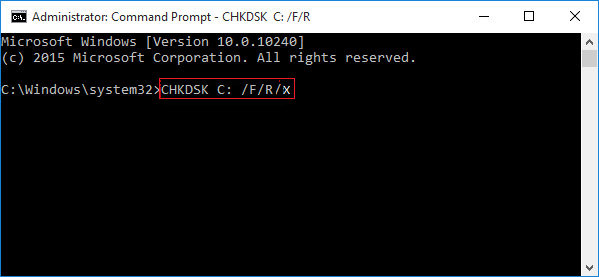
Bad sectors on the SD card can also lead to the SD card not formating. To fix this issue, you can use CHKDSK to detect and repair any bad sectors. Once they are resolved, the formatting process should proceed more smoothly.
Here is how to do it:
Step 1. Press "Windows" + "R" at the same time, type "cmd" in the box, and press "Enter" to open Command Prompt.
Step 2. In the Command Prompt window, type "chkdsk E: /f /r /x" and press "Enter". (Replace E with the actual drive letter of your SD card.) The scan and repair process will begin and may take several minutes to complete.
Step 3. Once finished, you will see a message in the Command Prompt window stating, "Windows has made corrections to the file system". After that, you can access your SD card or proceed to format it as needed.
If you can't format an SD card in Windows File Explorer, you can try using Windows Disk Management instead. This built-in utility lets you view and manage the drives and partitions on your PC, and it supports a variety of tasks, including formatting. It can also be used to format a RAW SD card.
Here is how to format an SD card using Windows Disk Management:
Step 1. Insert your SD card into the computer.
Step 2. Press "Windows" + "X" and select "Disk Management".
Step 3. In the Disk Management window, locate your SD card in the list of drives.
Step 4. Right-click on the SD card partition and choose "Format".
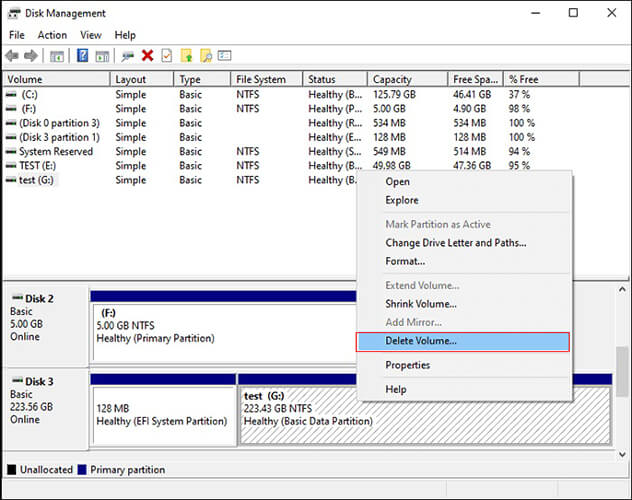
Step 5. Select the desired file system (e.g., FAT32 or exFAT). Then check "Perform a quick format" and click "OK".
Sometimes, an SD card won't format because it isn't properly recognized by the Windows operating system. In this case, assigning a new drive letter can help make it detectable. Here's how to fix the "cannot format SD card" issue:
Step 1. Connect the SD card to your PC.
Step 2. Press "Windows" + "E" to open File Explorer, then right-click "This PC" (or Computer) and select "Manage". In the Computer Management window, click "Disk Management" to open the utility.
Step 3. Locate your SD card, right-click on it, and select "Change Drive Letter and Paths".
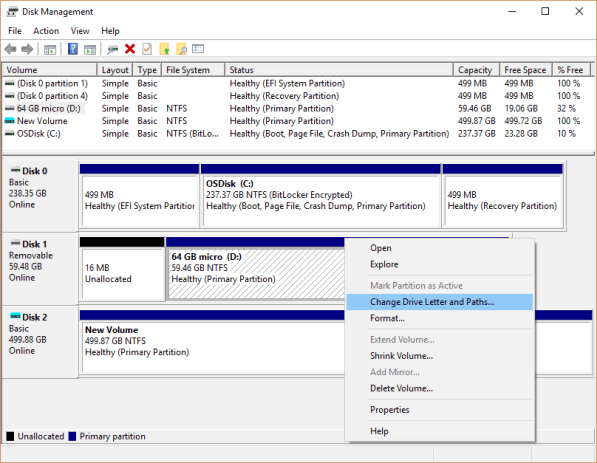
Step 4. In the pop-up window, click "Change", choose a new drive letter, and click "OK". Make sure the selected letter is not already in use by another drive.
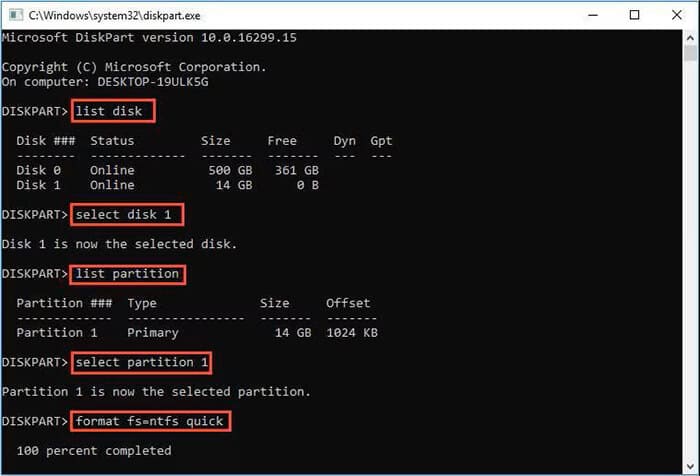
The DiskPart utility in Windows lets users manage disks, partitions, and volumes using command-line commands. By using DiskPart to clean an SD card, you can remove all existing partitions and volume information, which helps eliminate corruption or errors that may be preventing the card from being formatted successfully.
Here is how to fix the SD card that cannot be formatted using DiskPart:
Step 1. Press "Windows" + "R", type "cmd" in the Run box, and press "Enter" to open Command Prompt (cmd.exe).
Step 2. Type "diskpart" to launch the DiskPart utility.
Step 3. Type "list disk" to display all available drives on the computer.
Step 4. Type "select disk 2" (replace "2" with the correct disk number of your SD card).
Step 5. Type "clean" to erase the disk. (Note: This will delete all data on the SD card, so make sure you have a backup.)
Step 6. Type "create partition primary" to create a new primary partition.
Step 7. Type format fs="file system" quick (where the file system can be NTFS or FAT32) to format the partition. For example: format fs=fat32 quick.
If you find system tools complicated to use, or if repeated attempts still fail, then using a professional tool will be more efficient and reliable. Coolmuster Data Erasure is a tool specifically designed for data wiping and formatting. It can not only fix formatting issues but also completely erase data to prevent recovery. Compared with built-in Windows tools, it offers advantages such as simpler operation, a higher success rate, and suitability for users without technical experience.
What can Coolmuster Data Erasure do for you?
* Easily detect your connected SD card on your PC and erase it within minutes.
* Provide two erasure modes to meet different needs: Quick Erase and Deep Erase.
* Securely wipe SSDs and HDDs on a Windows computer.
* Erase free space on your drives to ensure deleted data cannot be recovered.
* Upload and permanently remove any personal files or folders you want to make unrecoverable.
* Read-only operation, safe to use, and cost-effective.
Here is how to erase an SD card using Coolmuster Data Erasure:
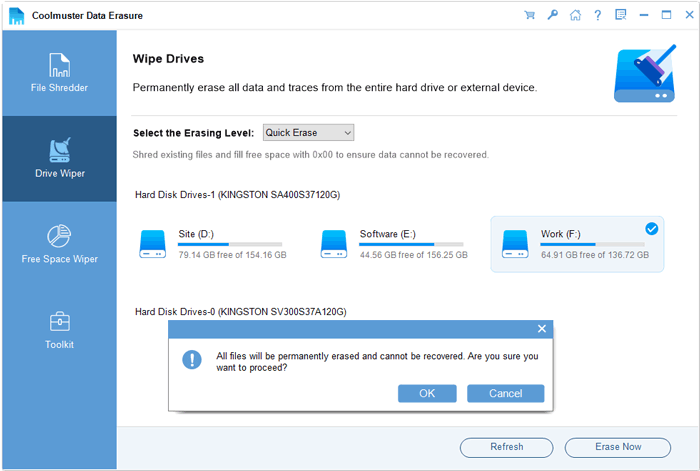
01Open the program on your Windows PC after downloading and installing it. From the left panel, select "Drive Wiper", then choose your SD card.
02If you want to completely remove both existing and deleted data, select the "Deep Erase" option.
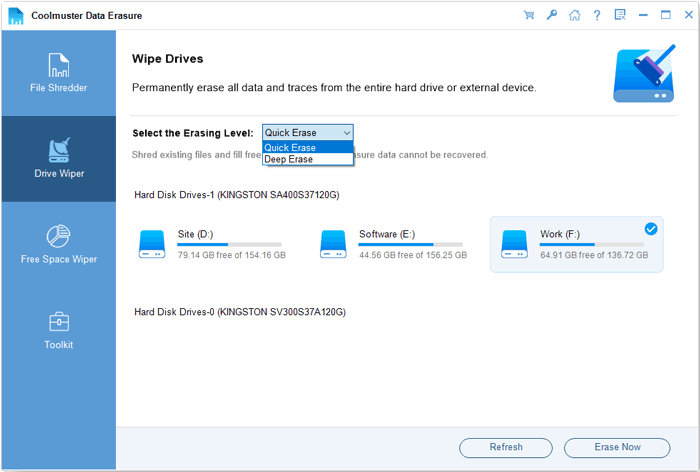
03Click "Erase Now", then confirm by selecting "OK" in the pop-up window to start erasing your SD card.
Video Tutorial:
When you encounter the "SD card won't format" issue, there is no need to panic. In most cases, it can be resolved using the methods above. If you have tried all the solutions and it still fails, it is recommended to use a professional tool like Coolmuster Data Erasure, which can not only successfully format the SD card but also ensure that all data is completely erased, improving overall security.
Related Articles:
How to Fix SD Card Corrupted on Android? [Comprehensive Guide]
How to Fix: Can't Delete Files from SD Card Android? 7 Solutions
[Step-by-Step Guide] How to Erase a SanDisk SD Card on PC and Mac Easily?
Disk Cleanup Not Deleting Files on Windows 10/11: 5 Quick Fixes







 Free Download for PC


