When you're formatting a USB drive, SD card, or external hard drive and suddenly see the message "Windows was unable to complete the format", it can be incredibly frustrating. Don't worry; this is actually a very common issue. This article will quickly walk you through the possible causes and provide several effective solutions (with step-by-step instructions) to help you easily fix the formatting failure.
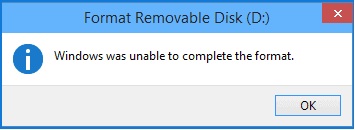
Before jumping into fixes, it's important to understand the root causes behind the "Windows was unable to complete the formatting" error. Identifying the issue helps you choose the right solution and avoid unnecessary steps.
Here are the most common reasons:
After you know the reasons, here are 6 effective solutions you can try to fix the "Windows was unable to complete the formatting SD card" error.
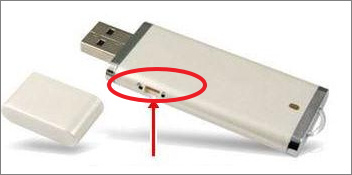
Write protection is one of the most common reasons why Windows was unable to complete the format. If your device is locked, Windows won't allow any formatting actions. Before trying advanced fixes, it's best to check whether your device is write-protected.
Steps to remove write protection:
Step 1. Connect your external drive, which Windows is unable to format, to your PC.
Step 2. Toggle the switch on your USB or SD card to the OFF position.
When a storage device is infected with a virus or malware, you may be unable to access the stored data or format it normally. In this case, you should remove the infection first, then proceed with formatting the device.
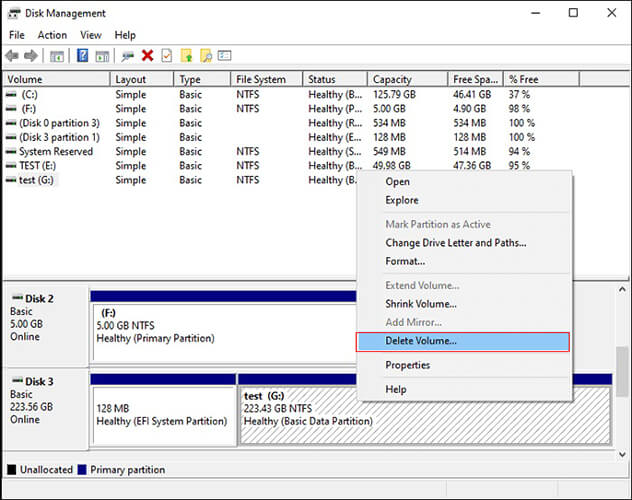
Disk Management is a built-in Windows utility for managing disks and partitions. If you continue to see the "Windows was unable to complete the format flash drive" error, you can try formatting the drive using Disk Management instead. Follow the steps below:
Step 1. Connect your removable storage device to your PC if you want to format it.
Step 2. Press "Win" + "X", then select "Disk Management".
Step 3. Find your USB flash drive or external hard drive, right-click it, and choose "Format".
Step 4. Select a file system (NTFS or FAT32), enable "Quick Format", and click "OK" to confirm.
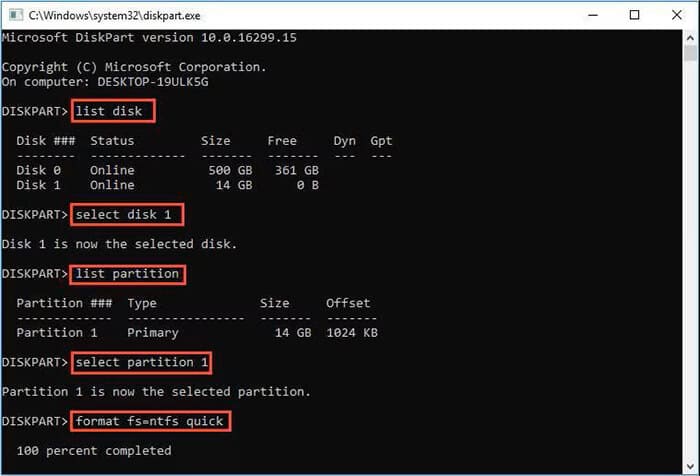
If Disk Management doesn't work, you can use Diskpart - a command-line tool that provides deeper control over disks. It's highly effective for fixing stubborn Windows was unable to complete the format issues. However, this method requires caution because incorrect commands may erase the wrong disk.
Here is how to do it:
Step 1. Press "Win" + "R", type "cmd" in the dialog box, and press "Enter" to open Command Prompt.
Step 2. Type "diskpart" and press "Enter".
Step 3. Type "list disk" and press "Enter" to display all available disks on your computer.
Step 4. Type "select disk 0" (replace 0 with the number corresponding to your problematic storage device) and press Enter.
Step 5. Type "clean" and press "Enter". Be cautious, as this will erase all data on the selected disk.
Step 6. Once the disk is cleaned, type "create partition primary" and press "Enter" to create a new partition.
Step 7. Type "format fs=ntfs quick" (or replace ntfs with the desired file system) and press "Enter" to quickly format the drive.
Sometimes, the SD card is not formatting on Windows 11 due to logical errors in the file system rather than severe damage. In such cases, you can repair it using the built-in tools in Windows.
Here are the steps:
Step 1. Right-click the disk or drive that Windows is unable to format, then select "Properties".
Step 2. Go to the "Tools" tab and click the "Check" button.
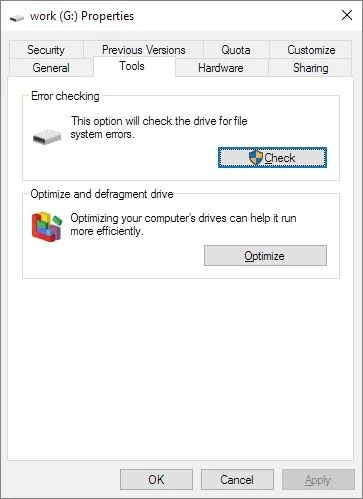
Step 3. When a prompt appears, choose "Scan and repair drive" to begin the scanning and repair process.
Step 4. Once completed, try formatting the drive again in Windows.
If all the above solutions fail to fix the "Windows was unable to complete the format" error, it's time to use a professional erasure tool. Coolmuster Data Erasure is a powerful, user-friendly tool designed to securely erase data and format storage devices, even when Windows' built-in tools fail. It supports all types of storage devices (SD cards, USB drives, hard drives). Additionally, Coolmuster Data Erasure ensures that all data on the drive is permanently erased, preventing data recovery and protecting your privacy.
Why choose Coolmuster Data Erasure:
Here is how to use Coolmuster Data Erasure to erase an SD card/USB/flash/external hard drive:
01Download and install the wipe driver on your PC and launch it. From the main interface, select the "Drive Wiper" mode.
02Choose the erasure level—"Quick Erase" or "Deep Erase"—and select the drive you want to wipe, whether it's an internal hard drive or an external USB device.
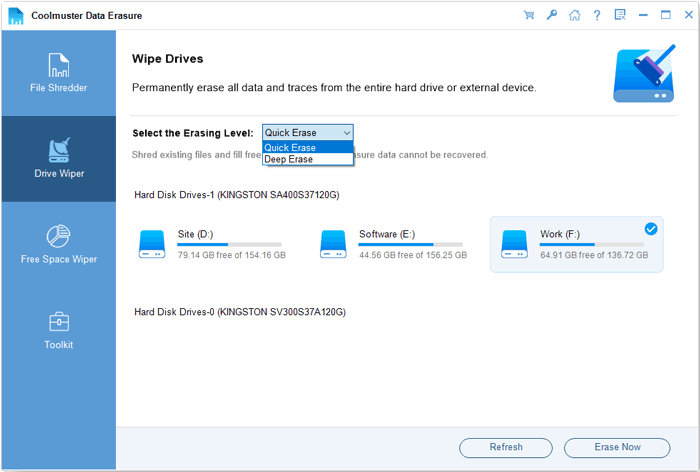
03Click "Erase Now" to begin the wiping process and confirm your selection when prompted. Make sure to back up any important data beforehand, as this will erase everything on the drive.
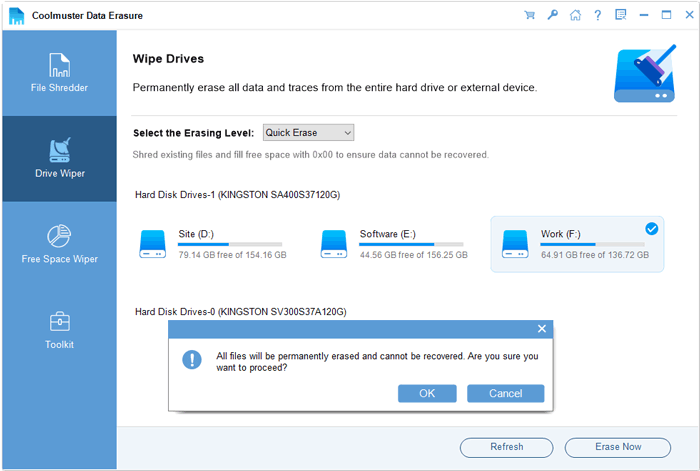
Video Tutorial:
When encountering the "Windows was unable to complete the format" issue, you can follow the methods provided in this article to troubleshoot, which should resolve the problem in most cases. If you're still unable to format, we highly recommend using professional tools like Coolmuster Data Erasure. It not only resolves formatting issues but also ensures that the data is completely erased.
Related Articles:
Reset Toshiba External Hard Drive: Step-by-Step Guide for Beginners
Why SD Card Keeps Deleting Files? How to Fix It on PC and Android
Disk Cleanup Not Deleting Files on Windows 10/11: 5 Quick Fixes
How to Reset Hard Drive in Windows 11/10? Solved in 4 Secure Ways







 Free Download for PC


