TL;DR: This FoneLab HEIC Converter review covers everything you need to know about the software, including its features, pricing, pros, cons, and how to use it. It offers an easy way to convert HEIC images to JPG or PNG, supports batch conversion, preserves image quality, and works on both Windows and Mac. While it's a solid choice for basic HEIC conversion, users looking for more efficient batch processing and a smoother experience may also consider Coolmuster HEIC Converter as a reliable alternative.
Many users struggle with HEIC files when transferring iPhone photos to Windows PCs or sharing them on platforms that do not support this format. Photos may fail to open, upload, or edit, causing unnecessary trouble. A reliable HEIC converter can quickly solve these compatibility issues. FoneLab HEIC Converter is one suck a tool.
In this FoneLab HEIC Converter review, we will explore its features, price, pros and cons, and a better alternative to help you choose the right HEIC conversion tool.
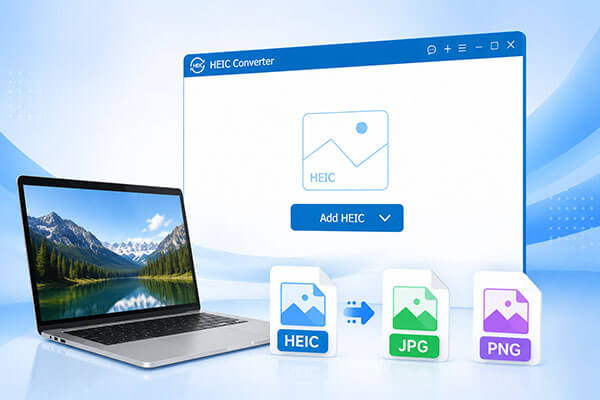
FoneLab HEIC Converter is a desktop HEIC image conversion tool mainly designed to convert HEIC photos taken by iPhones, iPads, or other devices into more widely compatible JPG or PNG formats. Unlike online conversion tools, FoneLab HEIC Converter does not require an internet connection, allowing users to process images directly on their computers. It also supports importing multiple HEIC files at once, improving efficiency when converting a large number of photos.
A good HEIC converter should not only change image formats but also provide a smooth conversion experience with high-quality output. In this section of the FoneLab HEIC Converter review, we will explore the main features that make this tool useful for iPhone and iPad users.
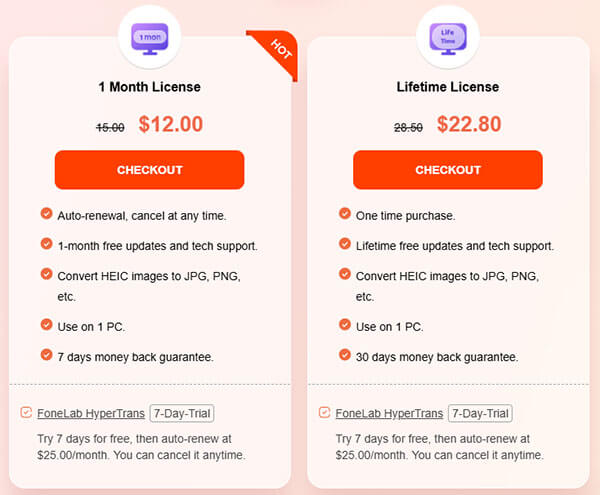
Besides features, pricing is also an important factor when users choose a HEIC converter. Different users may have different requirements for software licensing options. FoneLab HEIC Converter offers both a free trial version and a paid version, allowing users to choose the option that best suits their needs.
FoneLab HEIC Converter usually provides the following licensing options:
After reviewing its functions and pricing, it is also important to understand the advantages and limitations of FoneLab HEIC Converter. A balanced comparison can help users determine whether this software matches their expectations.
Pros:
* Simple and user-friendly interface, allowing beginners to get started quickly.
* Support batch HEIC conversion to improve efficiency.
* Support converting HEIC files to JPG and PNG formats.
* Fast conversion speed.
* Local conversion ensures better photo privacy and security.
* Compatible with both Windows and Mac systems.
* Maintain image quality during the conversion process.
Cons:
* Mainly focuses on HEIC conversion, with relatively limited functionality.
* The free version has feature restrictions.
* Does not provide advanced features such as image editing or repair.
* May not be sufficient for users who need to manage large amounts of iPhone data.
* Does not support conversion between more image formats.
FoneLab HEIC Converter provides a simple workflow that allows users to convert iPhone photos in just a few steps. Below is a detailed guide on how to use FoneLab HEIC Converter to convert HEIC images.
Step 1. Download and install FoneLab HEIC Converter on your computer, then open the program.
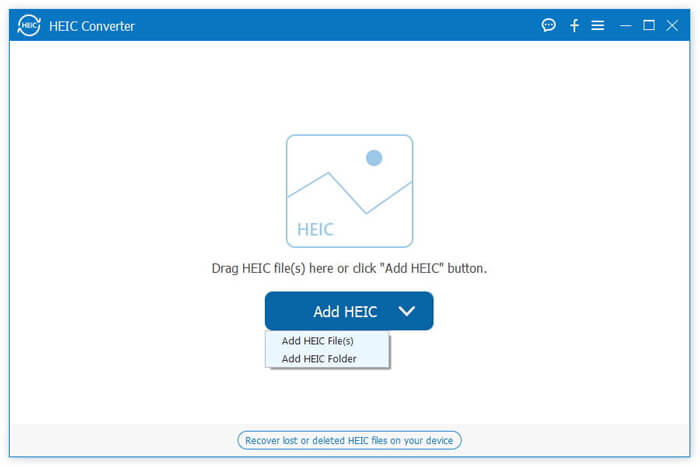
Step 2. If you want to convert photos stored on your device, connect your iPhone, iPad, or iPod touch to the computer first. Click the "Add HEIC" button to import HEIC files or folders from your computer. To convert HEIC photos directly from your device, navigate to "This PC" > "Device Name" > "Internal Storage" > "DCIM" and select the images you need.
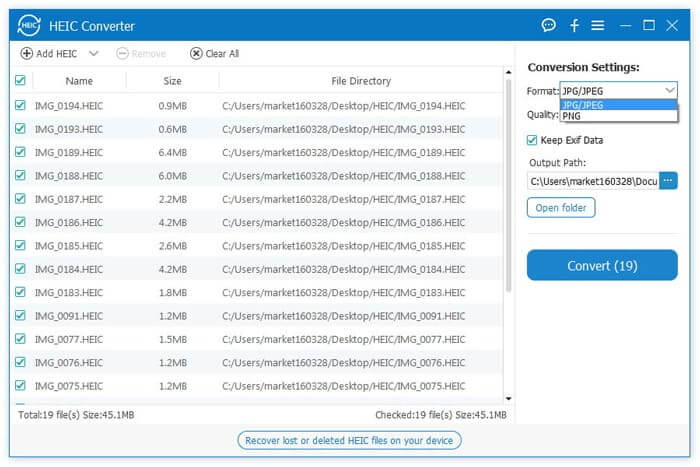
Step 3. Choose the HEIC photos you want to convert from the list. Before conversion, you can customize the output format, image quality, whether to keep editing data, and the destination folder.
Step 4. Once all settings are configured, click the "Convert" button to start converting your HEIC images.
Although FoneLab HEIC Converter can handle basic HEIC conversion tasks, some users may need more efficient batch processing, a more stable conversion experience, and more flexible options. Therefore, Coolmuster HEIC Converter is a worthy alternative to consider. Coolmuster HEIC Converter is a dedicated HEIC conversion tool that helps users quickly convert HEIC images from iPhone and iPad to JPG format while maintaining high image quality.
The highlights of Coolmuster HEIC Converter:
Here is how to convert HEIC images to PNG/JPG with Coolmuster HEIC Converter:
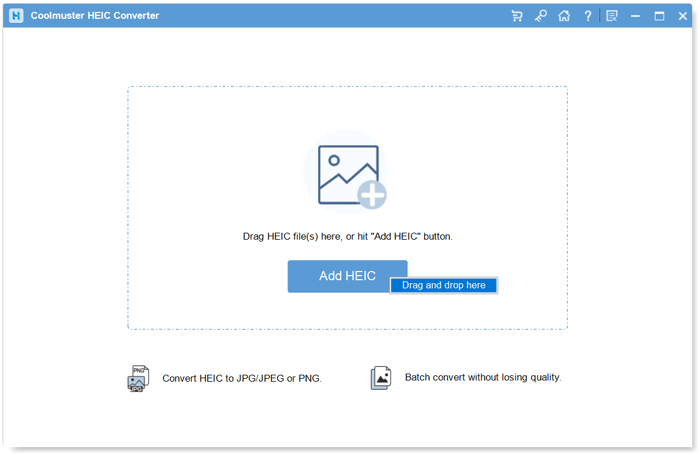
01Launch the software and add your HEIC photos by clicking the "Add HEIC" button. You can also drag and drop your images directly into the dotted area and select the "Drag and drop here" option.
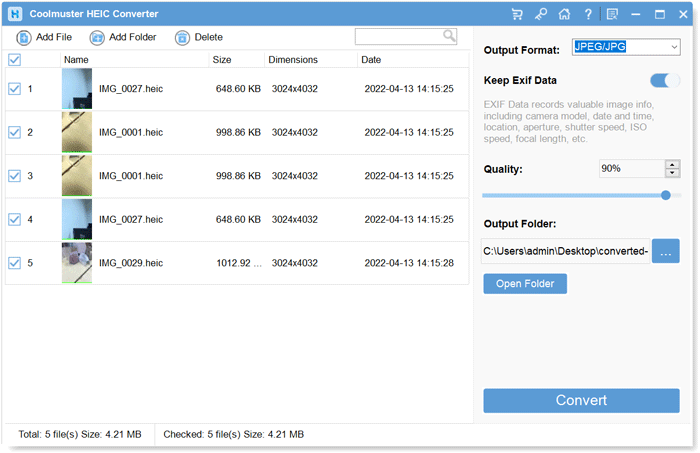
02Select the HEIC files you want to convert, choose "JPEG/JPG" or "PNG" as the output format, enable the "Keep Exif Data" option, and adjust the image quality settings if necessary.
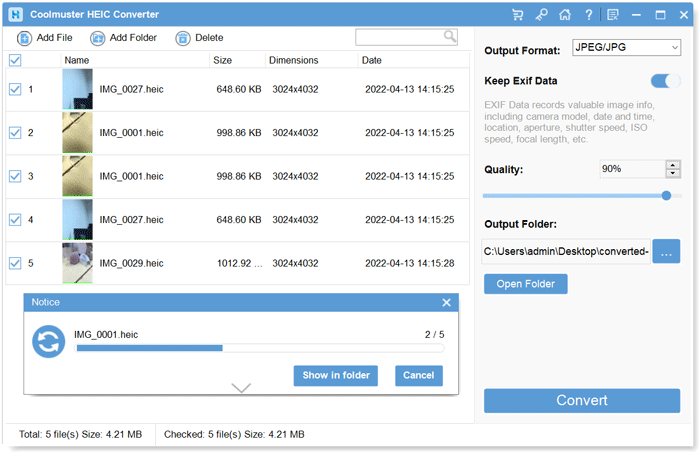
03Select a destination folder for the converted files, then click "Convert" to begin converting your HEIC images.
Video Tutorial:
Q1. Is FoneLab HEIC Converter safe to use?
Yes. Since the software performs conversion locally on your computer, your photos do not need to be uploaded to third-party servers.
Q2. Is FoneLab HEIC Converter free?
FoneLab HEIC Converter offers a free trial version, but some features may require purchasing a license. Users who frequently convert HEIC files may need the paid version.
Q3. Does FoneLab HEIC Converter reduce image quality?
FoneLab HEIC Converter allows users to adjust output quality settings. When configured properly, it can convert HEIC images while maintaining good image quality.
Q4. Can FoneLab HEIC Converter convert multiple HEIC files at once?
Yes. FoneLab HEIC Converter supports batch conversion, allowing users to process multiple HEIC images simultaneously instead of converting files one by one.
To conclude this FoneLab HEIC Converter review, the software is a solid choice for users who need a simple and reliable way to convert HEIC images to JPG or PNG. It offers batch conversion, image quality adjustment, and an easy-to-use interface, making it suitable for everyday HEIC conversion tasks. If you're looking for another option with similar functionality, Coolmuster HEIC Converter is also a worthwhile alternative to consider.
Related Articles:
Apowersoft HEIC Converter Review: Is It Worth Using in 2026?
HEIC to PNG Converter Review: 6 Best Online & Offline Picks





 Free Download for PC
  Free Download for Mac


